


Inspiring
October 13, 2024
Answered

contrast and saturation issue just in Photoshop (Color profile ICC)

  • October 13, 2024
  • 10 replies
  • 790 views

Hello, I have a problem with color reproduction. I work on Windows 11, I use the Eizo CG2420 monitor and ColorNavigator 7 for calibration. The ICC profile created is standard as usual and now I have a situation where a sample photo, no matter what, displays the same everywhere, i.e., in Lightroom it displays correctly, on the Internet, smartphone and even applications for opening photos as well as in Capture One. However, the photo uploaded to Photoshop is already desaturated and with lower contrast. Can I get help in this regard? or find out what is happening?

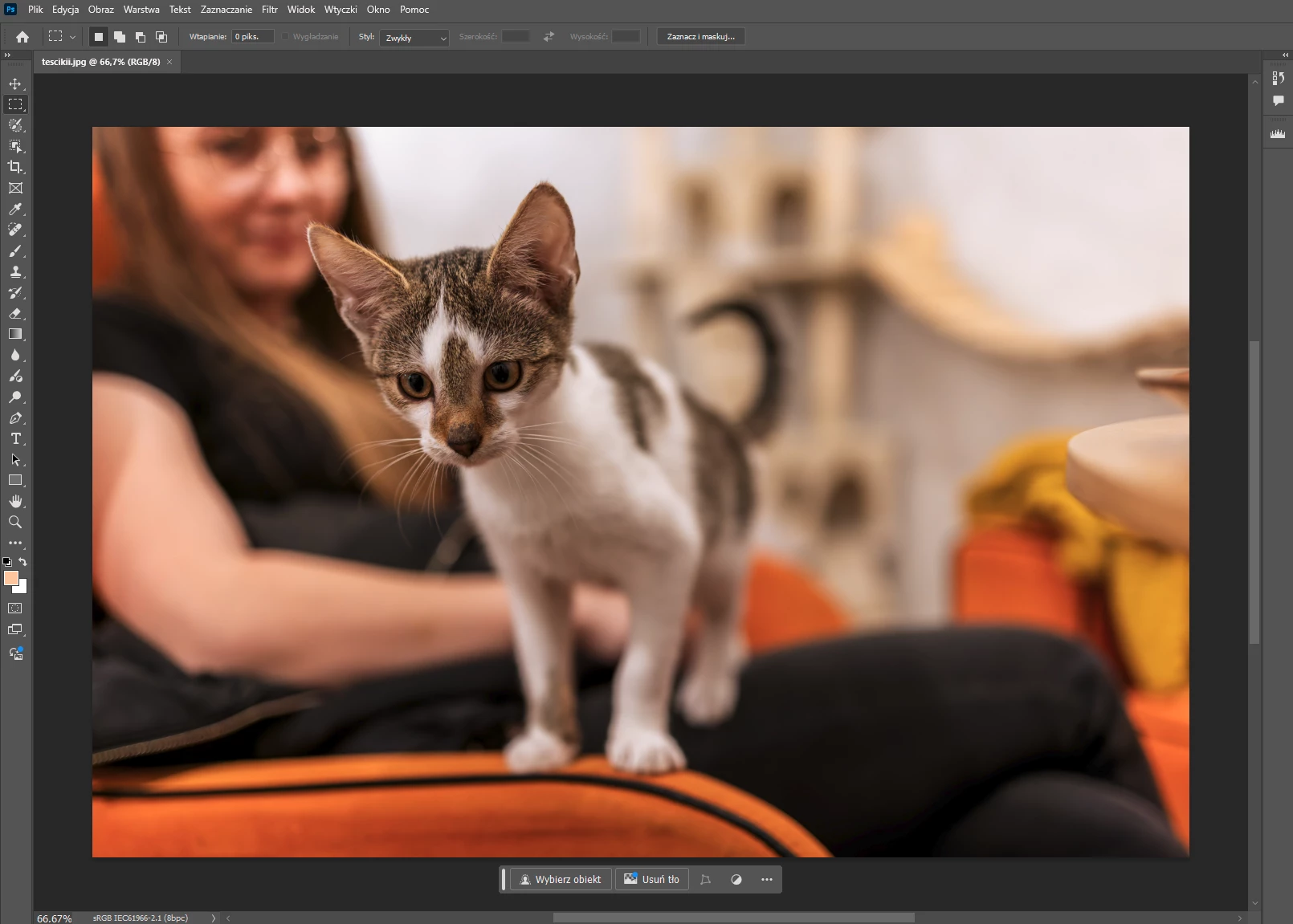
 

I don't know if it will be visible well, but for me it is visible to the naked eye as if there is less contrast and saturation in photoshop, everywhere else is more identical, lightroom displays well.

Thanks in advance for any help

This topic has been closed for replies.
Correct answer RK90K

Okay, I finally fixed it and will post the method here. Let me remind you that I work on Windows 11.

In ColorNavigator 7 preferences I set the following:


Target folder: C:\Windows\system32\spool\drivers\color
Version: 2.2
Tone curve: LUT (recommended)
Without checking the black level


Then create or rather prepare the ICC profile in ColorNavigator 7 (settings):


Brightness: 60cd/m2 (monitor brightness has nothing to do with it, so we choose according to preferences and the environment in which we work)
White point: D65
Gamma: 2.2
Gamut: Native
Version: 2.2
Tone curve: LUT
Without checking the black level


And now the most important thing, before creating the ICC profile we uninstall Photoshop, remove all Photoshop preferences (windows+R and enter command: appdata) we search and delete everything related to Photoshop. We also delete the rest of Photoshop files from (C:\Program Files\Adobe). Now we create an ICC profile in ColorNavigator 7 based on the above settings and only then install Photoshop again.

10 replies

RK90KAuthor
Inspiring
October 15, 2024

Of course I agree with you, I work on an Eizo CG2420 monitor which has its own built-in calibrator so everything is precise and the final calibration is practically perfect. However, when it comes to the matrix profile (tone curve), there was only one before on ColoNavigator 6 and Windows 10, which confused me a bit in the current version 7.2, and the instructions do not describe in detail how each of the individual profiles works and what they are used for. And I am still surprised that everything works correctly on every program because no matter how you look at it, the Windows system has big problems when it comes to color management, profiles often reset or do not load at all. I have never worked on a Mac, but my friends said that management is much easier there and there are no problems. And when it comes to Photoshop preferences, without uninstalling I only reset and deleted the preferences themselves and it did not help, so there could be something more. It was only when I completely deleted all files related to Photoshop and installed it again that it worked. And I will add that I previously uninstalled Photoshop and reinstalled it without deleting the remaining files and the problem remained after reinstallation, so it's quite strange because I've been working on Adobe software for many years and I've never had such a problem.


Nevertheless, thank you very much for your help and time, I really appreciate it.

D Fosse
Community Expert
Community Expert
October 15, 2024

OK, glad you got it sorted 🙂 Sounds like there may have been corrupt configurations in PS preferences.


I would still recommend a matrix profile (aka gamma EOTF) rather than a LUT profile, just to minimize potential problems. LUT profiles are supposedly more accurate, but also bigger and much more complex, and some applications may choke on them. They do not work at all in MacOS, for instance.


The presumed added accuracy is really not a realistic concern with an Eizo CG.  These monitors are so well behaved and well corrected that you basically just need to define the three primaries and the tone curve, which is what a matrix profile does.


But anyway - thanks for reporting back. As long as it works everything's well.

RK90KAuthorCorrect answer
Inspiring
October 15, 2024

Okay, I finally fixed it and will post the method here. Let me remind you that I work on Windows 11.

In ColorNavigator 7 preferences I set the following:


Target folder: C:\Windows\system32\spool\drivers\color
Version: 2.2
Tone curve: LUT (recommended)
Without checking the black level


Then create or rather prepare the ICC profile in ColorNavigator 7 (settings):


Brightness: 60cd/m2 (monitor brightness has nothing to do with it, so we choose according to preferences and the environment in which we work)
White point: D65
Gamma: 2.2
Gamut: Native
Version: 2.2
Tone curve: LUT
Without checking the black level


And now the most important thing, before creating the ICC profile we uninstall Photoshop, remove all Photoshop preferences (windows+R and enter command: appdata) we search and delete everything related to Photoshop. We also delete the rest of Photoshop files from (C:\Program Files\Adobe). Now we create an ICC profile in ColorNavigator 7 based on the above settings and only then install Photoshop again.

D Fosse
Community Expert
Community Expert
October 14, 2024
quote

Oh, and additionally, in the preferences I have to manually set the folder where the calibrated ICC profiles are to be loaded, because if I set the system folder like you do, I get the message: ICC profile error, profile settings could not be applied


By @RK90K


That's not normal. That sounds like a permissions problem in your user account. Do you have full administrator privileges? Where are you directing it to?


If the profile isn't where it's supposed to be, I can easily see that applications can't load it on startup.


Oh, and...60 cd/m² ? Are you really sure about that? That's really dark, in a normal environment you want somewhere around 100-120. The reference is paper white. Monitor white should be a visual match to paper white.

RK90KAuthor
Inspiring
October 14, 2024

So I think I did everything right, I changed my preferences, created a new profile and recalibrated my monitor. Despite all these changes the result is the same, here are my settings:

I will also add that in the Windows 11 options in the color management panel, an option such as "Automatically manage colors for applications" is enabled by default (I'm attaching a photo below). This option is enabled by default, however, when I disable it, the colors in all applications will match, i.e. Photoshop, Lightroom and Capture One, but in browsers the contrast and saturation will no longer be the same as before. So I assume that it should be enabled, although after re-calibration nothing changes and Photoshop continues to behave as with the previous calibration


Oh, and additionally, in the preferences I have to manually set the folder where the calibrated ICC profiles are to be loaded, because if I set the system folder like you do, I get the message: ICC profile error, profile settings could not be applied

RK90KAuthor
Inspiring
October 14, 2024

Okay, when I get back from work I'll try it. Generally I don't know if I forgot to add but Photoshop only displays these photos incorrectly but when I save them from Photoshop to the disk then the photo is with the correct contrast as from Lightroom and everywhere else. Thank you in general for your attention to my problem, I've been struggling with it for 5 days now, the difference is quite visible and it's hard to work with photos like that.

D Fosse
Community Expert
Community Expert
October 14, 2024

Just open Colornavigator preferences, make sure it's set as in my screenshot above, and make a new profile.


Don't do anything in Windows, except double-check in the Color Management > Devices tab that the correct profile is set as default for that monitor.


If you sill see a difference after this, update your Nvidia driver. The actual profile conversion is executed in the GPU, so a buggy driver could also cause this, although that happens more rarely. My guess is that you have a matrix profile. EDIT sorry, meant you probably have a LUT profile (that's the default).

RK90KAuthor
Inspiring
October 13, 2024

Can you also show me what settings you use for calibration? Because I made a profile but unfortunately nothing has changed

RK90KAuthor
Inspiring
October 13, 2024

I understand that I have to create a profile based on the same preferences? And apart from the profile itself, do I have to change something in Windows settings and color management? Or e.g. in the NVIDIA panel?

D Fosse
Community Expert
Community Expert
October 13, 2024

Make sure you have Colornavigator set to make matrix-based version 2 profiles, not LUT-based version 4. Some applications, under some circumstances, have problems with one or both of those specifications.


It looks like this in Colornavigator 7 preferences:

(Gamma (EOTF) is Colornavigator's designation for matrix profiles).


This applies to new profiles, so make a new profile if you change this.