ravis24269721
Participant
September 24, 2019
Question

Create Vintage / Ink Bleed / Grunge effect for all Vectors and Font

  • September 24, 2019
  • 9 replies
  • 86034 views

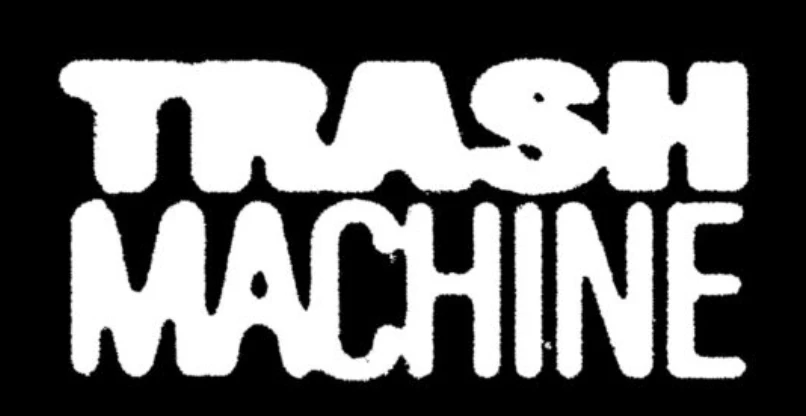
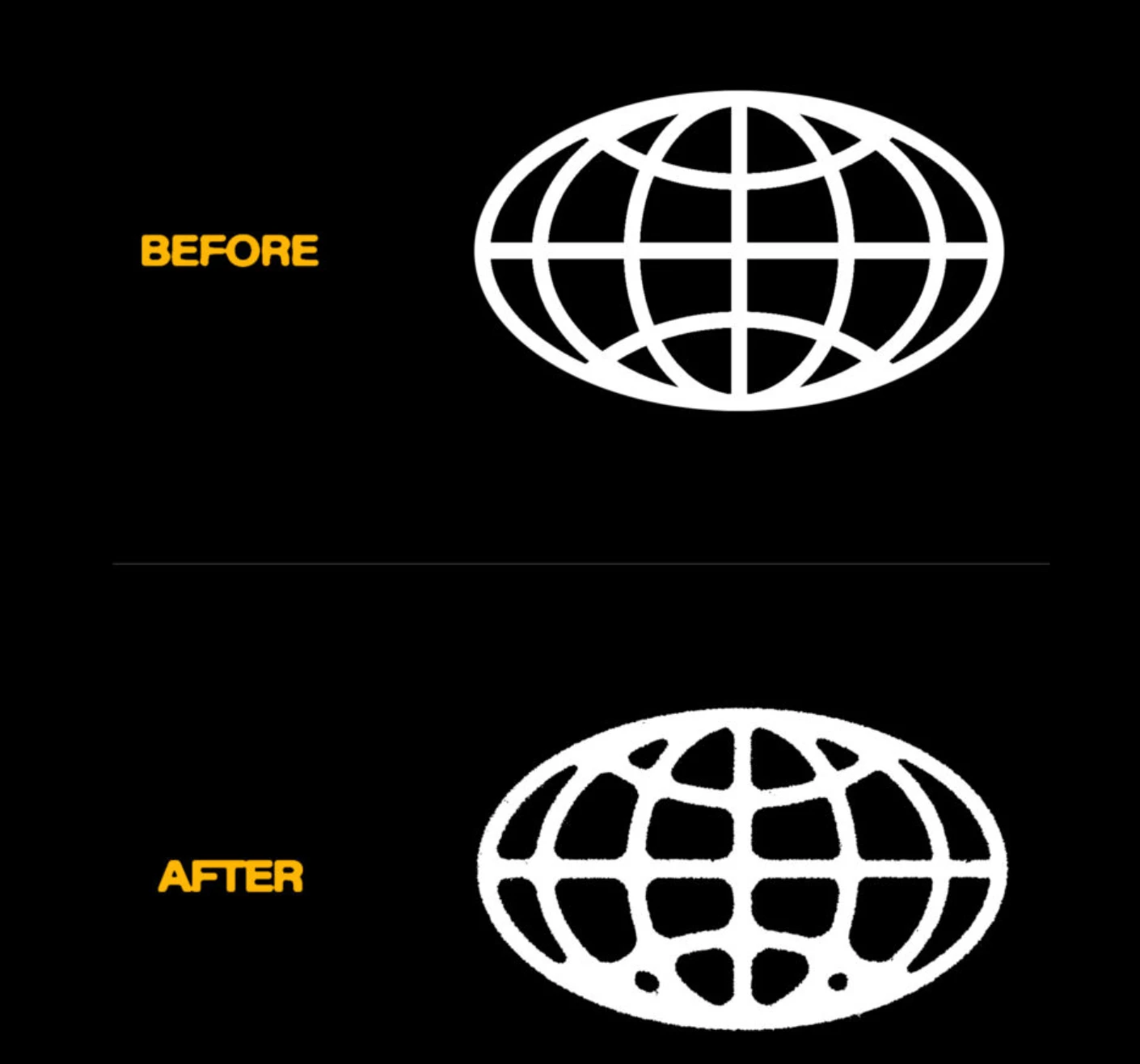
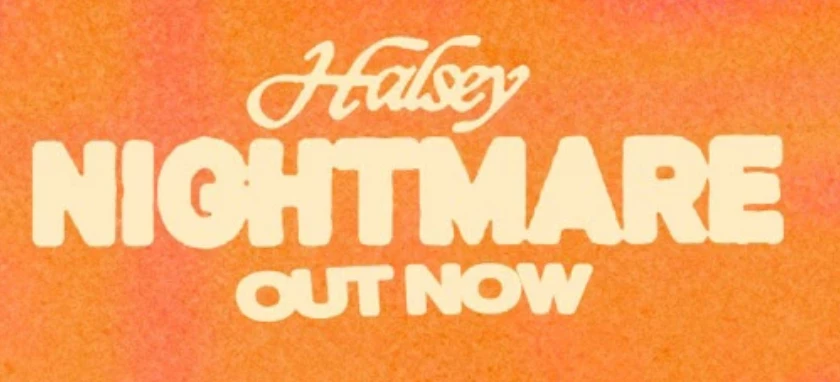
Hi adobe guys, I was wondering if you can help me, I am looking to add this texture / effect to any type of vectors and fonts, it has a sort of Vintage/ Ink bleed / grunge / ink stamp bleed sort of effect to any vector on photoshop / illustrator, I just don't know how to get it looking like this (please find images of font below), I would like to use this effect on a project I am working on, any advice would be gratefully appreciated and how to get any sort of vector file looking like the following below.

Thank you so much. Ravi


9 replies

Participant
January 17, 2023

SGOHH

Abambo
Community Expert
Community Expert
January 17, 2023

What's your question?

ABAMBO | Hard- and Software Engineer | Photographer
Participant
January 3, 2021

https://www.youtube.com/watch?app=desktop&v=y4JdOaw3SRI


THIS IS THE BEST AND MOST REALISTIC WAY TO ACHIEVE THIS

davescm
Community Expert
Community Expert
November 17, 2019

Hi
An alternative to consider which allows you to stay in Text /Vector shape is to add a layer style with a small stroke set to Dissolve Blend mode


Dave

c.pfaffenbichler
Community Expert
Community Expert
September 26, 2019

ravis24269721
Participant
September 26, 2019
Hey! right, let me try the Displace as a smart filter and I will show you if that's alright with you, thank you so much for your continuous help!
Participant
September 26, 2019

Did you figure it out?


im willing to split the pack off of blk market if you're down 

ravis24269721
Participant
September 26, 2019
Hey Hannah, thank you ever so much for your reply! I did figure it out! but the Hard mix option on the font can only happen to white text only, the graphic element of the Picture Fill won't work on any other colour, I think I may need to copy and paste the font above and save as clipping mask. I have figured out the Median and Minimum which works wonderfully. but there must be a way to change the colour of the font without the picture fill ruining with it's visuals. Splitting the pack off of blk market would be a dream! have you tired this vintage effect and how far have you reached? Ravi
Participant
September 26, 2019

Yeah it’s been tough for me id rather have the actions ready to go like the bulk market package. Lmk I'm down to buy and split 

c.pfaffenbichler
Community Expert
Community Expert
September 24, 2019

ravis24269721
Participant
September 26, 2019
That's epic, thanks for this, seriously. I didn't realise that the filters "other" would show smart filters median and minimum which works perfectly but the Picture fill only works on a white text / font and won't work with any other colour as the picture fill is visible in other colours with the Hard Mix, any suggestions? I will try however to copy and past the same wording at the top and save as clipping mask ontop of the picture fill, hopefully this would work. Thank you btw you let me discover new filters I didn't think to use.
c.pfaffenbichler
Community Expert
Community Expert
September 26, 2019
Sorry, I don’t quite follow concerning the colors-issue.
c.pfaffenbichler
Community Expert
Community Expert
September 24, 2019
Norman Sanders
Legend
September 24, 2019

Filter > Noise > Dust & Scratches...Radius 4 pixels Threshold 0 levels

Then choose Curves and move the highlight endpoint horizontally slightly to increase contrast


ravis24269721
Participant
September 26, 2019
Hi there Norman, I did try this but the curves didn't work for me, thanks for your reply though, Let me try again with the curves... Ravi
c.pfaffenbichler
Community Expert
Community Expert
September 24, 2019

Layer Styles, Smart Filters and Pattern Layers with Blend Modes can be used to distress originally sharp elements (like vector Smart Objects), but this is the Photoshop Forum, so if you are looking for final vector output this is not the ideal place/tool.