
Cristian Broggini
Participant
March 17, 2026
Question

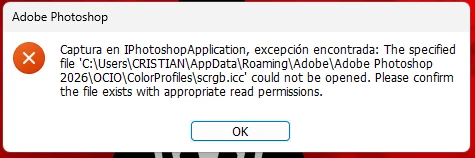
I´am having a problem with Photoshop, I can´t open it, this is the message it appears: C:/Users/Cristian/AppData/Roaming/Adobe/Adobe Photoshop 2026/OCIO/ColorProfiles/scrgb.icc could not be opened. What can I do to fix it?

  • March 17, 2026
  • 9 replies
  • 159 views


    9 replies

    axiomat...
    Participating Frequently
    March 25, 2026

    Having the same issue.

    @mj
    Community Expert
    Community Expert
    March 18, 2026

    That error message indicates that Photoshop is trying to load a specific OpenColorIO (OCIO) color profile on startup, but the file is either corrupted, missing, or locked due to a permissions glitch.


    Method 1: Force Photoshop to Rebuild the OCIO Folder

    The quickest fix is to rename the corrupted folder. When Photoshop launches and realizes the folder is "missing," it will automatically generate a fresh, uncorrupted version.

    1. Make sure Photoshop is completely closed.

    2. Press the Windows Key + R on your keyboard to open the Run command box.

    3. Copy and paste the following exact path into the box and press Enter: %appdata%\Adobe\Adobe Photoshop 2026\ (Note: Using %appdata% automatically bypasses the hidden folder settings in Windows and takes you straight to C:\Users\Cristian\AppData\Roaming\)

    4. In the folder that opens, look for the folder named OCIO.

    5. Right-click the OCIO folder, select Rename, and change the name to OCIO_old.

    6. Launch Photoshop.

    Method 2: Reset Photoshop Preferences

    If Method 1 doesn't work, the corruption might extend beyond just the color profile into your general settings file. Resetting the preferences will revert Photoshop to its default state.

    1. Ensure Photoshop is closed.

    2. Press and hold Alt + Control + Shift on your keyboard.

    3. While holding those three keys down, open Photoshop.

    4. A prompt will appear asking, "Delete the Adobe Photoshop Settings file?"

    5. Release the keys and click Yes.

    Method 3: Check Folder Permissions

    Sometimes, Windows updates or antivirus software can lock down the AppData folders, preventing Photoshop from reading its own files.

    1. Navigate back to %appdata%\Adobe\Adobe Photoshop 2026\ using the Run command (Windows Key + R).

    2. Right-click the Adobe Photoshop 2026 folder and select Properties.

    3. At the bottom of the General tab, look at the Attributes section. If "Read-only" has a black square or checkmark in it, click it until the box is completely empty.

    4. Click Apply.

    5. A window will pop up asking to confirm attribute changes. Select Apply changes to this folder, subfolders and files and click OK.

    6. Try launching Photoshop again.

    Method 4: Repair via Creative Cloud

    If the core installation itself has become damaged, regenerating the preference files won't be enough.

    1. Open the Adobe Creative Cloud desktop application.

    2. Go to your list of installed apps and find Photoshop.

    3. Click the three horizontal dots (More actions) next to Open.

    4. Select Uninstall.

    5. Important: When prompted, choose to Remove the app preferences to ensure a completely clean slate.

    6. Once uninstalled, click Install to download a fresh copy.

    Known Participant
    March 17, 2026

    Error message during opening (open as ocio) an exr file with ocio config different to default one.
    Why PS is trying to create ICC profile? Is ocio mode psd file still dependent on ICC system?


    Marcin Piotrowski
    Known Participant
    March 17, 2026

    When using ocio configs different than default - what interchange roles do I need?   aces_interchangecie_xyz_d65_interchange? both?

    please see the attached error message:


    Marcin Piotrowski
    davescm
    Community Expert
    Community Expert
    March 17, 2026

    Have you followed that path in Windows explorer and, if the file is there, right click it and choose properties. Under the Security tab ensure that the scrgb.icc file has all permissions (except special permissions) set to ‘allow’.
    If the file is not there, I would uninstall and re-install Photoshop 2026.

    Dave

    Known Participant
    March 18, 2026

    I think something went quite wrong here - I posted two separate questions and somehow those ended up as answers in this topic. Can somebody please fix this?

    Marcin Piotrowski
    Legend
    March 16, 2026

    My early research found no solution, but suggestions of corruption (solution offered: “The most complete and reliable way to reset preferences is to move the whole "Adobe Photoshop 2026 Settings" folder to your desktop, so a fresh one can be built on next launch. Save out your custom actions and brushes first, so they can be reloaded”) or investigate folder permissions.


    Let’s wait to see what the more experienced community folk have to say.


    You might consider upgrading to Ps 2026.

    Larry
    Professional_Ant609
    Participant
    March 16, 2026

    I had Photoshop 2024 and it suddenly wouldn’t let me export any files; I tried restarting my computer many times but with no dice. I then tried updating the app to the latest version thinking that would help but instead Photoshop would crash and close itself. I tried restarting my computer again, but it didn't work. Lastly, I tried uninstalling and reinstalling it but now it won’t even open and gives me this message: 

    I’m not sure what this means, if I could get some help, I would be really grateful. 


    Here is my system info:


    D Fosse
    Community Expert
    Community Expert
    March 15, 2026

    That's either corrupt preferences, or a permissions issue in your Windows user account (which is where PS preferences are stored).


    The most complete and reliable way to reset preferences is to move the whole "Adobe Photoshop 2026 Settings" folder to your desktop, so a fresh one can be built on next launch. Save out your custom actions and brushes first, so they can be reloaded.

    axiomat...
    Participating Frequently
    March 25, 2026

    Any details as to where exactly that folder is located?

    D Fosse
    Community Expert
    Community Expert
    March 25, 2026

    It’s in your Windows user account:


    default8tlwt18brwi3
    Participant
    March 15, 2026
    The file exists in said folder. I’m not sure what I should do...