


damianlphotography
Participant
February 20, 2023
Answered

Problem with plugins

  • February 20, 2023
  • 2 replies
  • 1969 views

Hello all.


I just install adobe cloud and phoptoshop but there is some problem with plugins.

I cannot install any plugin from market place (error -18 - it is login error but i am logged in) or from hardrive. 

I noticed that my plugin manager page cannot load it fully as looks like below.
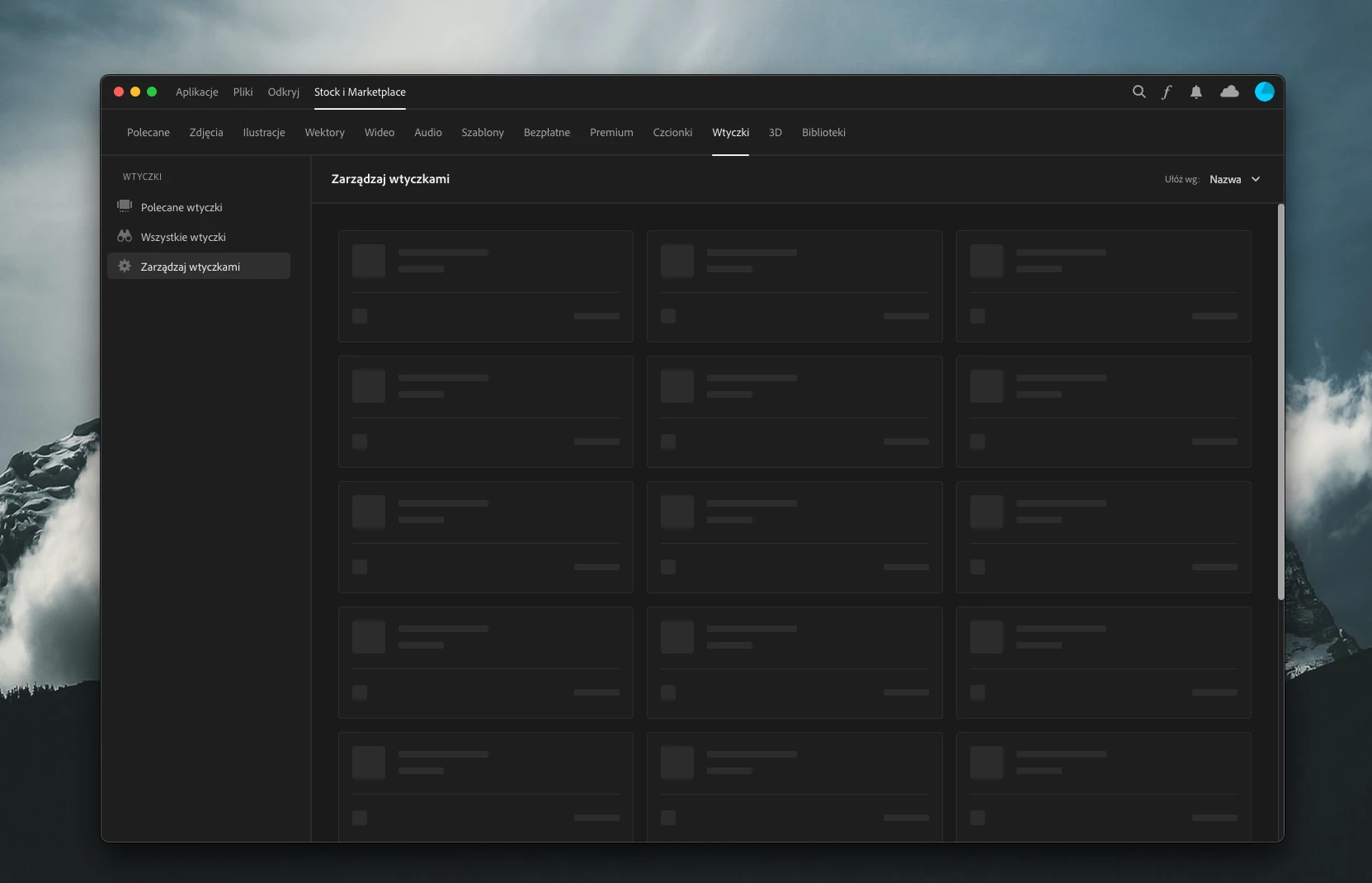
 

Is it some problems with ssd permission?

I am using MAC M1. It is fresh install of adobe apps. I reinstalled adobe cloud but nothing change.

I looked for fix in hours but i just give up 🙂

Help

Thank you


This topic has been closed for replies.
Correct answer Niesha Arya

It seems creative cloud is unable to connect to adobe servers. And one of the reason could be permission issue. Please try below steps:

1. Please close all adobe apps including creative cloud. Quit all services from Activity monitor.
Open system preferences and Go to: Security and privacy >privacy >full disk access>unlock it. Unlock button is on bottom left once it is unlocked click the + sign and browse to creative cloud and add it and check Creative cloud app. Do the same under accessibility tab.

2. open finder - at the top menu bar click go > go to folder and type /library
then browse to application support > right clck adobe folder > get info > unlock and add read and write permission.

3. open finder - at the top menu bar click go > go to folder and type ~/library
then browse to application support > right clck adobe folder > get info > unlock and add read and write permission.


restart mac and then test.


2 replies

Niesha Arya
Adobe Employee
Niesha AryaCorrect answer
Adobe Employee
February 21, 2023

It seems creative cloud is unable to connect to adobe servers. And one of the reason could be permission issue. Please try below steps:

1. Please close all adobe apps including creative cloud. Quit all services from Activity monitor.
Open system preferences and Go to: Security and privacy >privacy >full disk access>unlock it. Unlock button is on bottom left once it is unlocked click the + sign and browse to creative cloud and add it and check Creative cloud app. Do the same under accessibility tab.

2. open finder - at the top menu bar click go > go to folder and type /library
then browse to application support > right clck adobe folder > get info > unlock and add read and write permission.

3. open finder - at the top menu bar click go > go to folder and type ~/library
then browse to application support > right clck adobe folder > get info > unlock and add read and write permission.


restart mac and then test.


Participant
September 17, 2023

downvote V... Photoshop has lost me this time and I won't be back.

Sameer K
Community Manager
Community Manager
February 21, 2023

Welcome to the Photoshop Community. I'll help you figure this out. I've checked your Adobe account & it looks normal subscription-wise.


Try these steps:


If this does not help, check if you're able to sign in to this page in the browser: https://exchange.adobe.com/apps/browse/cc?product=All&sort=MOST_RECENT


Let me know how it goes. Thanks!
Sameer K

damianlphotography
Participant
February 21, 2023

Hi and thanks but...

problem solved by your colleague via remote desktop. It turned out that you also need to give full access to adobe directories / folders  (not only in the full disk access options). But he himself will explain it best.

Thanks

damianlphotography
Participant
February 21, 2023

Sorry, or She 🙂 I cannot tell by name 🙂