

Participant
December 18, 2016
質問

Trying to distort a cubemap to look like a sphere but having no idea how.

  • December 18, 2016
  • 返信数 2.
  • 3922 ビュー

Basicly im trying to distort this image
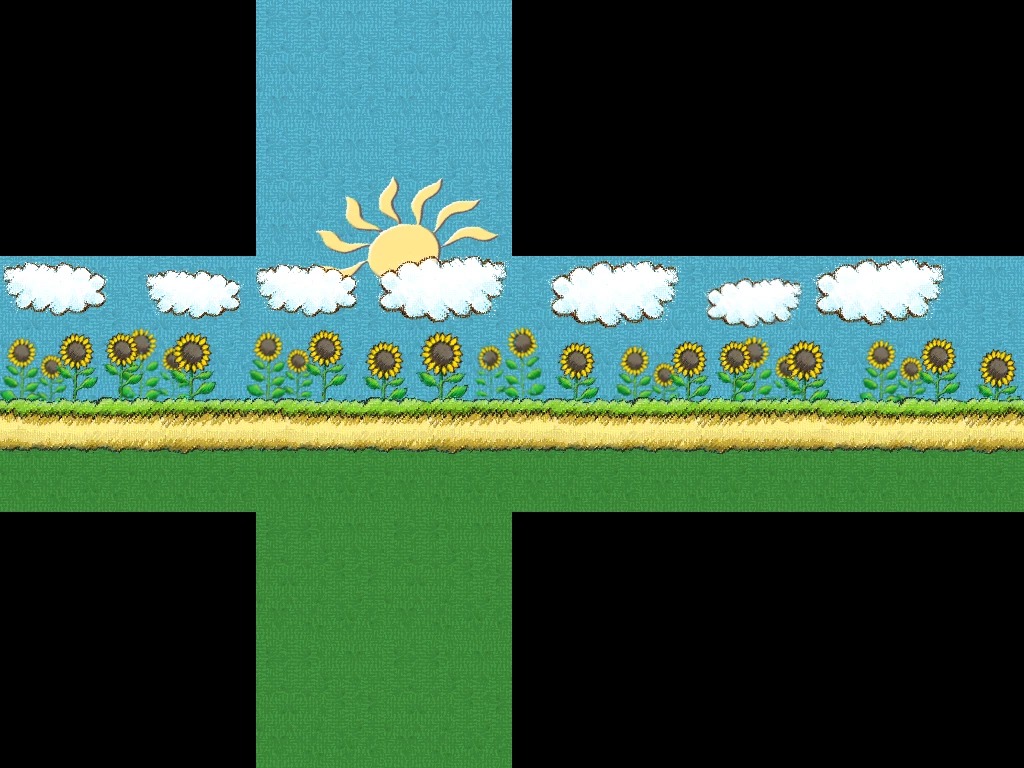
To look more like this image
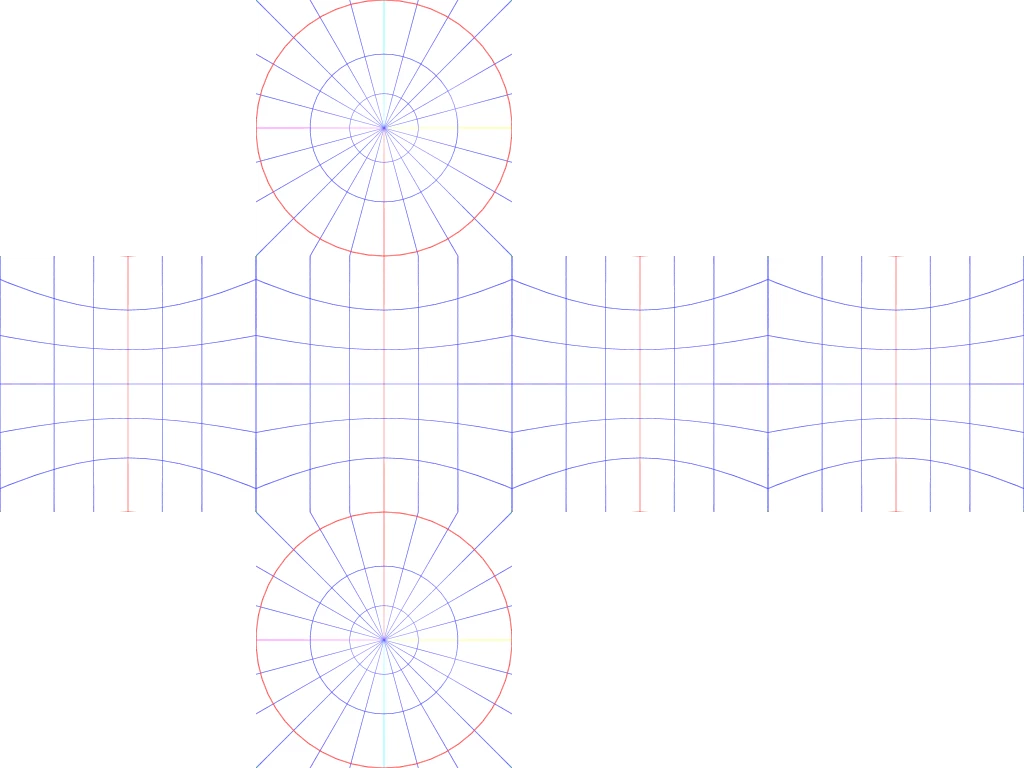
This is how the source engine handles skyboxes and there is no other way i would be able to do it

    このトピックへの返信は締め切られました。

    返信数 2

    Trevor.Dennis
    Community Expert
    Community Expert
    December 18, 2016

    LOL, and I was pleased with my answer, because I haven't been using Photoshop 3D long.  In fact I meant to dedicate my answer to davescm who talked me into making the effort.

    OK, so to answer your question more directly, you need to remove the black corner cutouts, which I am guessing were only there for the sake of your screen shot.

    Overlay your guide, and set it to Multiply and can use it when you Transform the texture.

    Select just one of the sides, and Free Transform > right click and choose Warp.

    Move the handles using your overlay as a guide.

    Repeat for the other two square sides.

    Now I am rethinking this.  You need to move the top and bottom sides with the circular overlay, each to a new layer, and repeat the Transform > Warp on square side left behind.

    Select the round central area, invert the selection and delete it leaving the circles.

    I have a feeling there are alternate workflows here, but what I did is make the top and bottom sections into Smart Objects. That lets us double click to open in a new window, the centre of which will be the centre of the layer, and not offset as it would be in the master document.  This so that Spherize works properly.

    You'll need to add some Canvas size to give the objects room to expand into.  I used 50 pixels, but this value is critical as it will affect how Spherize works.  With the canvas expanded, go Filter > Distort > Spherize.  If the value you use is not right, the SO will let you repeat without quality loss.  I don't know what your final result needs to be.

    I hope this is more what you wanted.  I can see that if this to be cut out and pasted to a ball, you'd need to do something like this, but there is an obvious issue — unless you have stretchy paper.

    Trevor.Dennis
    Community Expert
    Community Expert
    December 18, 2016

    Open the 3D workspace

    Make a new document with square sides.  Say 1000 x 1000 pixels

    From the 3D menu chose Mesh from Preset, and chose Sphere from the drop down.

    Now you need to make your box texture the same size. (1000 pixels square) and fill in the corners with Content Aware Fill.

    In the 3D panel click on Sphere material, and in the Properties panel click on the drop down next to Diffuse, and chose Replace Texture.  Replace it with you now square texture. Job done.

    TwashMan作成者
    Participant
    December 18, 2016

    Not in any way what i asked for but thanks anyways

    Semaphoric
    Community Expert
    Community Expert
    December 18, 2016

    You might be able to do this with Faling Pear's Flexify plugin - Flexify 2 Photoshop plug-in for panoramas, polyhedra, and maps - Flaming Pear Software