このトピックへの返信は締め切られました。
解決に役立った回答 jane-e

Hi @defaultu90rc28vgqgh 

The second of these two answers is the one you should try first:

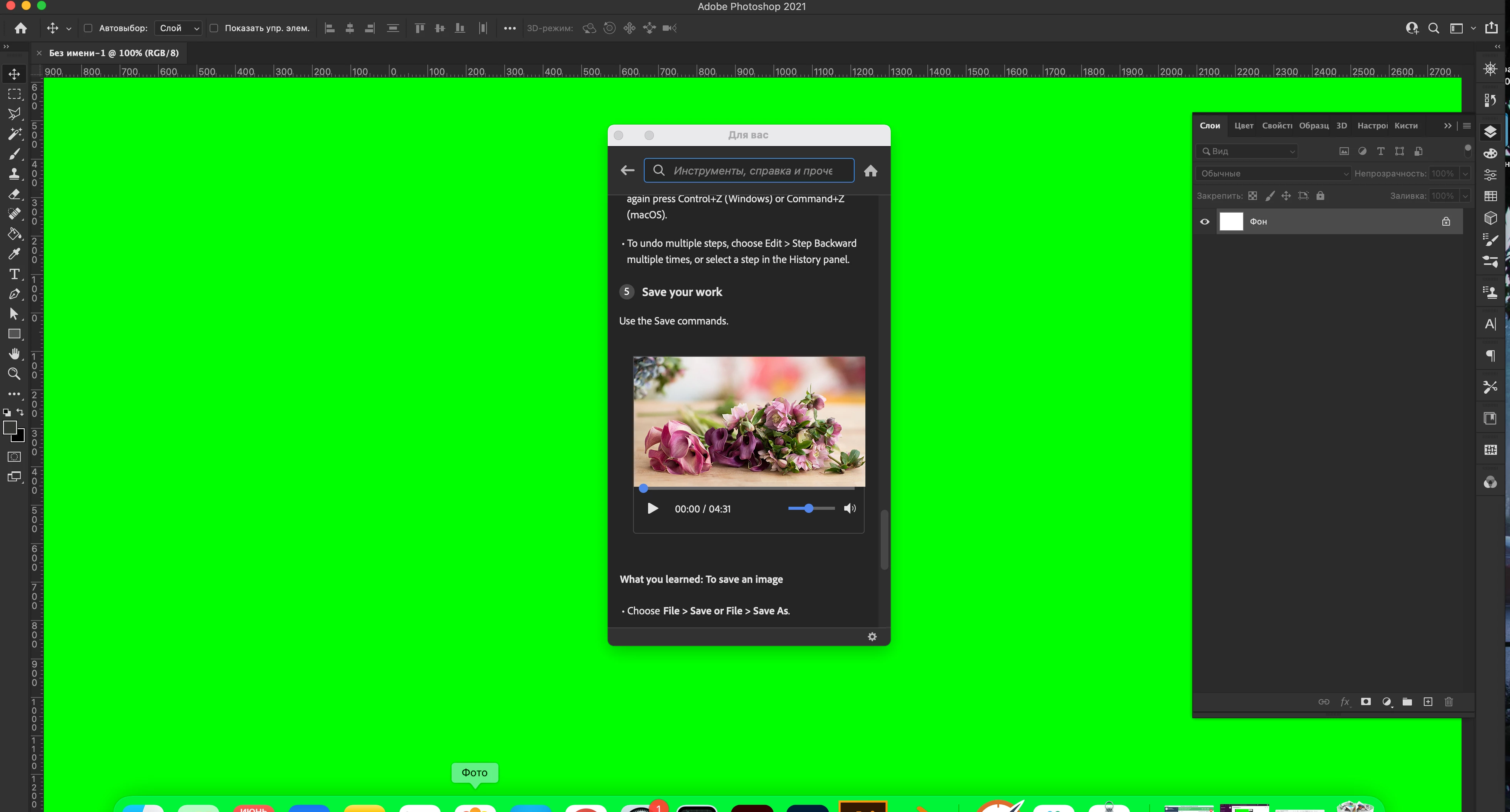
Go to Preferences > Technology Previews > check Deactivate Native Canvas > OK, then close and restart Photoshop.


~ Jane


返信数 3

jane-e
Community Expert
jane-eCommunity Expert解決!
Community Expert
June 15, 2021

Hi @defaultu90rc28vgqgh 

The second of these two answers is the one you should try first:

Go to Preferences > Technology Previews > check Deactivate Native Canvas > OK, then close and restart Photoshop.


~ Jane


Participant
June 16, 2021

It opens in a correct way. Thanks. How does this setting affect Photoshop operation?

jane-e
Community Expert
Community Expert
June 16, 2021

Hi @defaultu90rc28vgqgh 


I'm copying this from ACP @davescm , who has said it well:


"Adobe is updating the core graphics functions in Photoshop. This is driven by the operating systems of Apple and Microsoft in which the old Open GL functions are being removed in the case of Apple, or deprecated in the case of Microsoft. This means that the graphics functions that have worked for years must be rewritten to use Metal and Direct X. At the same time, Adobe is sensibly updating those core functions to deliver the additional speed we require to handle the very large files of today.


"Deactivate Native Canvas forces the GPU to use the older GPU functions. After any GPU driver update, which could be delivered via your operating system, or after updating Photoshop, uncheck it and try the new functions again.


"Note though that some older functionality in Photoshop, such as 3D and Lighting effects, still relies on the older Open GL graphics and so also need Deactivate Native Canvas to be checked ."


https://community.adobe.com/t5/photoshop/file-opening-error-screen-is-all-bright-green/m-p/12116825#M554067

thatsmauri
Community Expert
Community Expert
June 15, 2021

Hi there,

what device and macOS version do you have? Is your device running on Apple's M1 chip?

Could you please try the following possible solution - taken from this thread - and let us know if that worked?

quote

if you go into Preferences > Technology Preview and check 'Deactivate Native Canvas', then restart Photoshop, does the problem still happen?


Kind Regards,
Maurice

Participant
June 15, 2021

Version 11.4. macOS Big Sur

AxelMatt
Community Expert
Community Expert
June 15, 2021

In a first step please deactivate the GPU support in the Photoshop preferences on the Performance section:

https://helpx.adobe.com/photoshop/kb/troubleshoot-gpu-graphics-card.html#GPUandgraphicsdrivertroubleshootingsteps

In the linked document you'll find another steps you can check if they help to solve the problem.


Another try is to reset the Photoshop preferences to the default settings:

https://helpx.adobe.com/photoshop/using/preferences.html#reset_preferences


My System: Intel i7-8700K - 64GB RAM - NVidia Geforce RTX 3060 - Windows 11 Pro 25H2 -- LR-Classic 15 - Photoshop 27 - Nik Collection 8 - PureRAW 6 - Topaz Photo AI