Shouldn't the Copyright info URL be displayed also under IPTC?
exporting jpegs and everything is filled out correctly or there another setting somewhere that strips it?
thank you
Correct answer Conrad_C
OK. I ran some tests, and here’s the short version:
If you’re using Export As, and you select Copyright and Contact info, the Copyright Info URL is included. The problem is, not all software displays it. But it’s definitely is embedded in the image, so you can see if it you use the right software. When I test it, many applications do display Copyright Info URL…but Apple Preview does not. And in some other applications, Copyright Info URL is not easily visible even though you can get to it, or it might be under a different name.
Here is the long version that explains that…
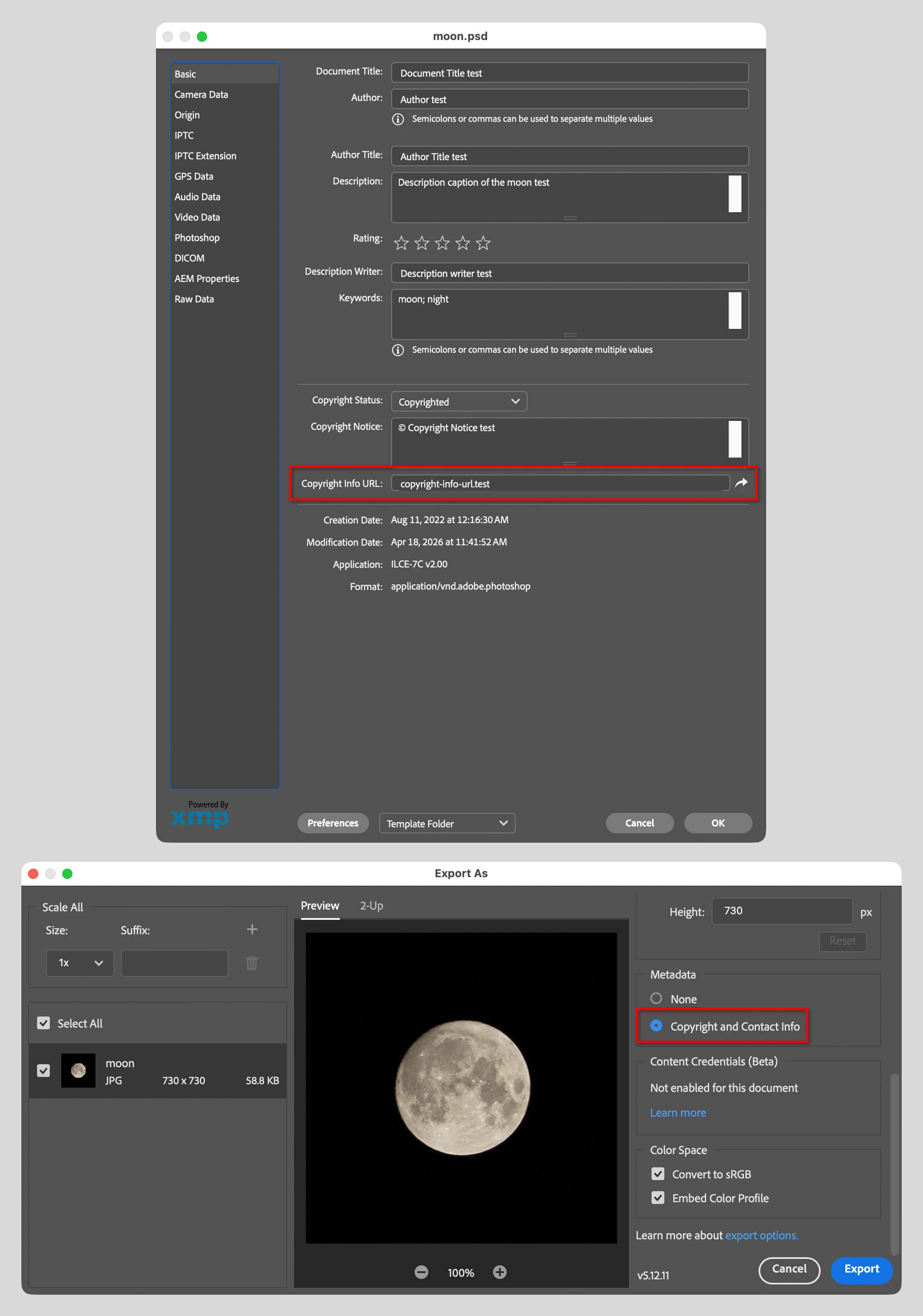
The first question to answer is, does Export As include the Copyright Info URL? The answer is yes, if you selected Copyright and Contact Info. To test this, I added test Copyright Info URL data to a Photoshop file, and exported it to JPEG using Export As with Copyright and Contact Info selected. Below is a picture of what I entered in Photoshop and how I exported it:
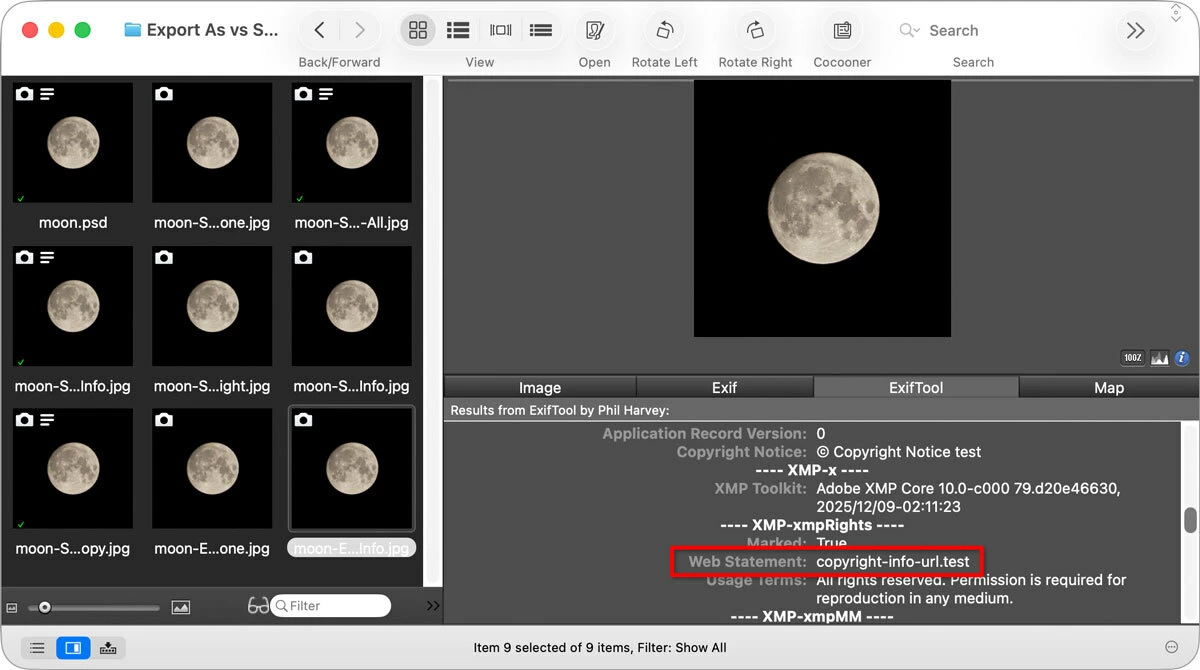
After exporting, I checked the exported JPEG file in several Mac applications. Which ones show the Copyright Info URL? I included good old GraphicConverter to show it working in another non-Adobe application.
Software
Copyright Info URL shown?
Where?
Apple Preview
No
-
Adobe Photoshop
Yes
File Info, IPTC tab or Raw Data tab.
Adobe Bridge
Yes
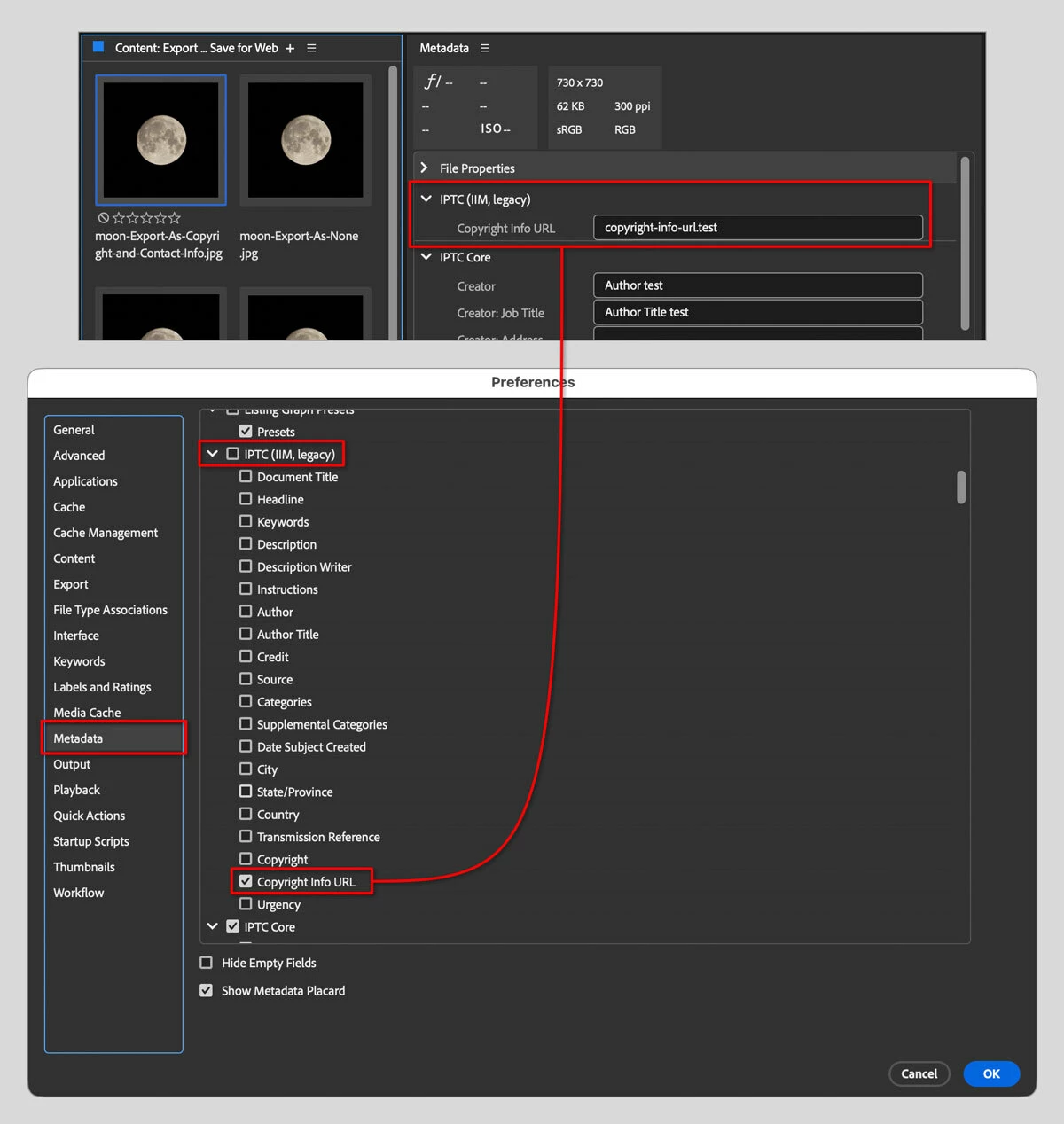
File Info, IPTC tab under “IPTC (IIM, legacy)”. Also in Raw Data tab. Metadata panel also shows it if Copyright Info URL is enabled in Preferences, Metadata.
Adobe Lightroom Classic
Yes
Metadata panel, under IPTC
GraphicConverter
Yes
Info panel, ExifTool tab, XMP-xmpRights section, field name “Web Statement”
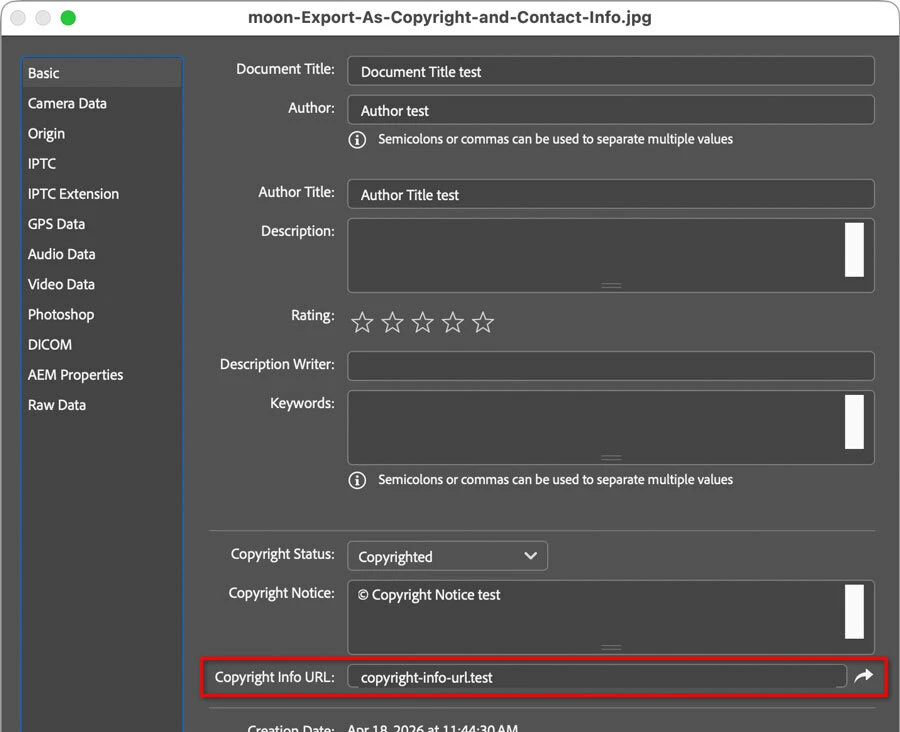
Exported JPEG opened in Photoshop, then File Info is opened:
Yes, Copyright Info URL is there.
Bridge Metadata panel:
Yes, Copyright Info URL is there, if that field is enabled in Preferences.
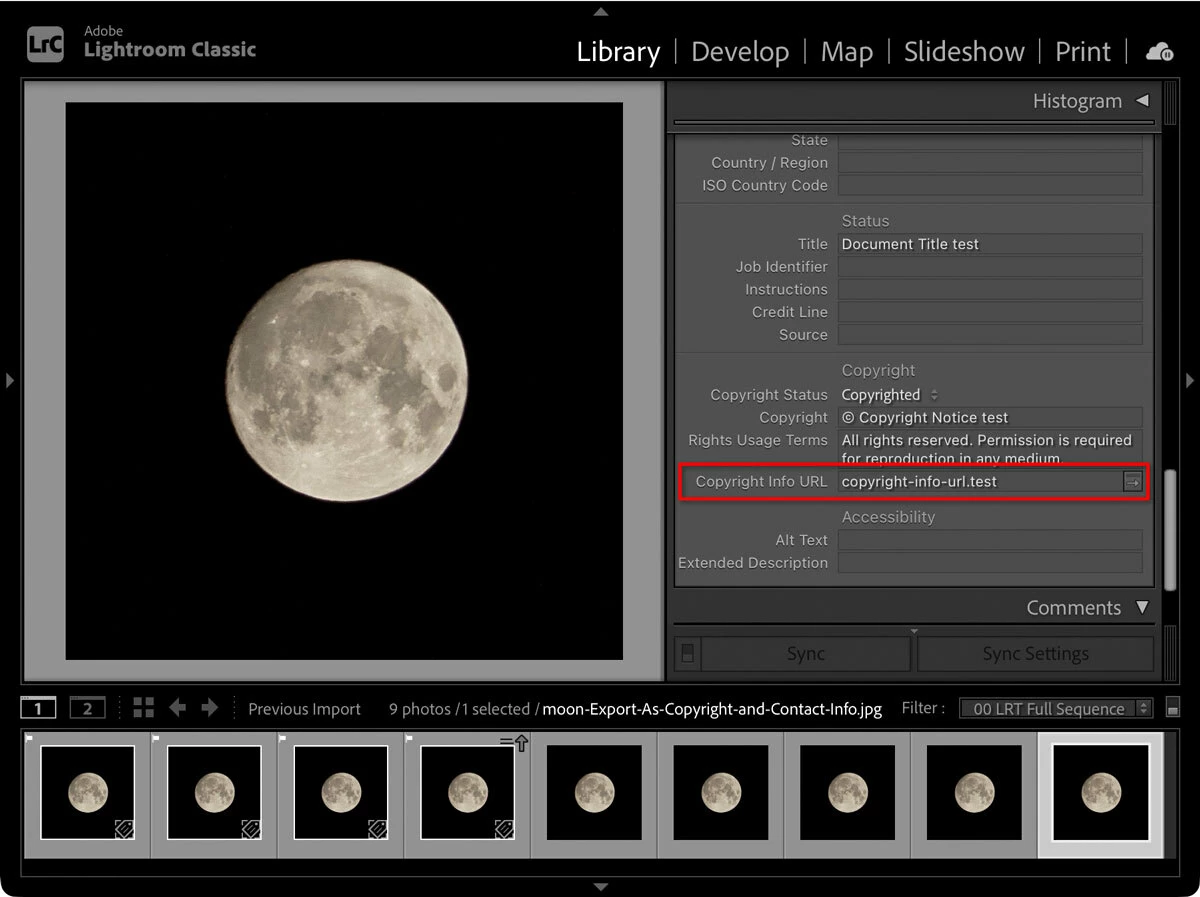
Lightroom Classic Metadata panel:
Yes, Copyright Info URL is there.
GraphicConverter Info panel:
Yes, Copyright Info URL is there, in the ExifTool tab.
However, notice that the field name is actually Web Statement. That’s probably because the IPTC standard also refers to this URL as the “Web Statement of Rights”. The lesson there is that the field you are looking for might be under a different name depending on which software you use.
So the problem is, Apple Preview doesn't seem to provide a way to view that field, so you should check Copyright Info URL in an application with better support for metadata display.
Limitations: many web hosting & social media platforms like Facebook, strip out metadata from uploaded images, removing all ownership information. 🫤
Windows/Microsoft Image Viewer displays no copyright or ownership metadata. Just the file name, date & time created, description, date modified, file source & path on this PC.
On Google Images, users can see "Image Credits" by clicking the link or the vertical ellipsis on mobile.
Nancy’s reply adds another useful dimension to the answer.
The reply I just posted, with all the screen shots, shows that yes, Copyright Info URL is in fact included when you use Export As with Copyright and Contact Info selected. But I also show that you may or may not see it later depending on whether the software you use shows the Copyright Info URL/Web Statement field.
What Nancy added is that, beyond that, whether or not someone else sees your Copyright Info URL depends on whether their software, web site, or social media platform strips or displays the Copyright Info URL/Web Statement field.
So even though Copyright Info URL is properly included by Photoshop in Export As, there are many reasons why that might not be seen in other places…and most of the reasons are things you cannot control.
OK. I ran some tests, and here’s the short version:
If you’re using Export As, and you select Copyright and Contact info, the Copyright Info URL is included. The problem is, not all software displays it. But it’s definitely is embedded in the image, so you can see if it you use the right software. When I test it, many applications do display Copyright Info URL…but Apple Preview does not. And in some other applications, Copyright Info URL is not easily visible even though you can get to it, or it might be under a different name.
Here is the long version that explains that…
The first question to answer is, does Export As include the Copyright Info URL? The answer is yes, if you selected Copyright and Contact Info. To test this, I added test Copyright Info URL data to a Photoshop file, and exported it to JPEG using Export As with Copyright and Contact Info selected. Below is a picture of what I entered in Photoshop and how I exported it:
After exporting, I checked the exported JPEG file in several Mac applications. Which ones show the Copyright Info URL? I included good old GraphicConverter to show it working in another non-Adobe application.
Software
Copyright Info URL shown?
Where?
Apple Preview
No
-
Adobe Photoshop
Yes
File Info, IPTC tab or Raw Data tab.
Adobe Bridge
Yes
File Info, IPTC tab under “IPTC (IIM, legacy)”. Also in Raw Data tab. Metadata panel also shows it if Copyright Info URL is enabled in Preferences, Metadata.
Adobe Lightroom Classic
Yes
Metadata panel, under IPTC
GraphicConverter
Yes
Info panel, ExifTool tab, XMP-xmpRights section, field name “Web Statement”
Exported JPEG opened in Photoshop, then File Info is opened:
Yes, Copyright Info URL is there.
Bridge Metadata panel:
Yes, Copyright Info URL is there, if that field is enabled in Preferences.
Lightroom Classic Metadata panel:
Yes, Copyright Info URL is there.
GraphicConverter Info panel:
Yes, Copyright Info URL is there, in the ExifTool tab.
However, notice that the field name is actually Web Statement. That’s probably because the IPTC standard also refers to this URL as the “Web Statement of Rights”. The lesson there is that the field you are looking for might be under a different name depending on which software you use.
So the problem is, Apple Preview doesn't seem to provide a way to view that field, so you should check Copyright Info URL in an application with better support for metadata display.
Thank you so much for your detailed response and information. I just assumed that if I completed required fields it would have a blanketed effect on all media.
Really though … how different should any of this be lol. At the end of the day if I tick all the right boxes it should all be the same regardless of export nuance right?
We’re not sure what you’re looking and and where, so you’ll probably get a better answer if you can be more specific about the workflow:
Which method was used to export the images? (Save a Copy, Save for Web, Export As, Image Processor, Generator Plugins, Layers to Files, or something else, because Photoshop has so many different ways to export images…)
If there were metadata settings in the method you used, what were they set to? (All, Copyright and Contact Info, or it didn’t have options, etc.)
What software is being used to view the metadata in the exported files?



 AdChoices