


Participating Frequently
November 15, 2024
Answered

Greyed Out Ripple Delete in Trancript Window

  • November 15, 2024
  • 1 reply
  • 2761 views

Hey all,


I upgraded to Pro from Elements to utilize text-based editing. I was able to use it for 3 or 4 videos but now the options to edit the transcript are greyed out.
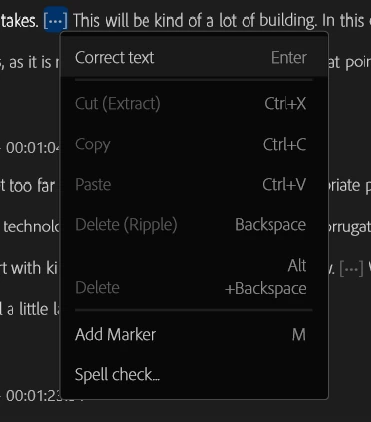
I've tried recreating the entire project, reinstalling Pro (deleting all preferences), and pouring over other forum posts to no avail. I know I'm missing something but I can't figure it out for the life of me.


Any suggestions are welcome 🙂

This topic has been closed for replies.
Correct answer PaulMurphy

That makes sense! However, when I hit the Generate Text-Based Editing Transcript option, it loads for a few seconds and then doesn't do anything (see attached image). Now I can only generate the static one again.


The "Generate Static Transcript" option appears because you’re viewing the transcript from the Program Monitor.

Text-based editing is only available when working with a transcript generated from a clip in the Source Monitor.

To create a text-based editing transcript, load the clip into the Source Monitor, go to the Text Panel, and select Transcribe.


For more information, see Adobe’s guide on Text-Based Editing.

1 reply

Community Expert
November 15, 2024

The Ripple Delete option is most likely grayed out because you have the Source Monitor selected. Switch to the Timeline panel, and the option should become available.

Participating Frequently
November 15, 2024

Are you referring to the blue lines that highlight the panel I'm currently working in? That changes to the transcript panel when I click into it automatically. Is there a way to force it to remain on the Timeline Panel?

Community Expert
November 16, 2024

In the bottom left of the Text panel, tick Follow active monitor. Then, click the Timeline to highlight it, and return to the Text panel.