


- Home
- After Effects
- Discussions
- AE CC 2017 - crashes upon rendering
- AE CC 2017 - crashes upon rendering
AE CC 2017 - crashes upon rendering

Copy link to clipboard
Copied
Hi all,
First time posting, I hope I give enough start info to assist with an answer.
I have an iMac, here is a screenshot of the system:
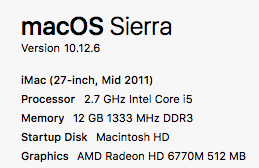
I am running AE CC 2017, version as below image:
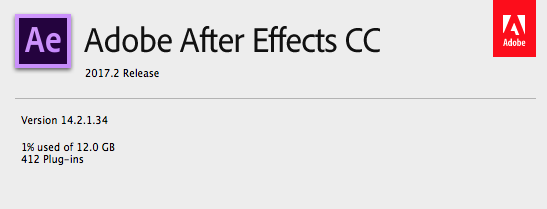
I have recently upgraded, where I was using a version of CC 2015 which was able to render any effects I had put through it.
I have recently purchased and installed the Video CoPILOT Element 3D V2.2 to work with a template AE file from Videohive:
https://videohive.net/item/golden-pearl-logo/20005865?s_rank=1
Here are my AE preference settings that may be relevant:
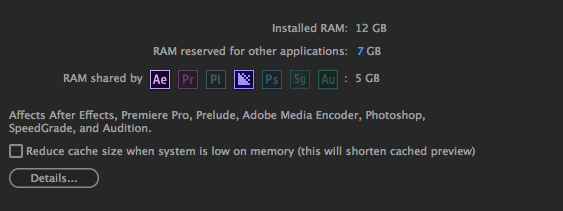
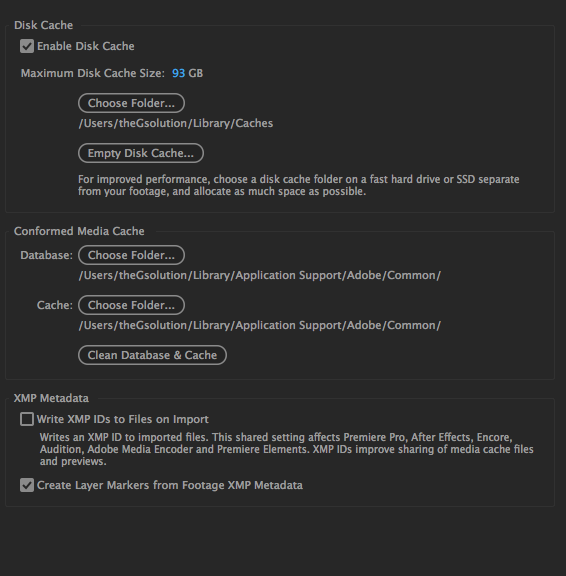
Now to the problem, EVERY time I go to render, AE crashes. I have tried using Adobe Media Encoder CC 2017 to render, I've tried using AE CC 2017 to render, every time, AE fails. It takes less than 5 seconds for the freeze, and within 30 seconds, I've lost AE and the file won't render.
I'm a business owner who specialises in advertising and generally use resources to create AE content, but right now, I'm just trying to work out what in the hell is going wrong.
Is my iMac, simply being a mid 2011 12Mb RAM machine, too old? Is there a setting I can change? Is there a fix to this problem?
Any help is good help,
Glenn


 6
Replies
6
6
Replies
6


Copy link to clipboard
Copied
Did you install CUDA drivers (system preferences)? If so you have to remove every trace of NVIDIA and CUDA on your system.
If you have antivirus software installed remove it or turn it off
If you have a bunch of custom fonts installed turn them off
Crashes can be caused by a lot of things going on in your composition, your render settings, and with your source footage. Try this and see if you get a crash.
- Create a new comp using the HDTV 29.97 preset that is 10 seconds long that is using the Classic 3D rendering engine
- Press Shift + Alt/Option + Ctrl/Cmnd + t to add a new text layer in the center of the comp and type in something like TEST
- Make sure the text layer is selected and reset the Character Panel to make sure that an odd font is causing problems and set the font size to about 200
- Add a new shape layer to the composition using any of the parametric tools like Rectangle, Ellipse to create a shape in the top left corner of your comp
- Press the r key to expose the shape layer's rotation property and set a rotation keyframe
- Select the Text layer and make it 3D, press Alt/Option + p to set a position keyframe then edit the Z position to 10,000
- Turn on motion blur for both layers and turn on Motion blur in the timeline
- Make sure that the shutter is set to 180º and the shutter phase is set to -90, samples set to a reasonable number like 16 and the sample limit to something like 120 in the Advanced comp settings
- Move to the out point of the timeline by pressing k and set the rotation for the shape layer to 10x + 0.0º and the z position for the text layer to something like -2800
- Run a ram preview then add your comp to the render cue
- Make sure the output module is set to the default standard Lossless format
- Render the comp
- If the render works add the comp to the Adobe Media Encoder and set the output to the standard YouTube h.264 preset for 1080 comps and render a test
- If you do not get any crashes start with the render settings for your comps that crash and try using the defaults
- If you get a crash with one of your standard comps open up a comp, press the U key twice to reveal all modified properties of all layers and start turning off effects until you don't get a crash
- If there is footage or audio tracks in your comps try replacing the footage with a solid layer and see if you get a crash. if you do then the format of the footage is causing the problem
I'm running an older machine than yours without problems. You should be ok and the test I described should at least point you in the right direction.
Copy link to clipboard
Copied
Ok thanks. It's 2:30am here, I'll get some sleep at look at your recommendation tomorrow.
its been 12 hours trying to fix it!
#dedication
Copy link to clipboard
Copied
OK, so I am able to render simple animation as per your instructions above. So AE is able to render, that I can show.
I'm about to go through each of the comps, but what I did notice is that this ae template has been designed on a windows platform, where it converts to an Mac version upon opening up. The movie files are in .mov format in one of the comps, and I'm convinced it is when one of them start to run that it crashes.
I'll try just using a solid layer in replace of them, and see where that leads.
Either way, I suspect that the template needs a fix, especially for the MAC environment.
I have also learnt, I need to get onto Lynda or something asap and improve my AE skills quickly!
Copy link to clipboard
Copied
Oh, I have no NVIDIA or CUDA elements/plugins or drivers installed, checked all that.


Copy link to clipboard
Copied
Hi Madness4More,
Sorry for this issue. Did you ever find a solution? Please let us know if you have or if you still need help.
Thanks,
Kevin

Copy link to clipboard
Copied
Open it in premiere nest it and then render. I had the same problem and this is how I was able to get around it.


Get ready! An upgraded Adobe Community experience is coming in January.
Learn more
 AdChoices