



artefacts on clean Photoshopfile with transparent background using inDesign
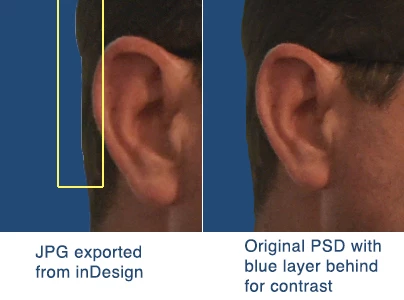
I am using Adobe CC on a current year Macbook Pro. I have been experiencing some issues when working with images that have a transparent background - particularly silhouetted photos/images that have had their backgrounds removed. I am seeing some white pixels surrounding the silhouetted image when I place the the PSD file into inDesign and place it over a shape with a color fill. When I export the image from inDesign as a JPG, PNG, or PDF (various types) it seems to be adding some white pixels around my silhouetted head that are not actually in the original PSD file.
I tried changing the original PSD image to a PNG and TIFF with transparency and I still experience the same problem of inDesign adding white pixels.
The image looks cleanly masked when I view it in Photoshop, and when I add a layer behind it using the same color as the color fill I'm using in inDesign so I can check for extra white pixels, it looks crisp and clean in Photoshop.
FYI, Rather than using a mask, I have edited this image to remove any pixels that I do not want, so this image should not have any white pixels around it. However the same thing happens when I apply a mask with the pen tool and leave the pixels in place behind the mask.
Additional experiments included creating a simple color fill in Photoshop with a transparent background, and cropping out a section of the photo using the rectangular selection tool and seeing how that exports with inDesign In those instances, no white lines appeared, which leads me to believe that the subtle variations in line are part of the problem.
I did some experimenting with exporting settings, and when exporting to JPG I turned off anti-aliasing. This produced no white lines around my silhouetted image, but of course the text that this overall composition is a part of looked terrible and choppy, so that is not a solution I can work with.
 AdChoices