Copy link to clipboard
Copied
I am doing this nice thing with rays behind a text. I am happy with the rays, I can improve this with curves and collor correction etc. But the letters are not so "defined" and high-rsolution. Its a 4K resolution composition. Can I correct this somehow? As far as I can see everything else is high-res. I have some bevel-alpha and I am not sure if this is the way to go. I would like 3D-letters but I must use classis3D because the text need to be in blending mode Screen. I know that you can make letters 3D by copying them multiple times and move them in Z but its some work. I have posted similar question before, I need som more suggestions how to improve the text and make it more readable and better resolution. It does not help much changing the color.
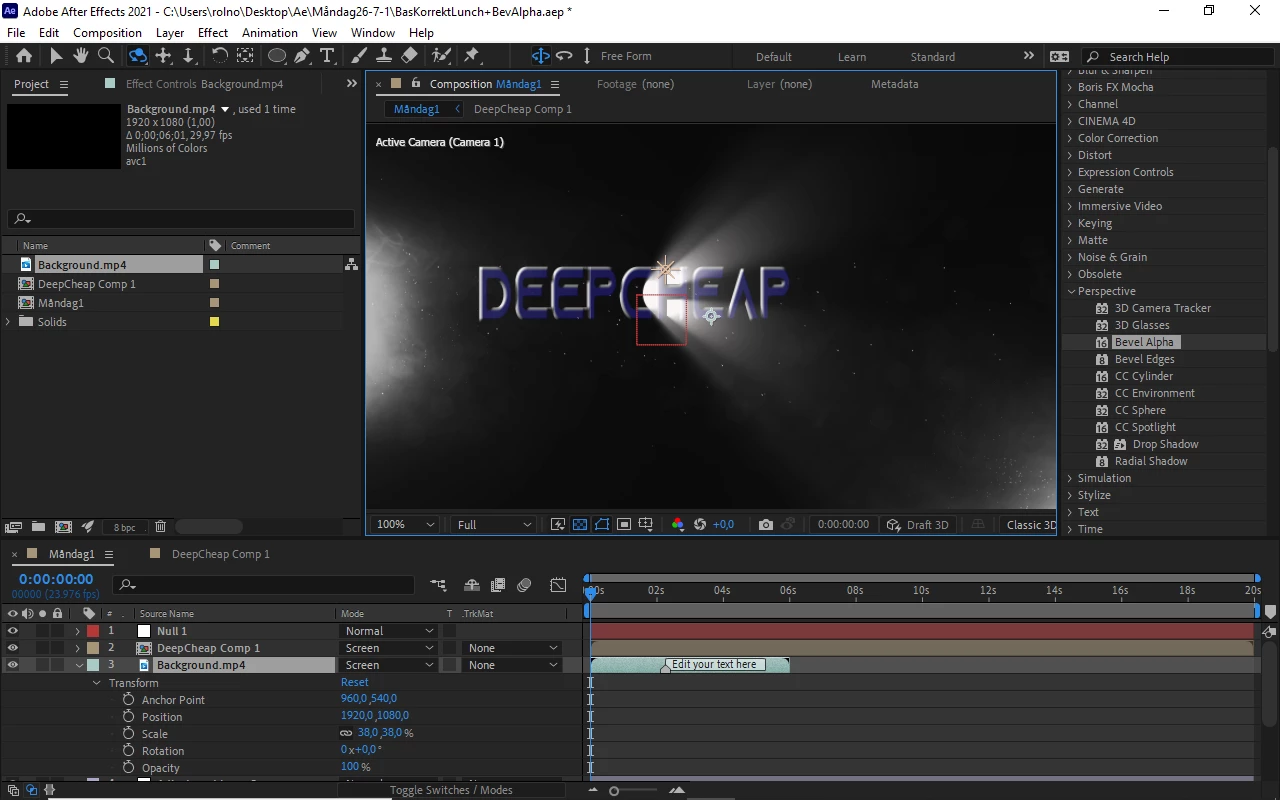
 
I include a printscreen.
Copy link to clipboard
Copied
First, your preview mode is Draft 3D. Second, you are not showing the Switches column so I can't tell if Collapse Transformations is turned on for the nested comp and I can't see any of the modified properties on the problem text layer. I probably would not have pre-composed the text layer, I would have a camera and lights in the comp. I'm not sure why your background layer has the labeled marker on it or why it is scaled down so much. It's can not possibly fill a 4K frame.
Dig into the nested comp (Layer 2), check the modified properties (uu). Give us some workflow details and maybe even a flow chart and we can probably help you fix the problem.
Copy link to clipboard
Copied
I dont think its in3D-Draft, I include one image where it is in draft-3D, as you can see the radial fast blur is not visible in draft-3D. I also inklude the uu for the layers. I dont have collapsed trans. as you can see.
I remove the background, that is not my file and its not 4K. Its not important. I can use another background.
I have done pre-comp for the text-layer, why is this negative? I think everything is promising except the letters wich are looking really bad, like plastic-padding.
Thanx
  
  
Copy link to clipboard
Copied
Here is with a spotlight, it messes with the radial fast blur and does not improve, with or without accept lights activated on the textlayer
 
Copy link to clipboard
Copied
Forgott, I also removed bevel alpha on the text
Copy link to clipboard
Copied
When I export the composition and look on my iPad, its very very small, so I think I have a lot of zoom on my camera, it looks big but its raly very small. This gives the bad resolution I see, what do you think?
here is some images of the camera settings:
  
 
Copy link to clipboard
Copied
I still have no idea what is going on in the pre-comp that contains the text. I don't know what scale the text layer is. I don't know what effect you are using to create the light beams. I don't see a text layer anywhere in your screenshots. I have no idea what is in the adjustment layers. You have not collapsed transformations on the nested compositions (pre-comps) so if you scale them they will pixelate. Your camera and lights should be in the main comp. If I was trying to do what you are doing using After Effects standard set of effects I would do something like this. I rearranged the workspace so you could see all of the important modified properties.
If I had pre-composed the text layer only, everything would still work if I collapsed transformations.
If I had used Trapcode Lux none of the expressions would have been needed.
Here are the expressions:
// applied to Bevel Alpha Light Angle
delta = toWorld(anchorPoint) - thisComp.layer("Point Light 1").toWorld([0,0,0]);
- radiansToDegrees(Math.atan2(delta[0],delta[2]))
// Applied to CC Light Burst/Center
L = thisComp.layer("Point Light 1");
L.toComp([0, 0, 0])
If you just collapse transformations on your pre-comp the quality of the text layer should improve.
Copy link to clipboard
Copied
Thanx alot,
I think everything is OK with my composition, I have just zoomed in with the camera on text that is very small.
this way resolution gets bad. I will post full explanation so you can see everything I have done if I run in to more problems. I will change the settings on my camera.
Thanx again/Rolf
Copy link to clipboard
Copied
Zooming in means changing the focal length. Moving in means moving the camera closer to the layer. Both have the effect of scaling up the layer. If you have raster effects applied to a text layer you have turned the layer into pixels so you cannot scale up without a loss of quality. Adjustment layers can do that to text layers.
If the text layer is pre-composed you have to turn on collapse transformations to avoid the scaling problem.
Copy link to clipboard
Copied
Thanx,
I have less zoom in the camera now and the problem is gone, text look very nice.
I have tried to use collapsed trans. but this messes upp the rest of the composition.
Copy link to clipboard
Copied
The reason collapse transformation messes things up is that you have not properly organized your composition. The camera and lights should be in the Main comp, it is very unlikely that it is a good idea to put an adjustment layer above a text layer. There are more issues in the way you have organized the comp. It takes time to learn how to work efficiently.
Copy link to clipboard
Copied
Here is a youtube link to the rendered composition. Resolution is poor because its youtube. Please give me suggestions on improvements. I have done some transitions and changed the font to catch the rays better.
Copy link to clipboard
Copied
Here a picture of my composition (I was not aloud to upload video), all the workflow and link to the youtube tutorial I have used parts of.
I will improve the keyframing of the tracking of the text and add a transition in the beginning and end.
I can do things like keyframing the colors of the adjustment layer to get more colorvariation in the rays, I dont know if this would add anything.
I can also use multiple lightsources and make them move behi
 
nd the text. Again, maybe no improvement.
Please suggest improvements!
(1) Advanced 3D Light Rays in After Effects! - YouTube
  
Get ready! An upgraded Adobe Community experience is coming in January.
Learn more