I think you've got it. Just try entering some different values and see what you get. You wont break anything.
You set you compositions length be setting number of minutes and seconds. The thing to remember is that that numerical display works like this: HOURS:MINUTES:SECONDS:FRAMES.
In a 24 fps composition you will never be able to enter the number 48 to get a 2 second clip because the frame only go to 23 & then it goes back to 0. Think of a clock where the second hand represents frames and the minute hand represents seconds. It would be a 60fps clock because the 'frame hand' has to tick 60 times for the 'second hand' to move to 1. Although that 60th tick reads a zero on the clock. So the highest number you'll ever see for the small hand is 59.
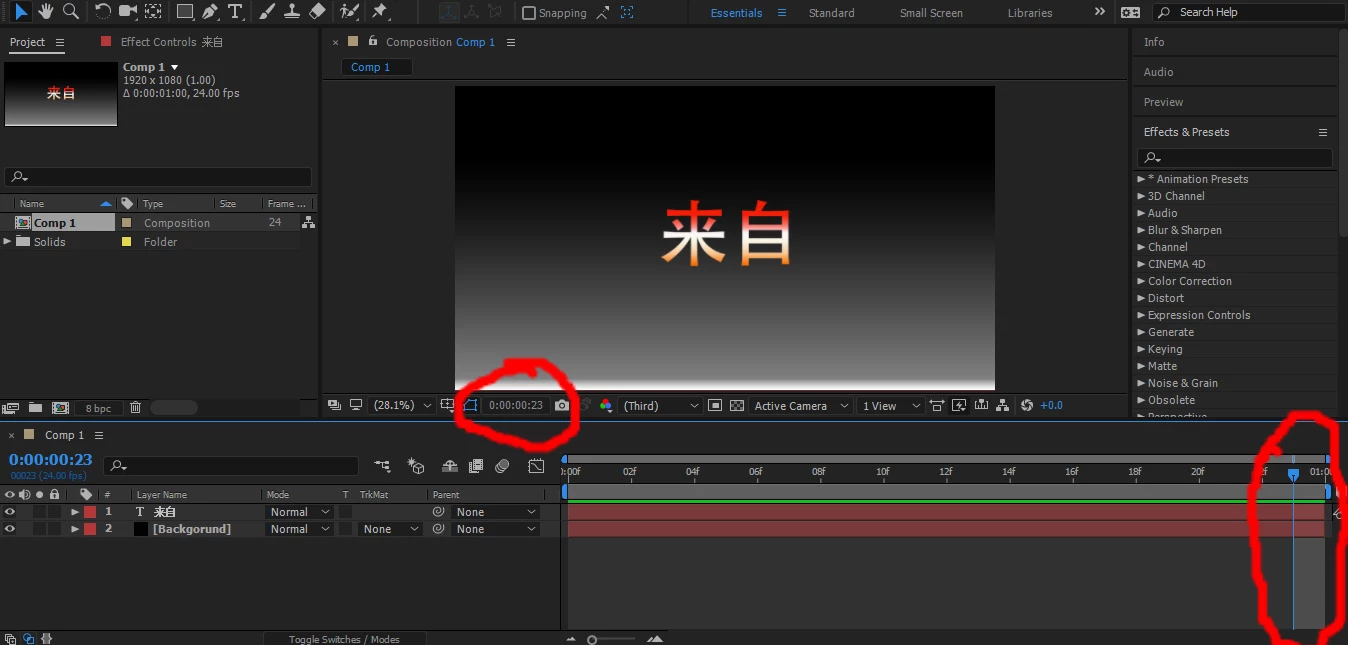
It the same when thinking about your framerate. At a 24 (or 23.97...) the frame number cannot go any higher then 23. After 23 it goes back to 0. 0 is technically the 24th frame & 1 second. That's why the little numbers on your timeline went from 23f to 1.
Anyway, what you need to do google "how do I decide which frame rate I should use". I may be wrong but I think 24fps(23.97...) is generally used for broadcast and films & 30(29.97...) is generally used for for streaming videos and such. Like I said, I'm no expert.
So now that you're probably thoroughly confused just know that all you need to do is enter the length in time you want you composition to be. hours:minutes:seconds:frames
As for whether or not it's ok to have a one second composition. Sure it's OK. It's really a personal preference thing. Try it and see how you like it. Or maybe do a Google search, find some one second videos and see how they look, and if you like it.
You are making this much too difficult by way over thinking. The CTI always parks at the start of the frame so you can see what is in the frame. The timeline displays the frame. Neither of these move in time but in reality, if your comp is 1 second long and 24 fps then the comp is gong to contain 24 frames. The CTI is going to stop at frame 23, which is absolutely correct because frame 24 has yet to playback.
If you want to know how many frames you have just enable time code and frames in the timeline or use the modifier key (Ctrl/Cmnd) and click the time indicator in the timeline. If you wan accurate time in seconds make sure that the Project Settings are set to Dropframe timecode. No frame are dropped, just frame numbers so that 29.97, or 59.94 or 23.976 fps footage will show you the correct running time in the timecode display. The total number of frames will not change if you use non-drop timecode display with these frame rates, but the total time and frames displayed will be off so there's never a reason to use non-drop timecode. If you are not creating content at one of the NTSC standard frame rates then timecode is always just true time.
No matter what the frame rate, the CTI will always stop and the next to the last frame because if it did not the visible frame would be black. It's this way with all editing apps. There are no timing errors, there is nothing to fix. No frames are lost and no time is missing from a rendered movie. If you want to cut after the last visible frame then move the CTI and cut. That's how it's done and that is how it has always been done.
If you zoom in to the timeline so you can see the individual frames you will see light and darker frame lines. There is also a lighter bar that should be lined up with the edge of the CTI. Cine shutters are based on a circle. A 170º shutter is standard on film cameras. That means as the shutter rotates it is open for 170º (a little less than half of the frame rate) and it is closed for 190º to give the film a chance to move into position for the next exposure and stop bouncing around. This gives and effective shutter speed or exposure time of about 1/50 second for a film camera running at 24 fps. Many professional film cameras have an adjustable shutter that you can close down to just a few degrees to give you higher shutter speeds. This means less motion blur in each frame and it may be very useful for things like motion analysis or even certain visual effects.
If you open up the Advanced comp settings you can see the Shutter Angle and Shutter Phase. The default is 180º and -90º the light bar to the right of the CTI will be lined up with the frame indicators and the CTI. This is an indication of how the motion blur will be calculated. If you start monkeying with the settings you'll see this bar move. You can change the shutter angle and to phase to actually start motion blur before objects move or even spread motion blur over multiple frames. This can be useful for matching the motion blur in a camera and any really good composite should include adjustments for motion blur to match the footage. I've seen many folks ask why the big lighter bar was not lined up with the CTI and the reason that it is not lies in the composition settings, not in a bug. Reset to the defaults and everything will line up.
While I'm talking about shutter phase, in Saving Private Ryan, some of the cameras used for some of the battle scenes had their gears slipped so that the film would actually start moving before the shutter closed. This gave a completely different look to the shots that was very effective at enhancing the emotional response from most audience members. Others just rubbed their eyes and wondered what was wrong. You can achieve those kinds of motion effects in AE by monkeying around with the shutter angle and phase.
I hope this helps. There's nothing wrong. There is no reason to worry about the timing of your effects or moves because you can position any keyframe on or even off a the start of a frame and set the keyframe to any value you want. Just remember that the frame you see when the CTI is parked still has to playback...


 AdChoices