Copy link to clipboard
Copied
Hello,
I have a weird problem. I have created a rendered animation in blender, now I wanted to apply some call outs to the animation in after effects afterwards. For the purposes of good illustration I applied timewarp to the part of the animation to slow animation down.
This is how animation naturally looks at some random frame - this is ok.

But scrolling up along the timeline, I saw 3 frames, that are weird. These 3 frames are in section, where I slowed down animation using timewarp to 45% of speed.

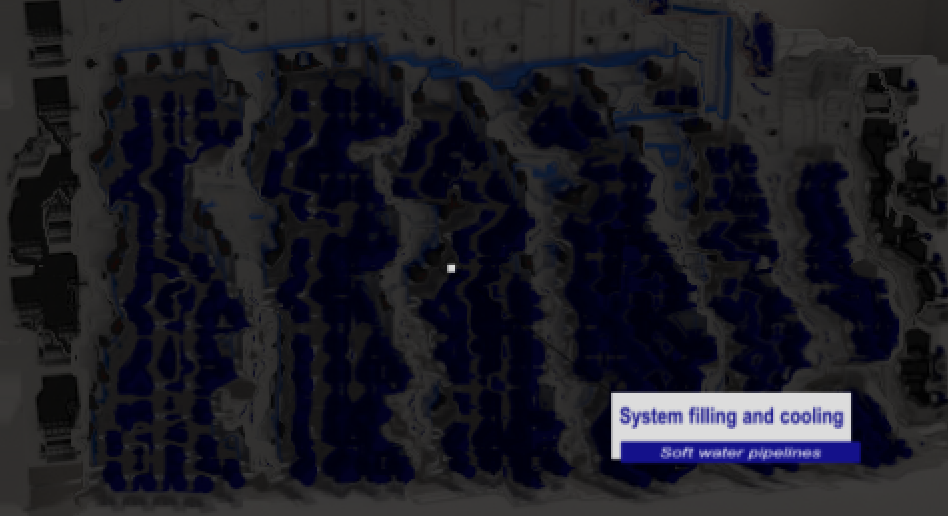
At first I though, that this is only in preview, I tried rendering, and it also happens in render. I don't have anything on timeline near those frames.

Any ideas, what could be the problem? I checked the original animation imported from blender, and there are no such oscillations happening.
Let me just mention that the animation was saved in blender in format H.265 (.mp4), which I also used to import onto After Effects.
Regards, Tomo

You should never use an interframe compression format (h.264, h.265) for rendering movies you want to modify in any way later. Why? Because only a few of the frames contain all of the pixels. The majority of them are calculated based on predictions of how they will move. AE and any other software used to process video will have to use the processor to make those calculations and build real frames for processing. There is a 90% or better chance that is where your wavy lines are coming from.
From
...Copy link to clipboard
Copied
Actually,
just now I realised, that the oscillations are also visible in the original imported animation in after effects. Seems like something is going on when importing the animation? Because watching the original animation on windows 10 viewer, there are no oscillations visible.
Any clues?
Thanks in advance!
Copy link to clipboard
Copied
I'm not sure what could cause it to play perfectly in your media player but get corrupted on import. Maybe a mismatch between the composition settings and the settings with which the video was rendered from Blender?
The first obvious questions would be did you try to import it again? Maybe try different different methods of import, for example a "proper" import via menus vs. just dragging it in? Clearing your caches?
As an aside...this is why it's good practice to render to image sequences rather than videos. With a sequence you would only have to re-render those three frames rather than having to re-rendering the entire video.
Copy link to clipboard
Copied
You should never use an interframe compression format (h.264, h.265) for rendering movies you want to modify in any way later. Why? Because only a few of the frames contain all of the pixels. The majority of them are calculated based on predictions of how they will move. AE and any other software used to process video will have to use the processor to make those calculations and build real frames for processing. There is a 90% or better chance that is where your wavy lines are coming from.
From 3D apps, I always render to a lossless image sequence and it's usually 16 Bit or better. There are several reasons. First, the frame rate can be set later, second, if there are changes, and there usually are with my clients or even my personal projects, and I need to change 20 frames in a 400 frame sequence I only have to re-render 20 frames, and most of all, all of the pixel info is in every frame.
Run the render from Blender again and choose a visually lossless format or an image sequence (Tiff) and replace the footage in the Project panel and everything should be fine. Don't complain about file size. Hard drives big enough to store incredibly large image sequences are really cheap. I archived nearly 30 minutes of 16bit 4K tiff files and it was just under 2 GB. That represents the last 2 months of my 3D work.
Get ready! An upgraded Adobe Community experience is coming in January.
Learn more
