Alvin777
Participant
January 13, 2024
解決済み

One of the Adobe Apps Converted My Jpeg Photos into XMP. How Do I All Convert it back to Jpeg Only?

  • January 13, 2024
  • 返信数 1.
  • 2532 ビュー

Hello Adobe friends. It's been many years since I've used Adobe Suite but a lot of my jpeg photos are in .xmp, how do I convert it all back to jpeg, easily? Which Adobe app actually converted them to .xmp?


Thank you. God bless you.

このトピックへの返信は締め切られました。
解決に役立った回答 gregreser

You can use the Batch Rename function in Bridge to remove .xmp from your filenames. Beware that this is a powerful tool and you have to be careful to check the settings and the preview to be sure you will get the desired result or, more importantly, you will not make matters worse.


Select and image then right click.

Select Batch Rename from the menu. 

In the New Filename section select String Substitution.


Find .jpg.xmp

Replace With .jpg


Check the preview at the bottom to confirm that the new filename is correct.

When you are ready to process several files, click the Preview button to see a list of how all the files will be changed. This is a critical step to make sure every file will be correct and no anomalies slip through
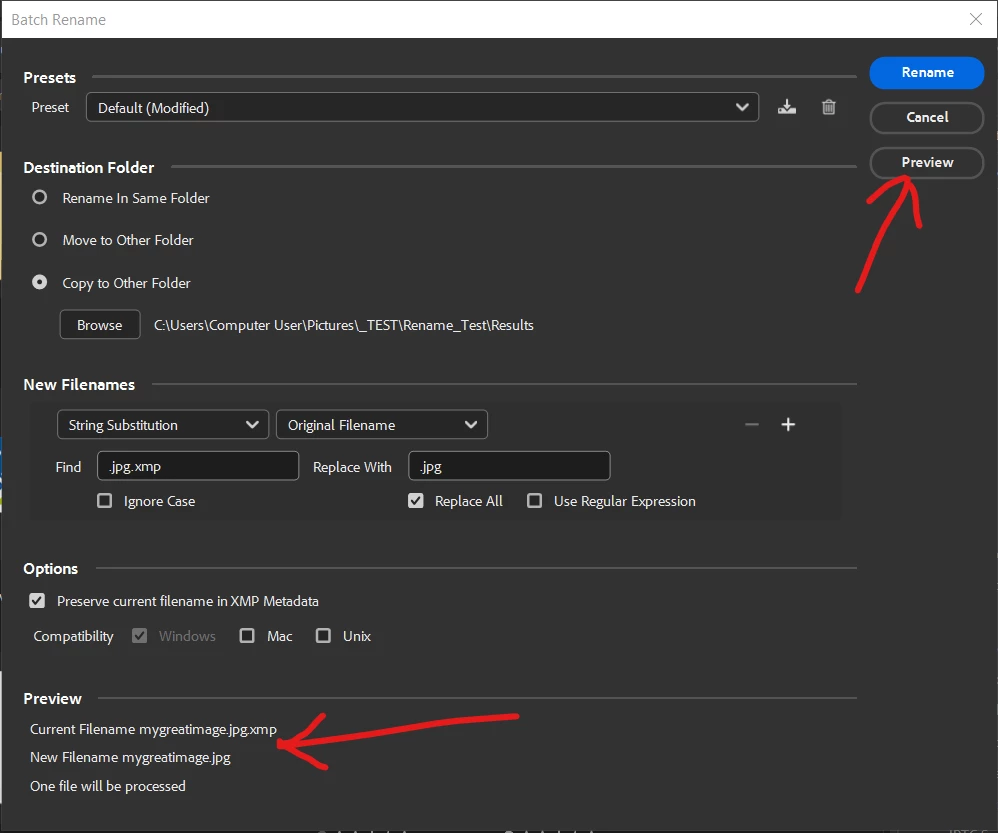


Note that the Destination Folder option allows you rename the current files where they are or make copies to a new folder, preserving the originals as a backup.


You should select "Preserve current filename in XMP metadata" as another precaution against unintended consequences.


 

返信数 1

gary_sc
Community Expert
Community Expert
January 13, 2024

Good news, nothing has been changed, but maybe something has been lost? Or moved?


The xmp file is what is called a sidecar file that contains all of the adjustments you made to a raw file. So, if you have a file called "mygreatimage.CR2." There should be a file called "mygreatimage.xmp." Now, notice I did not point out a jpg file because a jpg file is a container file (like a folder). If the xmp file and the raw file get separated, all of your adjustments will not be seen unless you put the two of them back in the same folder.


Anyhow, what you need to do is to search in your computer for "mygreatimage." and file all of the iterations of that file (cr2, jpg, xmp, etc.).


Suffice it to say, nothing was changed into the xmp file. Where you will find them is unknown to anyone who cannot see your computer, so that's up to you. Also, the xmp files are very important, so do not delete them, unless you do not want to save your adjustments, or you're deleting both the raw file AND the xmp because you do not want that image.


BTW, I convert my raw files into DNG because they are also container files, and that way, I never see my xmp files.

Alvin777
Alvin777作成者
Participant
January 13, 2024

Thank sir Gary. Did one of the Adobe Suites duplicate all my .jpg (for some reason it only associated or touched the .jpg which is a lot to manually convert) and turn it into an .xmp the extension is actually .jpg.xmp and all the .jpg icons now have that rainbow color that looks like a flower instead of the thumbnail small preview of the photo.


I did search (one of the files as a test) if there is the exact same name but with just the .jpg, it only finds the .jpg.xmp one (just one file). Is there a setting wherein maybe I uncheck the association of my .jpg to one of Adobe's apps and then it just removes the .xmp leaving it all with .jpg thus making it go back to normal? I'm not sure after ununinstallilng the Adobe Creative Suite, it did not dissociate itself from the .jpg files.


Could I just do a batch removal of the .xmp extension using search and replace (like one does with a word processor) so only .jpg extension is left, renaming it to just .jpg extension but not manually one at a time coz' there are so many .jpg files affected?


Thank you again in advance.

gregreser
gregreser解決!
Legend
January 13, 2024

You can use the Batch Rename function in Bridge to remove .xmp from your filenames. Beware that this is a powerful tool and you have to be careful to check the settings and the preview to be sure you will get the desired result or, more importantly, you will not make matters worse.


Select and image then right click.

Select Batch Rename from the menu. 

In the New Filename section select String Substitution.


Find .jpg.xmp

Replace With .jpg


Check the preview at the bottom to confirm that the new filename is correct.

When you are ready to process several files, click the Preview button to see a list of how all the files will be changed. This is a critical step to make sure every file will be correct and no anomalies slip through


Note that the Destination Folder option allows you rename the current files where they are or make copies to a new folder, preserving the originals as a backup.


You should select "Preserve current filename in XMP metadata" as another precaution against unintended consequences.