Inspiring
August 26, 2013
解決済み

Installing Creative Cloud Desktop but I got Error 13 an issue permission on my MacBookPro, why?

  • August 26, 2013
  • 返信数 5.
  • 17173 ビュー

Dear Adobers,

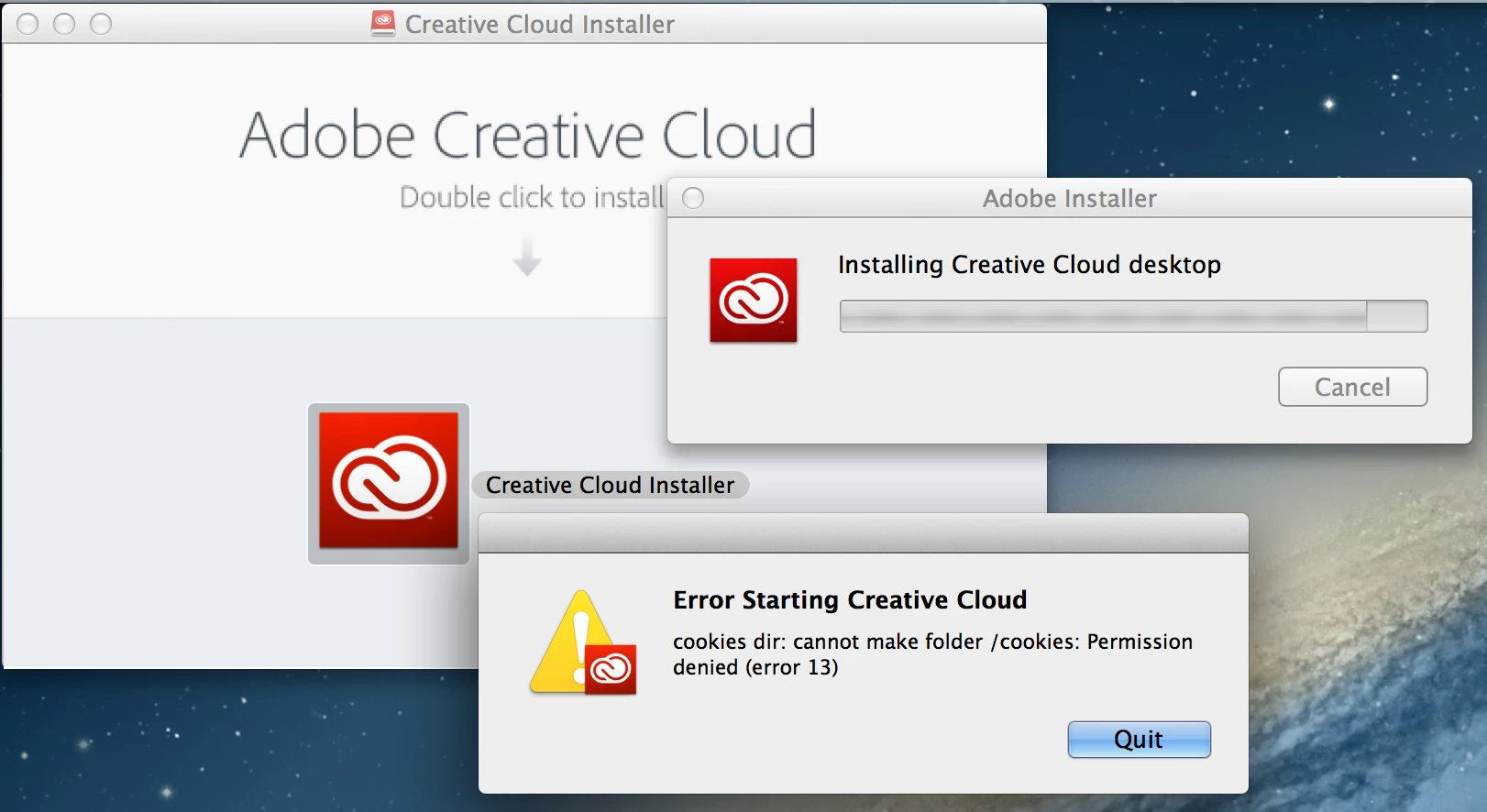
I bought my Creative Cloud plan, and I'm going to download and Installa the Creative Cloud Desktop App before getting all the CC softwares I need. But when I download the "CreativeCloudInstaller.dmg" on my new MacBookPro Retina with OS Lion 10.8.4 and I start the procedure, the package during the installation ask me for my Mac account password to make some changes... after then it show me an error message: Error 13... something related to a permission issue in writing in a folder for cookies.

Please, see the screenshot:

PS: I have tried all suggestions found in this forum... verifying permission with Utility Disk, writing in the Terminal the codelines suggested, creating a new user on my mac etc... nothing worked for me!

Thanks a lot!

Marco

このトピックへの返信は締め切られました。
解決に役立った回答 marcolodovichi

Hi Marco Lodovichi,

Please refer the mentioned thread for similar issue: http://forums.adobe.com/thread/1264415 .

Regards,

Romit Sinha


Hi Romit,

thanks to Maurizio (Apple Store Business, Firenze - Italy) I got the right fix to the issue I found during the installation of the #CreativeCloud Desktop App.

So, when while installing the CC Desk App, we got the "Error Starting Creative Cloud - cookies dir: cannot make folder /cookies: Permission denied (error 13)" alert message pop-up, we are experiencing a problem in folders Read&Write permission with our Administrator User account on our Mac.

http://f.cl.ly/items/0t1v2w0S3I1b1S1w1G46/Screen%20Shot%202013-08-26%20at%2010.12.21%20PM.png

Well, before fix this issue, we need to uninstall the CC Desk App and we have to know that the #CreativeCloud Desktop App is trying to make a "cookies" folder at this path (in our Mac):
/Macintosch HD/Users/[your user]/Library/Application Support/Adobe/

The issue: the App has no permissions to create the /cookies/ folder inside the /Adobe/ folder - So, we just have to fix the permissions for /Adobe/ folder giving our Administrator User Account a "root access" to that folder!

Press and hold the Alt/Option key while clicking "Go" in the Finder menu (that's how the usually hidden user ~/Library/ folder will appear listed in this menu); click that folder Library, and select the /Application Support/Adobe/ folder by one-click on it; Then click the Command key + i key (cmd+i) to Get Info about that folder.

Go to "Sharing & Permissions" area at the bottom of the window, unlock it at the bottom right corner of the window and give to all the names listed "Read&Write" permissions.

Finally, click on the little gear symbol at the bottom of the window to apply changes to all the items inside the folder. Lock it again and close the window.

Reinstall the #CreativeCloud Desktop. Now it will run properly!

Hope this really help you, 'cause that workd for me. ;-)

Thanks,

Marco Lodovichi

http://f.cl.ly/items/1q3h2H3h143V3O0N0S0M/Screen%20Shot%202013-08-27%20at%2011.14.17%20AM.png

返信数 5

Participant
April 4, 2015

Yes!!! Thank you Marco!!! It worked!!! I've been at this all friggin day and this finally worked!!!

tenle
Participant
September 12, 2014

this solution worked PERFECTLY for me!!!  thank you, thank you!

Participant
September 27, 2014

which solution ???

Deekor
Participant
August 27, 2014

Works perfect!

Participant
December 21, 2013

This can occur because the ownership for the directory that the Adobe uses to install support files into is set incorrectly. You can verify this by bringing up a terminal window and typing:

ls -ld ~/Library/Application\ Support/Adobe

^   ^ (these are lower case L's, not upper case I's)

A correct result will look like this:

drwxr--r--  27 <your username>  staff  918 Dec  7 00:05 /Users/<your username>/Library/Application Support/Adobe

(The user and group are correctly set to <your username>:staff)

and an incorrect one will look like this:

drwxr--r--  27 root  wheel  918 Dec  7 00:05 /Users/<your username>/Library/Application Support/Adobe

(The user and group are incorrectly set to root:wheel)

If you don't know your username, first type:

whoami

The result will be your current username

You can now fix the incorrect ownership by typing this:

sudo chown <your username>:staff ~/Library/Application\ Support/Adobe

(Don't actually type the angle brackets around the "your username" part; replace it with your real username - ie. the result from "whoami")

This command changes the ownershp of that folder to <your username> as a user, and <staff> as the group. Because of the "sudo" in the previous line, you'll have to type your logon password to authenticate and run the command.

You can re-run the directory listing command to make sure your changes worked:

ls -ld ~/Library/Application\ Support/Adobe

You should now be able to reinstall Adobe CC without issue.

Participant
April 24, 2014


Hi All,

I also encountered the same error on my Apple Mac Book Pro running OSX Version 10.9.2 (Mavericks). First I encountered the "Error 13" where the Creative Folder was unable to complete the Installation and came up with a message "Error Starting Creative Cloud" Cookies Dir Cannot Make Folder /Cookies Permission Denied (Error 13). First I followed the below procedure :-

  1. Completely Uninstall the Adobe Creative Cloud from the Applications.
  2. Click on the Finder and Go to Folder ~/Library/Application Support
  3. Right Click on the Folder and Click on Get Info (cmd+i) and refer to the "Sharing & Permission"


  1. Unlock using your Password the Sharing and Permission Control.
  2. Add the Username that you have logged in and make sure it has "Read and Write Access" Refer to "Sriharshaa Prabhakar"
  3. Click on the "Small Settings Icon" and Select "Apply to enclosed items"
  4. Click on Lock
  5. Install the Adobe Creative Cloud.

I also encountered an error while logging into the Creative Cloud after successful installation. I chose the below method to resolve the issue"-

  1. Quit the Adobe Creative Cloud from the Task Bar above.
  2. Click on the Finder and Go To Folder ~/Library/Application Support/Adobe
  3. Right Click on the Folder OOBE and Click Get Info.
  4. Rename the Folder to OOBE.old
  5. Launch the Adobe Creative Cloud
  6. Loginto to the Adobe Creative Cloud and chose the Application that you want to Install.

Thanks for all the help and hope the procedure above helps people who are looking for step by step approach to solve this silly installation issue.

Regards,

Sriharshaa Prabhakar


Participant
June 23, 2014

Someone at Adobe - HELP! 

I have a BRAND NEW iMac, and the installer dies with the is same error message:

   Error Starting Creative Cloud

   cookies dir: cam not make folder /cookies: Permission denied (error 13)

I tried the fix above: making the directory Read & Write -- no luck.  BTW: needing to do this workaround is a complete failure on Adobe's part building their installer.

How about you FIX THE INSTALLER!

Romsinha-9KMEUt
Adobe Employee
Adobe Employee
August 26, 2013

Hi Marco Lodovichi,

Please enable root account and try installing from there: http://support.apple.com/kb/ht1528 .

Regards,

Romit Sinha

Inspiring
August 26, 2013

Hi Romit,

thank you for your reply... but I do not have any "chackbox" to enable the root user in my Directory Utility Window, as you can see in the screenshot attached:

http://f.cl.ly/items/0I0B1G0C1w0y2H393z0D/Screen%20Shot%202013-08-27%20at%201.16.17%20AM.png

Romsinha-9KMEUt
Adobe Employee
Adobe Employee
August 26, 2013

Hi Marco Lodovichi,

Please find the attached screenshot:

Regards,

Romit Sinha