Known Participant
October 24, 2025
解決済み

Grey frame in the upper right corner of the monitor with open files

  • October 24, 2025
  • 返信数 3.
  • 441 ビュー

Hi all,

there's a new issue with my InDesing. In advanced mode and only when files are open, there's a grey frame in the upper right corner of my monitor, that will not vanish. It stays exactly there when moving the position of each file.

I deinstalled and installed InDesign, but it's still there. The support couldn't help, even not with their access to my computer.

Has anybody an idea how to delete this frame?

Thanks

解決に役立った回答 Randy Hagan

It looks like a screen artifact of one of InDesign's tool panels is stuck in the interface.


I don't absolutely know if this will fix your issue, but it's worth a shot:


  • Create a new document within InDesign. It shouldn't matter, but if things go awry, we're talking about corrupting a blank file rather than damaging a working file if things go horribly wrong. That's not likely, but why take the risk?
  • If you're not already there, select the [Advanced] workspace on your system. This will confirm that the screen artifact is due to the switch of workspace, rather than the workspace interacting with content in your InDesign document(s). You likely know this, but it doesn't hurt to confirm the issue exists independent of a working file open on your system.
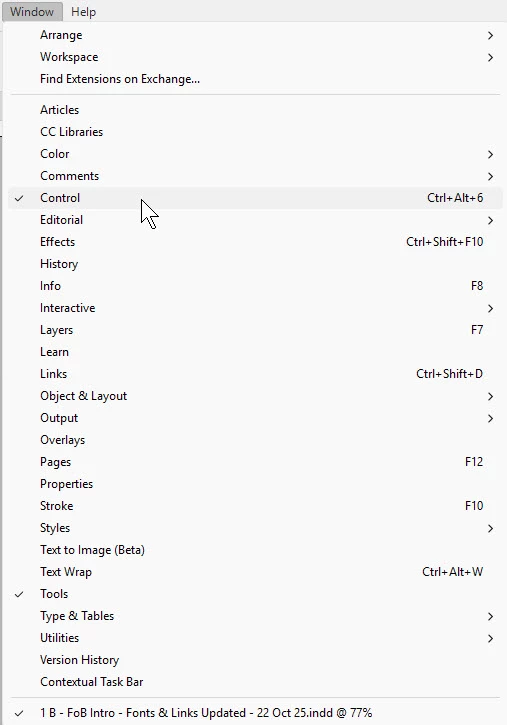
  • Open your Window pull-down menu. The screen capture at right shows what's open on mine when I selected the [Advanced] workspace. It only shows two panels "open", even though I have 13 tool panels parked in my Tool Dock on the right side of the application window.
  • On my example, I only have two panels "open", my Control panel above the document window, and my Tools panel at the left side of that window. As I look at your screen capture, you have other panels open as well. Every panel that is visible onscreen and not docked in the Tool Dock should have a check mark, like the illustration at right. Turn all your panels off and on by clicking on the check marks to turn them off, then clicking on the now un-checked panels to turn them back on. Be sure to review all the sub-menus in the Window pull-down menu, because if your tool panel is inside one of those sub-menus, it won't show the appropriate panel-open check mark until you open the sub-menu that contains the panel.


If you're lucky, you might be able to recognize the errant panel before a trial-and-error search for your mystery hollowed tool panel. Hopefully checking off one of those open panels in the Window pull-down menu will make it disappear, which may be good news or bad news. 


If by good fortune, you discover the errant panel that makes the artifact appear and can turn it off, try turning it back on again. Hopefully you'll see the full panel onscreen, rather than the empty artifact that's been driving you crazy. If you don't, and you get he empty artifact again instead of a functioning tool panel, come on back and let us know which one is causing trouble. We'll do our best to help you get it back.


Hope this helps you,


Randy

返信数 3

Randy Hagan
Community Expert
Randy HaganCommunity Expert解決!
Community Expert
October 24, 2025

It looks like a screen artifact of one of InDesign's tool panels is stuck in the interface.


I don't absolutely know if this will fix your issue, but it's worth a shot:


  • Create a new document within InDesign. It shouldn't matter, but if things go awry, we're talking about corrupting a blank file rather than damaging a working file if things go horribly wrong. That's not likely, but why take the risk?
  • If you're not already there, select the [Advanced] workspace on your system. This will confirm that the screen artifact is due to the switch of workspace, rather than the workspace interacting with content in your InDesign document(s). You likely know this, but it doesn't hurt to confirm the issue exists independent of a working file open on your system.
  • Open your Window pull-down menu. The screen capture at right shows what's open on mine when I selected the [Advanced] workspace. It only shows two panels "open", even though I have 13 tool panels parked in my Tool Dock on the right side of the application window.
  • On my example, I only have two panels "open", my Control panel above the document window, and my Tools panel at the left side of that window. As I look at your screen capture, you have other panels open as well. Every panel that is visible onscreen and not docked in the Tool Dock should have a check mark, like the illustration at right. Turn all your panels off and on by clicking on the check marks to turn them off, then clicking on the now un-checked panels to turn them back on. Be sure to review all the sub-menus in the Window pull-down menu, because if your tool panel is inside one of those sub-menus, it won't show the appropriate panel-open check mark until you open the sub-menu that contains the panel.


If you're lucky, you might be able to recognize the errant panel before a trial-and-error search for your mystery hollowed tool panel. Hopefully checking off one of those open panels in the Window pull-down menu will make it disappear, which may be good news or bad news. 


If by good fortune, you discover the errant panel that makes the artifact appear and can turn it off, try turning it back on again. Hopefully you'll see the full panel onscreen, rather than the empty artifact that's been driving you crazy. If you don't, and you get he empty artifact again instead of a functioning tool panel, come on back and let us know which one is causing trouble. We'll do our best to help you get it back.


Hope this helps you,


Randy

BirgitBirgit作成者
Known Participant
October 24, 2025

Hi @Randy Hagan you made my day!

It was the Paragraph-format-panel that caused the grey frame. When closed the frame was gone, but came back after opening this panel again. I created a new paragraph-format - and the frame disappeared! Don't know why, but I couldn't care less. 🐵

The best thing is, that it doesn't come back in my used or new files! Yet. ... But I'm in a good mood.

Thanks a lot, Randy, for your very precise guidance, and the other helpers by bolstering!

Birgit

Randy Hagan
Community Expert
Community Expert
October 24, 2025

I'm truly glad I could help.


And thanks for sharing exactly which panel was causing you misery. Not that it matters in the total scheme of things, but I was curious.


Randy

jmlevy
Community Expert
Community Expert
October 24, 2025

Hi @BirgitBirgit 

Can you share a sample file? Just to check if we get the same issue.

Did you try to reset preferences?

BirgitBirgit作成者
Known Participant
October 24, 2025

Hi jmlevy,

I attached a picture above. The frame is not in a special file, but in all opened ones.

How do I reset preferences? (I don't want to loose individual settings for all journals)

jmlevy
Community Expert
Community Expert
October 24, 2025

I saw your screenshot. I jusst want one or your file to try to understand from where comes this rectangle and to be sure that I also can see it.


How do I reset preferences?

Community Expert
October 24, 2025

Is it on a parent page? Is it on one of the layers, turn off all the layers and see if it disappears, if it does you can hit the arrow beside the layer to expand it and see which element it is.


It might be a locked element or soemthing. Or set to non-printing?

If it's none of these things then try File>Export and choose IDML

BirgitBirgit作成者
Known Participant
October 24, 2025

Hi Eugene,

I don't know which parent page could be possibly contain this frame, since it appears on every file I open, also older ones where it doesn't appear before.

There's only one layer. 

I agree that it might be a locked element. But I don't know how to delete it.

Which file should I export, because it appears on every file. And only in advanced mode. In basic mode it's not there, but I want to work with advanced mode. ;o)

BirgitBirgit作成者
Known Participant
October 24, 2025

Maybe I used a short cut by accident, but don't know which one ...
