Inspiring
June 10, 2021
解決済み

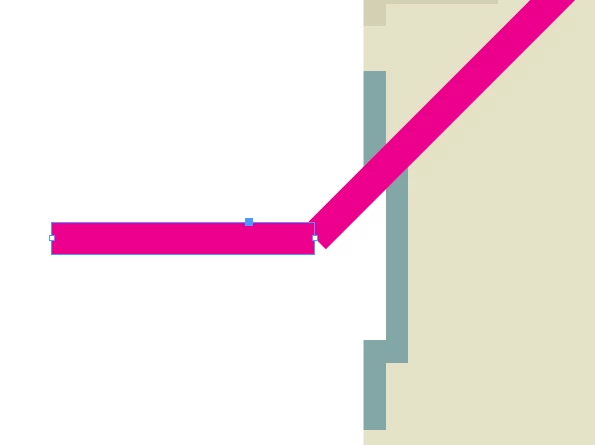
How can i connect two lines so they will apear as one, with "elbow"?

  • June 10, 2021
  • 返信数 3.
  • 3700 ビュー

screenshot:


このトピックへの返信は締め切られました。
解決に役立った回答 Laubender

Hi danezeq,

all what you want is working by using the Align panel and the Pathfinder panel with its Join function.

For alignment you are working with a key element that will stay put during alignment. You have to decide which of the two items should be the key object.


One thing is important:

To properly align the two graphic lines you have to set the stroke weight of both graphic lines to value 0.


Read through this first:

https://helpx.adobe.com/indesign/using/aligning-distributing-objects.html


In detail:

Select both elements.

Click one of the two again to define the key object for alignment.

( Best do this with the "rotated" element )

Set the stroke weight of your selection to zero.

Align horizontally using the Align panel.

Align vertically by using the Distribute Vertical button with 0 distance.

Join the two paths.

Apply your stroke weight.


Regards,
Uwe Laubender

( ACP )

返信数 3

Community Expert
June 10, 2021

Trust your selection.

In doubt have a look what is selected in the Layers panel.

Between any of the steps I outlined you could apply a stroke weight and set it back to 0 if you want to continue.


Regards,
Uwe Laubender

( ACP )

danezeq作成者
Inspiring
June 11, 2021

Okay! in most cases - it works!

thank you so much.

 i'm still investigating that 🙂

LaubenderCommunity Expert解決!
Community Expert
June 10, 2021

Hi danezeq,

all what you want is working by using the Align panel and the Pathfinder panel with its Join function.

For alignment you are working with a key element that will stay put during alignment. You have to decide which of the two items should be the key object.


One thing is important:

To properly align the two graphic lines you have to set the stroke weight of both graphic lines to value 0.


Read through this first:

https://helpx.adobe.com/indesign/using/aligning-distributing-objects.html


In detail:

Select both elements.

Click one of the two again to define the key object for alignment.

( Best do this with the "rotated" element )

Set the stroke weight of your selection to zero.

Align horizontally using the Align panel.

Align vertically by using the Distribute Vertical button with 0 distance.

Join the two paths.

Apply your stroke weight.


Regards,
Uwe Laubender

( ACP )

danezeq作成者
Inspiring
June 10, 2021

The only problem now is that i cant see the line at all when the stroke set to 0

Legend
June 10, 2021

Select the two endpoint, then go to Object > Path > Join

danezeq作成者
Inspiring
June 10, 2021

Thanks. it works. but one thing: one of the endpoints is moving upward so the angle become "near" 90 degrees.

is there any way to lock postion of one of the endpoints or any other way to maintain 90 desgrees angel?

danezeq作成者
Inspiring
June 10, 2021

To add to Bob's reply, choose the pen tool, and simply click at the first point, the second point, and the third. A line will be drawn with angles that are already connected. Hold down the Shift key to keep the lines at a 90 or 45 degree angle.


Sorry i'm new to Indesign. thanks ill do it next time 🙂 now i have lots of line ineed to join 🙂