

Odwazny
Participating Frequently
October 17, 2024
解決済み

how to combine image backgrounds so that a border does not appear?

  • October 17, 2024
  • 返信数 5.
  • 1046 ビュー

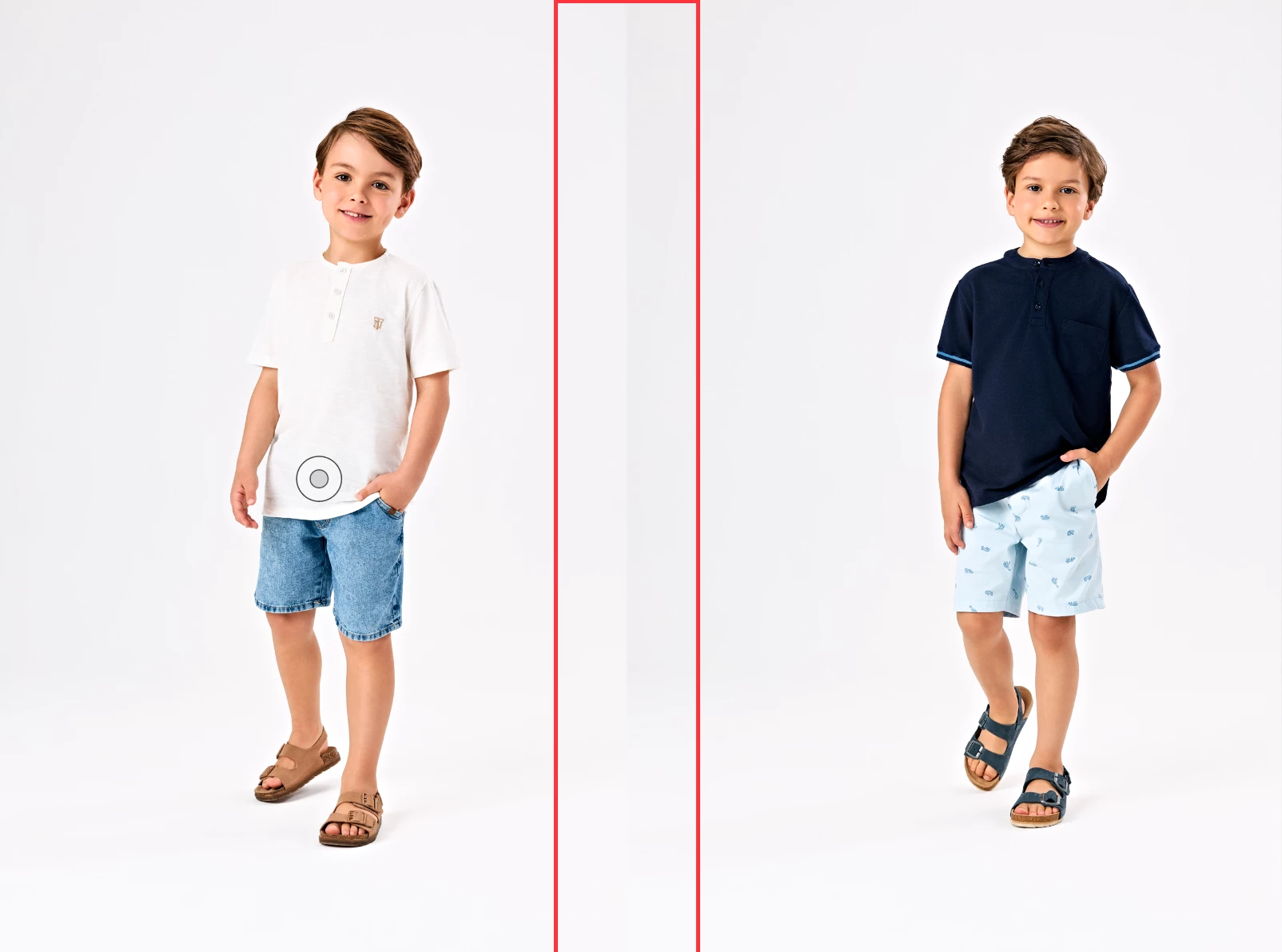
Hello, I will attach an example image, where I would like to know if I have any option to merge the background of the images in my catalog, directly within InDesign without needing to use Photoshop. The idea is that the edges do not appear and the images background borders blend togheter.

このトピックへの返信は締め切られました。
解決に役立った回答 Jeffrey_Smith

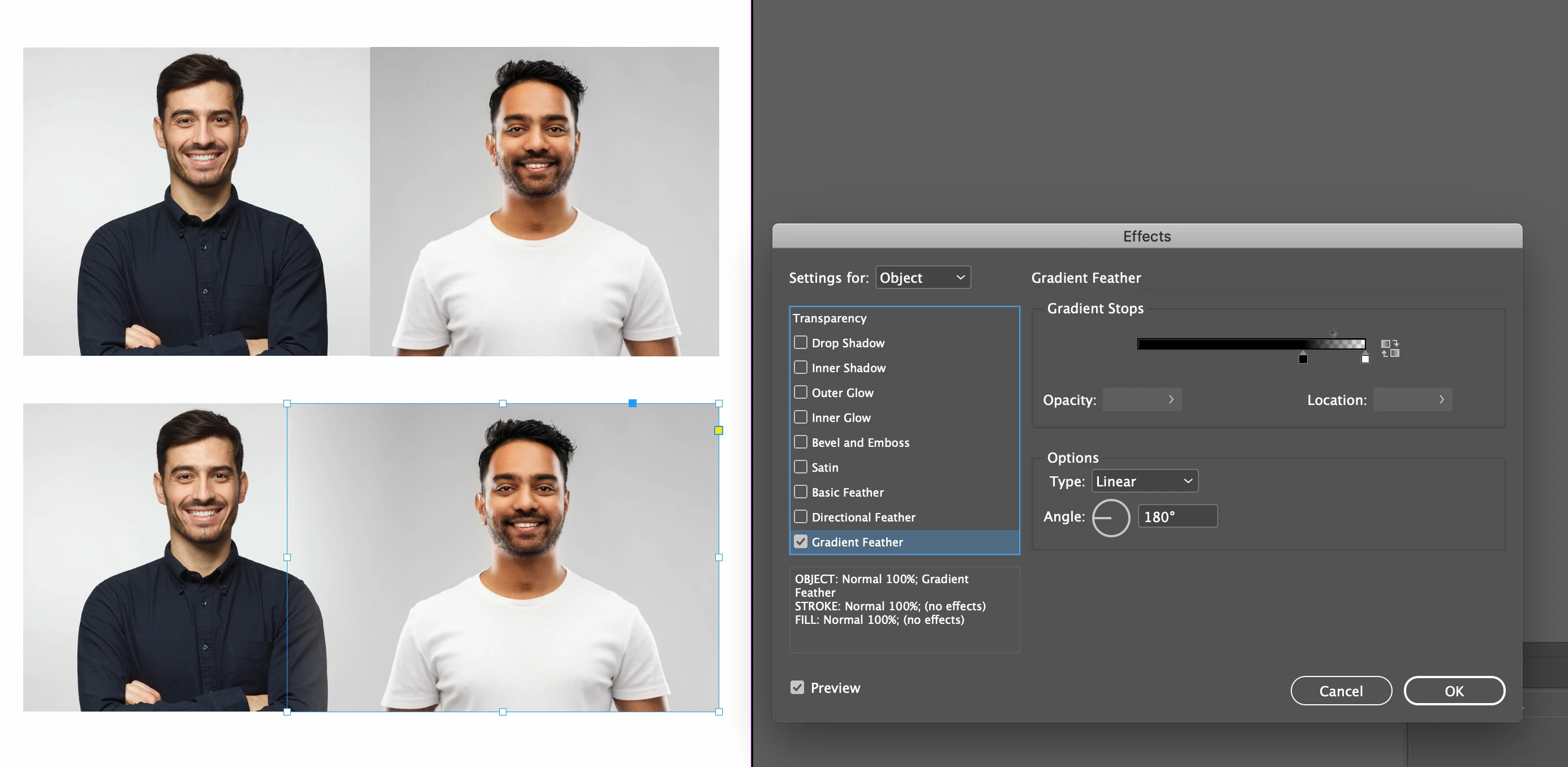
You can overlap the images and then use a gradient feather to blend images.

返信数 5

Robert at ID-Tasker
Legend
October 17, 2024

@Odwazny


Do what @Jeffrey_Smith suggested - but a bit differently.


Add 3rd image that will overlap both - like the red frame on your picture - with a fill color - or better yet bitmap averaged from your photos - and blend left and right edges.


If you do it on the Master Spread - assuming all your photos have the same background - you'll have to add this 3rd image "mask" only once. 


Odwazny
Odwazny作成者
Participating Frequently
October 18, 2024

That a very good way too! Thank you so much, i'll try.

Jeffrey_SmithCommunity Expert解決!
Community Expert
October 17, 2024

You can overlap the images and then use a gradient feather to blend images.

James Gifford—NitroPress
Legend
October 17, 2024

For a one- or few-shot solution, this is integral to the layout and simplest. But if (as I suspect) it's a "many" that has to be replicated across many pages, solving it at the library image level is a more... foundational? fix. Eliminate the problem in the images, as a shop practice, and not in every placement of the image/s.

James Gifford—NitroPress
Legend
October 17, 2024

Yes, this is a Photoshop/image management part of the process. For catalog and library work, the goal is usually to rough-mask the object/model/product, then blend/fade the background to a consistent white/gray/tint within a given range of the content, so that even if cropped the images will blend seamlessly in a layout. It should be done that way on a production basis by the photographer/image manager at a commercial level.

Barb Binder
Community Expert
Community Expert
October 17, 2024

You could play with blend modes (Window > Effects) but I don't see how they will get you where you want to go. Photoshop will, of course. 


~Barb

~Barb at Rocky Mountain Training
BobLevine
Community Expert
Community Expert
October 17, 2024

Do it in Photoshop