



How to use reference point to increase page size
Hi There,
Currently my Parent Page size is 7.0866in × 9.0551in. I need to resize the page size to 7in × 10in and then want to "Apply Parent to Pages" to apply the parent page size to all the pages at once. Problem is, while I am increasing the parent page size from "Custom" menu of "Pages" panel (please see the attached image), the size of the parent page is increasing to all directions (top/bottom/left right) and the reference point is not working in this case. If I use "Page Tool" and set the reference point to top right corner, then the size of the parent page is increasing at left and bottom (two directions). But after increasing the parent page size, while I am pressing "Apply Parent to Pages", the other pages are increasing to all directions (same reference point which I selected for parent is not working).
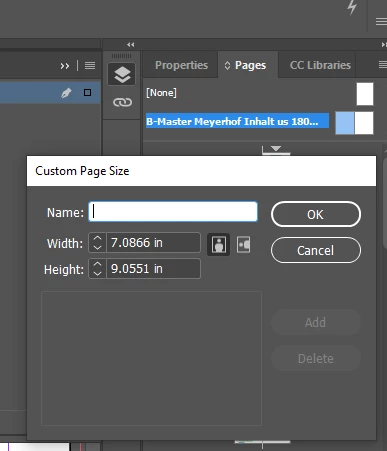
As I have existing texts on book pages, if they increase to all directions, I have to realign the text to top margin. But I want the existing text will be kept to the top margin and the page will grow/increase only to downwards so that the extra blank space after increasing page size will be at bottom part of the pages.
How to achieve that or how to use reference point to increase the book's page sizes by applying Parent Page sizes?
 AdChoices