Inspiring
November 30, 2021
解決済み

InDesign Displays my RGB Blue 0,0,255 as dull CMYK especially for my blue 0,0,255

  • November 30, 2021
  • 返信数 7.
  • 5608 ビュー

InDesign Displays my RGB Blue 0,0,255 as dull CMYK especially for my blue 0,0,255.

I have definitely set my EPS files to RGB color, but only the 0,0,255 blue is converted to an ugly dull blue. I also set my PDF output to RGB, but the blue is still wrong and only wrong for my EPS files. The 0,0,255 blue for text outputs correctly. So, why won't InDesign 15 or 16 output the EPS color correctly?
Sample: 


このトピックへの返信は締め切られました。
解決に役立った回答 Conrad_C

When you past an RGB color into another RGB illustrator doc 1000 times, it is faster to use spot because at appears in the swatches panel instantly. Otherwise you have to add the color manually 1000 times into the swatches panel. That is how spot came into the RGB picture. The issue is not about spot colors, the issue is from an outsourced InDesign file with color issues and I have never had this color issue before from an outsourced InDesign file. Please stop going on a tagent. Thx


@thomasb14279947 wrote:

When you past an RGB color into another RGB illustrator doc 1000 times, it is faster to use spot because at appears in the swatches panel instantly. Otherwise you have to add the color manually 1000 times into the swatches panel. That is how spot came into the RGB picture.


I realize you don’t want to continue along this tangent, but this is worth noting:


What you describe is using spot colors as a workaround for specifying color inappropriately; instead of using spot colors it would be better to specify your colors correctly. If you paste an object containing a non-spot color into another Illustrator document and its color does not appear in the Swatches panel, then the color was probably defined with Global disabled, meaning that when you apply that color it is not linked to a named swatch. If a color is defined with Global enabled, then it is linked to a named swatch, so pasting an object using that color into another document does carry the named swatch with it into the other document.


Below you can see an example of how using the Global option allows a named swatch to be pasted with an object into a different document.
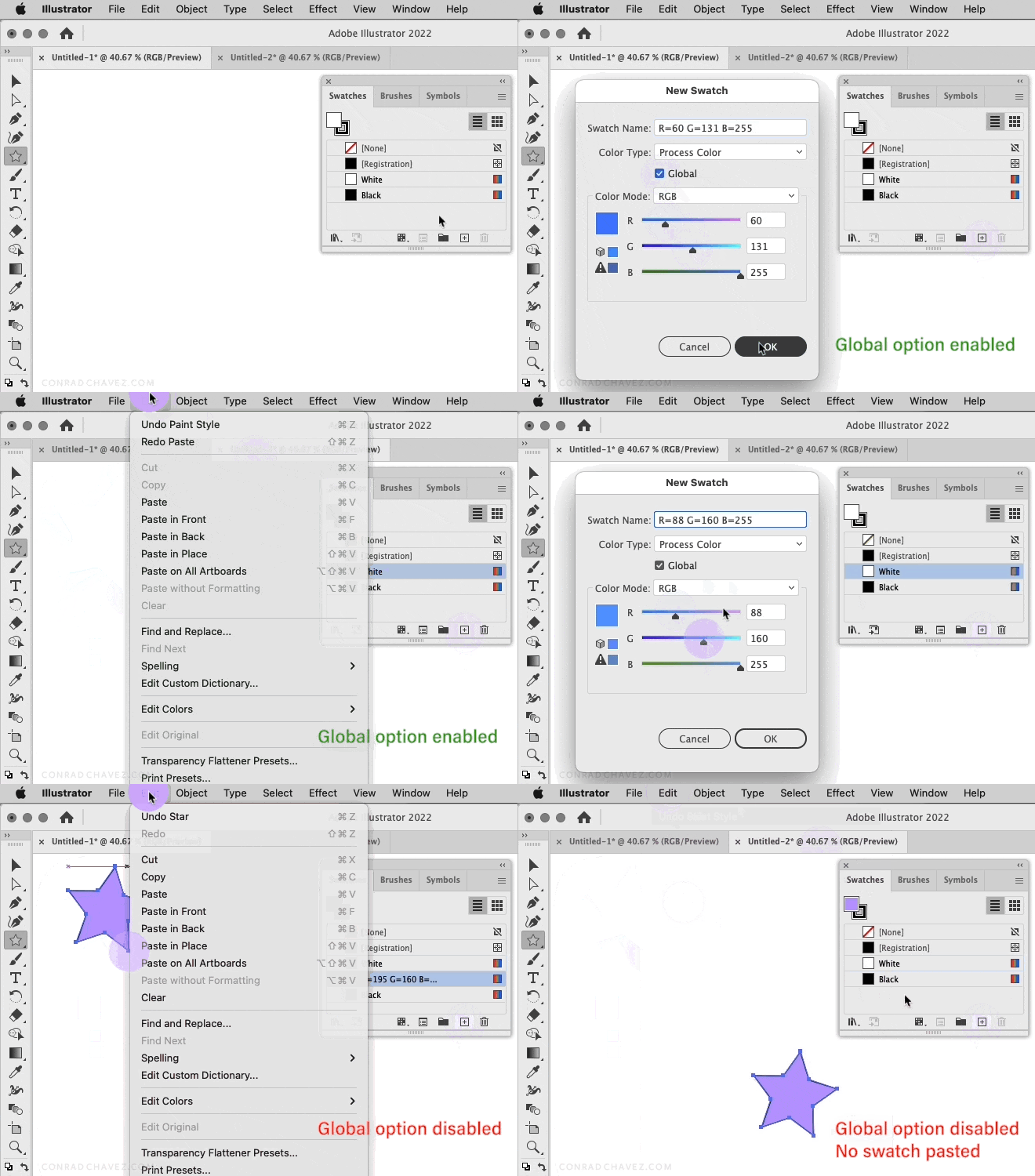


It’s understandable that you are satisfied because the spot color workaround works, but please realize that everyone is so uncomfortable with it because it is not considered a best practice. The best practice, using the Global option, would also allow named swatches to copy and paste among documents, and with the advantage of being free of the technically incorrect and potentially complicating method of using spot colors in a non-print workflow. (For example, one risk is that if in the future any of the art needed to go to press, then the incorrect use of spot colors would have to be untangled first.)


返信数 7

Participating Frequently
September 8, 2022

What is the solution on this?!!!

I have this:


I get this:


Its 2022! You should get what you see!

rob day
Community Expert
Community Expert
September 8, 2022
Inspiring
December 3, 2021

New correct solution. Sorry, my solution1 only visually works on screen of ID.
As many stated, I did make sure my AI, ID, and other Adobe Apps use the same Color Settings. That helps, but the calprit is much more complex. Note that the InDesign and EPS art files are old from CS. The spot color named that uses 0,0,255 RGB has been converted to CMYK and locked down that way within InDesign for unknown reasons. To force ID to output 0,0,255 to RGB I have to set the 0,0,255 spot color to an RGB spot color that works by clicking File Menu > Print > Output > Ink Manager > Ink Alias and change 0,0,255 to a working RGB color 0,0,251 (which also has acceptable gamut, but there are no gamut issues, so ignore this). Now, all the blues for this color came out correctly. Overall, this is an abnormal issue. 

Sample of PDF Output


rob day
Community Expert
Community Expert
December 3, 2021

Hi @thomasb14279947 , I‘m not following why you are using spot colors at all. Spot colors would only be useful in an offset print workflow where extra plates are needed on press in order to print a custom ink color—an ink that isn’t process CMYK.


In an RGB screen workflow you would not want Spot Colors at all. If for some reason you can’t edit the spots to process in the Illustrator file, the better approach would be to simply edit the Swatches Color Type in InDesign—Ink Manager assumes print output and only complicates the screen color output.


Here I’ve made an Illustrator file with a Spot named R=0 G=0 B=255, and when I place the .eps the spot color is added to my Swatches panel—because the Color Type is Spot it is listed in Separation Preview and Ink Manager


I can edit the incoming swatch, set its Color Type to Process, and it will no longer be listed as a Spot Color in either Separation Preview or Ink Manger. With Separation preview turned off I get an RGB preview


The color is no longer listed in Ink Manger


Also, to view process RGB objects in their full gamut you have to keep Overprint/Separtion Preview turned off, and the document’s Transparency Blend Space has to be set to RGB:


Inspiring
December 3, 2021

Thx, but I know all that. Note that this project is for the web and not for print. Spot colors are useful and I will use them if needed. Besides they were more expedient at the time. The problem is fixed and am happy with the output. No more help needed.
Thx, everyone for trying to help.

Community Expert
December 1, 2021

Rob Day said: "If you uncheck it [ Include CMYK PostScript in RGB Files ], the RGB eps still is saved with no embedded color profile, which means the color display will be inconsistent."


Right. So the one who is using the EPS file must make sure that the display will be consistent.

In this case this is Thomas. If he always is using e.g. sRGB for output and as document profile not much can go wrong. The color will be consistent accross the exported PDF and the PDF viewers.


Regards,
Uwe Laubender

( ACP )

rob day
Community Expert
Community Expert
December 1, 2021

If he always is using e.g. sRGB for output and as document profile not much can go wrong


Hi Uwe, that is a big if, and wouldn’t be practical when the file is shared—everyone in the organization would have to be constantly checking  document RGB assignments.


Also, @thomasb14279947’s 0|0|255 blue is not really affected by the profile assignment because it happens to be on the edge of the RGB gamut, so the value of an embedded profile is not obvious in that particular case. How much a color appearance changes depends on where it is in the RGB space—something like 200|50|50 does this as the assignments change:


Community Expert
November 30, 2021

Hi Thomas,

will you export your layouts to a PDF that should be printed with an offset press in CMYK ?

If that is part of your workflow you better set up the vector graphics in CMYK where the black grid will use 100% K strokes and the text will use 100% K fills. And both should be set to overprint already in Adobe Illustrator.


Regards,
Uwe Laubender

( ACP )

Inspiring
November 30, 2021

FYI: My PDF output is for online presentation use (RGB) not print.
I have been using EPS for print for over 25 years and did not have issues with CMYK for print.
BUT, I am doing the oposite. I am outputting for the web with RGB. No problem outputting a PDF to RGB or whatever. So many comments here are out of context.
My specific and only issue is with the EPS file getting stuck in CMYK even though the document color settings in Illustrator are RGB. Illustrator is stuck in the old CMYK print paradyme which is why I had the issue. Deselect Inlude CMYK... worked, but how am I to know that. Why can't Adobe remove this option and let the document color setting dictate the color output which is what most APPS do. Can Adobe answer this?

rob day
Community Expert
Community Expert
November 30, 2021

I am outputting for the web with RGB. No problem outputting a PDF to RGB or whatever. So many comments here are out of context.


If you want to control the RGB color appearance (maybe no one cares?), you would have to ensure that Illustrator’s Working RGB space is always set to sRGB, and the InDesign documents you place the RGB eps files in, all have sRGB assigned—not only on your computer, but throughout the entire organization. With an .AI or PDF file it would be simply a matter of embedding the sRGB profile, and the RGB color appearance would never change when the files are placed or moved around.


Why can't Adobe remove this option and let the document color setting dictate the color output


Another reason to use .AI


Inspiring
November 30, 2021

I fixed it in Illustrator 2020.
When I "save as" I must uncheck the "Include CMYK Postscript in RGB Files" option and then the RGB colors are true. See attached. 

James Gifford—NitroPress
Legend
November 30, 2021

It sounded like CMYK was the culprit.


As Derek noted, EPS is a fading if not completely obsolete format. Since you are coming from Illustrator (and not, say, a mapping/GIS or stat program that may have no other alternatives) you might consider importing the files as AI or PDF. Both will preserve the high resolution of vector imaging and are newer, more stable files to use for the purpose.

Derek Cross
Community Expert
Community Expert
November 30, 2021

EPS is considered an obsolete format.

Inspiring
November 30, 2021

EPS is still a valid vector high quality format and profitable format for my company's systems for print and online. May be we will go to SVG or something else some day, but that is beyond my control.

rob day
Community Expert
Community Expert
November 30, 2021

Hi @thomasb14279947 , Be careful with SVG for print—SVG can’t be properly color managed.


EPS can still be used , but it has significant limitations—it has to be flattened, no live transparency. And a vector EPS out of Illustrator can’t have a color profile embedded, which would be a real problem with RGB files. The .PDF or .AI formats don’t have color management or live transparency problems. 

James Gifford—NitroPress
Legend
November 30, 2021

EPS files display only the low-res preview in ID and in most apps. These previews depend on the app used to generate the EPS and can vary considerably.


The output, to print or PDF, should be correct. If it varies from the ID color setting, there is something wrong with the EPS export (possibly CMYK color definition/conversion?)

Inspiring
November 30, 2021

It was an issue with the EPS file Save As menu. By checking Include CMYK Postscript... it over-rides the RGB color settings and no matter how you output to a PDF, the EPS art will forever stay as CMYK when using InDesign. It is now fixed.

