



johnrellis
Legend
March 20, 2024

P: Exporting DNG (from Merge) as a new DNG w/ Compatibility set to 14.0 creates a damaged file

  • March 20, 2024
  • 20 replies
  • 2550 views

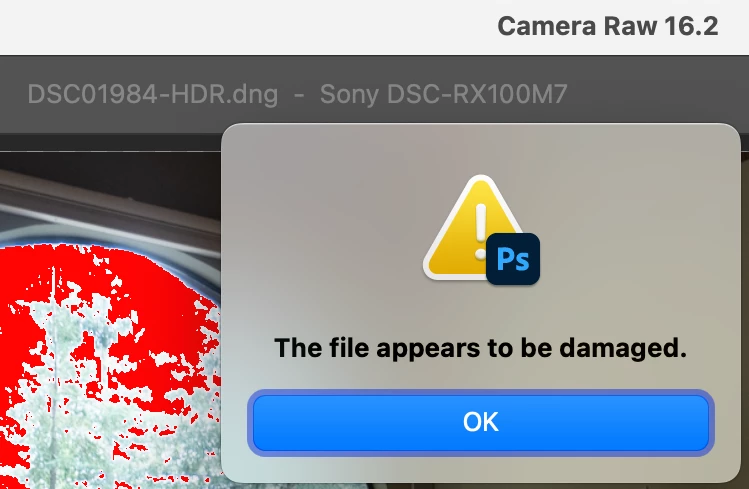
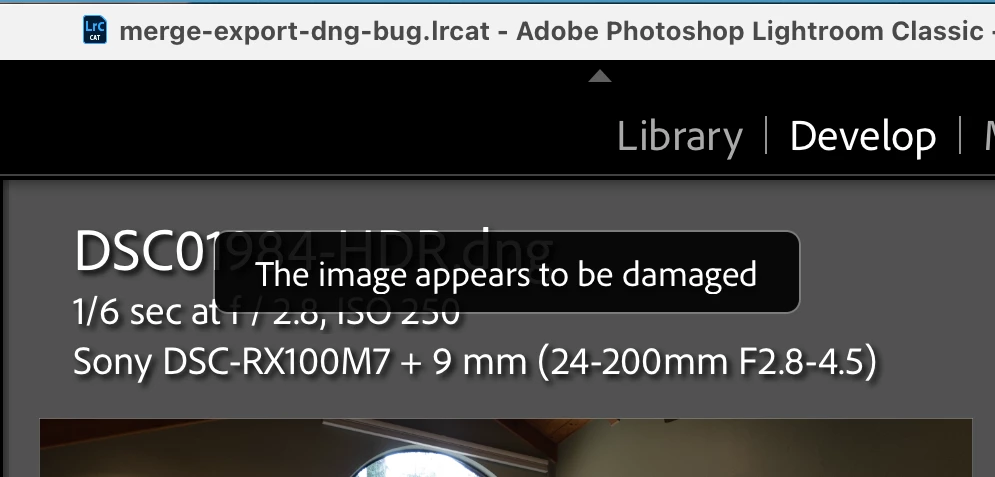
Exporting a photo-merged DNG as a DNG with compatibility Camera Raw 14.0 And Later creates a DNG that can't be opened in either Photoshop Camera Raw or in LR Develop.


Tested with LR 13.2 and Camera Raw 16.2 on Mac OS 14.2.1.


1. Open this small catalog:

https://www.dropbox.com/s/dzg9nvdz727wgam/merge-export-dng-bug.2024.03.25.zip?dl=0 


2. Select both photos and do Photo > Photo Merge > HDR with these settings:
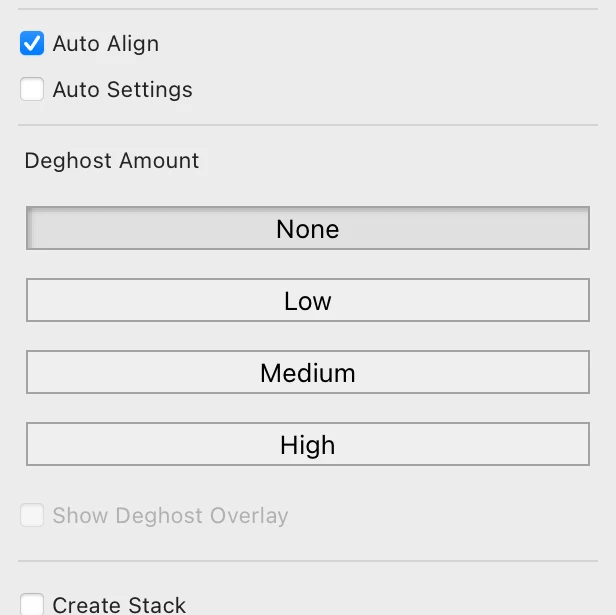
 

3. Select the merged DNG and Export with these settings:
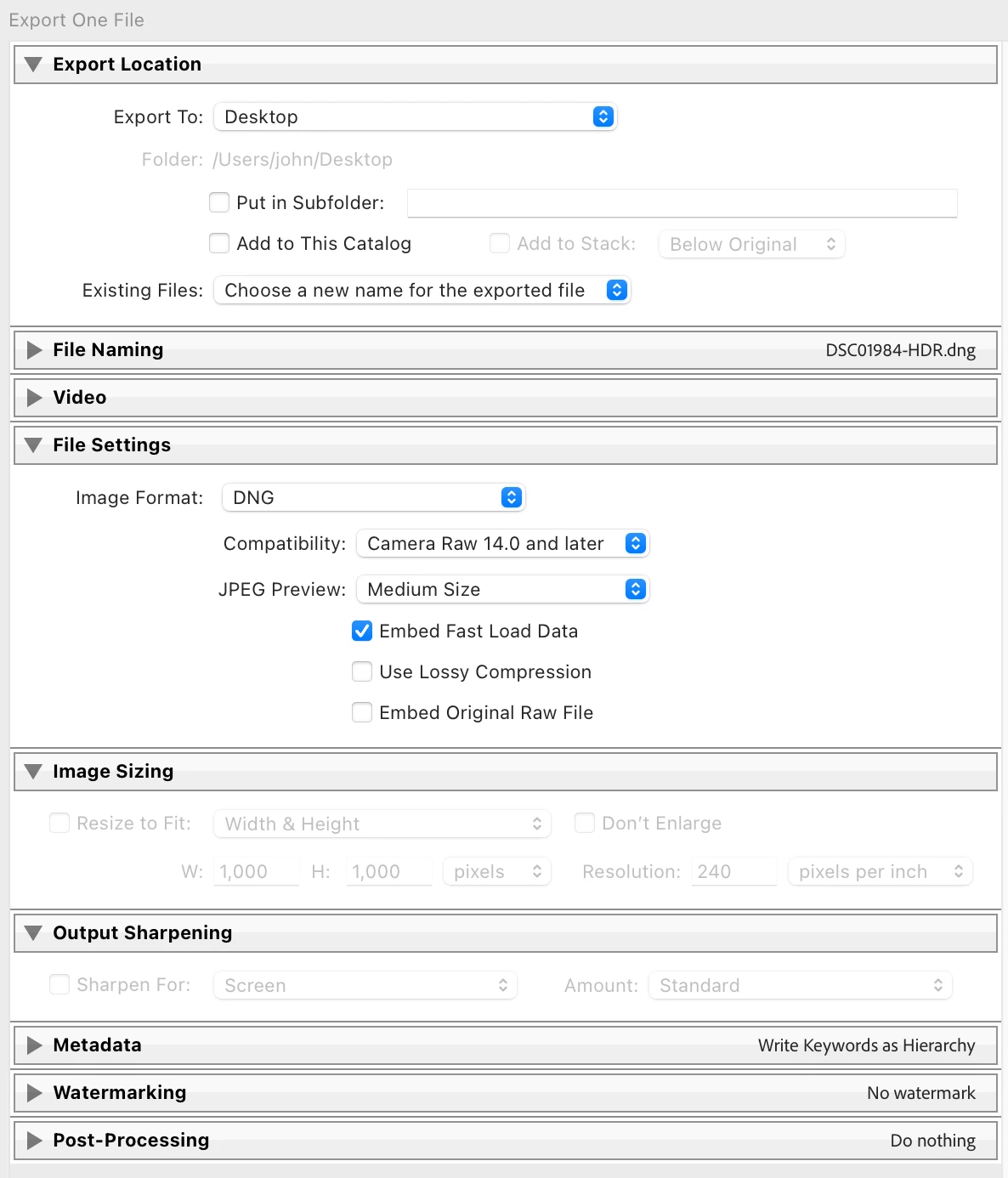
 

4. Open the exported DNG in Photoshop and observe the error "The file appears to be damaged":
 

5. Import the exported DNG into LR, go to Develop, and observe the error, "The image appears to be damaged":
 

6. Repeat step 3 with Compatibility: Camera Raw 15.3 And Later, and observe the exported DNG opens without error in both Photoshop and LR Develop.


This topic has been closed for replies.

20 replies

Adil36199917kev4
Participating Frequently
March 26, 2024

The export of DNG file was using LrC which is causing the issue of importing the same file back into Lr - so the issue belongs here as it appears LrC export process is the issue 

johnrellis
Legend
March 26, 2024

"Are you refering to Lightroom Classic (LrC) or Lightroom (Lr) when using "LR" terminology?"


As mentioned by @Lumigraphics, this is the Lightroom Classic forum, and unless otherwise specified "Lightroom" and "LR" refer to LR Classic.


"I have tried setting Compatibility: Camera RAW 15.3 or later Lightroom develop still fails however PS works without error - the same if I export choosing "Original" ... It's the cloud version of Lightroom (Lr) (version 7.2) that has this problem when importing the exported DNG file"


Thanks for the clarification.  


Using the LR Classic catalog and test images I posted above, I tested the ability of LR Desktop 7.2 to import a merged photo created by LR Classic 13.2, and I only see an error when exporting as DNG with Compatibility: Camera Raw 14.0 And Later:


Merged photo: no error

Merged photo exported as Original DNG: no error

Merged photo exported as DNG 15.3 And Later: no error

Merged photo exported as DNG 14.0 And Later: error


This is expected, since LR Classic 13.2, LR Desktop 7.2, and Camera Raw 16.2 all have the same version of the Camera Raw engine inside, and thus we'd expect them all to behave similarly. But if you have a sample merged photo that doesn't, please share it.

Legend
March 26, 2024

This is the Lightroom Classic forum, you are having problems reading files in Lightroom CC/Desktop?

Adil36199917kev4
Participating Frequently
March 26, 2024

Hi Rikk


Are you refering to Lightroom Classic (LrC) or Lightroom (Lr) when using "LR" terminology? Its the cloud version of Lightroom (Lr) (version 7.2) that has this problem when importing the exported DNG file - see below

quote

Exporting a photo-merged DNG as a DNG with compatibility Camera Raw 14.0 And Later creates a DNG that can't be opened in either Photoshop Camera Raw or in LR Develop.


Tested with LR 13.2 and Camera Raw 16.2 on Mac OS 14.2.1.


1. Open this small catalog:

https://www.dropbox.com/s/dzg9nvdz727wgam/merge-export-dng-bug.2024.03.25.zip?dl=0 


2. Select both photos and do Photo > Photo Merge > HDR with these settings:


3. Select the merged DNG and Export with these settings:


4. Open the exported DNG in Photoshop and observe the error "The file appears to be damaged":


5. Import the exported DNG into LR, go to Develop, and observe the error, "The image appears to be damaged":


6. Repeat step 3 with Compatibility: Camera Raw 15.3 And Later, and observe the exported DNG opens without error in both Photoshop and LR Develop.


By @johnrellis


johnrellis
Legend
March 26, 2024

"I have tried setting Compatibility: Camera RAW 15.3 or later Lightroom develop still fails however PS works without error - the same if I export choosing "Original""


I'm not able to reproduce that using test test catalog and images I published above, merging and exporting the 15 raws you published above, or exporting the four merged DNGs you published.  In call cases, using Compatibility: Camera Raw 15.3 Or Later produces exported DNGs that can be successfully re-imported in my LR 13.2.


Perhaps you could upload one of the merged DNGs that fails to export correctly in your LR 13.2, and I can see if that happens in my LR.

Adil36199917kev4
Participating Frequently
March 26, 2024

Hello I have tried setting Compatibility: Camera RAW 15.3 or later Lightroom develop still fails however PS works without error - the same if I export choosing "Original"

Rikk Flohr_Photography
Community Manager
March 26, 2024

Adding bug number and updating status.

Rikk Flohr: Adobe Photography Org
Adil36199917kev4
Participating Frequently
March 26, 2024

Hello another workaround is to export as  "Original" as opposed to DNG

Adil36199917kev4
Participating Frequently
March 25, 2024

Lightroom Classic is up to date, can you. be specific on what export preferences I should be looking at as their is no "export tab" under preferences to check? There have been no reported errors on export from LRc throughout this process. I am engaged with Adobe support on this issue. Will try to reset preferences as described.


Thanks

Adil36199917kev4
Participating Frequently
March 20, 2024

Hello


I am a real estate photographer and I use HDR bracketing for many of my clients in cluding Airbnb. My normal work flow is to import bracketed RAW files from my Sony A7C into Lightroom Classic (13.2). I then group each bracket into a stack and then select all stacks and right click "photo merge to HDR". This then bulk processes all of the stacked images to generate HDR images in DNG format. One of my clients needs to receive the merged HDR files in DNG format which has worked flawlessly these past two years. However on my last two jobs for ths client the client reported that the merged HDR DNG files I have submitted were corrupted.


I have done analysis on this and can easily recreate the problem. I am running an apple macbook pro M2 running Sonoma 14.4. If I select one of the processed merged HDR files and export it to DNG format - on the surface all looks OK with no errors reported on export. However if I try to upload the exported DNG file back into lightroom or photoshop I get an error message "The file appears to be damaged".


However if I import the same file into a non adobe product like Affinity Photo I get no error message. If I export the same HDR merged DNG file from Lightroom Classic to a diferent format tiff or jpeg there is no issue when reloading that image back into lightroom. I have have also tried exporting as format set as  "original" which also creates a DNG file on export albeit much smaller resolution than the original DNG exported file. This file can also be loaded back into Adobe products without error.


The work around I have to do is take the exported HDR DNG files and run them through Adobe DNG Converter which looses some resolution as the image reduces slightly  in size after this process. These files can then be uploaded back into Lightroom Classic and Photoshop without ereror messages.


Seems Lightroom may experience issues when exporting merged DNG files as a DNG file?


Anyone else had this issue and can advise?


Many thanks


Adil

Brighthouse Photography Limited

johnrellis
Legend
March 22, 2024

"if I try to upload the exported DNG file back into lightroom or photoshop I get an error message "The file appears to be damaged".


I'm not able to reproduce this problem either. In general, Adobe only pays attention to problems that they can easily reproduce. I suggest as a next step that you upload the original photos, the merged HDR DNG, and the exported merged HDR DNG. We can see if we observe the same symptoms in other LR configurations and are able to make a reproducible bug recipe for Adobe's attention.  


Upload the photos to Dropbox, Google Drive, or similar and post the sharing link here.

Adil36199917kev4
Participating Frequently
March 24, 2024

Hello

 
In an effort to help you re-create the issue can I suggest the following.
 
I have downloaded 15 RAW files directly from my camera that were used for the photoshoot in question and uploaded them to my drop box. Please can you follow the EXACT workflow I am using with LRc 13.2 to create the merged HDR files. I have used three different exposures for each bracket , making 5 images when merged to HDR.


Please follow the exact workflow process I am using as follows:-
 
  • If possible please use a MAC Running OSX Sonoma 14.4
  • Please download the RAW files to your desktop
  • Open Lightroom Classic 13.2 
  • Select Import and select the 15 RAW files and import them into LRc 13.2
  • In LRc 13.2 either manually stack each group of three RAW images so 5 Stacked images exist or select all the RAW files and right click any of the selected images and select Stacking>Auto Select by Capture Time and adjust setting so that a total of 5 stacks appear.
  • Select all of the stacked images and right click and select Photo Merge >HDR
  • Once the process is complete please select the 5 merged HSR DNG files for export.
  • Select Export and set the file type to DNG | Select camera RAW 14 or later  | set jpeg preview = Medium Size
  • Export the Images 
  • Using the latest version of LRc see if you can import these Merged HDR DNG files back into Lightroom for editing and also right click on any of the exported DNG files and select open with LR or PS/ACR to see if you can recreate the error message
  • If you can recreate the error message please try and open the same file using a a different (Non Adobe) application which supports DNG file format.
  • Let me know the results.
 
 
Thanks 
Adil