pier marios31443953
Participant
October 24, 2022
解決済み

Color cast of older scanned film slide photos

  • October 24, 2022
  • 返信数 1.
  • 1313 ビュー

Hello there,
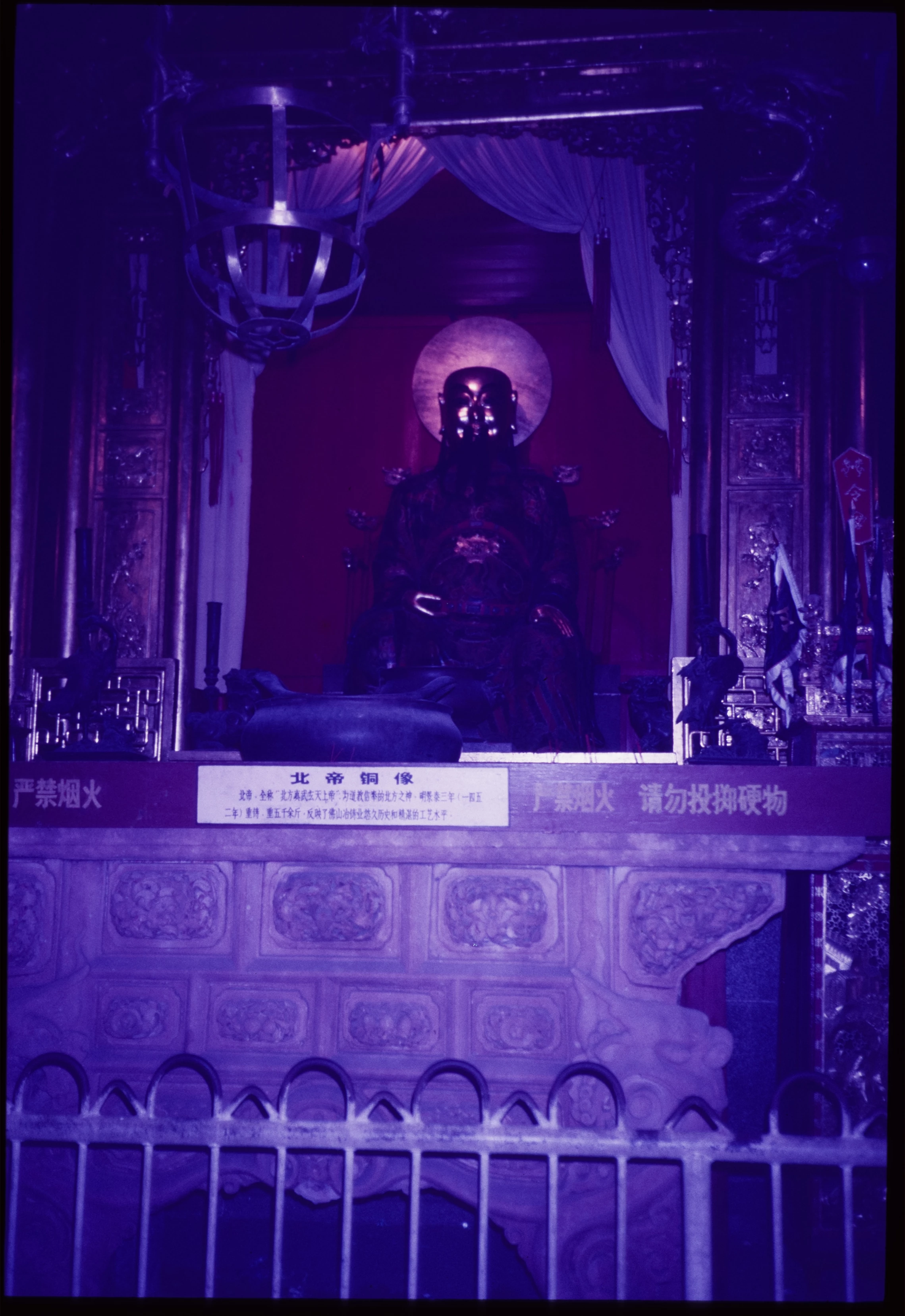
I have some problems fixing the color cast of my image with Lightroom Classic. I have many old films slides scanned, and I can't do better with my scanner.

Can I fix the color cast without Photoshop (so I need to use Lightroom)?
I have about 2,000 DNG images to do it.

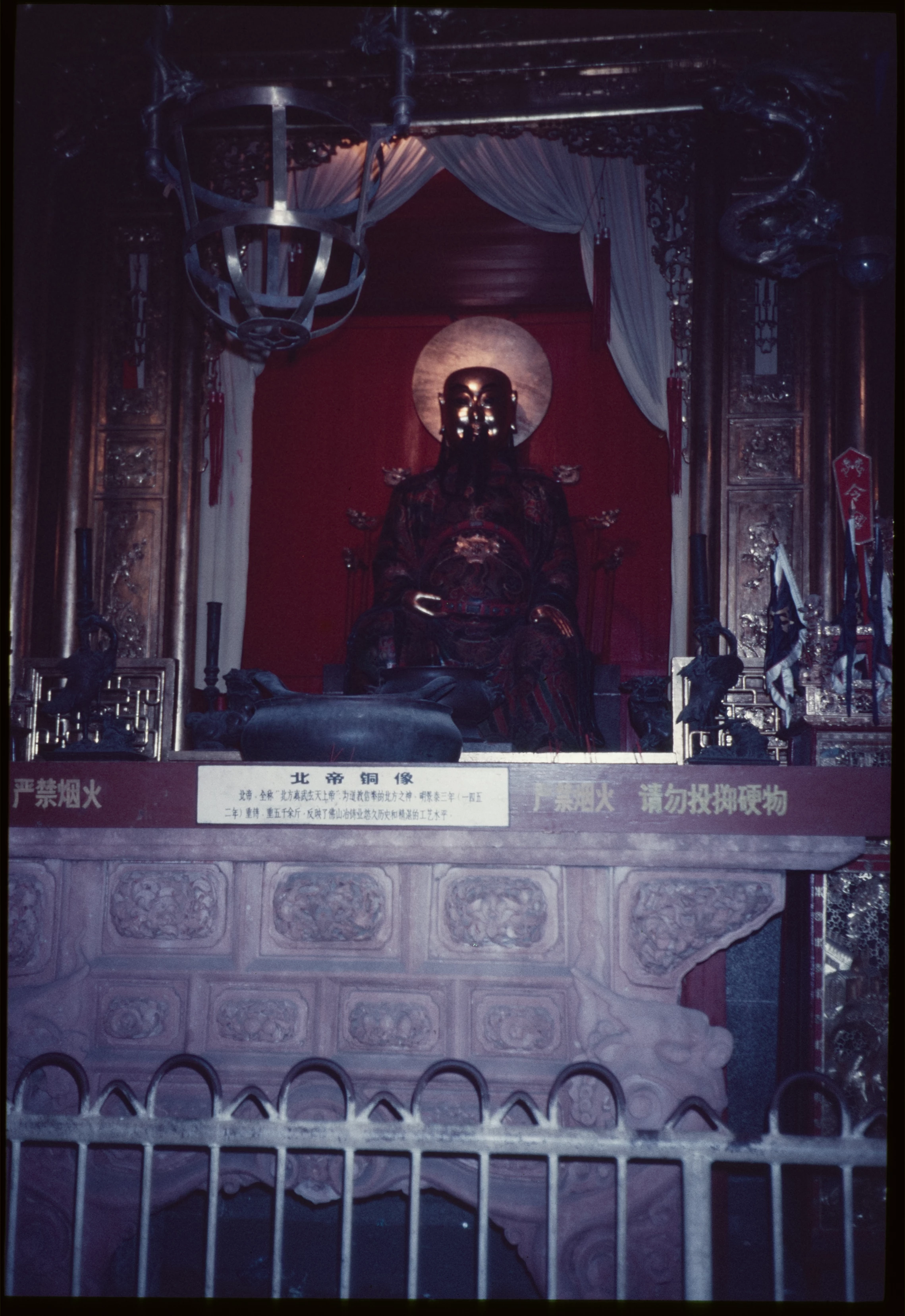
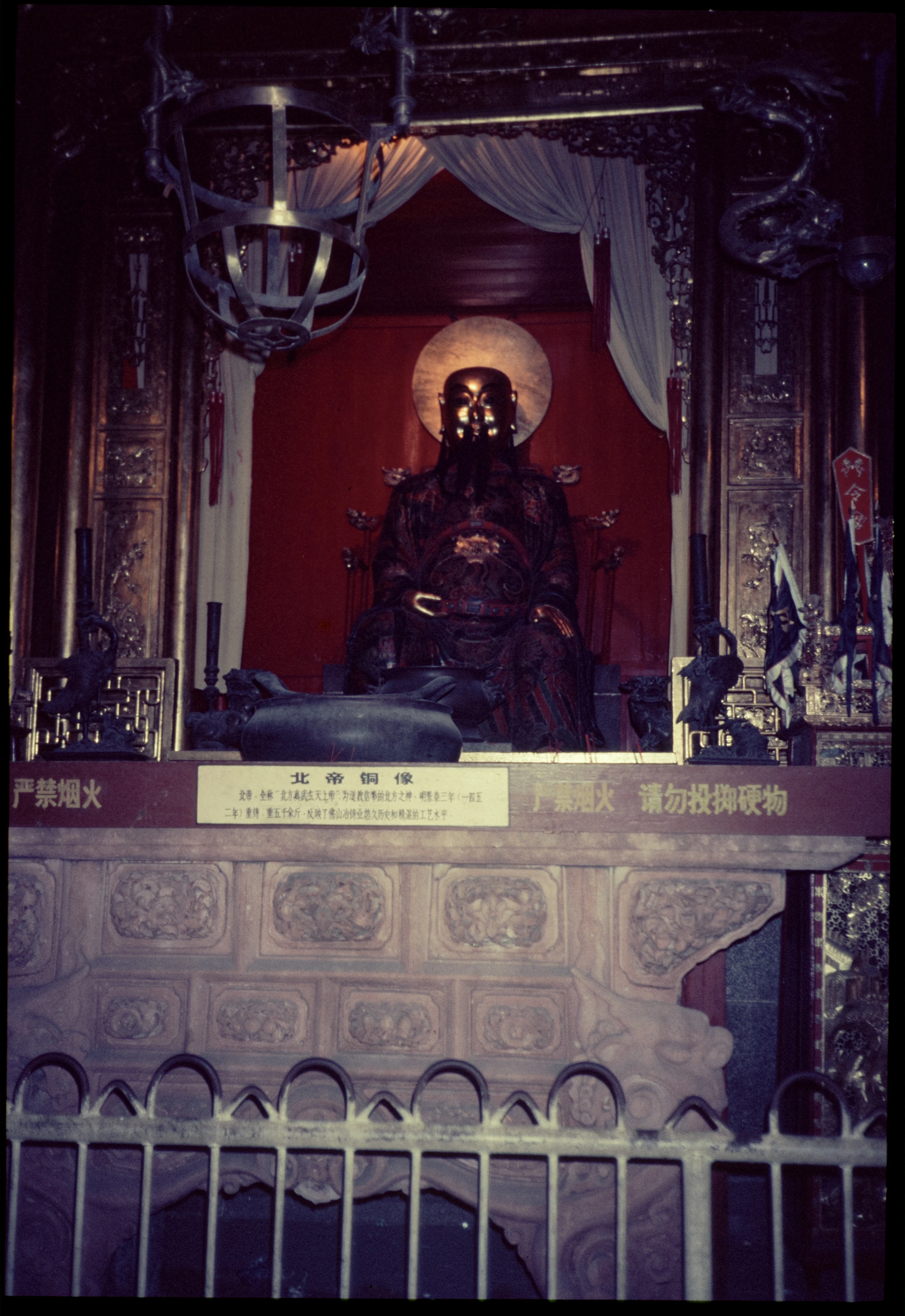
You can see the original and edited photos with Photoshop in the attachments


Thanks in advice 
このトピックへの返信は締め切られました。
解決に役立った回答 johnrellis

[This post contains formatting and embedded images that don't appear in email. View the post in your Web browser.]


I do most slide scan adjustments in LR, though it takes time for each photo if there are color casts (either from the original exposure or from fading in the years since).  Here's the original photo, your edit, and then my edit:


I've attached a screen recording of how I did the edits. The steps:


1. Temporarily crop out the black borders.


2. Adjust the end points of the red, green, and blue tone curves separately, so that they just avoid clipping.  This is similar to Photoshop's auto level.


3. Click the eye dropper tool (auto white balance) on a spot in the photo that should be a neutral grey.


4. Adjust contrast, blacks, and whites.


5. Add a little texture and clarity.


6. Reset the crop to bring back the black borders.


返信数 1

johnrellis
johnrellis解決!
Legend
October 25, 2022

[This post contains formatting and embedded images that don't appear in email. View the post in your Web browser.]


I do most slide scan adjustments in LR, though it takes time for each photo if there are color casts (either from the original exposure or from fading in the years since).  Here's the original photo, your edit, and then my edit:


I've attached a screen recording of how I did the edits. The steps:


1. Temporarily crop out the black borders.


2. Adjust the end points of the red, green, and blue tone curves separately, so that they just avoid clipping.  This is similar to Photoshop's auto level.


3. Click the eye dropper tool (auto white balance) on a spot in the photo that should be a neutral grey.


4. Adjust contrast, blacks, and whites.


5. Add a little texture and clarity.


6. Reset the crop to bring back the black borders.