Participant
October 13, 2019
質問

Gray In lightroom look blue after displaycal calibration

  • October 13, 2019
  • 返信数 4.
  • 1286 ビュー


Hello!


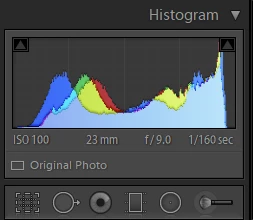
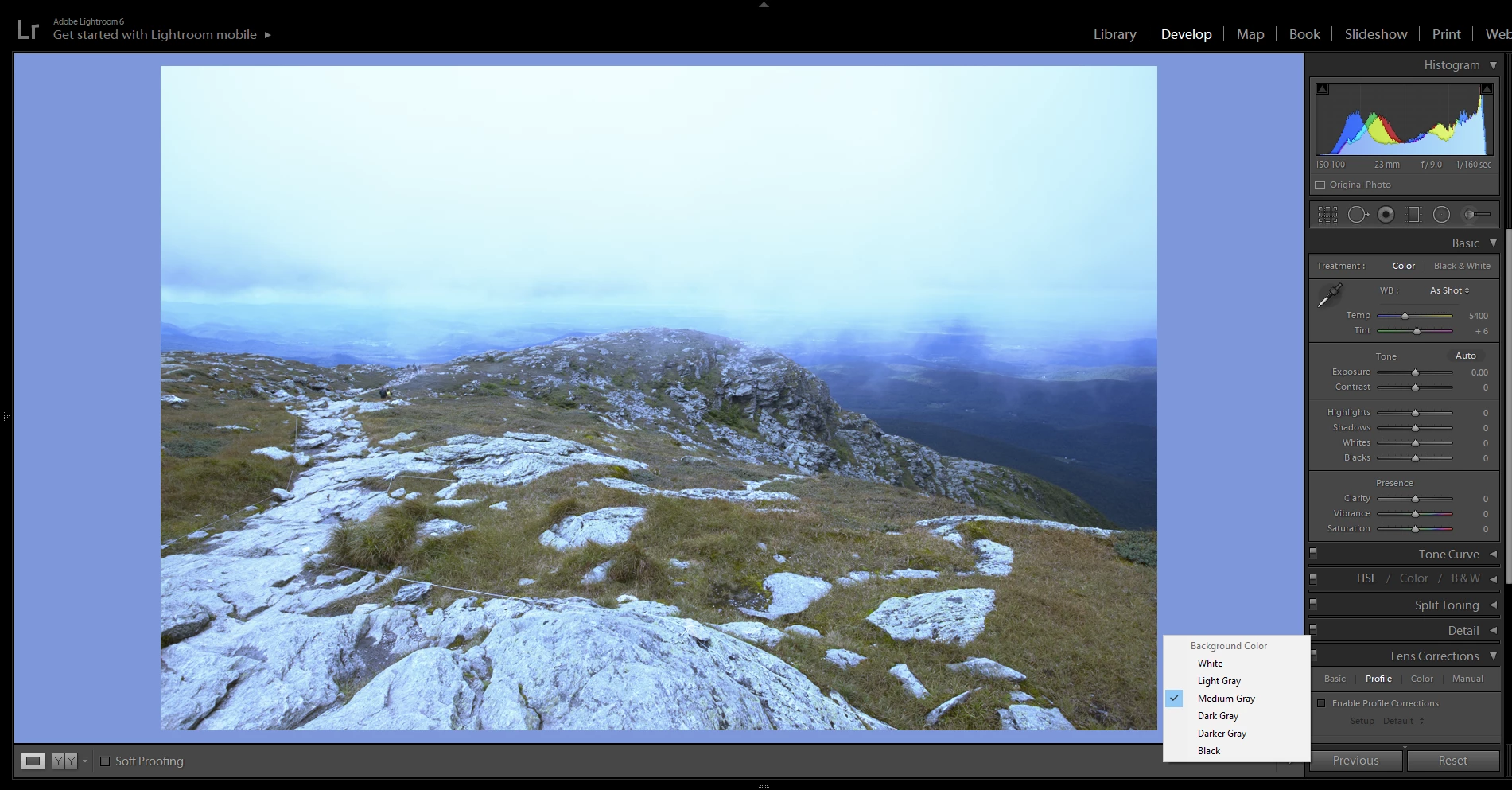
I have run into a bit of a problem. I ran a monitor calibration with DisplayCal software and a Spyder5 calibrator.  Everything looks great system wide but when I get to lightroom it seems that grays all have a blue hue to them for some reason? The histogram shows grays as blue on the Library tab and developer tab as well. I know that these images are not hued blue through past experence and also my editing laptop shows the histogram for these images with gray below the histogram color curve.

This is very noticable when changing the backround color to a shade of gray in the developer tab. White and Black are very true to color when set as the backround color.


As photographers a picture is worth a thousand words =). Here is a screenshot of the library tab and develop tab with a "medium gray" backround. Also I attached a photo of the blues where the gray should be in the histogram.


*Changing my system color profile to another profile does not change the Problem.*
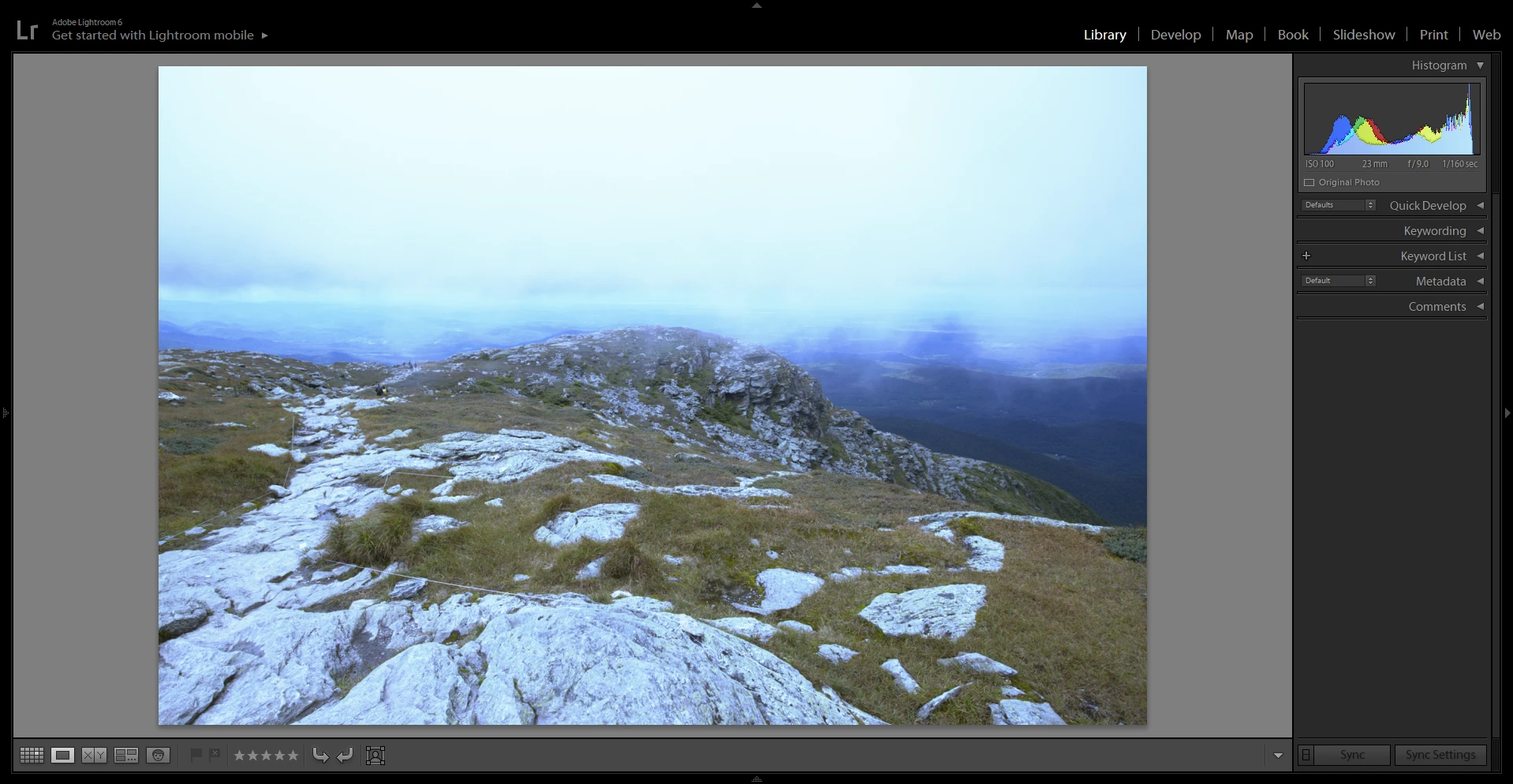
 

I am thoroughly stumped with whats is wrong, I have uninstalled lightroom and reinstalled, I NEED HELP.

p.s. this is a desktop with an external White LED monitor.


Thanks!


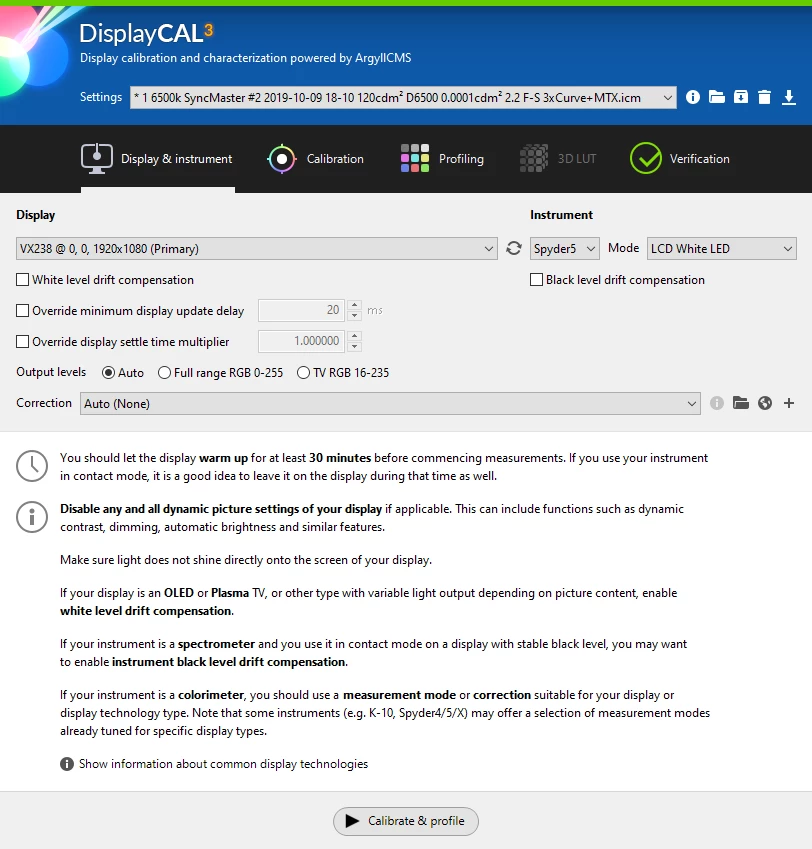
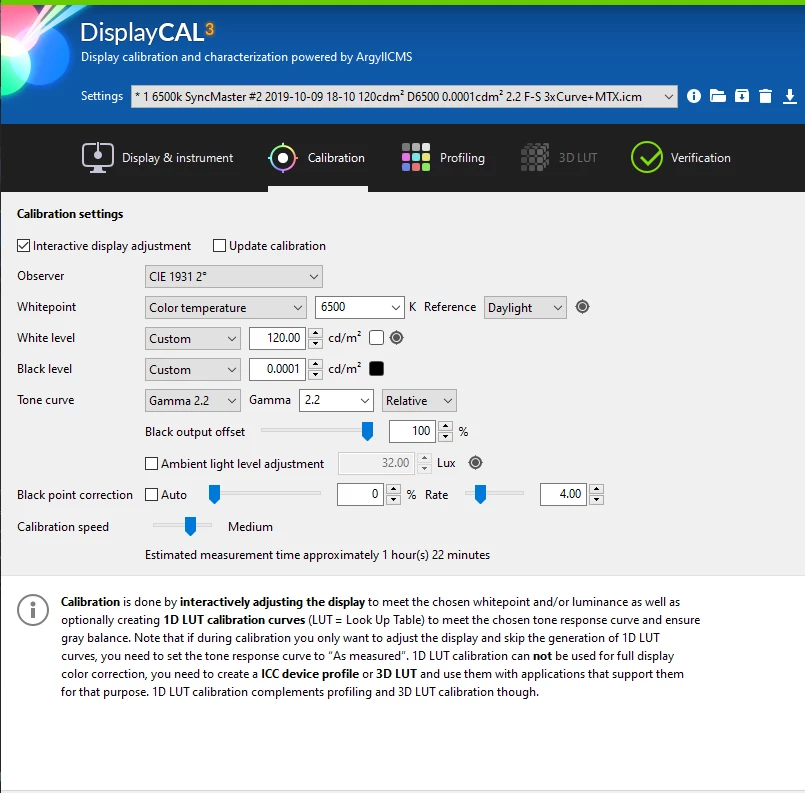
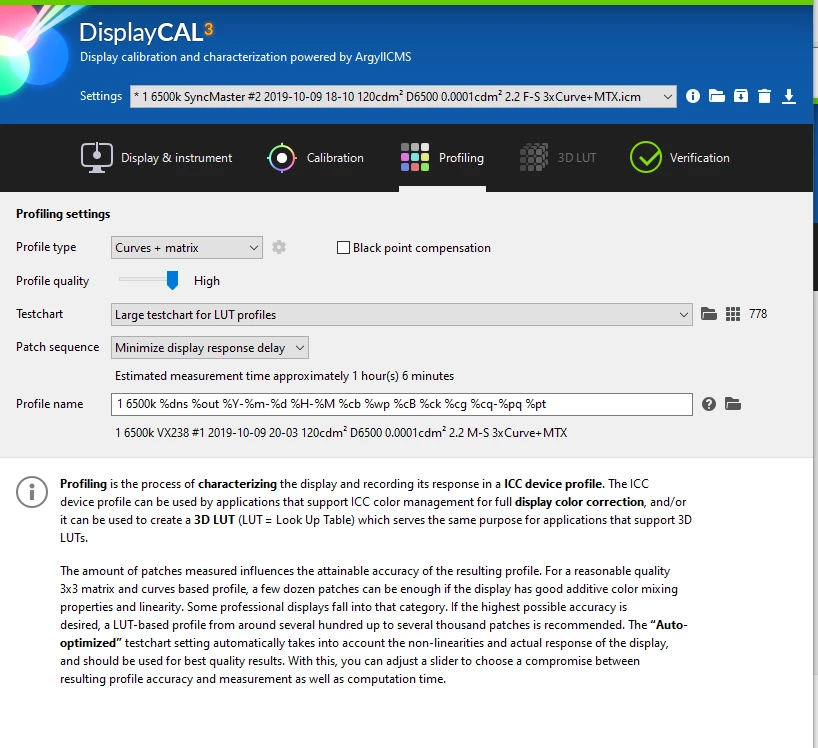
UPDATE **I added The settings I used for displaycal if it helps**

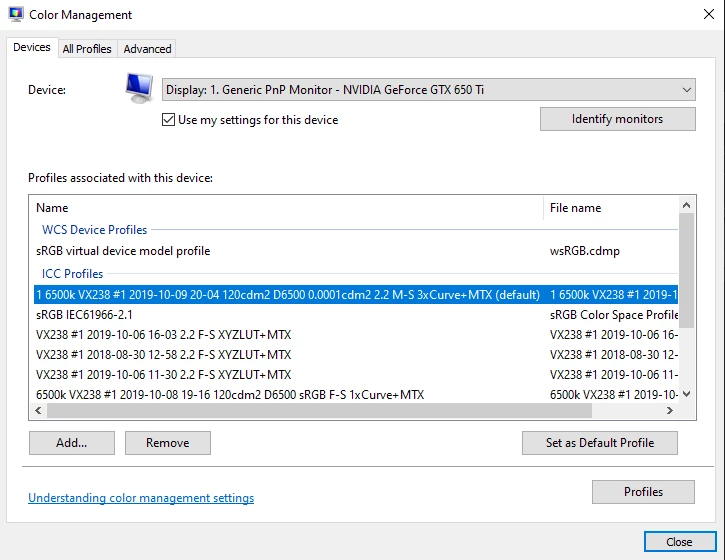
As requested, here is where I change system colors.

このトピックへの返信は締め切られました。

返信数 4

DaveKal作成者
Participant
October 15, 2019

Per your advice helped resovle the issue I was having, uninstalling the driver and restarting my computer to reinstall the graphics driver removed the issue.


Thank You for your help.

Per Berntsen
Community Expert
Community Expert
October 14, 2019

Did you restart Lightroom after changing the profile? It needs to be restarted to become aware of the new monitor profile.

Another thing to try: Set the monitor profile back to the one you created when calibrating, restart Lightroom if running, then go to Edit > Preferences > Performance, and uncheck Use graphics processor. 

If that fixes the issue, update your graphics driver, then try to enable the GPU again.


Please use the BLUE reply button when replying, it ensures that posts appear in chronological order.

Per Berntsen
Community Expert
Community Expert
October 14, 2019

You have a defective monitor profile, run the calibration again.

I'm not familiar with DisplayCal, but you should make sure to create a version 2, matrix based profile. Do not use version 4 or table based.

Alternativley, use the Spyder software.


Everything looks great system wide but when I get to lightroom it seems that grays all have a blue hue to them for some reason

 If you're on Windows, that's to be expected. Native Windows applications are not color managed, and do not use the monitor profile. 


*Changing my system color profile to another profile does not change the Problem.*
How exactly are you changing the system profile?

Please post a screenshot of the dialog box. 

DaveKal作成者
Participant
October 14, 2019

I added a screenshot of the settings I used for display cal and where i changed system color profiles ( color management tab) into the original post.


Thanks,

Dave

Akash Sharma
Legend
October 14, 2019

Hi there,


Sorry that images with gray areas appear as blue in Lightroom after you've used the DisplayCal calibaraion to calibrate your monitor. It seems that the calibration has not completed properly and it's showing unexpected results. Let us help make this right.


Could you please checkout the below steps:


Associate sRGB IEC61966-2.1 Color profile on your system The issue can occur in the grid view of the Library module due to a corrupt color profile.

  • Windows Open Control panel. Locate the Color Management option.
  • In the Color Management dialog > Devices tab, make sure that the check box option Use my settings for this device is selected.
  • Click Add.
  • In the Associate Color Profile dialog that appears, locate the color profile sRGB IEC61966-2.1 in the list and click OK.
  • In the Color Management dialog, the color profile sRGB IEC61966-2.1 now appears under the section Profiles associated with this device.
  • Select this color profile and click Set as Default Profile.
  • Re-launch Lightroom.


Let us know how it goes.


Thanks,

Akash

DaveKal作成者
Participant
October 14, 2019
Thank You for your speedy response. Unfortunately the problem persists after following your detailed steps.