
Lens Blur not working in LrC and Disables option to use Graphics Processor
Initially the option in /preferences/performance/Use Graphics Processor is set to Auto.
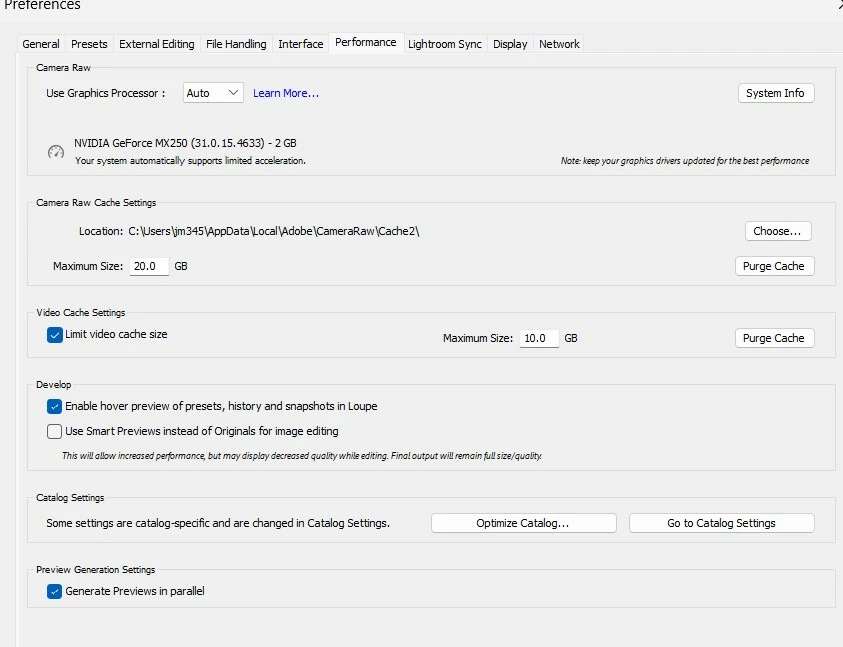
Working with Develop Module on images works Ok with the exception of Lens Blur
When I try using Lens Blur, I get this error message:

LrC disables the option /preferences/performance/Use Graphics Processor which then slows all the other LrC processing, especially in Develop Module.
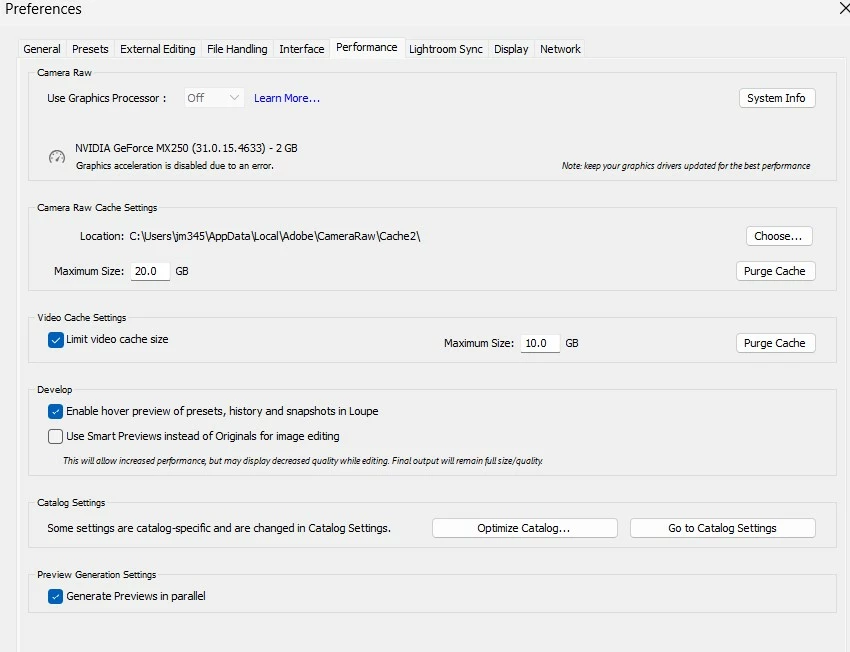
My System Info BEFORE using Lens Blur is as follows:
Lightroom Classic version: 13.1 [ 202312111226-41a494e8 ]
License: Creative Cloud
Language setting: en
Operating system: Windows 11 - Home Premium Edition
Version: 11.0.22631
Application architecture: x64
System architecture: x64
Logical processor count: 8
Processor speed: 2.3GHz
SqLite Version: 3.36.0
CPU Utilisation: 2.0%
Built-in memory: 16133.8 MB
Dedicated GPU memory used by Lightroom: 217.4MB / 1982.4MB (10%)
Real memory available to Lightroom: 16133.8 MB
Real memory used by Lightroom: 942.9 MB (5.8%)
Virtual memory used by Lightroom: 1262.1 MB
GDI objects count: 852
USER objects count: 2701
Process handles count: 2423
Memory cache size: 3.1MB
Internal Camera Raw version: 16.1 [ 1728 ]
Maximum thread count used by Camera Raw: 5
Camera Raw SIMD optimization: SSE2,AVX,AVX2
Camera Raw virtual memory: 62MB / 8066MB (0%)
Camera Raw real memory: 68MB / 16133MB (0%)
System DPI setting: 120 DPI
Desktop composition enabled: Yes
Standard Preview Size: 1440 pixels
Displays: 1) 1920x1080
Input types: Multitouch: Yes, Integrated touch: Yes, Integrated pen: No, External touch: No, External pen: No, Keyboard: Yes
Graphics Processor Info:
DirectX: NVIDIA GeForce MX250 (31.0.15.4633)
Init State: GPU for Image Processing supported by default
User Preference: Auto
This is my System Information showing my Graphics Processor Info AFTER trying to use Lens Blur:
Lightroom Classic version: 13.1 [ 202312111226-41a494e8 ]
License: Creative Cloud
Language setting: en
Operating system: Windows 11 - Home Premium Edition
Version: 11.0.22631
Application architecture: x64
System architecture: x64
Logical processor count: 8
Processor speed: 2.3GHz
SqLite Version: 3.36.0
CPU Utilisation: 6.0%
Built-in memory: 16133.8 MB
Dedicated GPU memory used by Lightroom: 2395.9MB / 1982.4MB (120%)
Real memory available to Lightroom: 16133.8 MB
Real memory used by Lightroom: 3512.7 MB (21.7%)
Virtual memory used by Lightroom: 3976.7 MB
GDI objects count: 956
USER objects count: 2692
Process handles count: 2499
Memory cache size: 3.1MB
Internal Camera Raw version: 16.1 [ 1728 ]
Maximum thread count used by Camera Raw: 5
Camera Raw SIMD optimization: SSE2,AVX,AVX2
Camera Raw virtual memory: 72MB / 8066MB (0%)
Camera Raw real memory: 83MB / 16133MB (0%)
System DPI setting: 120 DPI
Desktop composition enabled: Yes
Standard Preview Size: 1440 pixels
Displays: 1) 1920x1080
Input types: Multitouch: Yes, Integrated touch: Yes, Integrated pen: No, External touch: No, External pen: No, Keyboard: Yes
Graphics Processor Info:
DirectX: NVIDIA GeForce MX250 (31.0.15.4633)
Init State: GPU disconnected
User Preference: Auto
My catalog is on a SSD with 31 % Free space
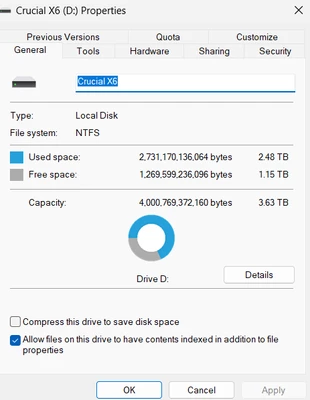
My Camera RAW CACHE is set for 20 GB. it is on drive C
As you can see my GPU drive is v546.33 and per NVIDIA that is the latest as of 1 January 2024. I have only 2GB of VRAM
My Camera is a Sony A7R5 which has 60 MB RAW files.
Inquiry. Why is Lens Blur not working and why does LrC disable the use of the Graphics Processor when trying to Lens Blur? Is there another discussion or perhaps a Bug posting on this. Is there an ADOBE document on this. Help.


 AdChoices