



Exit
  • Global community
    • Language:
      • Deutsch
      • English
      • Español
      • Français
      • Português
  • 日本語コミュニティ
  • 한국 커뮤니티
0

Lightroom Classic CC 2020 Crashes! Macbook Pro

New Here ,
Feb 02, 2020 Feb 02, 2020

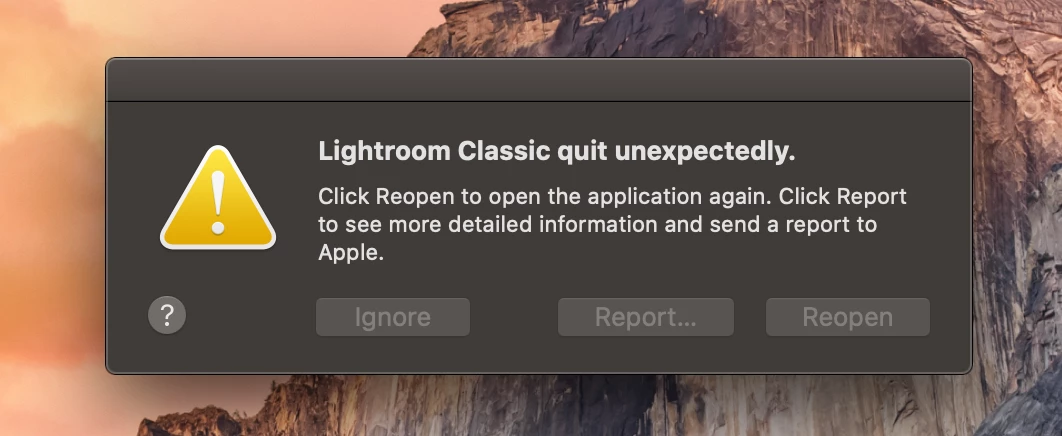
I've recently installed the new Photoshop CC 2020 because I need to retouch an image I edited with Lightroom Classic CC. I wanted to export the photo, but when I click the application, it crashes and it says "quit unexpectedly". I tried resetting the preferences, deleting the com.adobe.LightroomClassicCC7.plist. I have also read that "resetting the GPU setting" within the preferences menu on Lightroom would help, but I can't do it because I can't open Lightroom. I don't know if it is Photoshop, but it seems it is. I have no Wi-Fi in my house due to technical problems, and I downloaded Photoshop in a friend's house. I can't download the app again because of what I said before. Also, this happened after I downloaded Photoshop CC. I know it may be Photoshop, but I still think there is another solution for it.


If any of you can give a solution or any advice, it will be very much appreciated.

Good evening.


My mac specs are the following:


  • Model: Macbook Pro 
  • Year and Size Screen: 2015 and 13 inch
  • Ram: 8GB LPDDR3 
  • Storage: 256GB SSD
  • Graphics Card: Intel Iris Graphics 6100 1536 MB


A screenshot of the error message: 
 

Screenshot 2020-02-02 at 22.57.08.png


2.3K
Translate
Report
Community guidelines
Be kind and respectful, give credit to the original source of content, and search for duplicates before posting. Learn more
community guidelines
Adobe Employee ,
Feb 03, 2020 Feb 03, 2020

Hi there,


We are sorry about the experience due to Lightroom Classic crashing on launch.


Would you mind sharing the version of Lightroom Classic you are using along with the macOS version you are running on the MacBook Pro? You can try resetting the preferences again using the shortcut mentioned here: https://helpx.adobe.com/lightroom-classic/help/setting-preferences-lightroom.html#restore_preference...


Apart from installing Photoshop, have you made any other changes to the computer recently, like a macOS update? Is your catalog stored on the local storage of the computer or do you have the catalog on an external drive?


Regards,

Nikunj

Translate
Report
Community guidelines
Be kind and respectful, give credit to the original source of content, and search for duplicates before posting. Learn more
community guidelines
New Here ,
Feb 03, 2020 Feb 03, 2020

Hello, Nikunj


First of all, thank you for the time for answering this post.

I tried the solution you have given and it seems not to be helping. I reset the preferences for Lightroom again, and It still does not open. Also, I'm going to give you the information you have asked for.


I'm running macOS Catalina 10.15.3, the latest version of macOS, and also, version 9.1 of Lightroom CC Classic. I have not done anything since the first installation of Photoshop CC, and I do have my catalog saved in my local storage.


I would truly appreciate it if you have any other advice for me.

Have a wonderful day, Nikunj


Translate
Report
Community guidelines
Be kind and respectful, give credit to the original source of content, and search for duplicates before posting. Learn more
community guidelines
Community Expert ,
Feb 03, 2020 Feb 03, 2020

My mac specs are the following:


  • Model: Macbook Pro  (Q. What macOS version 10.15.3 Catalina is the latest?) 
  • Year and Size Screen: 2015 and 13 inch
  • Ram: 8GB LPDDR3 
  • Storage: 256GB SSD (Q. how much free disk space available? You need a minimum of 20% i.e. 50GB)
  • Graphics Card: Intel Iris Graphics 6100 1536 MB

Please provide answers to the questions above, also the version of Lightroom Classic you are running? The latest is 9.1


In addition in your Lightroom subfolder located on your hdd at user > your name> Pictures > Lightroom, if there is a .LOCK file present there delete this file. Do not interfere with any other files in the folder. The lock file is placed there when you have a Catalog file opened to prevent any other use. It is normally automatically removed when Lightroom is closed, however it may remain in place if Lightroom Lightroom is closed by a crash. This prevents Lightroom from opening as you are now experiencing.

See the screen capture

Screenshot 2020-02-03 at 8.40.37 AM.png   

Regards, Denis: iMac 27” mid-2015, macOS 11.7.10 Big Sur; 2TB SSD, 24 GB Ram, GPU 2 GB; LrC 12.5,; Lr 6.5, PS 24.7,; ACR 15.5,; (also Laptop Win 11, ver 24H2, LrC 15.0.1, PS 27.0; ) Camera Oly OM-D E-M1.
Translate
Report
Community guidelines
Be kind and respectful, give credit to the original source of content, and search for duplicates before posting. Learn more
community guidelines
New Here ,
Feb 03, 2020 Feb 03, 2020

Good morning Denis,


First of all, thank you very much for taking the time to reply to this post, it is very much appreciated.

I have the latest version of macOS Catalina, which is 10.15.3 and also the latest version of Lightroom Classic CC, the version 9.1. I have 214.5 GB of free storage.  I'm going to try the solution you have given me, and shortly, I'll come back to tell you what's the current situation.


I reiterate, thank you very much for giving me advice. Have a nice day.


Translate
Report
Community guidelines
Be kind and respectful, give credit to the original source of content, and search for duplicates before posting. Learn more
community guidelines
New Here ,
Feb 03, 2020 Feb 03, 2020

Good morning Denis,


I've done what you recommended to me, but I quickly noticed it does not help the problem. I looked for updates for the application, for my device and for Creative Cloud applications in general and there seems not to be one. I deleted the .LOCK file you said to delete and it had no effect on my problem.


I'm going to provide screenshots of the previous information, just in case.


The latest version of my Macbook and the free storage I have:

Screenshot 2020-02-03 at 09.04.42.png


Screenshot 2020-02-03 at 09.04.51.png

The latest version of Lightroom running in my device:

Screenshot 2020-02-03 at 09.05.51.png


 and, a screenshot of how my Pictures/Lightroom folder looks like:

Screenshot 2020-02-03 at 09.08.22.pngIf you have any other advice, it will be very much appreciated.

Thanks.

Translate
Report
Community guidelines
Be kind and respectful, give credit to the original source of content, and search for duplicates before posting. Learn more
community guidelines
Community Expert ,
Feb 03, 2020 Feb 03, 2020
LATEST

>I have no Wi-Fi in my house due to technical problems, and I downloaded Photoshop in a friend's house


My guess is that this is due to a problem with your creative cloud login. You probably should go back to your friend's house. Log out of the creative cloud app and log back into it.

Translate
Report
Community guidelines
Be kind and respectful, give credit to the original source of content, and search for duplicates before posting. Learn more
community guidelines