


lukasb79690852
Participating Frequently
October 28, 2024
解決済み

P: Content Credentials-signed images will create an XMP file for JPEG images

  • October 28, 2024
  • 返信数 3.
  • 9381 ビュー

I recently come across the following Issue:


I have a bunch of jpg files I have post-processed in Photoshop that I want to add geo locations to using the Lightroom Classic map module. After adding the locations I mark all images and do right click - metadata - save metadata to file. For some jpg files the data is written into the jpg file (desired behavior and how I know it from LR Classic for the past 6 years), while for others LR creates a seperate xml file (same location same name as the jpg) containing all metadata including the location.


Since this is a recent thing for me I suspected LR 14 to be the issue so I downgraded back to 13 but the issue persists.

I already cleared out my complete LR catalog and only importet a hand full of jpg files to test but the issues persists.

The issue can be reproduced, it is always the same jpgs causing the issue.

When I open one of the not functioning jpg files in Photoshop and save it again in a new location the issue persists. When I open it, create a new document of the same dimensions, mark all in the original, copy across to the new document and then save the new document as jpg I can then add gps locations to the new jpg in LR as expected.

I can also copy the gps data from a working jpg to one of the ones LR refuses to add gps data to using exiftools so the jpg file does not seem to be inherently broken in some way.

There is no different between the jpg files LR can write to and the ones where it insists on writing a xml file. They were taken using the same camera and have gone through the same workflow.


Any help would be appreciated since as of right now I am resorting to using a dummy image I assign the desired location to in LR and then use command line + exiftools to copy the gps tag across to the non functioning jpg which is extremely cumbersome.
解決に役立った回答 johnrellis

It appears this behavior is caused by the addition of Content Credentials to the JPEG, which are added to the JUMBF metadata section.


In the past, when LR didn't know how to update an industry-standard file format, LR would write a .xmp sidecar instead. For example, when LR first added support for HEIC, it wrote .xmp sidecars; a later version of LR wrote directly into the HEIC file. Similarly, LR still creates .xmp sidecars for AVIFs, even though that format supports updatable metadata. (Actually, when LR first added support for AVIF, it would corrupt the files if you did Save Metadata To File, so instead of fixing the bug Adobe changed LR to write .xmp sidecars instead.)


So perhaps LR doesn't yet understand how to update files containing JUMBF sections, and the developers decided to expediently create .xmp sidecars instead?


To reproduce this behavior in LR 14.0.1 / Mac OS 14.6.1


1. Import the attached file working.jpg.


2. Observe that Metadata > Save Metadata To File writes to the file directly.


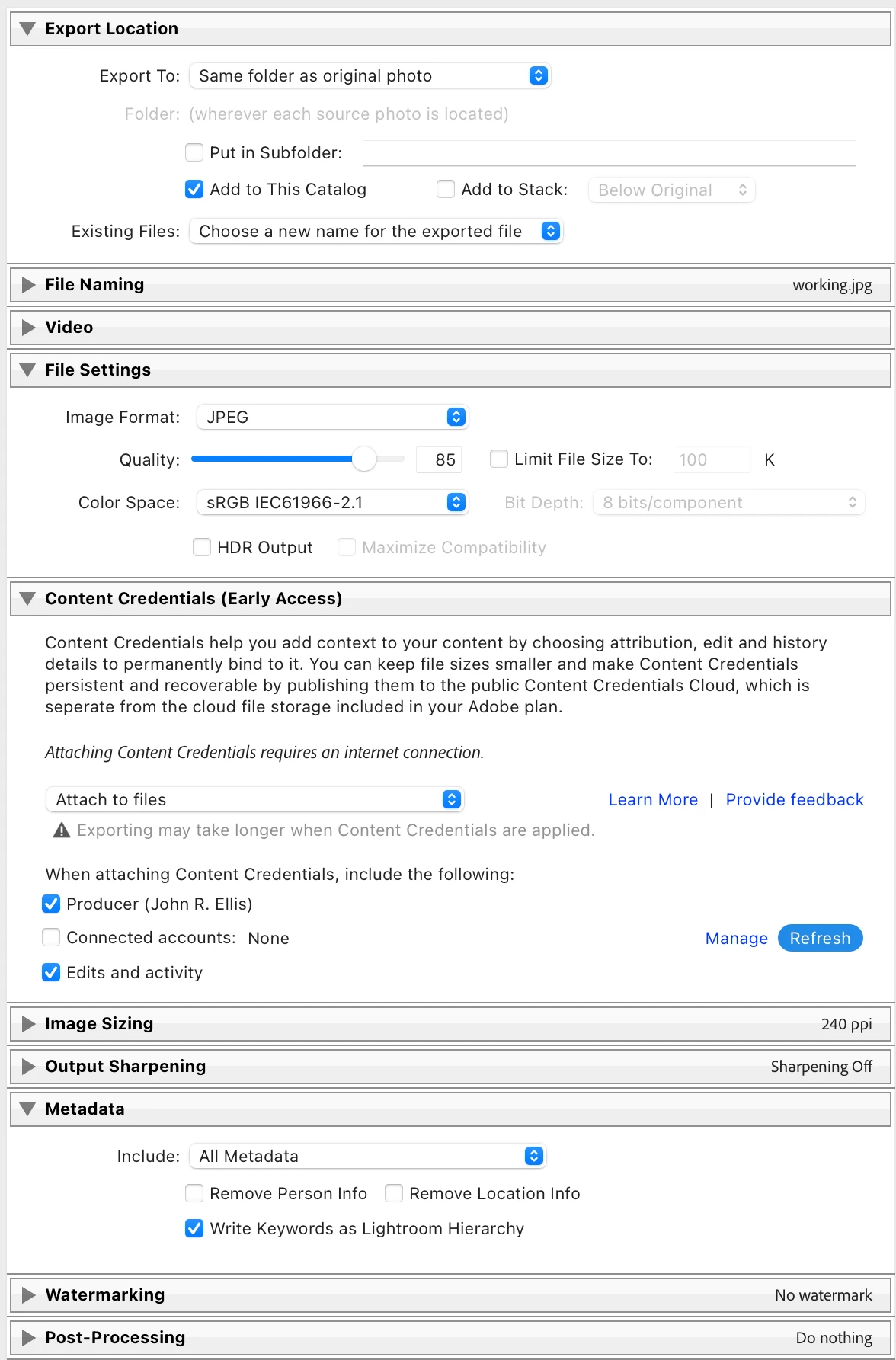
3. Export working.jpg back into the catalog with these Export options:


4. Select the exported/imported working-2.jpg and do Metadata > Save Metadata To File. Observe that a .xmp sidecar has been created for it.


返信数 3

Inspiring
September 3, 2025


 I am unable to save tags to photos I have taken on my new Pixel 10 pro. I download the photos onto my Pc, but when trying to save tags using Lightroom Classic, the tags are not saved. I had no problems with photos from a Pixel 9 pro.


However, looking at the "Properties" tab on Windows, for each photo, the tags are being saved for the DNG file, but not for the corresponding JPEG file?


Does anyone know why and what I have to do to get over this problem? Is it a Lightroom issue or a Google issue?
johnrellis
Legend
September 3, 2025

Attach one of the problem JPEGs here and we can see in detail what might be going wrong.

Inspiring
September 4, 2025

I cannot save tags to this JPG


johnrellis
johnrellis解決!
Legend
October 28, 2024

It appears this behavior is caused by the addition of Content Credentials to the JPEG, which are added to the JUMBF metadata section.


In the past, when LR didn't know how to update an industry-standard file format, LR would write a .xmp sidecar instead. For example, when LR first added support for HEIC, it wrote .xmp sidecars; a later version of LR wrote directly into the HEIC file. Similarly, LR still creates .xmp sidecars for AVIFs, even though that format supports updatable metadata. (Actually, when LR first added support for AVIF, it would corrupt the files if you did Save Metadata To File, so instead of fixing the bug Adobe changed LR to write .xmp sidecars instead.)


So perhaps LR doesn't yet understand how to update files containing JUMBF sections, and the developers decided to expediently create .xmp sidecars instead?


To reproduce this behavior in LR 14.0.1 / Mac OS 14.6.1


1. Import the attached file working.jpg.


2. Observe that Metadata > Save Metadata To File writes to the file directly.


3. Export working.jpg back into the catalog with these Export options:


4. Select the exported/imported working-2.jpg and do Metadata > Save Metadata To File. Observe that a .xmp sidecar has been created for it.


Robert Ripps
Inspiring
January 6, 2025

I have LRC set to create .XMP files when I import raw images, applying develop settings and metadata to them, and have those changes/additions automatically written into the XMP files, but now it seems that LRC has started creating XMP files for some of some JPG images I just added to the catalog. For 26 files I added, it created .XMP files for 7 of them, even though I did not do anything to the files in Lightroom other than Edit Capture Time to Change to file creation date for each image to all 26, which never caused Lightroom to create an .XMP file before.


Previously adding JPG images to LRC’s catalog did not create the .XMP files in the folder they reside in, only adding or applying changes to raw files.


So not sure if something has changed with how Lightroom Classic treats JPG files, or if I have accidentally changed some setting somewhere.


Thanks.


Lightroom Classic 14.1.1, macOS 14.7.2

Robert Ripps
Inspiring
January 9, 2025

That you are getting .c2paws sidecars from Photoshop may be an important clue as to why you don't always get .xmp sidecars for JPEGs with content credentials.  


Those .c2paws sidecars are not documented in the Adobe reference documentation:

https://www.google.com/search?q=c2paws+site%3Ahelpx.adobe.com&rlz=1C5CHFA_enUS1064US1064&oq=c2paws+site%3Ahelpx.adobe.com&gs_lcrp=EgZjaHJvbWUyBggAEEUYOdIBCDgyMzdqMGoyqAIAsAIA&sourceid=chrome&ie=UTF-8


There are several threads in the Photoshop forum about these sidecars mysteriously appearing, and in this one, after consulting the engineering team, Adobe employee CJButler has no idea why they appear.  The last post about them appearing is from 12/15/24.


It may be that your PS is confused and is sometimes creating the content credentials in a way that LR doesn't understand, possibly due to a bug in PS invoking some legacy code by accident.  Try these steps to stop .c2paws sidecars from appearing:


1. In PS, do Help > System Info. If you're not on version 26.2.0, do Help > Updates to get the latest version.


2. Restart PS.


3. Try these simple steps that worked for one user.


4. Try resetting PS preferences, making a backup copy to restore from if resetting doesn't help.


I could not get this link to work. I tried searching on the Adobe help site, but it did not come up with anything. The c2paws files were not really the issue, but… I never saw a c2paws until yesterday, although now strangely every time I export an image that has Content Credentials enabled as a JPEG I’m getting them, even though I did not before yesterday, and I had updated to the current version of Photoshop back on 12/20/24.


Yes, I am on version 26.2.0 for macOS.


As per the suggested fix, I quit & relaunched Photoshop, reopened a PSD file, set History & Content Credentials to none, saved the file as a jpeg, but it still is creating that c2paws file. I then opened the fly out palette, and I see this file does have CC enabled even though the Photoshop preferences have CC turned off. I disabled CC for this PSD file, saved it as a jpeg again, and it did not create the c2paws file.


I then turned back on the PS settings for both, but left it off for that file, saved as a jpeg, but it still gave me the c2paws file, so that first fix did not work for me.


I am also unclear about the difference between tuning on CC in Photoshop settings vs enabling for a specific image- I would think even if turned on globally, if I have it disabled for a specific image it would not save the CC to the file- or try to.


I quit Photoshop, moved the preferences folder and re-launched Photoshop. I opened a new file and saved it as a JPEG which did not create the c2paws file. I’ve then turned on the CC in the Photoshop settings again, saving it as a JPEG and again it did not create the c2paws file. Finally, I enable CC for that image and save it again as a JPEG but this time it did save a c2paws file.


I again tried the suggestion of turning off CC in Photoshop settings and opening the image and saved it as a JPEG, which did not create the c2paws file. Then I enabled both in the Photoshop settings, saved the file again, but it still is not creating the c2paws file.


I then quite Photoshop & restored my old preferences.

lukasb79690852
Participating Frequently
October 28, 2024

After posting I have tested this on a completely different Laptop and again the issue persistes for the same jpg files.

I have attached two sample files:.

working.jpg - LR Classic writes the metadata into the file as expected

not_working.job - LR Classic creates a seperate not_working.xml and writes the metadata into that

JohanElzenga
Community Expert
Community Expert
October 28, 2024

Most likely the image is locked, so Lightroom can't write to it.


-- Johan W. Elzenga
lukasb79690852
Participating Frequently
October 28, 2024

Thanks for your reply, could you elaborate on how to unlock a file? I checked and I found no way to lock or unluck a file anywhere. Under file properties in Windows the files are not marked as read-only.