Known Participant
February 8, 2020
解決済み

Help needed!: How to Edit, resasmple, & added banner image, all in one expoprt?

  • February 8, 2020
  • 返信数 6.
  • 1727 ビュー

I would like to edit a photo, reduce it to 1600 pixels on the longest side, and add a banner image to the bottom of the photo all in one export if possible. The banner image will be added under the photo, not on the photo like a watermark! Banner image is 1600 x 110 pixels. Therefore the exported photo will be 110 pixes larger because of the added banner image. I already know I can do this with a watermark on the photo. How can I do this in lightroom?


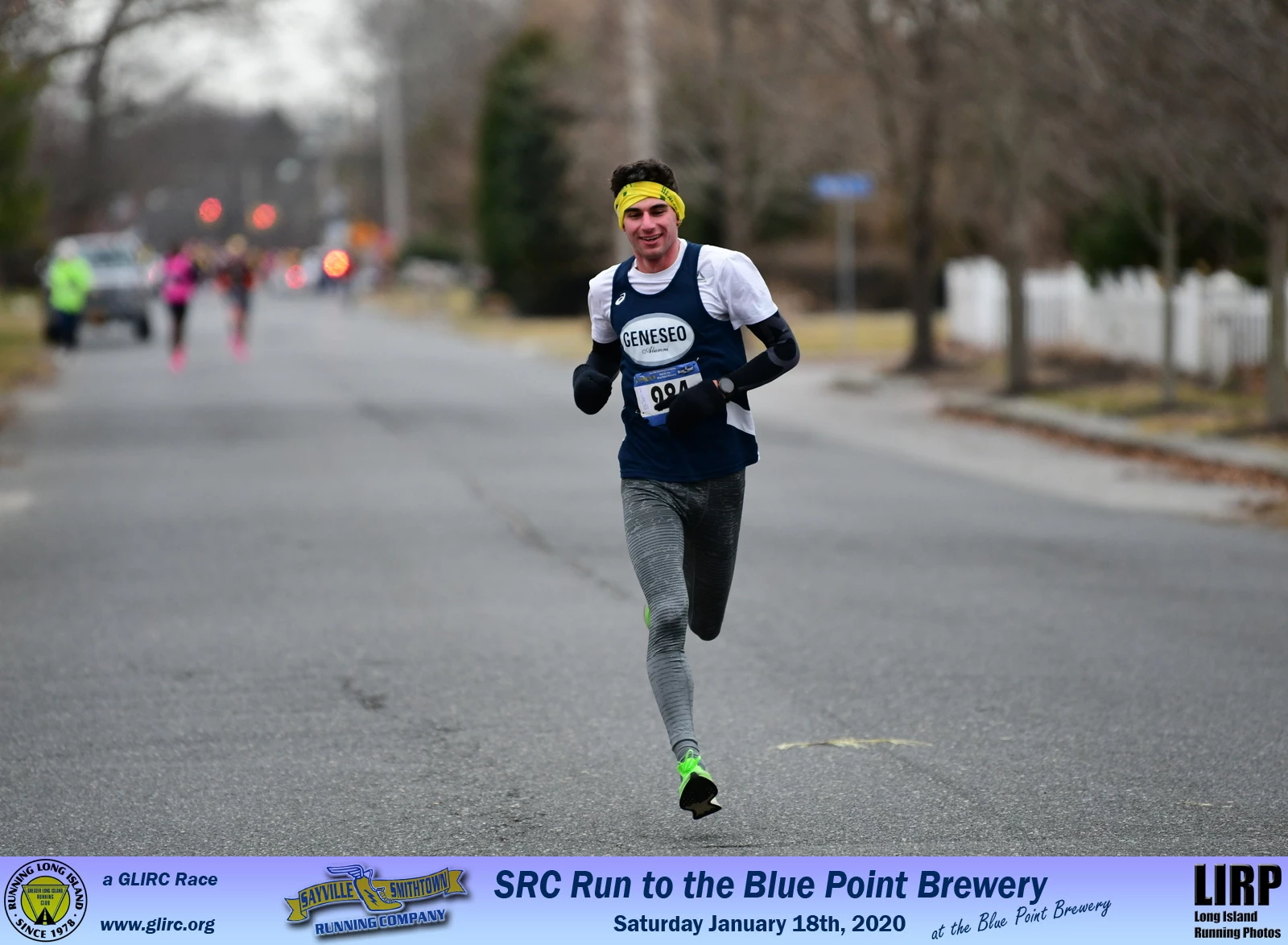
This sample photo was done using Faststone image viewer program, by adding 10% to the bottom of the canvas and then placing a watermark image on the expanded canvas. It does not cover any of the origional photo.

このトピックへの返信は締め切られました。
解決に役立った回答 Todd Shaner

You can do this in PS by creating an Action and then using the PS Image Processor to automatically process ALL of your image files. This will work properly regardless of the image aspect ratio or orientation. It took way longer to write this out than it will for you to implement and use it. If you have any questions or issues please let me know.


The first step is to export all of your image files to a subfolder as 16 bit sRGB TIFF files using Long Edge = 1600 px, Resolution = 300 ppi, and Output Sharpening for the target usage (screen or print). Make sure your banner image is also 300 ppi Resolution.


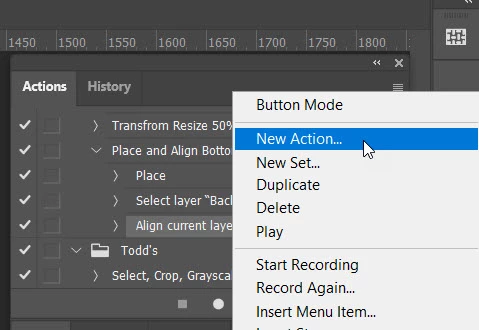
Next in PS create a New Action by first opening any one of the TIFF files and start recording the action. If you've never used PS Actions this should be helpful:https://helpx.adobe.com/photoshop/using/creating-actions.html


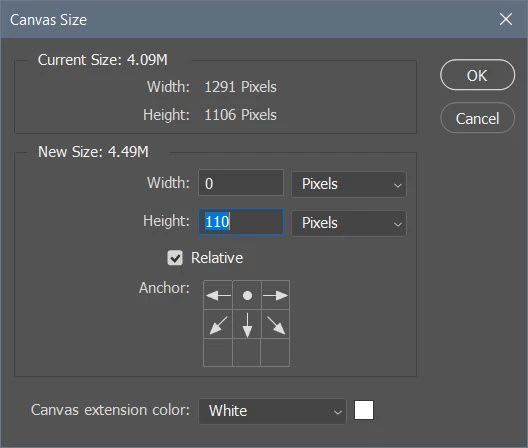
1) In the upper toolbar go to Image> Canvas Size' and enter width 0 px, Height 110 px, Relative checked, and Anchor top center box checked.
 

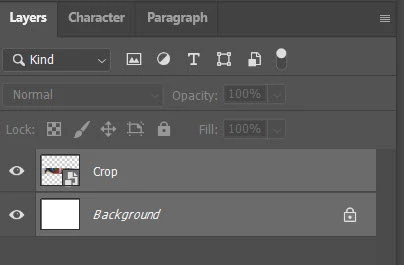
2) Go to File> Place Embedded and select your 1600 x 110 px width banner file. The file will be placed to fit the right and left edges of the image file. If not Stop the action recording and delete it. Go to Edit Preferences> General and check 1) 'Resize Image During Place' and 2) 'Always Create Smart Objects When Placing.' You'll need to start at the beginning with a new action recording after making these settings changes.


3) The placed banner should now appear in the center fit to the right and left edges. Hit the Enter key to place the banner, select both layers in the Layers panel, and click on the Move tool in the top right toolbar. Next just below the menu bar click on the double-column icon for 'Align Bottom Edges.' The banner should now be at the bottom in the extended canvas area.
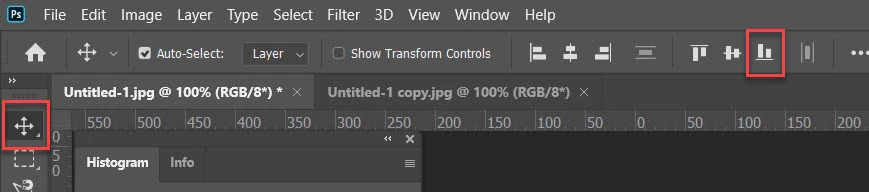
 

4) Stop the action recording by clicking on the stop button in the Actions panel.


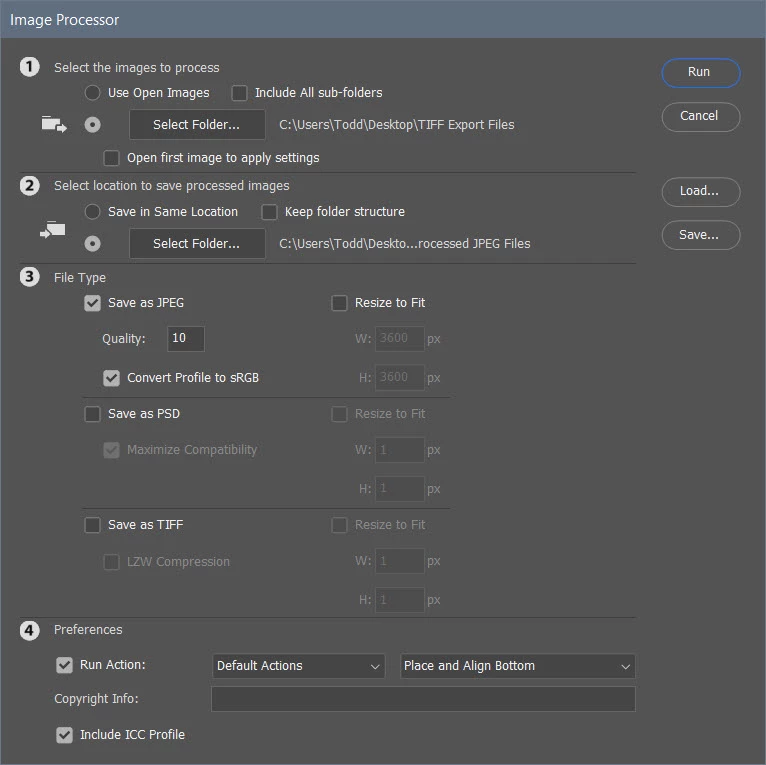
5) Next go to File> Scripts> Image Processor and use the settings as shown below. Images to Process should be your LR TIFF Export folder. For Location To Save Processed Images create a new folder, which will contain the finished JPEG files. You can delete the TIFF folder once completed.



返信数 6

Tony_See
Inspiring
February 13, 2020

With the great answers from WobertC and Todd, there is a solution here for you Ed.

EdGrenzig作成者
Known Participant
February 13, 2020

Yes, I know. I have tried both of their solutions and they work great! Very knowledgeable users!

Since there are always tradeoffs, I now have 3 solutions to choose from, LR only, LR+PS, and LR+ FSIV

Todd Shaner
Legend
February 11, 2020

"The only slight discrepancy is that for a portrait photo the canvas expansion should be less than 110 pixels, since the banner image is being scaled down in both Height & Width!"


Sorry, I forgot about that! What might be easier is when shooting leave enough area at the bottom of the picture to fit the banner. Then it's not necessary to expand the canvas.

EdGrenzig作成者
Known Participant
February 12, 2020

Thats a good idea! and Maybe even expand the canvas some smaller amout, say 70 pix, so the banner covers less of the photo.


I wonder if there are any programing wizards out there that can actually write some automated procedure, that will calculate the actual canvas expansion needed for portrait photos, and apply that amount!  The math is simple, =PhotoWidth x 110/1600.

A real challenge task in PS!  Lol

Todd Shaner
Legend
February 12, 2020

I'm sure it can be done using a PS script. Post this in the PS forum and someone may offer to create a script with that capabilty.

https://community.adobe.com/t5/photoshop/bd-p/photoshop

Todd Shaner
Todd Shaner解決!
Legend
February 11, 2020

You can do this in PS by creating an Action and then using the PS Image Processor to automatically process ALL of your image files. This will work properly regardless of the image aspect ratio or orientation. It took way longer to write this out than it will for you to implement and use it. If you have any questions or issues please let me know.


The first step is to export all of your image files to a subfolder as 16 bit sRGB TIFF files using Long Edge = 1600 px, Resolution = 300 ppi, and Output Sharpening for the target usage (screen or print). Make sure your banner image is also 300 ppi Resolution.


Next in PS create a New Action by first opening any one of the TIFF files and start recording the action. If you've never used PS Actions this should be helpful:https://helpx.adobe.com/photoshop/using/creating-actions.html


1) In the upper toolbar go to Image> Canvas Size' and enter width 0 px, Height 110 px, Relative checked, and Anchor top center box checked.


2) Go to File> Place Embedded and select your 1600 x 110 px width banner file. The file will be placed to fit the right and left edges of the image file. If not Stop the action recording and delete it. Go to Edit Preferences> General and check 1) 'Resize Image During Place' and 2) 'Always Create Smart Objects When Placing.' You'll need to start at the beginning with a new action recording after making these settings changes.


3) The placed banner should now appear in the center fit to the right and left edges. Hit the Enter key to place the banner, select both layers in the Layers panel, and click on the Move tool in the top right toolbar. Next just below the menu bar click on the double-column icon for 'Align Bottom Edges.' The banner should now be at the bottom in the extended canvas area.


4) Stop the action recording by clicking on the stop button in the Actions panel.


5) Next go to File> Scripts> Image Processor and use the settings as shown below. Images to Process should be your LR TIFF Export folder. For Location To Save Processed Images create a new folder, which will contain the finished JPEG files. You can delete the TIFF folder once completed.



EdGrenzig作成者
Known Participant
February 11, 2020

This works great! Now I have 2 different methods to use thanks to you and WobertC 

I tried 500 photos, 4176 x 2784 pixels, as a test! some cropped, some not.

LR export processing took 03:42 mm:ss, Tiff folder size 4.79 Gb

PS script took 13:05 mm:ss, jpeg folder size 416 Mb


The only slight discrepancy is that for a portrait photo the canvas expansion should be less than 110 pixels, since the banner image is being scaled down in both Height & Width!

So I just made the canvas expansion color the same as the upper edge of the banner image gradient. I actually like the resultant size of the banner image better than if I adjust the canvas expansion to less than 110 pixels.


Thanks again for your help!

I am good to go for my next race!!


Rob_Cullen
Community Expert
Community Expert
February 10, 2020
 

Sorry for the looong reply, but I hope it helps!

Your job is easy once you have defined all options- The "devil is in the detail".

...when I had to pick the paper size, I was unable to get the borderless and I was unable to control the height of the paper to less than 5 inches when picking the width as 4 inches, using my brother inkjet print driver, (I set the PPI at 400). I then tried about 5 different print drivers that I have in my Windows 10 computer but none of them allowed me to set the correct height. Some of the print drivers did allow the borderless setting. Very frustrating.

First- do not think in terms of making a paper print! Think 'digital image'!


1) I only use printer [Page Setup...] for one reason- that is to choose Landscape or Portrait orientation of the image I will be saving, so a printer 'borderless' option (or even a paper size) is not necessary, but read on.


2) Then I set the options in the Print Job panel for Print to: JPEG file and I specify the "Custom File Dimensions" eg. a 7x5inch image at 300ppi will create a 2100x1500 pixel JPG file.

I do NOT export my photos with a resize (to 1600px long edge)- I let the [Print to File...] automatically create the pixel dimensions.

If you want JPGs 1600px long edge you could use a File Dimension of 16inches at 100ppi (16*100=1600px). For 2000px use 10inches at 200ppi  (10*200=2000px).

(Remember you are NOT printing to paper!)


3) Immediately go to the Layout panel and set Left, Right, Top, margins to '0', and Bottom margin as required for the banner IP. Also set 'Cell Size' to maximum on the sliders. This should expand the photo cell without any border, as Lr recognises you are saving to a JPEG (and not to paper). Remember you can 'Show Guides' and drag photo cell margins by dragging the margin guide lines.


4) You will need to check the option for [Zoom to Fill] in the Image Settings panel, This overcomes any slight differences between the cropped ratio and the Photo Cell dimensions ratio.


5) SAVE your Print Templates! (that include the banner IP)


The other problem in using this LR print method is that even if I can select the correct height, I crop my photos to different aspect ratios and therefore the height of each photo does vary, even though the width are all the same at 1600 pixels, for landscape photos. I do not think this LR printing method will accommodate the different aspect ratios?

Correct.  You will need to create two 'Print Templates'- One for Horizontal/Landscape images, and one for Vertical/Portrait images. And then do two print runs selecting only the images that suit each template.

AND set [Zoom to Fill] if you want every photo to 'fill' the JPG image without borders.


Another problem is when I crop my photos to a portrait aspect ratio and then convert the longest side to 1600 pixels, the width of the photo will vary while the height remains at 1600 pixels.

You should have a 'Custom Crop' preset RATIO (to use in the Develop module) that will suit the photo cell ratio in your final image. In Lr you need never consider  exporting to a set pixel size- remember I said the [Print to File] automatically saves the image with a set pixel dimension. And for a Portrait photo you would use your 'Portrait Template'.


Currently when I am using my “Faststone image viewer” program to add the banner at the bottom, I restrict it to landscape cropped photos only, 1600 pixels wide. Ideally I would like a solution that would accommodate all photos, both landscape and portrait,

Only by using two templates!


cropped to different aspect ratios,

Problematic if you want uniform appearing images as the final result. Again [Zoom to Fill] overcomes this. The photo will fill the cell (possibly over-riding your crop!). Using Custom Crop ratios that suit your final images is helpful.


and then resampled with the longest side set to 1600 pixels, or some other size say 2000 pixels.

Nothing needs to be prior "resampled" (or Exported, or Saved) before going to the Print module as the [Print to File] does that according to your Custom Dimension settings!


I am also looking to do this by using only one JPEG save, to avoid degrading the quality of the photo with multiple JPEG saves.

Working from the Lr Library and the Print module- the only 'Save' is the final [Print to JPEG File]


yesterday I took 2800 photos at the race. LR editing is working fine for speed, etc.

And you can create your Bannered photos of those 2800 photos with two [Print to JPEG File] actions. Aware that you need to have the two 'Print Templates' and separate (by selection) the Landscape/Portrait photos.

So-

1) Select Portrait images -go to Print module

2) Select the Portrait 'Banner' Template

3) [Print to File]

4) Repeat steps 1) - 3) for Landscape photos.

Done- 2800 bannered photos finished!


Regards. My System: Windows-11, Lightroom-Classic 15.1.1, Photoshop 27.3.1, ACR 18.1.1, Lightroom 9.0, Lr-iOS 10.4.0, Bridge 16.0.2 .
EdGrenzig作成者
Known Participant
February 10, 2020

Excellent directions, thank you! It seems like my mistake was not seeing and using the "custom file dimensions" and the "zoom to fit". But now it is working perfectly! I set my custom file dimensions to 6 x 4.42 and a bottom margin of 0.42 and 267 PPI. So this preserves my 6 x 4 out of camera photo aspect ratio, and 1600 pixels width.


The only thing I am not crazy about is all of the resultant images will be of the same aspect ratio! I crop some of my photos to get rid of unnecessary objects, and also for an improved composition look of the photo. Many times I am using a 16 x 9 or even a square 1x1 format aspect ratio. So I am still going to look for a solution that will preserve my cropped aspect ratio and scale the banner image to the appropriate size, and then add it on to the bottom.


I know I can do this in photoshop if I just resample my photo to 1600 pixels, add 110 pixels to the bottom of the canvas, and then place my banner image into the photo, move it to the bottom, and then save as jpeg. So I am hoping that I can just find a way of automating the procedure in photoshop by just reading the photos from Lightroom with the lightroom edits applied. If not, I maybe have to export the photos from Lightroom with edits to a lossless TIF file, into another temp folder, and then use these in PS, if I cannot read them directly from Lightroom.


I am also wondering if it is possible to add a banner image to the bottom of a JPEG image without having to open and then recompress the jpeg file a second time? I know my program FIV does a file rotate on a JPEG image without recompressing the file. They call it a lossless JPEG rotate.


Well once again, thank you for all the help! I have actually learned a lot about Lightroom just by looking into this particular challenge.


Bob Somrak
Legend
February 9, 2020

Excellent and detailed reply WobertC

M4 Pro Mac Mini. 48GB
Rob_Cullen
Community Expert
Community Expert
February 9, 2020

A 'normal' Export will not do it.

Design a Print Custom Page in the Lr Print module and "Print to..." JPG.

(let the Print module do the re-size by setting ppi and Custom File Dimensions)

A plugin like Mogrify would do it.

Or continue to send the images to Photoshop and combine there. (Edit as layers from Lightroom-Classic)


Regards. My System: Windows-11, Lightroom-Classic 15.1.1, Photoshop 27.3.1, ACR 18.1.1, Lightroom 9.0, Lr-iOS 10.4.0, Bridge 16.0.2 .
EdGrenzig作成者
Known Participant
February 9, 2020

Thanks for the info.

I just downloaded and installed PS 2020, and will start to figure out what you suggested. I had been using an old PS CS3, so its time to upgrade!!

I will also look into the other options in Lightroom that you mentioned.

I normally have about 500-2000 race photos to process after a race, all with the same banner image to be added. Have a race tomorrow morning.

Thanks again!

Ed


P.S. I just started with Lightroom mainly because I am also looking into tethering a DSLR with a computer.


Rob_Cullen
Community Expert
Community Expert
February 9, 2020

Here is some detail steps how I would do it in Lightroom-


1) In Lr-Classic create an Identity Plate that is a Graphical IP using your Banner that you want below each image.

(Your IP at top of screen will look strange but it only need to be used for the Print run. Change it back later.)

2) Select all the photos (any number 1-200-500 whatever) in Grid or Folder or Filmstrip

3) Open the Print module and design a print template- (Save it to be reused!)

-Single Image /Contact Sheet

-Printer Setup to be 'Borderless' and for final Print paper size & orientation.

-Set cell margins for the photo to fill the page except for space at the bottom for the IP Banner

4) Check 'on' and Select the Identity Plate (that you designed with the banner) Position it at base of page.

5) Set the [Print Job] as  Print to: JPEG File

6) [Print to File...]  and you will get all the photos saved as JPGs in a folder of choice.


My sample Identity Plate-

Print Module-


The Print template and a print example-

Using your banner-


Regards. My System: Windows-11, Lightroom-Classic 15.1.1, Photoshop 27.3.1, ACR 18.1.1, Lightroom 9.0, Lr-iOS 10.4.0, Bridge 16.0.2 .