shawne4184364
Inspiring
January 3, 2017
解決済み

Background Eraser not leaving trace, not to transperant

  • January 3, 2017
  • 返信数 5.
  • 5455 ビュー

So I shot against a green screen for some senior portraits (never do it again) and I am in the process of clipping my subjects.   I am using the background eraser tool which is clipping nicely but it is leaving a smudge (for lack of a better term) around the entire area I erased.  When I paste the clip into my digital background, I can see evidence of the tool.    It worked yesterday just fine on test cuts from my son's shots.    It has to be a simple setting.   I have tried the reset tool and tinkered with tolerance etc.  
    このトピックへの返信は締め切られました。
    解決に役立った回答 davescm

    Hi

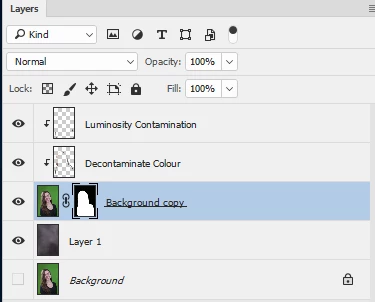
    With such a nice clean background Select and Mask does a fine job in very little time.

    In select and mask use quick select to do the bulk of the selection. Then go round with a small brush (I used 10px 100% hardness and 1% spacing) to paint on the edges of the hair - note this is only the edges and pick up the fine hair.

    Output to new layer with mask and do not  check decontaminate colours.

    Add a new layer clipped to the masked layer and with blending mode set to colour. Paint round the edge using the same colour as the hair. This will take out the green.

    Finally their was a bit of a light edge to the girl's top so I set another layer, clipped to the layer below) set to luminosity and painted the edges of her top with the top colour.

    Finally insert your background as a layer.

    I also increased the exposure ( the histogram showed it was under) and I warmed it slightly (but that is just me )

    Dave

    返信数 5

    Chuck Uebele
    Community Expert
    Community Expert
    January 4, 2017

    My approach is different, as I don't care for the quick selection tools. Duplicate the original layer so you have a layer to work on without damaging the original. Change the image mode to L*A*B* then use the blend if slider to eliminate as much as the green as possible.

    Then add a blank layer and merge that with the layer with the blend if correction. This will give you a layer with most the green cutout with transparency. Now lock the transparency. You can then use the clone stamp tool or paint brush tool set to color blend mode to paint over the green fringe areas.

    Terri Stevens
    Legend
    January 4, 2017

    That's such a nice method Chuck. It's interesting to contrast with Dave's method which seems to bring out finer hair detail, but I'd hate to say which is best as there are strengths in both techniques. With LAB you can really boost the colors far more than in RGB like below.

    shawne4184364
    shawne4184364作成者
    Inspiring
    January 5, 2017

    Chuck,

    I did not.  I missed that part.  It did remove almost all of the green regardless but at a certain point, I started to lose the subject.    I am back at both methods tonight.   I have a 90 minute commute so getting settled in with a cold one is nice.   I am going to tweak both right now.    I am hell bent on being able to rely on photoshop for my photography and not just lightroom.  

    -Shawn


    Chuck, game changer.   The split slide pretty much removed all of the green.  Very little brush work left to do.    Again, probably due to my lack of experience but the only issue I had was the inabilty to save this as a JPEG.   I could only save this as a lab quality print such as JPEG 2000 or TIFF which are really high resolution.   I have a snippet of it plus the image I converted back to RGB.   I also made some curve adjustment and luminosity tweaks based on Dave's comment.  I really liked the brown background against her hair.

    The RGB first..

    A snippet of the LAN Photo as the reso was way to high to upload here.

    EDIT:  Upon second look, I did lose some of the finer detail of the strands of hair as I may have gotten a little loose with the slide.    But, all in all, I will take it. 

    So, I do have to ask, what does the background eraser tool not remove all the pixels and leaves the blurs behind.   I have so much to learn about how photoshop works.

    shawne4184364
    shawne4184364作成者
    Inspiring
    January 4, 2017

    Thank you everyone for the replies.   While I have experience in photoshop, I don't even pretend to have scratched the surface of knowing all of its intricacies.   With that, as a photographer and frequent user of lightroom, I certainly know better than to destroy an image but all the content I found online about digital backgrounds, the background eraser tool specifically, was used more often than not.   With that, I have attached 3 images.  The original shot, the background and the edited photo against a blue backdrop which clearly shows the brush strokes.   I fussed with the tolerance, I was using a hardness of 100 on the brush settings and even tried a mask but I am afraid my lack of experience in photoshop has left the ugly green bleed in the edited photo.     Again, I will never use the green screen again.  This is a friend but I do not want to have to call her back to re-shoot.    I have successful outdoor photos but shame on me, was trying something new for the yearbook shot and a digital background and did not use a plan b just in case.   These are cut down resolutions.

    shawne4184364
    shawne4184364作成者
    Inspiring
    January 4, 2017

    Oh, and I have not done any touch up work on this.   This is all raw at this point.  My main concern being that I cannot get a clean clip.

    K´mo
    Participating Frequently
    January 4, 2017

    This is done within a minute with Quick Selection tool (select the green background and then inverse selection and hit create mask -button). Then use refine edge from Select-menu, hold down shift-key and select Select and mask. There you can tweak settings and use refine edge brush. That's all.

    josephlavine
    Community Expert
    Community Expert
    January 3, 2017

    Double check the Hardness setting of the brush.  If the brush is not at 100% Hardness then it will feather the edge.  That said, I am not a fan of any tool that erases part of an image.  Once pixels are erases, they are gone.  A better option is to create a selection and use a layer mask.  Try Color Range and then once the Layer Mask is added you can refine the mask.

    melissapiccone
    Community Expert
    Community Expert
    January 3, 2017

    The background eraser is still an eraser, and something you should NEVER use in Photoshop. Select and Mask is a way better option and click Decontaminate colors to get all the green out... that stuff bleeds everywhere.

    Melissa Piccone | Adobe Trainer | Online Courses Author | Fine Artist
    mytaxsite
    Inspiring
    January 3, 2017

    It has to be a simple setting.   I have tried the reset tool and tinkered with tolerance etc. 

    Or it has to be that some other technique might do a better job.  Can you post your image here for us to see it?

    shawne4184364
    shawne4184364作成者
    Inspiring
    January 3, 2017

    I certainly will when I get back home to my PC.   At work now.    I will post a pre clip and post clip.    Appreciate the support.  

    davescm
    Community Expert
    Community Expert
    January 3, 2017

    Hi

    Can you also show the background you want to the images into. Sometimes the selection technique (particularly when it comes to refining the edge and removing edge colour) will depend on the new background

    Dave