


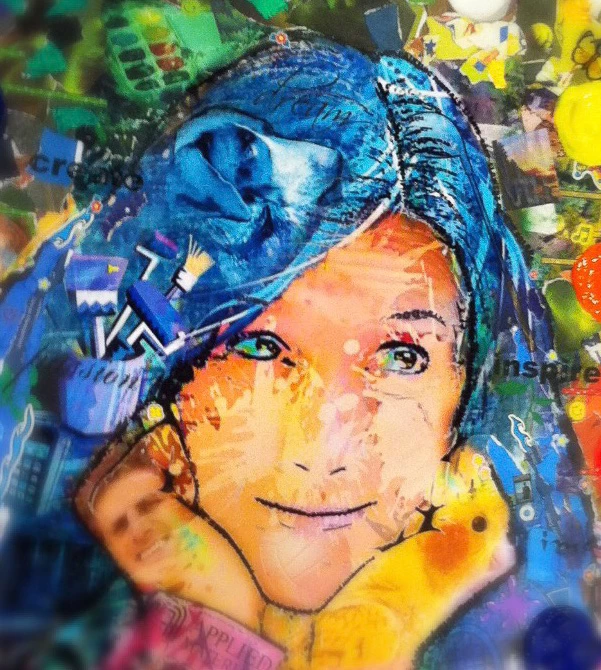
Blend images and change seasons with the Photoshop Landscape Mixer Neural Filter: 🔎 Quick Tip

Change the weather in your landscape image in seconds
Did you know you can blend two landscape images into one to create a totally different look in seconds? Did you know you can create a version of your favorite landscape photo for each season?
Using Photoshop's Landscape Mixer Neural Filter, you have the option of blending two images, using sliders to make changes, or a combination of both. You can also upload your own images for blending with. For this example, I created a winter and a fall/sunset version of my green scene using some preset images included in Photoshop. It's surprisingly easy! Follow the steps below or watch the video to see how it is done. Then, check out our entire list of Quick Tips.
❶ Open an image in Photoshop
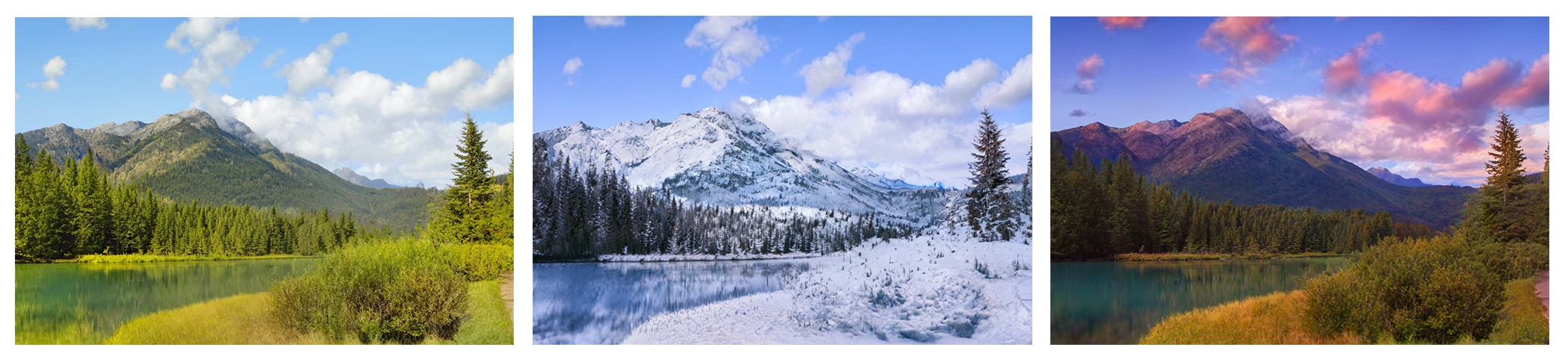
❷ Navigate to the Landscape Mixer Neural Filter
In the menu, navigate to Filter>Neural Filters and click on Landscape Mixer. Some Neural Filters must be downloaded from the cloud before you use them for the first time. The cloud icon with the arrow indicates the need to download. Just click the Download button to get the filter.
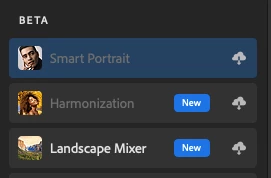

❸ Select an image to blend with, adjust sliders, or both!
Click on a preset image to apply the effect or upload your own.
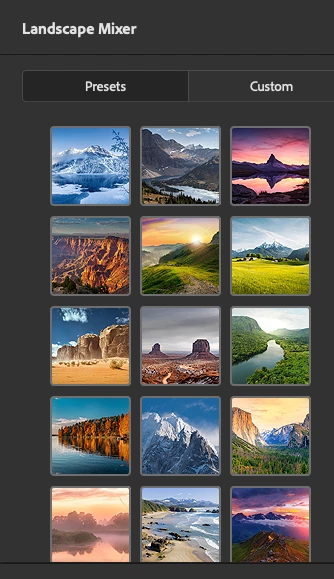
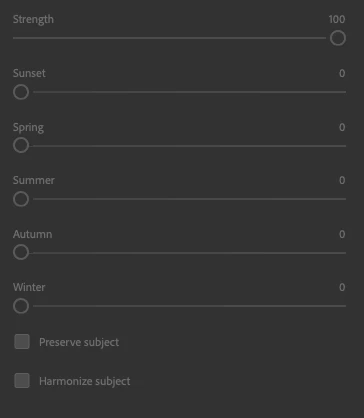
Adjust the sliders until you are happy with the results. There is an option you can check to preserve your subject if you don't want it's colors altered, and another option in case you want to harmonize colors of the subject's with the background.
❹ Save the output
Select the method of output in the bottom of the panel and click OK.

This is a beta filter and your feedback will help us improve the algorithm. You will be given the opportunity to give feedback after using the filter. Check out the related links at the bottom of this post for more information on Neural Filters.

❺ Watch the video
Check out this video created by Photoshop evangelist Paul Trani to see the feature in action.
Related links:
Transform your look with the click of a button using Neural Filters
Quick Tips: Harmonize subject and background with one click
 AdChoices