Inspiring
October 5, 2018
解決済み

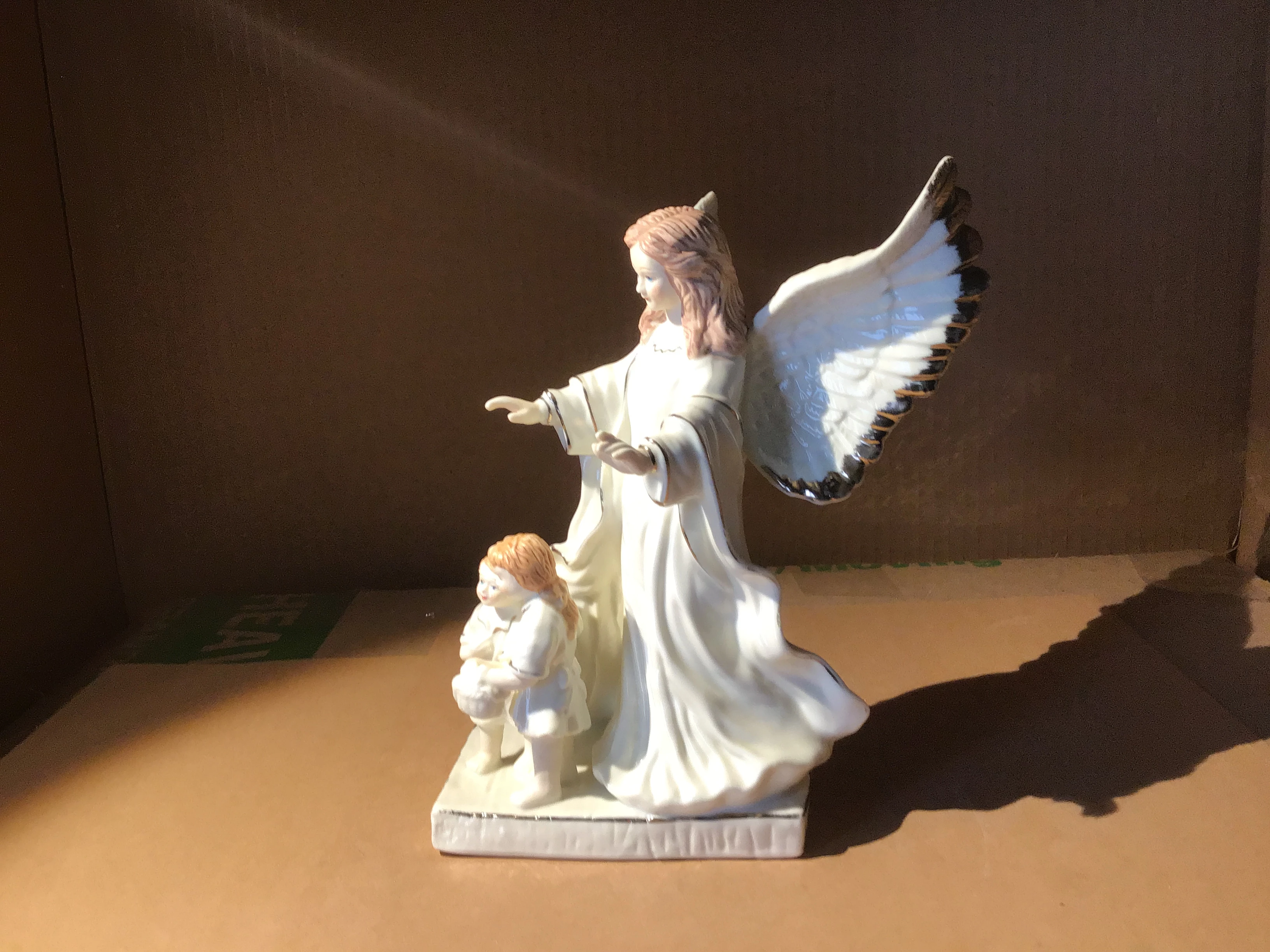
Can someone please sketch this photo to help me learn

  • October 5, 2018
  • 返信数 3.
  • 2102 ビュー

I need to see what a photo looks like when someone paints it. I am trying to learn hyper-realistic drawing. It could be in color or grayscale. I need to see something other than a ball or cube or cone in order to learn value, shading, etc.

I am at the beginning of my art journey, and only sketched cartoon-like drawings. Thanks so much in advance.
    このトピックへの返信は締め切られました。
    解決に役立った回答 davescm

    Hi

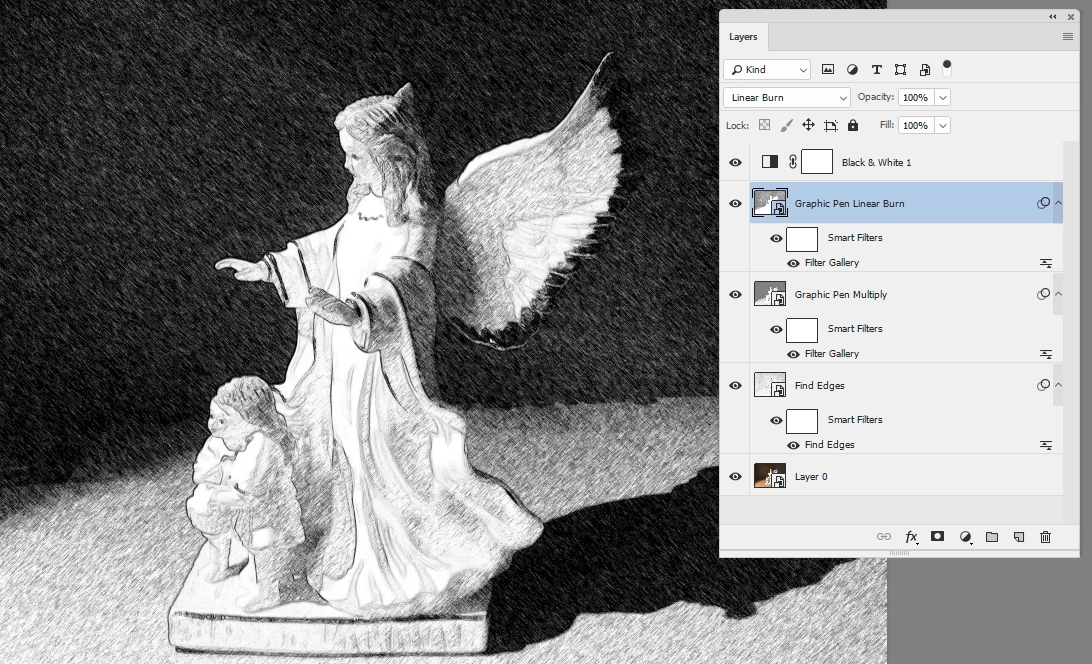
    Are you wanting to simulate a sketched effect? If so you could try something like this:

    1. Put the image in a smart object and duplicate it 3 times

    2. On the first use the Find Edges filter

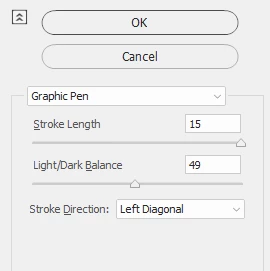
    3. On the second use the Filter Gallery "Graphic Pen" Set the blend mode to Multiply

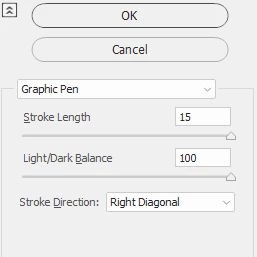
    4. On the third use the Filter Gallery Graphic Pen with different angle shading and different Light /Dark  balance. Set this layer to Linear Burn

    5. Add a black and White adjustment layer

    You can play around with the settings and blend modes until you get the effect you like

    Dave

    返信数 3

    Inspiring
    April 5, 2020

    Another option, if you want to cut down on layers and/or file size, would be to apply all of the Smart Filters to one layer.

    KShinabery212
    Community Expert
    Community Expert
    October 5, 2018

    There are seveal ways to simulate painting in the Filters.

    However, I recommend to learn how to paint images watch tutorials on YouTube.  If you watch one tutorial a week and practice you will master techiques quickly.

    Adobe has several filters you can download as well.

    https://www.adobeexchange.com/creativecloud.photoshop.html#product

    But here are some screen caps from the filters...

    Let's connect on LinkedIn. https://www.linkedin.com/in/kshinabery/
    sheana2014作成者
    Inspiring
    October 5, 2018

    Thank you so much for the oil transformation demo. This will definitely add to my learning this skill. I appreciate your taking the trouble to help me!

    davescm
    Community Expert
    davescmCommunity Expert解決!
    Community Expert
    October 5, 2018

    Hi

    Are you wanting to simulate a sketched effect? If so you could try something like this:

    1. Put the image in a smart object and duplicate it 3 times

    2. On the first use the Find Edges filter

    3. On the second use the Filter Gallery "Graphic Pen" Set the blend mode to Multiply

    4. On the third use the Filter Gallery Graphic Pen with different angle shading and different Light /Dark  balance. Set this layer to Linear Burn

    5. Add a black and White adjustment layer

    You can play around with the settings and blend modes until you get the effect you like

    Dave

    sheana2014作成者
    Inspiring
    October 5, 2018

    I had no idea you could do this with Photoshop. I am not as familiar with the software as you obviously are, so I had issues with:

    2. On the first use the Find Edges filter  (where do I find this....I looked in the Filter drop down, didn't see it.

    I found the Graphic Pen, but don't know how to set "blend mode to multiply".

    How do I "set layer to linear burn"?

    Can you make it look like a grayscale oil painting as well? You are evidently a Photoshop wizard!

    jane-e
    Community Expert
    Community Expert
    October 5, 2018

    Hi, attached is the result of following your steps....it doesn't look quite as much like a sketch as yours, so feedback is welcome.


    sheana2014  wrote

    Hi, attached is the result of following your steps....it doesn't look quite as much like a sketch as yours, so feedback is welcome.

    Hi Sheana,

    First, name your layers as Dave has done to avoid confusion later. Then double-click each of the filters, i.e., “Find Edges”. Try to match the settings to his exactly, then close the dialog box. If it still doesn’t work, then post those screen shots so we can troubleshoot them. And by “we”, I mean most likely Dave, when he is back in his office, but maybe someone else.

    I am also not in my office, so I am going from memory here. I think Find Edges does not have a dialog box, so you only need the other two. Also, make sure the layers are in the correct order. With generic names, it’s hard to keep track of that.