Inspiring
May 26, 2021
解決済み

CMY minus K of CMYK channels be looking like RGB?

  • May 26, 2021
  • 返信数 5.
  • 8918 ビュー

Is there a way to make CMYK channels with unchecked  black channel be looking  like as it would be regular RGB instead of CMY ?     So kind of CMYminus K appearing like RGB ?     Without a gamma shift?


My guess it could be some curves tweak turned into LUT file for example on top of a stack  but since I don't fully understand the math behing RGB >> CMYK convertion  I am not sure how to make backward-conversion  CMY>>>RGB.      And I'd like it as a live adjustment layer.

 I would appreciate any help. Thanks

このトピックへの返信は締め切られました。
解決に役立った回答 Bob_Hallam
quote


then I assigned a CMYK profile for an inkjet printer using clear film wide gamut inks and white ink, reverse printed and profiled through the clear media. This "wider gamut" profile provided the best preview from the other CMYK profiles that I had installed.


By @Stephen Marsh
=

Oh, you mean in "Customise proof colors"  and "proof colors" checked in,  right?       But I also struggle to find  it in its list of profiles


This will be a bit of trial and error unless you know your way around the CIELab and how to convert to CIE XYZ color space well.   The benefit of this method for your situation is that you can adjust the preview you receive until your happy with the look and save a custom CMYK color space for this project.  


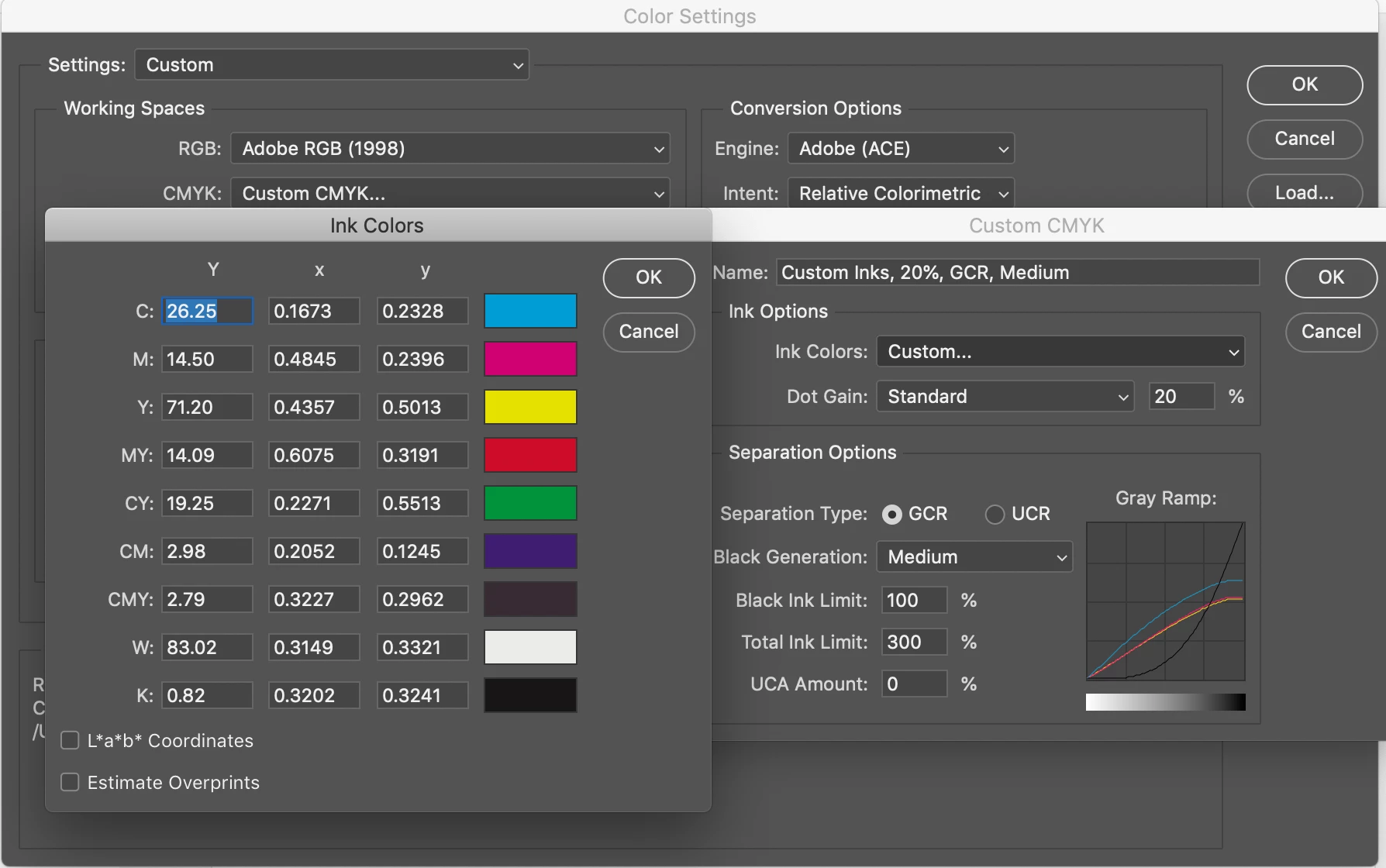
Use Photoshops custom CMYK in Color Settings (Scroll to the top while choosing the CMYK Profile and choose "Custom", then in the next dialog under ink colors choose Custom.  Now you have the option to specify tour ink colors as XYZ values.  Not the best possible interface for sure, but if you know how to convert from CIELab to CIEXYZ then you can enter correct values in this area to enter expanded gamut colors.   The transform is simple so I'd start there and begin with brighter more saturated CIELab values and convert those to CIEXYZ.  


The advantage of this method for your problem is to create brighter primary and secondary colors so your monitor can display closer to the original RGB appearances.  
返信数 5

Stephen Marsh
Community Expert
Community Expert
May 27, 2021


Consider the following two screenshot images:


The upper gradient image is Adobe RGB.


The lower gradient is a CMY channel image in CMYK mode. The RGB file was converted to multichannel, then a new white alpha added, then image > mode CMYK, then I assigned a CMYK profile for an inkjet printer using clear film wide gamut inks and white ink, reverse printed and profiled through the clear media. This "wider gamut" profile provided the best preview from the other CMYK profiles that I had installed.


Perhaps something similar would be a "close enough" preview for you to manipulate the image by leveraging the K channel.


This CMY(K) version can be returned to multichannel > delete 4th channel > image/mode RGB, assign Adobe RGB and there is no change/difference to the original RGB channels.


kirkr5689作成者
Inspiring
May 28, 2021


then I assigned a CMYK profile for an inkjet printer using clear film wide gamut inks and white ink, reverse printed and profiled through the clear media. This "wider gamut" profile provided the best preview from the other CMYK profiles that I had installed.


By @Stephen Marsh

Thank you, it smells like a solution , But where can I get this 'wider gamut inkjet printer  ICC using "clear film inks and white ink, reverse printed and profiled through the clear media"      I see no of such thing in default drop down list

when hit "assign profile" for CMYK document.      Can you share the exact ICC file please?   And I don't know what folder I would have to put it in so it would be appearing in that drop down?  

kirkr5689作成者
Inspiring
May 28, 2021
quote


then I assigned a CMYK profile for an inkjet printer using clear film wide gamut inks and white ink, reverse printed and profiled through the clear media. This "wider gamut" profile provided the best preview from the other CMYK profiles that I had installed.


By @Stephen Marsh
=

Oh, you mean in "Customise proof colors"  and "proof colors" checked in,  right?       But I also struggle to find  it in its list of profiles

Norman Sanders
Legend
May 26, 2021

For the history buffs:

Back in the seventies (yes, fifty years ago) some specialty printing firms (one that I remember was Dexter Press, located in West Nyack, NY) came up with a three color process, eliminating black. The fourth cylinder may have been used for varnish, but I am not sure.


At any rate, the method was used primarily for very short run jobs:  picure postcards. I think the clients were primarily motels, restaurats and similar establishments. The work was gang run -- a large sheet that included the orders of many customers. Some offset houses even specified that all incoming copy had be 35mm chromes. (I suspect most chromes were snapshots made by the client with his nifty new toy.)


The process was called Pleasing Color but I don't recall hearing from any professional who was pleased. Shadows in the images were often brown, and color fidelity could be bad enough to make a grown man cry. The process died.  

kirkr5689作成者
Inspiring
May 26, 2021

Well, in my supposed  process  it's not that  important if it looks perfect.  Just a bit  closer to what initially was RGB for preview reason only.    On export  I am going to copy those  first 3 channels  into normal RGB anyway  and what was in K to companion grayscale file.   

So I just need  some view transform  on top of the stack , not necessarily a perect one 

TheDigitalDog
Inspiring
May 26, 2021

@kirkr5689 wrote:

Well, in my supposed  process  it's not that  important if it looks perfect.  Just a bit  closer to what initially was RGB for preview reason only.    


You'll have to assign profiles until one is 'close enough' to the original. You have some original values and Photoshop needs to know the scale of the values. R23/B67/G255 isn't the same color in sRGB vs. Adobe RGB (1998) and isn't even a real color in ProPhoto RGB. How can PS show you a color appearance without knowing this? It can't. It can assume and it does with untagged images. But the assumption may be a mile off. That's why the Assign Profile command exists. And isn't often used or needed to be used. 

Author “Color Management for Photographers" & "Photoshop CC Color Management/pluralsight"
TheDigitalDog
Inspiring
May 26, 2021

You want to take a CMYK image and remove the K and end up with (you'll have to end up) RGB? 

Use Split channels command. Delete K. Use Merge Channels command. You'll get an RGB document san's the K recipe. 


EDIT: Be sure to select RGB from the option dialog below:

Be sure to Assign an RGB profile; this becomes 'untagged'. 


Author “Color Management for Photographers" & "Photoshop CC Color Management/pluralsight"
kirkr5689作成者
Inspiring
May 26, 2021

I don't think it's working.  

I basically  want  to make a copy of RGB document . Convert it to CMYK/16 or 32 .  Then copy /paste all of original doc RGB channels one by one  into CMY channels accordingly , unchek K checkbox in layer style dialog  so only first 3 channels is working and K being a spare one.  Than make this document look perfectly same as origial RGB one  since it now has all prfectly same first 3 channels .    And still having K channel as a spare one for totally  different  technical info purpose .


My gues it should be possible to make a kind of LUT transform adjusting layer or something that I could put on top of the layer stack that  would made those 3 CMY channels look like RGB  . Considering all 3 channels are copy/pasted from RGB.   


kirkr5689作成者
Inspiring
May 26, 2021

The goal is to have extra technical info chanel for each RGBA  layer.    Alpha channels are  not  suited well since they relate to document  ,not  each layer individually.  You can't dynamically blend  alpha channels in same way you can do with layers in the stack until you produce a black&white layers  from each channel  and blend them as layers in a separate group.       

And even if you have a separtate stack/group   of such black&white  layers  it's an issue to keep them synched with  related rgb layers .


 Using  CMYK 4 channels approach for each layer  you can end up with twice less complicated layer stack , no necessety for chain linking or do smart object based instances and cliping groups.   


If understood right I need to assing a profile  that would interprete CYN channels as RGB ones ,   Have no idea how to make such profile and hoped it can be just LUT file  I could load  into LUT adjustment layer.


I tried to make a screen of my monitor   with CMY and K disabled  and then do curve adjustment  to bring back blacks and contrast ,  then export it as a profile  and load it in lookup table adjustment layer in my actual CMY document.  

  But 3D LUT is not working there and other "device" and "abstract" things I have no idea what to do with them and if they could do it.at all.


ps,   I want to make a copy from my original RGB document , turn this new copy  into CMYK , disable K in layer style dialog  and somehow make those 3  CYM channels  left   look same as my original RGB document( after copy/pasting  each of them from RGB document) while still staying in CYMK format.

c.pfaffenbichler
Community Expert
Community Expert
May 26, 2021

What is the actual goal here? 


Depending on a CMYK Space’s GCR/UCR settings the darkest parts may become pretty light without black compared to the full composite, so I am not quite sure what good this would be. 

Stephen Marsh
Community Expert
Community Expert
May 26, 2021

An "interesting" request : | What would be the application, how/why would you use it? 

kirkr5689作成者
Inspiring
May 26, 2021

Having an exrtra channel besides typical RGBA in evry layer could make lots of  applicatons possible.     And  could make the   layer stack a lot less complicated and easy to read  . Look at it as  if  evry layer  have its own extra alpha channel beyond just transparency.


