


Inspiring
January 23, 2022
解決済み

Drawing and Paint Bucket Filling - How to fill to the edges of a selection?

  • January 23, 2022
  • 返信数 3.
  • 988 ビュー

After drawing a shape in photoshop I want to go back and fill the shape with a color.

Then I use the quick selection tool to select the interior of the shape. I then use the paint bucket to fill the selection.

After filling the selection there is a tiny space around the edges between the drawing and the paint bucket filled area. See the following example where the outer perimeter was the drawing and the inner area was the paint bucket fill:
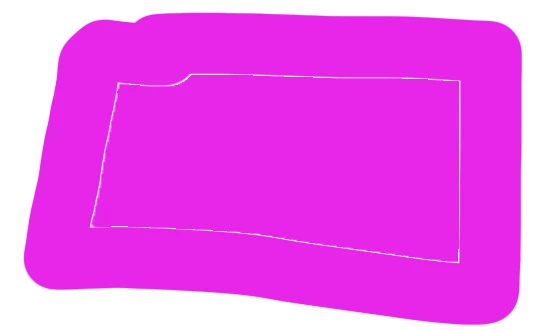
Does anyone have a method for filling a drawing that will not leave any edges between the drawing and filling?


このトピックへの返信は締め切られました。
解決に役立った回答 Breeze 3
After reading other threads on a similar subject here are two things I found that solve the problem:

FIRST METHOD:

The first Paint Bucket click fills the area and leaves a small gap between the line art and the paint.

A second Paint Bucket click expands the paint even further and cleans up most of the gap.

A third Paint Bucket click expands the paint again and completely covers the gap. YEA!!!

SECOND METHOD:
Have your line art layer on top, Locked.

Have your color layer below that and make sure your selected to draw/paint on that layer.

While using Bucket Tool use make sure the:

Anti-alias Box is Checked

(Can be uncheck, but not recommenced)

Contiguous Box is Checked

All Layers Box is Checked

Then adjust the tolerance to what is needed! (around 100 is where I put it)

Then fill in color to your hearts content.


Both of these methods eliminated the gap between the drawing and color. YEA!!!

返信数 3

Peru Bob
Community Expert
Community Expert
January 24, 2022

Add a stroke?

Breeze 3作成者解決!
Inspiring
January 24, 2022
After reading other threads on a similar subject here are two things I found that solve the problem:

FIRST METHOD:

The first Paint Bucket click fills the area and leaves a small gap between the line art and the paint.

A second Paint Bucket click expands the paint even further and cleans up most of the gap.

A third Paint Bucket click expands the paint again and completely covers the gap. YEA!!!

SECOND METHOD:
Have your line art layer on top, Locked.

Have your color layer below that and make sure your selected to draw/paint on that layer.

While using Bucket Tool use make sure the:

Anti-alias Box is Checked

(Can be uncheck, but not recommenced)

Contiguous Box is Checked

All Layers Box is Checked

Then adjust the tolerance to what is needed! (around 100 is where I put it)

Then fill in color to your hearts content.


Both of these methods eliminated the gap between the drawing and color. YEA!!!

Leslie Moak Murray
Community Expert
Community Expert
January 23, 2022

With what did you draw the shape? I can't figure out why you'd have to do it in two steps. Why not just use the paint bucket from the start?  Or you can select the interior of the shape with the magic wand, not the quick selection thing, and then fill that with the paint bucket.

-edit typo

Breeze 3作成者
Inspiring
January 23, 2022

Thank you for your reply.


In response to your question, I drew the outer section of my shape with a hard round brush.

Likewise, I typically draw the outline of illustrations of many characters, buildings, animals, etc. with a brush using black ink.  Each of the various illustrations are intended to have a different fill color, much like a cartoon or animated illustration.   Once the drawing is complete I go back and paint the illustrations with various colors (eg. clothing, flowers, buildings, etc.)  The reason the paint bucket is not used from the start is because I first draw the characters in the illustration.  Then the second step is to color the illustrations.   I don't know what the individual colors will be at the time I draw the characters.


I tried using the magic wand to fill the character's color as you suggested but I got the same results as is in my example below.


Thanks again for your reply.