


DigitalChickster
Legend
January 29, 2021
解決済み

How to show red overlay for layer mask in Photoshop?

  • January 29, 2021
  • 返信数 2.
  • 54142 ビュー

Hi all! I used to know the key command to show a layers mask as a see-through red mask. But I can't figure it out now. Did they change? Is it no longer an option? If there's still a way to do this, please let me know. I'm on a Mac. Thanks so much! 
解決に役立った回答 Jeff Arola

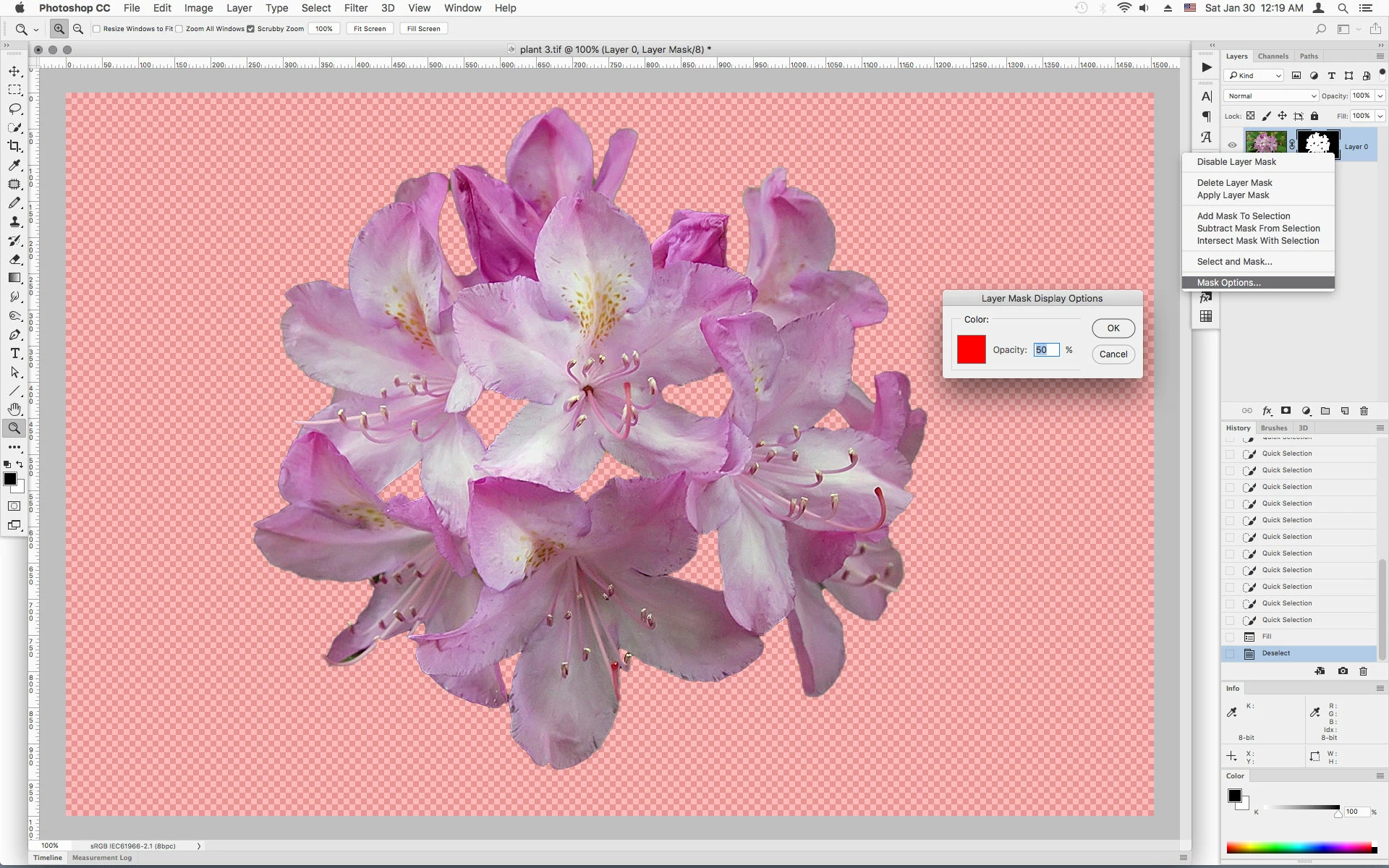
Right click on your layer mask thumbnail in the layers panel and see what your Mask Options are.

The Defaults as shown are Color RGB 255, 0, 0 and Opacity 50%.


返信数 2

Jeff Arola
Community Expert
Jeff ArolaCommunity Expert解決!
Community Expert
January 30, 2021

Right click on your layer mask thumbnail in the layers panel and see what your Mask Options are.

The Defaults as shown are Color RGB 255, 0, 0 and Opacity 50%.


Participant
October 25, 2021

thank you so much sir. You've spotted the reason right away 🙂

nikunj.m
Legend
January 29, 2021

Hi,


You can enable/disable the overlay while masking by using the backslash (\) key.


Let us know if it helps!

Regards,

Nikunj

DigitalChickster
Legend
January 29, 2021

Thanks, but that's not what I was looking for. I need to describe it better. Basically, I was able to toggle on a red overlay that showed exactly the edges of the mask. You could see through it to your original image, but you could also see the edges of the mask. I am not sure what it was called. 

DigitalChickster
Legend
January 29, 2021

Here's a video showing how it used to work in CS6. I am pretty sure it worked in more recent versions... I swear I've used it within the last few years.


https://www.youtube.com/watch?v=GB9ME5YL8Xw