


Inspiring
April 21, 2022
解決済み

Is there a way of moving all of these at once...?

  • April 21, 2022
  • 返信数 3.
  • 507 ビュー

Hi


Whenever I try to select and move multiple elements/folders that contain masks they all seem to get shunted over, which leaves a noticeable gap to the side.
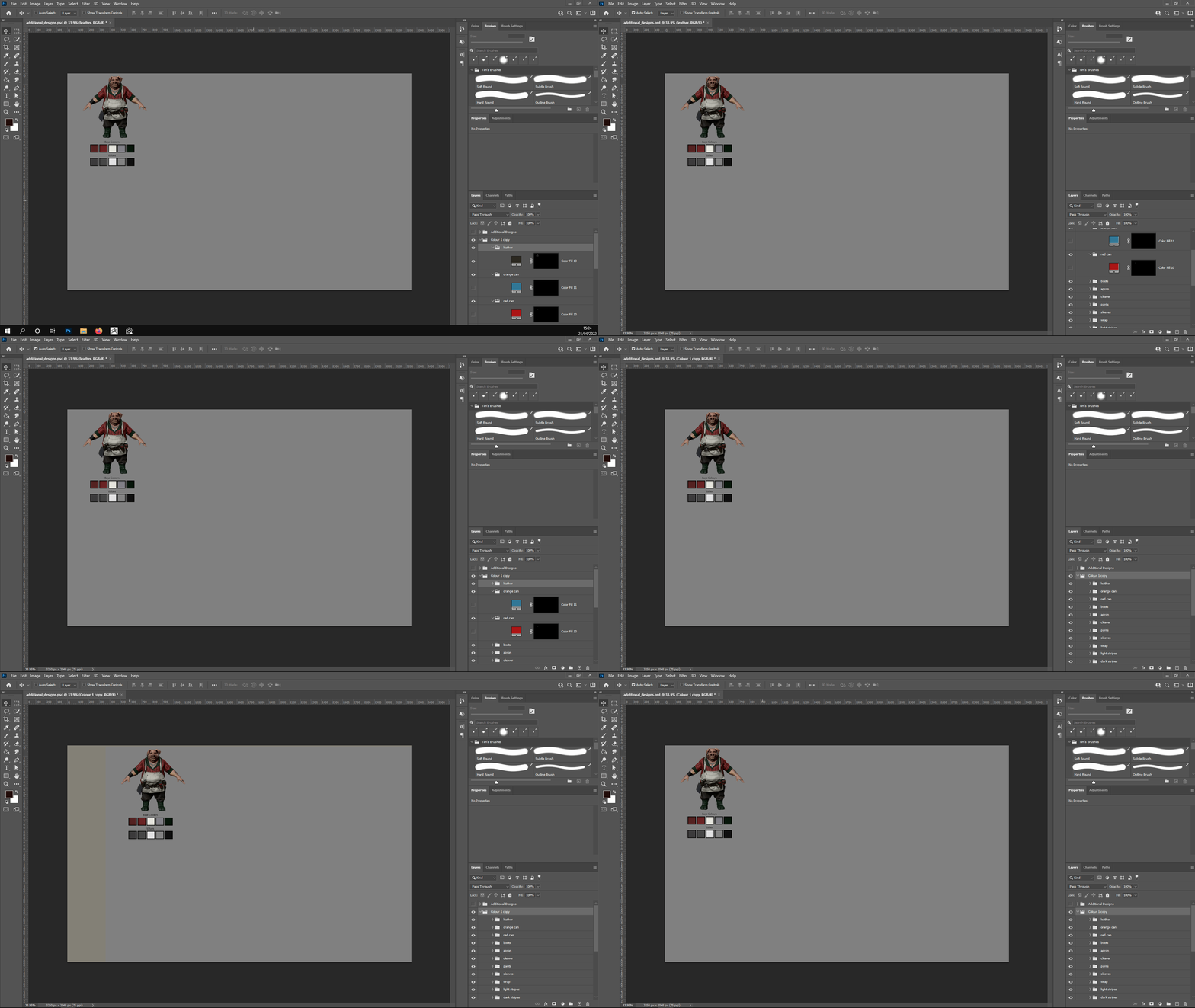
 

I want to duplicate the folders and their contents over multiple times to fill the canvas. Is there any way of doing that so everything - images. their colours, text, shapes etc - are the only things to move, without it affecting the masks? Ideally, I want to keep the masks as I want to change the colours for each image.


Thanks

このトピックへの返信は締め切られました。
解決に役立った回答 davescm

It depends how you made the mask. There are three ways to create your mask, one of which leads to issues.


1. Select the required area then add your colour fill layer. That should move fine as the mask black actually extends off the canvas.

2. Delete the layer mask, select the required area and use Layer >Layer Mask > Reveal selection. That again should move fine as the black again extends beyond the canvas.


However

3. Adding a color fill with a white mask then selecting the required area, inverting the selection and filling with black will show the effect you are showing in your video. That is because the black only extends to the edges of the canvas and when moved an unmasked area is revealed.


Dave

返信数 3

c.pfaffenbichler
Community Expert
Community Expert
April 21, 2022

I am afraid I had misunderstood previously. (edited)


It seems you created at least some Layer Masks »badly« – for example by creating a Reveal All-Layer Mask and filling it black, instead of starting with a Hide All-Layer Mask. 


Unless you want to check all the Layer Masks and rectify them manually you could, as a work-around, apply a Layer Mask or Vector Mask to the main group itself. 

Inspiring
April 21, 2022

I'll re-set them all up manually. It's not a problem. 🙂

davescm
Community Expert
davescmCommunity Expert解決!
Community Expert
April 21, 2022

It depends how you made the mask. There are three ways to create your mask, one of which leads to issues.


1. Select the required area then add your colour fill layer. That should move fine as the mask black actually extends off the canvas.

2. Delete the layer mask, select the required area and use Layer >Layer Mask > Reveal selection. That again should move fine as the black again extends beyond the canvas.


However

3. Adding a color fill with a white mask then selecting the required area, inverting the selection and filling with black will show the effect you are showing in your video. That is because the black only extends to the edges of the canvas and when moved an unmasked area is revealed.


Dave

Inspiring
April 21, 2022

Perfect. Thank you so much for the suggestions. 😄 Although, I thought I'd already used a Reveal Selection Layer Mask as I used a black Mask by clicking on the Add layer mask icon. I essentially used a combination of the Quick Selection Tool/Magic Wand Tool on the areas I wanted and then clicked on Add layer mask. But after that, I did use a Solid Color via the Adjustment Layer icon and then copied the mask and pasted it into the Color Fill's white mask box. Clearly not the best way of doing it... ^^;

c.pfaffenbichler
Community Expert
Community Expert
April 21, 2022

I fail to notice the offending effect. 

Does it persist when you view at View > 100%? 

Inspiring
April 21, 2022

I'm working on my graphics tablet, so a 100% View is way too zoomed in.


I've tried to highlight it more in this GIF. You can see that some of the masks are being moved but others aren't.