


Participant
May 7, 2024
解決済み

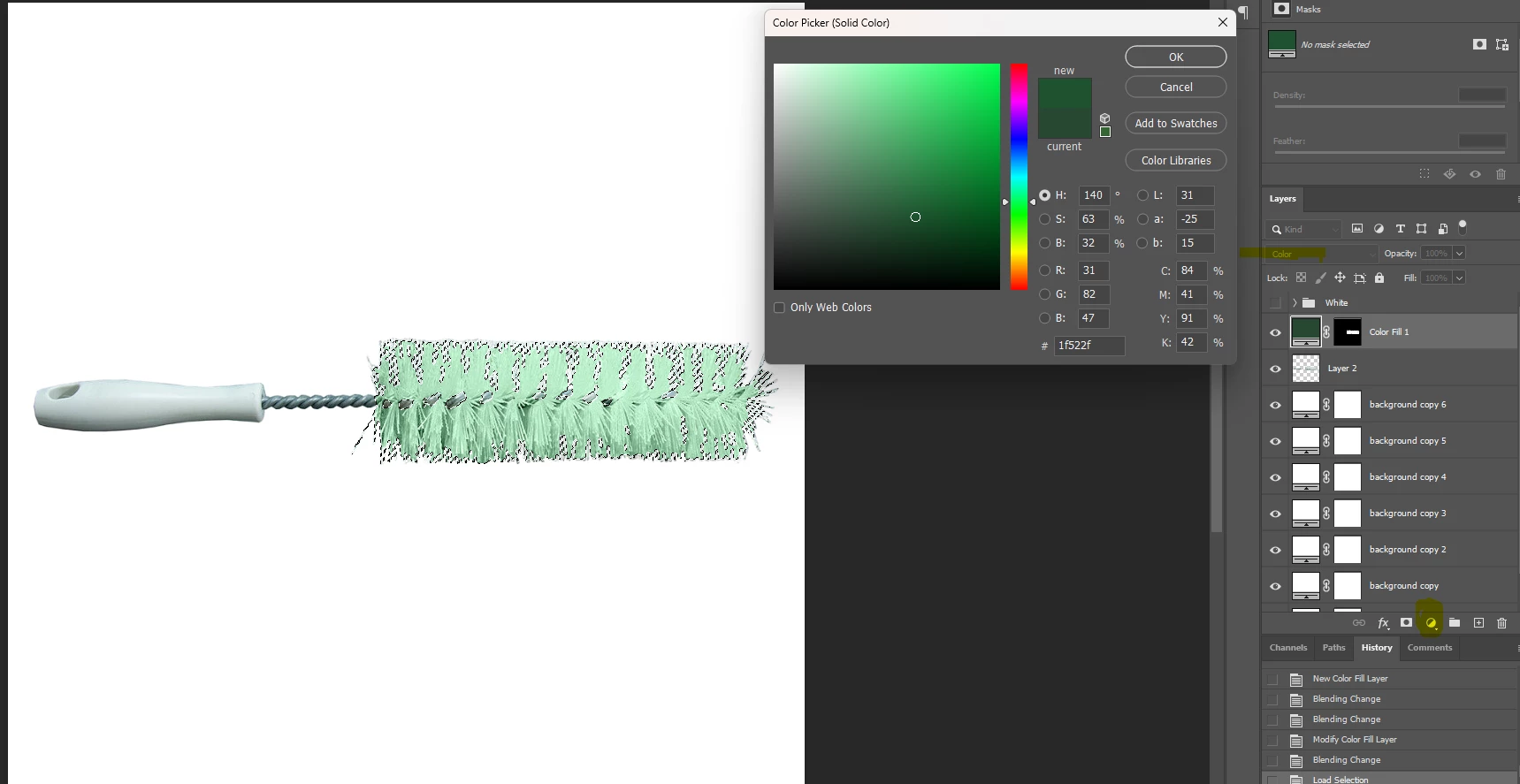
Object color being muted/dull when using the Color Fill/Adjustment Tool.

I am trying to change the color of an object, in this case a bottle brush, but any object I use it happends. I will high light the part of the object and select the Color Fill tool and pick the color I would like it to be. However, whenever I click okay and then use the drop down box to select 'Color' it changes the color to a mute/dull shade of the color I wanted to use. This happens with every color I try to use and then I have to use a bunch of other tools to get to the color I want, but that sometimes looks bad and I just get frustrated. I'm not exactly a newbie to photoshop but I'm absolutely no expert so any advice would be great!


このトピックへの返信は締め切られました。
解決に役立った回答 D Fosse

It's working correctly. You just misunderstand what Color mode means.


This is the right color, but it has to preserve the underlying tonality. If it didn't, it would just be a patch of flat color; just an ordinary fill. What you need to do if you want the object itself to have that dark green color natively, is to lower the luminosity as well. You basically need to remap the whole tone curve.


"Color" has a slightly narrower meaning in digital imaging than it has in everyday casual speech.

返信数 3

c.pfaffenbichler
Community Expert
Community Expert
May 9, 2024

Participant
May 9, 2024

Have you ever experience this before? I need to make the brush White now and although that trick you suggested has worked great for the other colors, when ever I need the object to be darker or brighter it just started muting the colors until it turns to gray. So I cant make anything a true white or true black.


c.pfaffenbichler
Community Expert
Community Expert
May 10, 2024

Did you emend the Curves Layer accordingly? 

c.pfaffenbichler
Community Expert
Community Expert
May 9, 2024

Put the Solid Color Layer in a Group and move the Layer Mask to the Group. 

Then add a Curves Layer underneath the Solid Color Layer to edit the luminance of the affected region. 


As @D Fosse indicated »Color« indicates the combination of Hue and Saturation here, the Luminosity is a third property. 

D Fosse
Community Expert
D FosseCommunity Expert解決!
Community Expert
May 7, 2024

It's working correctly. You just misunderstand what Color mode means.


This is the right color, but it has to preserve the underlying tonality. If it didn't, it would just be a patch of flat color; just an ordinary fill. What you need to do if you want the object itself to have that dark green color natively, is to lower the luminosity as well. You basically need to remap the whole tone curve.


"Color" has a slightly narrower meaning in digital imaging than it has in everyday casual speech.

Participant
May 9, 2024

Oh okay. So I have not been using the tool correctly for this situation. Thank you for informing me and responding!

D Fosse
Community Expert
Community Expert
May 9, 2024

Well, strictly speaking, you have used the tool correctly - but it's the wrong tool for the job. It doesn't do what you need, not by itself. You need something that will bring the luminance/tonality down in addition.


As c.pfaffenbichler demonstrates below.