


andream99181107
Participant
June 22, 2020
解決済み

Photoshop not showing the real size of the images

  • June 22, 2020
  • 返信数 2.
  • 1835 ビュー

Hello,

So, everytime that I open an image in Photoshop it shows me a reduced version of it.

I saved an 500px X 500px photo in Lightroom, but when I open it in Photoshop and compare to the real size of the photo, it shows a smaller size.

This picture shows the size difference, it's 100% in photoshop and in the mac viewer:
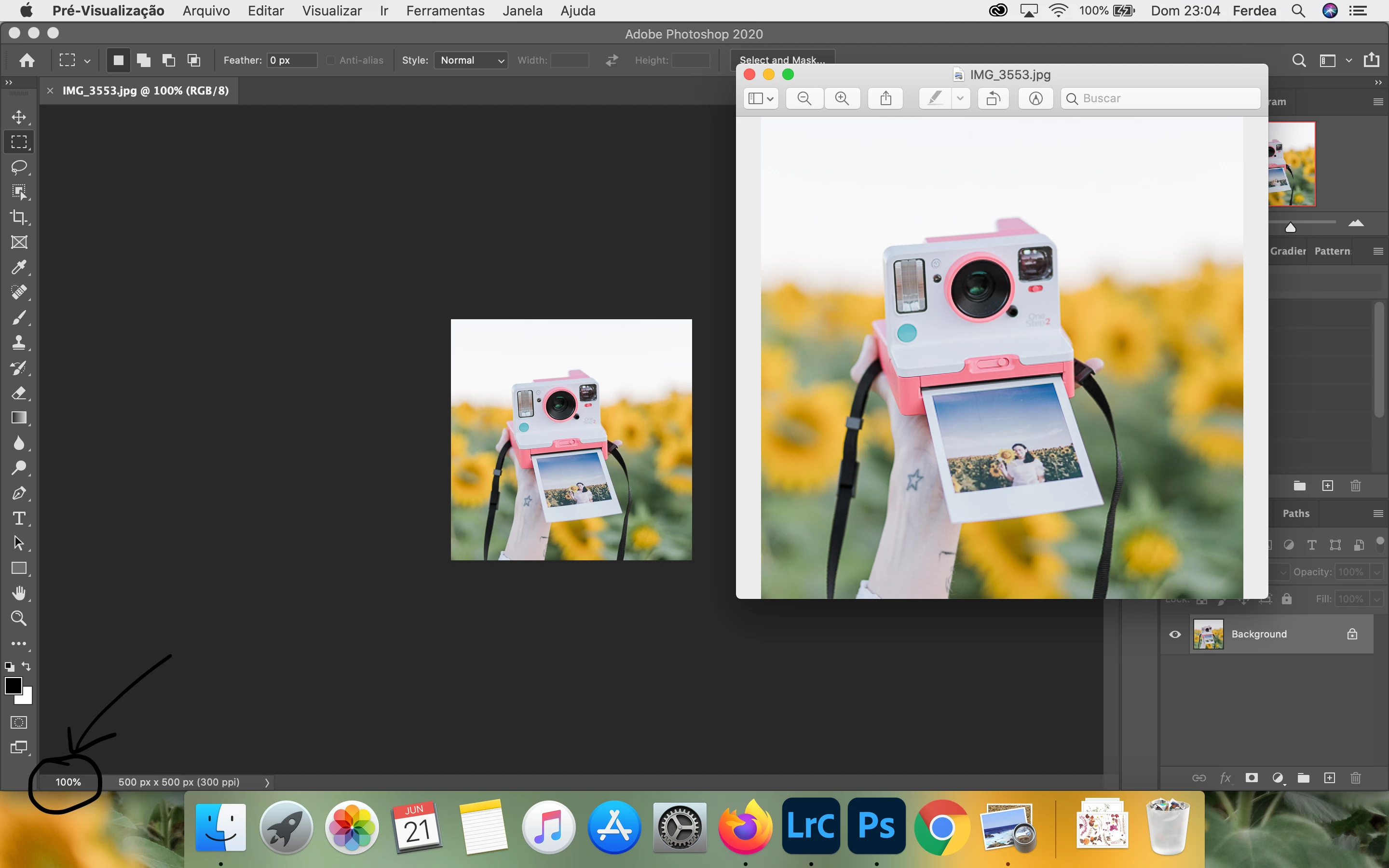
 

I just noticed this error when I was creating a friend's logo and noticed that, when I saved the image, the size was way bigger than when I saw it in Photoshop.

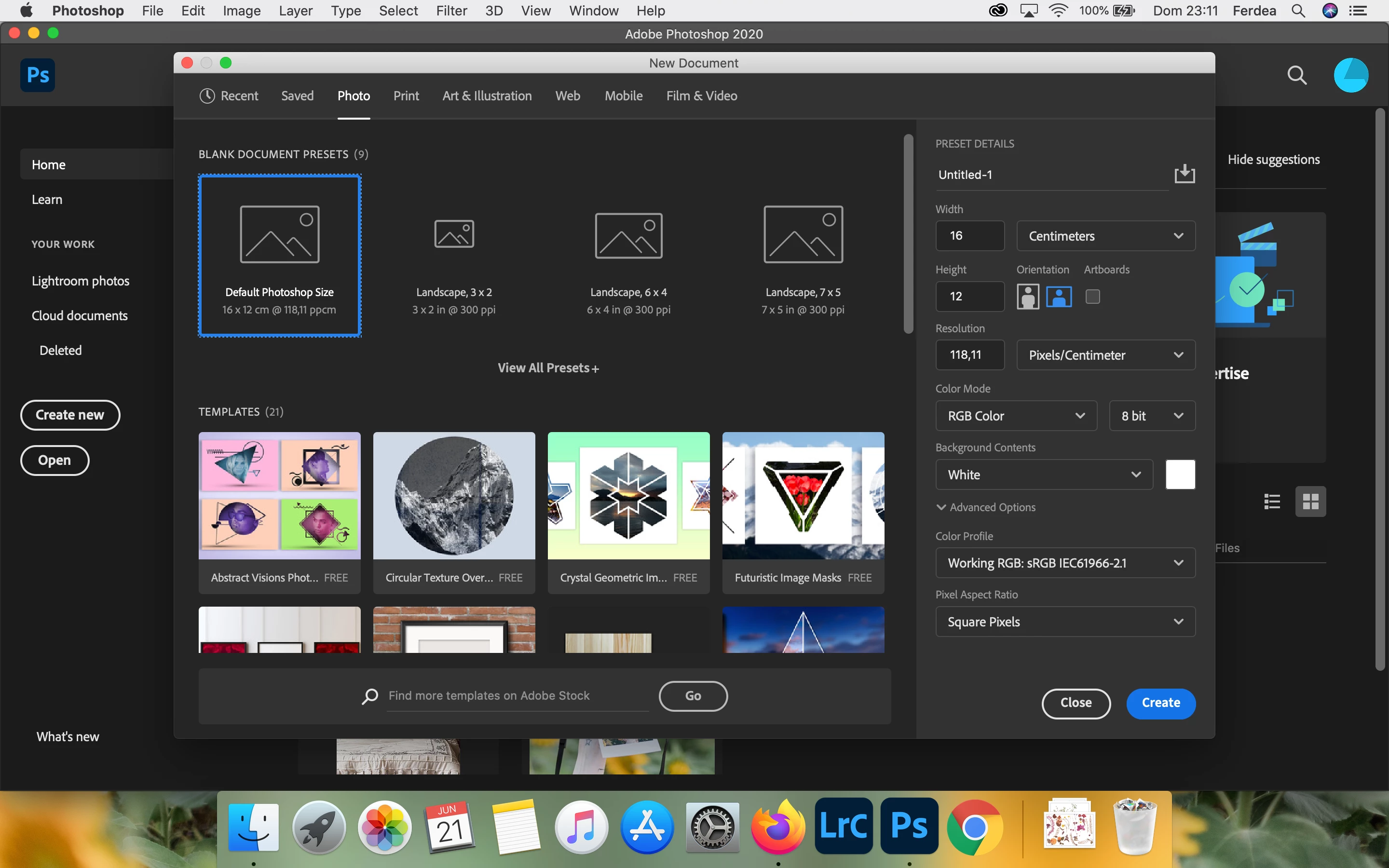
I always open a "Default Photoshop Size", create what I want to and cut the part that I want to save.

Here are the settings that I used (the default one):
 

And, after creating and cutting just the part that I want, here's the difference in sizing. And, especially in this exemple, it drives me crazy, because I have to know the real size of the header!
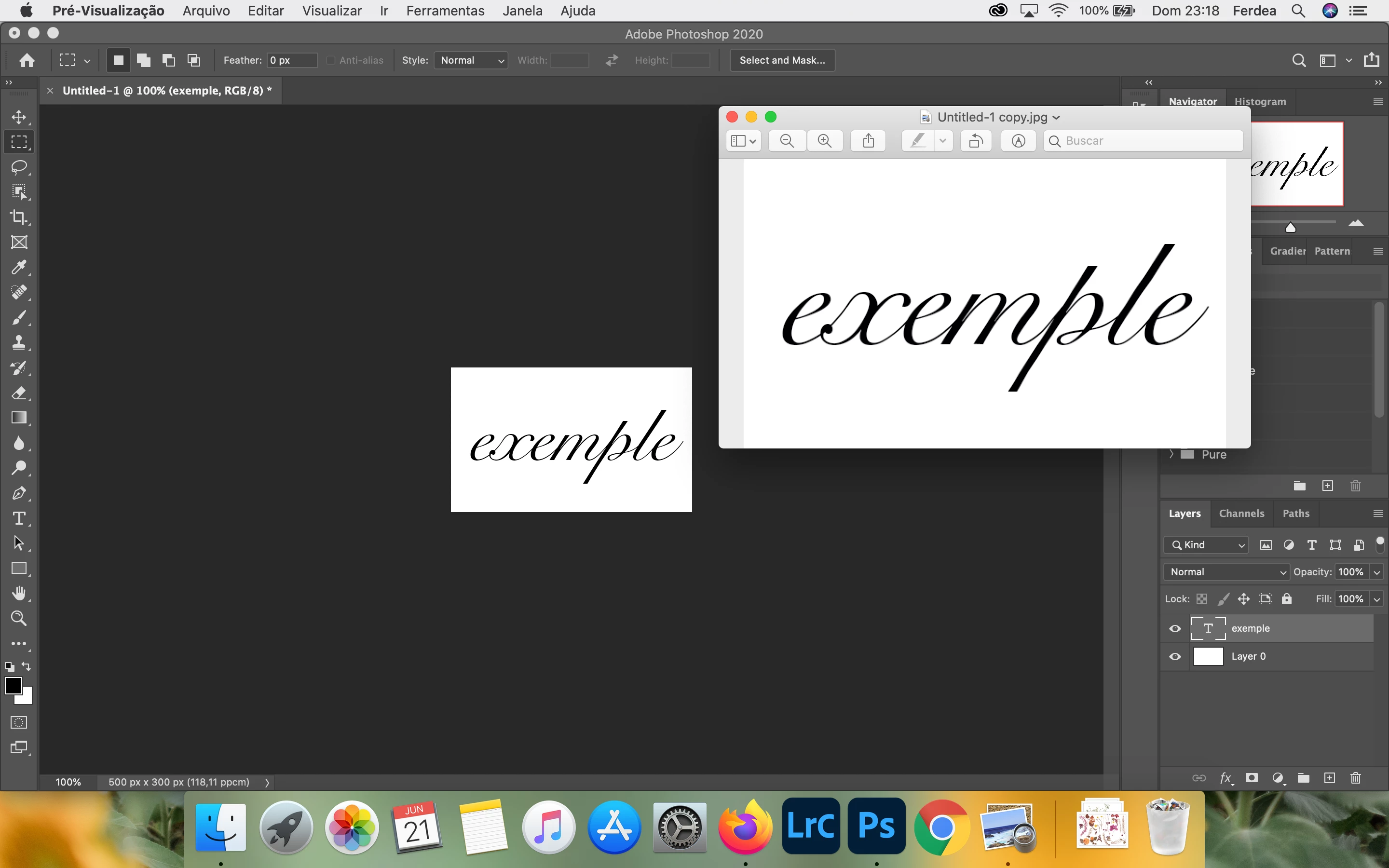
Has anyone ever had this problem? I have already reseted all settings, uninstalled and reinstalled the app, but it keeps happening.

Thank you in advance.

このトピックへの返信は締め切られました。
解決に役立った回答 D Fosse

Photoshop displays correctly. 100% in Photoshop means that one image pixel is mapped to exactly one screen pixel.


You have a retina screen.


Mac Preview and other consumer-oriented viewers/web browsers all scale up images when they detect a retina/4K screen. These viewers don't have to meet critical standards, so they can do that.


The reason they scale up is that a retina screen natively displays much smaller than a traditional screen. So this workaround ensures that the same images can be used on the web etc regardless of screen technology.


None of this has anything to do with Photoshop. It ignores the whole issue. But if you want Photoshop to behave the same way, set View > 200%.


Here's another discussion from only a couple of days ago. It's all explained there, in detail:

https://community.adobe.com/t5/photoshop/png-madness/m-p/11227390?page=1 

返信数 2

josephlavine
Community Expert
Community Expert
June 22, 2020

Adding to D_Fosse's response.

I think you'll find this link useful.

https://helpx.adobe.com/photoshop/kb/hidpi-retina.html

warmly/j

andream99181107
Participant
June 22, 2020

Thank you!

D Fosse
Community Expert
D FosseCommunity Expert解決!
Community Expert
June 22, 2020

Photoshop displays correctly. 100% in Photoshop means that one image pixel is mapped to exactly one screen pixel.


You have a retina screen.


Mac Preview and other consumer-oriented viewers/web browsers all scale up images when they detect a retina/4K screen. These viewers don't have to meet critical standards, so they can do that.


The reason they scale up is that a retina screen natively displays much smaller than a traditional screen. So this workaround ensures that the same images can be used on the web etc regardless of screen technology.


None of this has anything to do with Photoshop. It ignores the whole issue. But if you want Photoshop to behave the same way, set View > 200%.


Here's another discussion from only a couple of days ago. It's all explained there, in detail:

https://community.adobe.com/t5/photoshop/png-madness/m-p/11227390?page=1 

andream99181107
Participant
June 22, 2020

Thank you so much!