


dopeantelope
Participating Frequently
May 18, 2017
Question

Something wrong with the size of my canvas?

  • May 18, 2017
  • 5 replies
  • 4431 views

I am having serious issues with photoshop at the moment in regards to the image size on the workspace. Its a 400x200px canvas at 72dpi and it comes up TINY on the workspace making it impossible to work with but it says its at 100%. When i zoom in the quality is decreased and i just can't do any work. Please see the screenshots below.
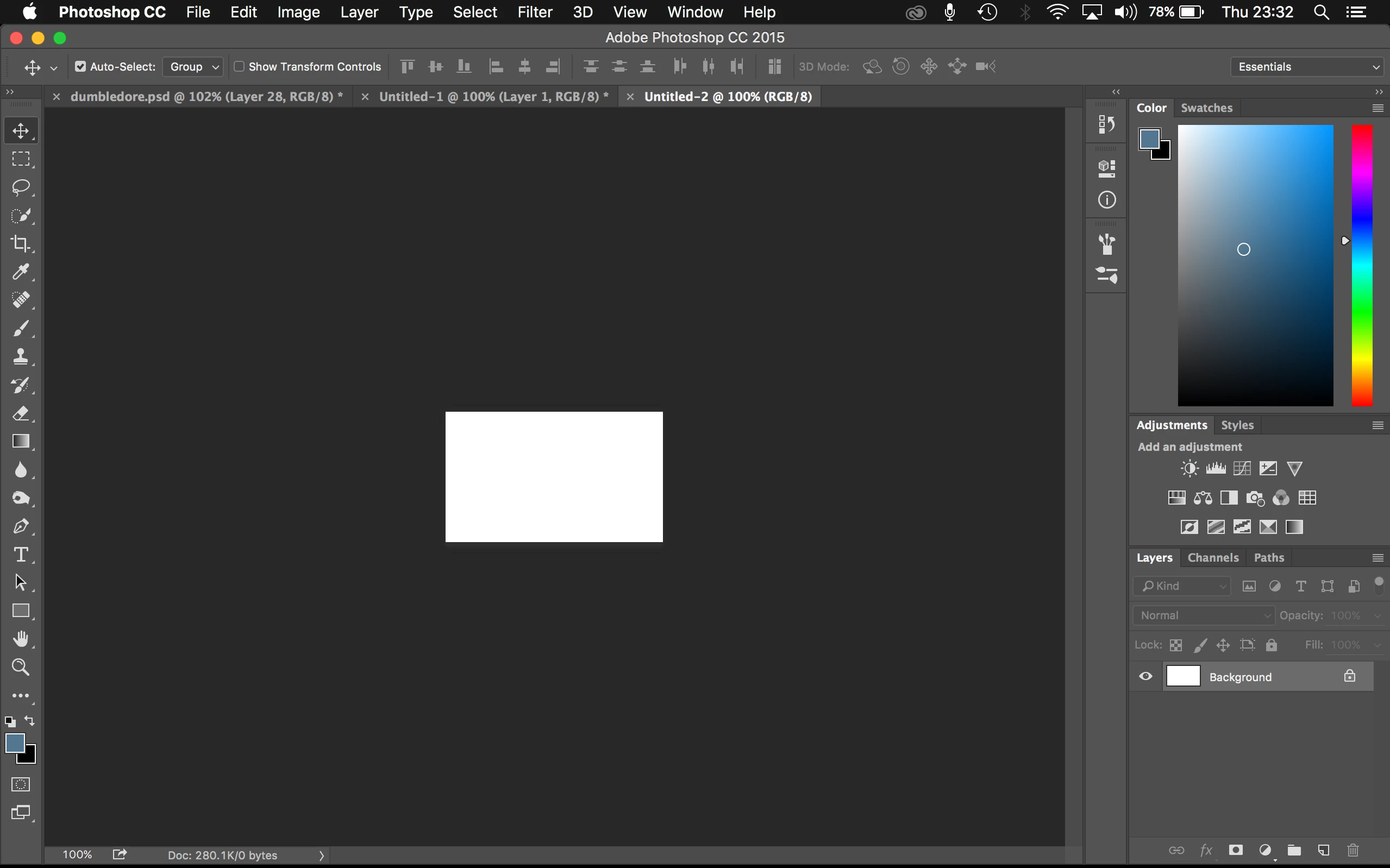
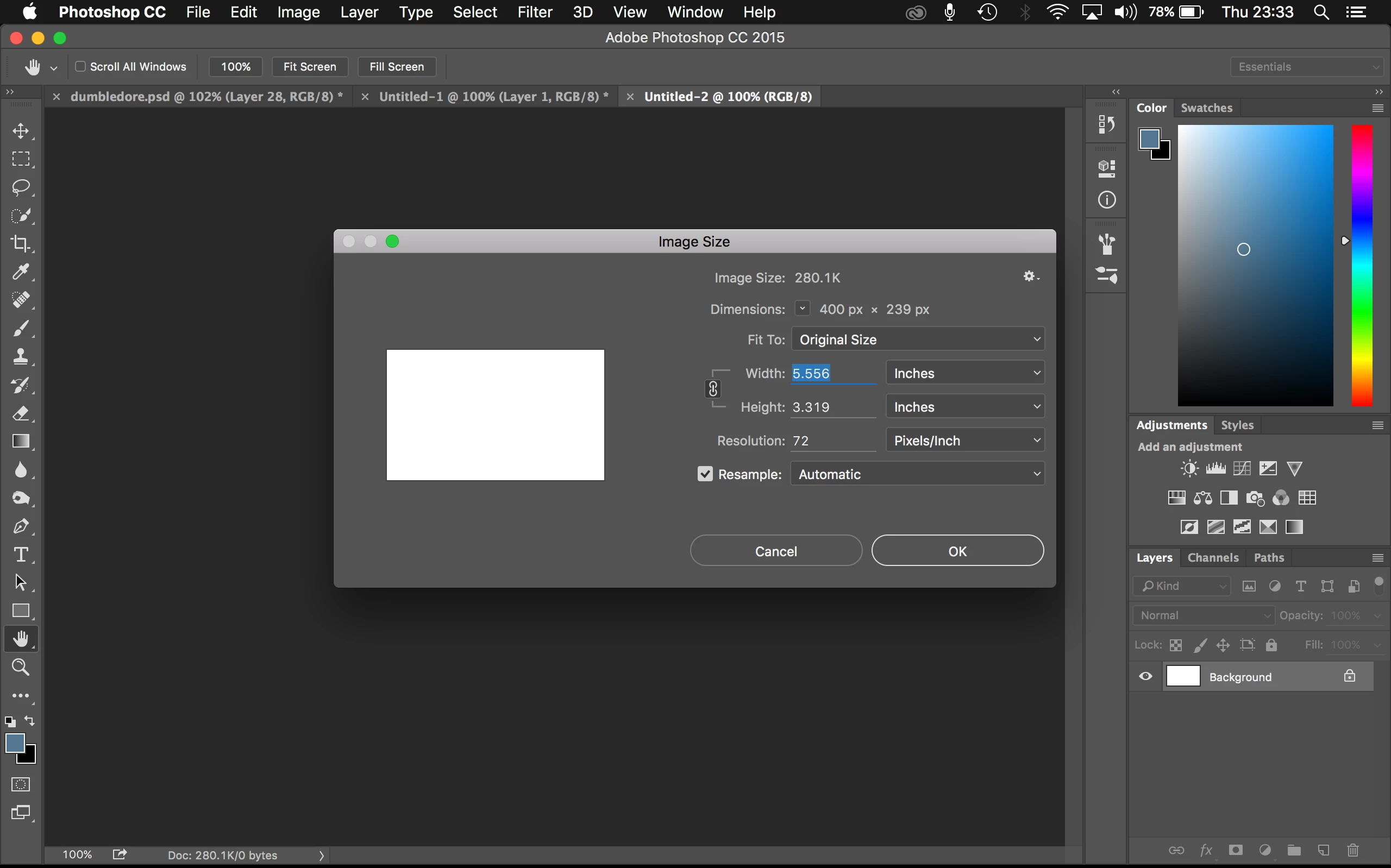
please can anyone help me? its basically rendered photoshop useless to me.

thanks in advance.

    This topic has been closed for replies.

    5 replies

    adamm76030850
    Participant
    May 19, 2017

    Also i have the same problem.

    I wanted adjust graphic logo in PS5 to my site [Link removed] , but i can not.
    Sorry for bad english.

    How to solve this problem?

    JJMack
    Community Expert
    Community Expert
    May 19, 2017

    You need to realize that there is no Problem.  You need to learn and understand basic digital image processing.  You need to understand pixels,  pixel size is  resolution Pixel density DPI the  there are displays that have a 96 DPI resolution and there are displays that have resolution above 300 DPI.    Displays can not change their DPI the are manufactured with a fixed size square pixel. Your image will display large on a low resolution display and it will display small on a high resolution display.  It comes down to Pixel size. 

    If you want your image to display the same size on both low and high resolution you need to have two versions of  your image.  One the has so many pixel for low resolution display and a second version the many times that amount of pixels for  high resolution displays.

    JJMack
    dopeantelope
    Participating Frequently
    May 19, 2017

    So basically 400 x 200 is tiny in photoshop but its the actual size that i want when uploaded to the web lol. How does one go about designing on something so tiny when zooming in and working just makes it so pixelated and hard to work with?

    davescm
    Community Expert
    Community Expert
    May 19, 2017

    Hi

    If your pixel resolution must be 400 x 200 then you can only zoom in to greater than 100% and live with the pixelated look. There are a couple of additional comments to that though:

    If you are designing with images such as photographs, many websites are designed to allow the upload of two or more images with different resolutions. The browser then shows the appropriate image according to your screen resolution. That way images can look correctly sized and sharp on Hi dpi as well as conventional screens.

    If you are designing with shapes then use vector shapes rather than pixels, which you can scale up and scale down without any ill effect. However, if you save as a jpeg, or png at any time then these revert to being pixel images.

    A quick web search turns up many articles on this but to get you started see the attached :

    5 Ways to Support High-Density Retina Displays — SitePoint

    Dave

    D Fosse
    Community Expert
    Community Expert
    May 19, 2017

    Dave's excellent explanation is spot on.

    In other words, dopeantelope, there is nothing wrong here! You just have a very high resolution screen and this is what it does.

    What Dave did not mention is that all your other Mac apps, web and file browsers, image viewers - they all scale the image up. They do this to compensate for the small size, because otherwise Apple would be flooded with complaints and questions like yours

    Photoshop can't do that. It has to display accurately.

    JJMack
    Community Expert
    Community Expert
    May 18, 2017

    What is your Display's dpi resolution.  Displays do not use image resolution they use their resolution.  400x200 Px would display 4"x2" on a 100DIP Display and 2"x1" on a 200DPI display and 1.33"x 0.66" on a 300DPI display

    JJMack
    dopeantelope
    Participating Frequently
    May 18, 2017

    it appears that my resolution is 1280x800 which says its the default for a mac. i've just tried changing this but it makes no difference.

    davescm
    Community Expert
    Community Expert
    May 19, 2017

    screen resolution of 1280 x 800 and i just found display settings of 13.3-inch (2560 x 1600)

    I'm sorry I'm not grasping, I don't know much about this stuff at all. I would really like to understand.


    Hi

    The answers you are looking for are in the posts above but you appear to be struggling with them so I'll see if I can help.

    100% zoom in Photoshop does not mean that an image size of 1 inch will be 1 inch wide on screen. What it does mean is that 1 pixel in the image will take up 1 pixel on the screen. So a 400 pixel wide image will be 400 pixels wide on the screen.

    Your MacBook screen has 2560 x 1600 pixels. It has a resolution of 227 pixels per inch (ppi).   Your 400 pixel wide image will therefore be 400/227 = 1.76 inches wide on screen at 100% zoom.

    The image size of 5.5 inches x 2.77 inches at 72dpi image resolution refers to the physical image size if the image is printed at 72 ppi resolution, which is a very low resolution for a small print.

    You can get the image to display on screen at the physical size suggested in the image size box, i.e. 1 inch of image width will take up 1 inch on your screen by using View - Print Size. But this will only work if you have set your screen resolution in preferences correctly. So go to Preferences - Units & Rulers and set your screen resolution to 227 pixels per inch.

    Now by using View - Print Size you can see the image as it will print.

    You will notice that if you do view your 400x200 image at View- Print Size on screen it will look very pixelated. That is because it only has 72 pixels for every inch which will be very visible at screen viewing distance and when printed. To get a better default for print go back to Preferences - Units and Rulers and set the print resolution to 300dpi in preferences (or 360 if you use Epson inkjets).

    So the bottom line is - you image does not have enough pixels to display unpixelated at the intended print size in your Image Size box. By creating the same physical size but with an image resolution to 300dpi - you will get more pixels in the image and it will look sharper when viewed at your intended print size.

    I hope that helps

    Dave

    Barb Binder
    Community Expert
    Community Expert
    May 18, 2017

    At 100% magnification, each pixel in the image is mapping to each pixel on your monitor. 400 px by 200 px is quite small. Is that the size you need for the final output? If so, just zoom in a bit, not too much or it will become pixelated.

    Is this file destined for onscreen viewing?

    ~Barb at Rocky Mountain Training
    dopeantelope
    Participating Frequently
    May 18, 2017

    Hi, yes its for onscreen viewing. On previous versions of photoshop this has never once been an issue and the size came up perfectly normal. When i make an 800x400 image and put it online it comes up wayyyyy bigger than i was working with on photoshop and so all blurry and really terrible quality. I just can't work with it at all because of the quality on the screen but then also the quality when i upload.