[third attempt...this interface is having problems!!!]
These are all landscapes, and only 125 of them, so purchasing Photoshop is not an option.
How do I in Elements, as you did in Photoshop, "add blue"?
Help says Enhance>adjust lighting>levels, but that does not control just one R, G or B. I was looking for a three-slider tool, one each for RGB. The Camera Raw editor shows the RGB graph, with the letters RGB below with dashes, but I am not allowed to adjust those.
Elements is on sale for $70 right now, probably because a new version usually comes out by October if not September, and is normally $100. PS+LR is $120 / year and if you cancelled after 6 months it'd be $60 + $30 penalty or $90 so about the same.
Anyway you seem to have Elements, already, since you're asking questions as if you have it open.
Taking a step back, I realized that you can use the superior Auto White-Balance function in the Camera Raw plug-in of Elements, too, just not the radial filter. To do that use File / Open in Camera Raw:
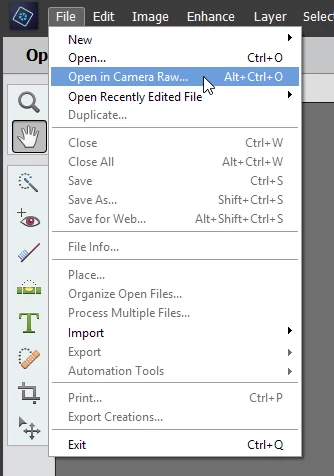
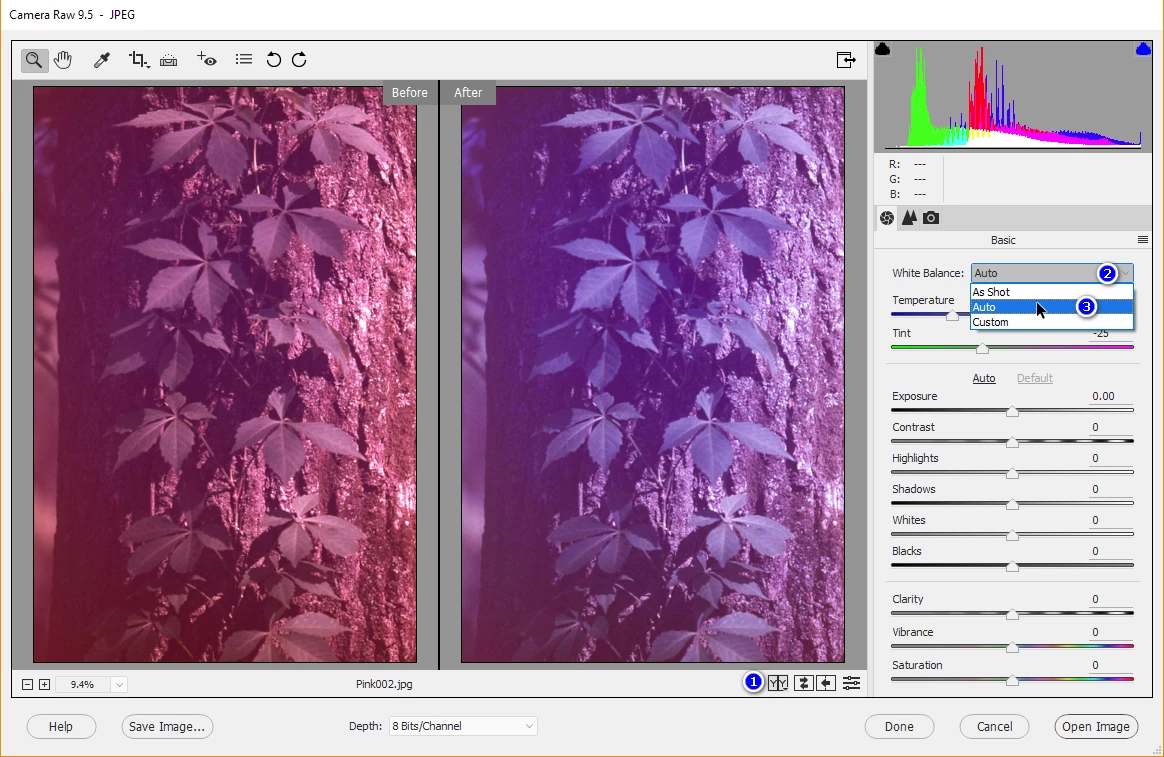
Then once in Camera Raw, where for this photo I set side-by-side before/after, selected Auto WB instead of As Shot, and arrived at a more purple version, but halfway corrected:
Then you can correct it more by sliding the Tint slider even more green:
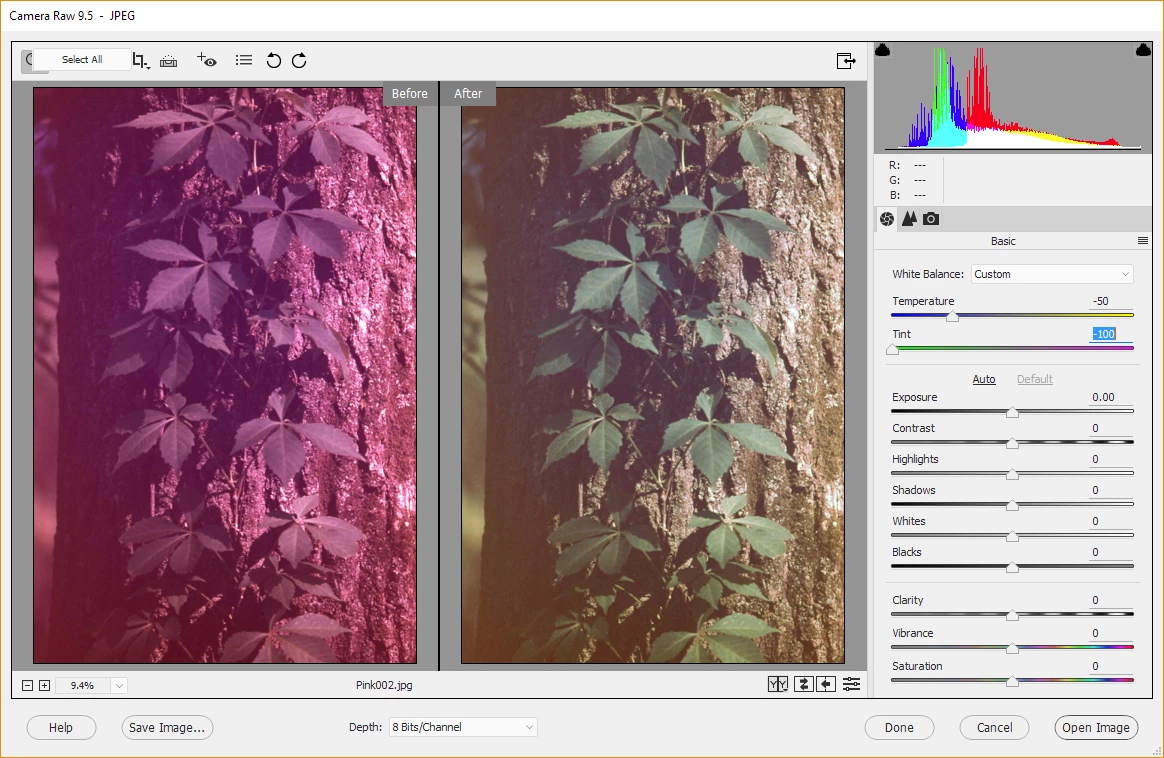
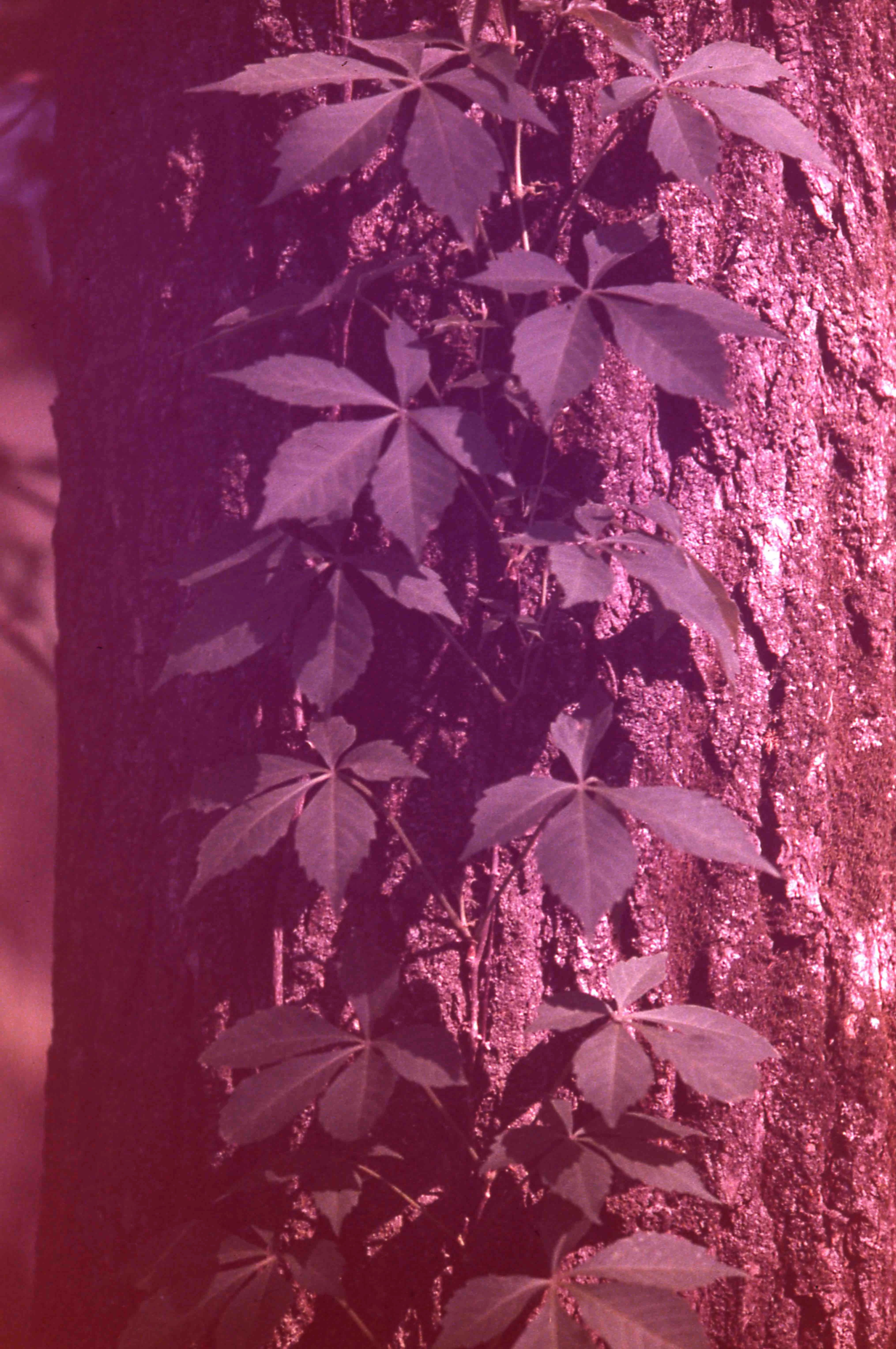
It has the yellow-edges/purple-left-center problem and is a bit hazy but you can try a few more adjustments in the Toning area, including Auto and then back off some of them as it's too much, especially the negative Blacks on this particular image, and here is my final result in the Camera Raw plug-in in Elements where I messed with most of the sliders:
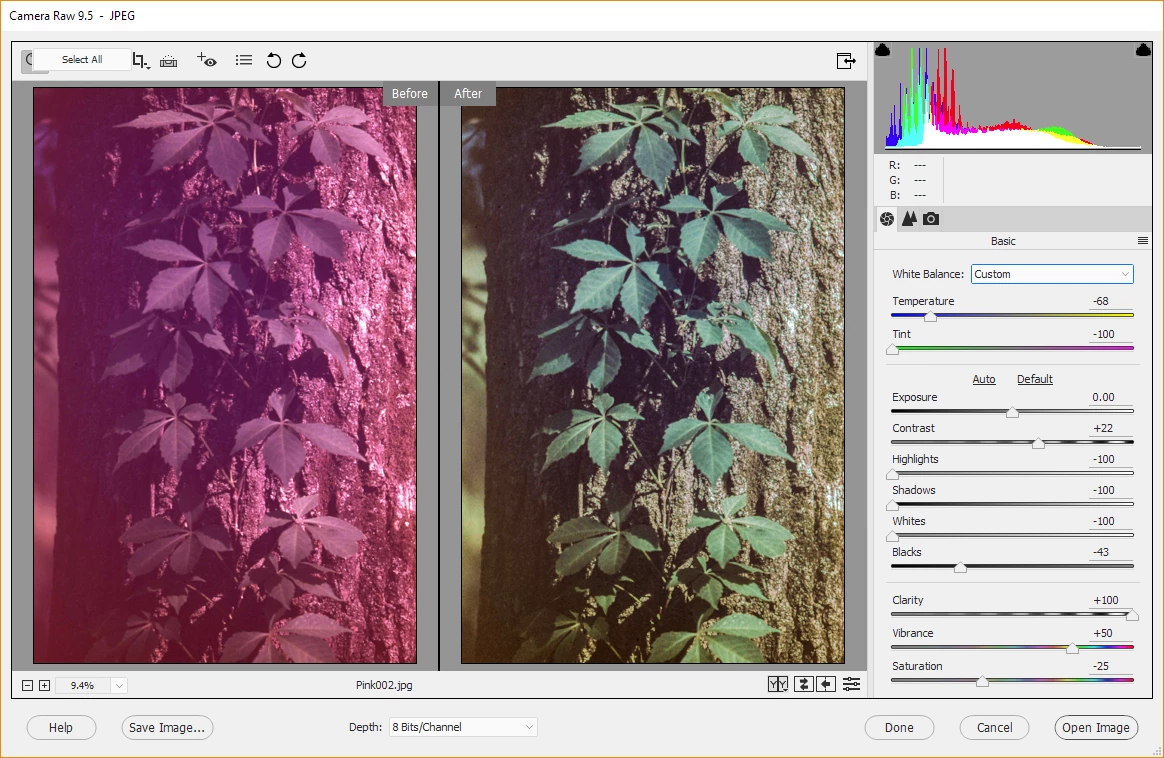
The Camera Raw plug-in seems superior for fixing the colors on this particular image. The drawback is that you have to use it on the way into PSE, and once you click Open image to do other fixes in PSE, itself, you have to reopen the original image (that wasn't saved over the top of) in File/CR to get back to where you can do the same edits, so do as much as you can in the ACR plug-in then do the final bits in PSE, itself, and SAVE A COPY not over the original, so you can easily start over if you figure out some superior technique halfway through the images.
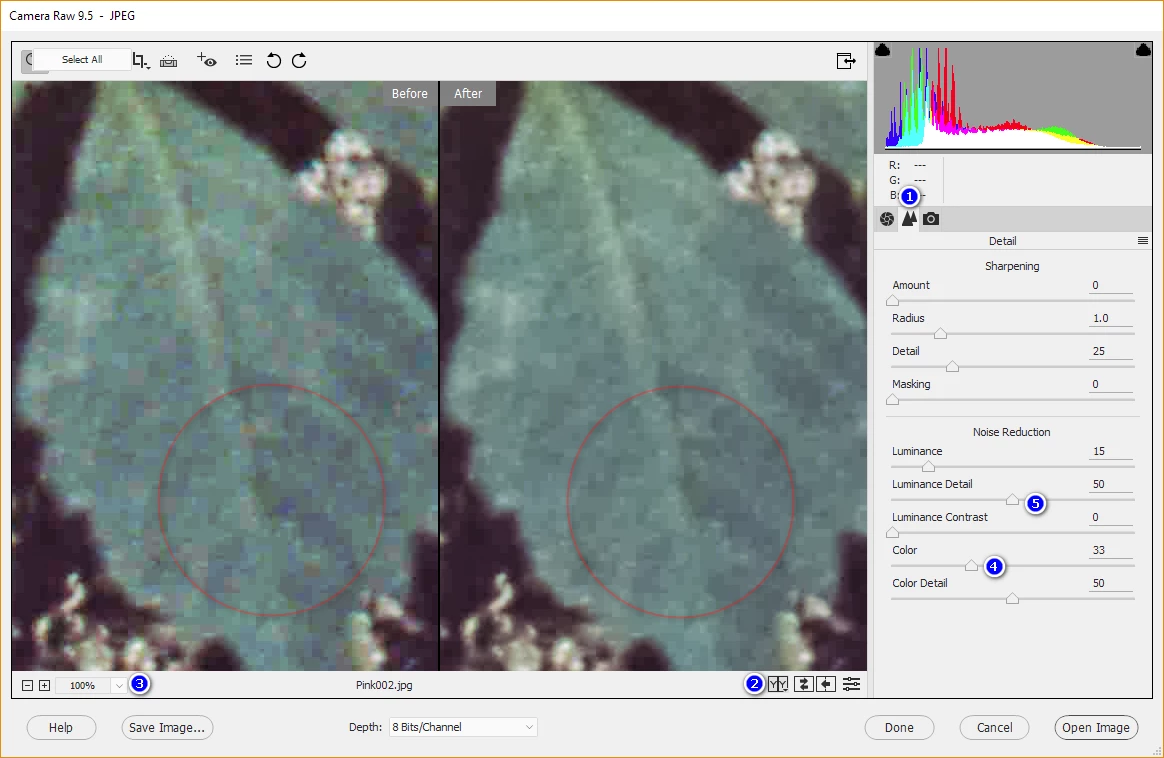
One reason to reopen the image, for me, was to do some noise-reduction, mainly to get rid of the color blotches in the green leaves with the Color Noise reduction, but also to smooth things out a tiny bit with some Luminance Noise reduction. In either case don't over do it because a little noise grain makes the images look crispier than if they are overly smoothed and plastic-looking. You probably want to zoom in to 100% to view the noise-reduction effects properly. Here is my attempt with the leaves on the pink image, after re-opening so the Before is not pink, but where I left off with CR before. The pink and blue spots are smoothed more into the green with the NR I applied. If the image had legit color details that were much smaller, say a more wide-angle image with flowers intermixed with the leaves, then be careful not to smear the colors of the flowers into the leaves with too much Color Noise reduction:




 ).
). AdChoices