


Known Participant
January 2, 2018
解決済み

Old School Looking for PShop CS3 Help-The Hairy Circle

  • January 2, 2018
  • 返信数 2.
  • 1223 ビュー

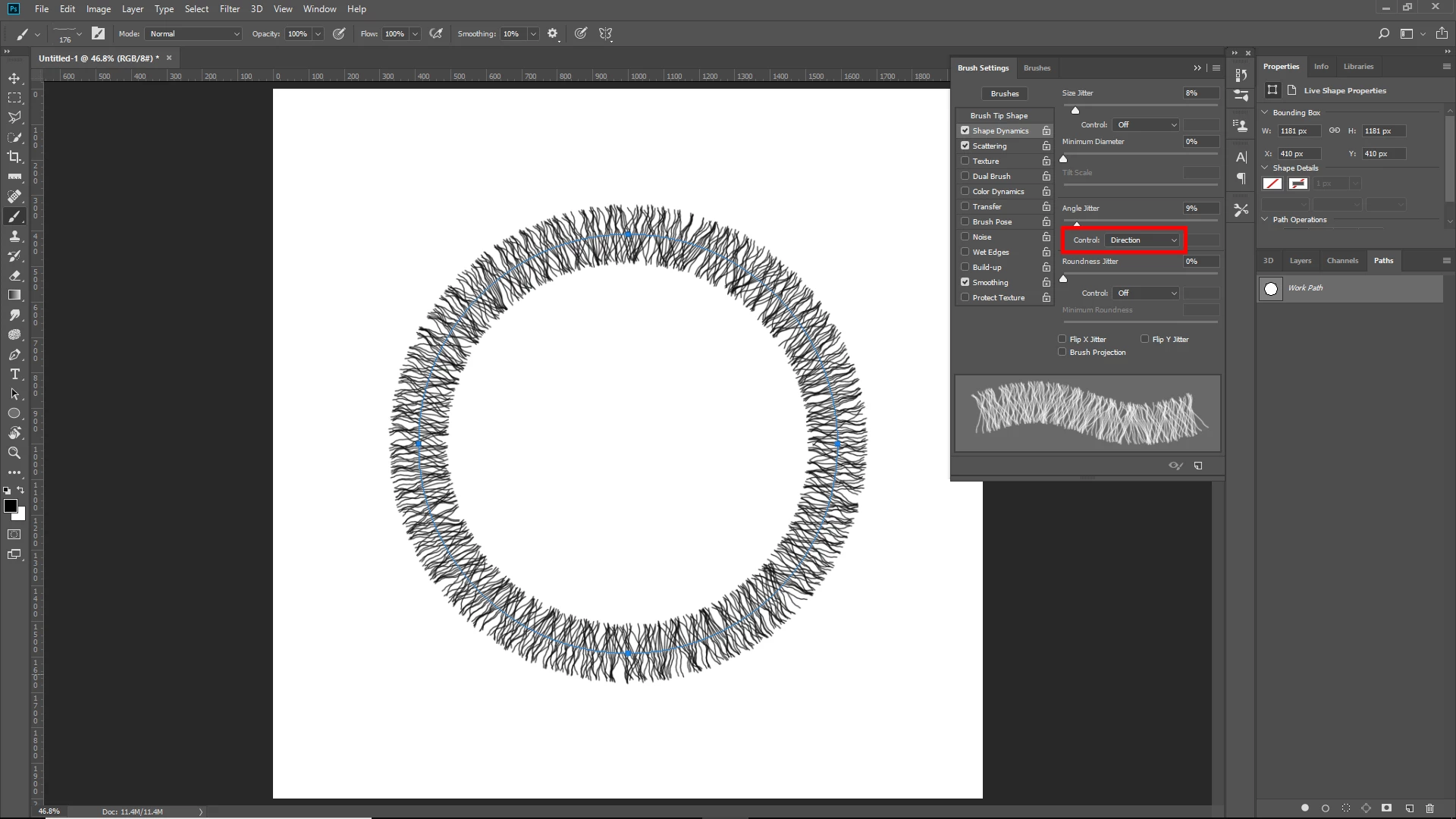
I am trying to adjust the options in the brush presets menu and then apply the brush to a circular path using the "stroke path" command in the path menu.  My brush is a few hair shapes and I want it to apply to the circle path so that the consequence is what looks like a hairy circle with all hairs pointing out.  That would mean the brush applied to the path so that it's base stayed perpendicular relative to the base path of the circle.  So far I have not found that setting.  As of yet I can only get the brush to apply to the circle in one initial direction so while the hairiness looks great at the top of the circle (hairs pointing out from the circle) while on the sides, the hairs are sideways relative to the circle path and at the bottom the top of the hairy brush actually points in towards the center of the circle.  Can someone please tell me the specific control in the brush palette which controls this and can make the brush apply to the path is a dynamic way to keep the position consistent?  Thanks.
    このトピックへの返信は締め切られました。
    解決に役立った回答 Chuck Uebele

    Set the angle jitter control to "Direction."

    返信数 2

    Chuck Uebele
    Community Expert
    Chuck UebeleCommunity Expert解決!
    Community Expert
    January 2, 2018

    Set the angle jitter control to "Direction."

    johnl89878216作成者
    Known Participant
    January 2, 2018

    That takes care of the first part.  Any insight on how to effect where the baseline of the brush gets rendered relative to the target path?  Using your image of the hairs, how might you offset the hairs so they occurred almost entirely outside the circular path?

    Chuck Uebele
    Community Expert
    Community Expert
    January 3, 2018

    I don't believe there is a way to do this with the brush settings. There are two ways to get around this: one is to use the Deco fill script following a path, but modify the script to include some randomness - not an easy method. The other method is when you create your hair brush, make the canvas twice the length, and place a 1px dot at 2% opacity the same distance from the end of the hair as is the length of the hair. This will put the center of the brush at the end of the hair, but the very fair dot will not show up, unless you have a lot of overlapping hairs, which in that case, you could make a selection inside of the path and delete the dots. I drew a rectangle to the size of the hair, then moved it down to show where to put the small dot.

    johnl89878216作成者
    Known Participant
    January 2, 2018

    OK. So me again.  First issue finally resolved.  Sorry.  I had a pen tilt command in the size jitter field selected which was messing the whole thing up.  Now a second challenge.  The rendering of the brush is showing up centered top top bottom of the brush relative to the circle path.  Is there any way to apply a baseline shift so the base of the hairs render more closely to the line of the circle path?

    Norman Sanders
    Legend
    January 2, 2018

    The following is a solution I offered to solve a similar problem. Essentially, drawing a straight line and then converting it into a circle.  (In the case below, the objective was a fading line in a circle.) I have modified the instructions listed below so that they apply to your project..

    \

    1.  Draw a centered horizontal bar on a blank layer. Note that it extends from one side to the other side of the square.

    2.  Select > All.   Filter >Distort > Polar Coordinates…Rectangular to Polar