


Known Participant
March 24, 2019
解決済み

Adobe Premiere and Colour Gamut limited to BT.709

  • March 24, 2019
  • 返信数 20.
  • 21941 ビュー

Is it true that if I import video footage shot in a wider colour gamut the BT.709 (such as S-Gamut, S-Gamut3 or S-Gamut3.Cine) , Adobe Premiere will clip the wider colour space to BT.709?
While doing some research I found that if I import footage into Adobe Premiere and drop it in a timeline and if I do any colour grading inside Premiere using the lumetri colour, the colour space will be reduced to BT.709. This made me worry because I shot footage with the Atomos Shogun Inferno and the Sony FS700R which allows to record Sony RAW. When recording I set the Gamut in the Atomos Shogun Inferno to S-Gamut. I know should had use a smaller colour space such S-Gamut3.Cine. But I used what was set by default in the Atomos Recorder. I was planing to do the editing and the colour grading in Premiere CC 2018. But then I read some people saying that if I do grading inside premiere, Adobe Premiere will convert the orignal  colour space to a reduced BT.709.

If this is true, Adobe Premiere is not recommended at all if you want to do colour grading for films that will be screened in theatres / cinemas. The wide colour space is clipped by premiere.
If so, doing colour grading in Adobe Premiere is not recommendable if one is working with footage that was recorded in colour spaces wider than BT.709. The only solution is to edit in Premiere but not apply any colour correction or grading and export the timeline in a XML format that can be used by a Professional Grading Software such as DaVinci Resolve. !
Is this true?


Thank you in advance
このトピックへの返信は締め切られました。
解決に役立った回答 R Neil Haugen

I just got a reply to my request for information from a color engineer for Premiere Pro, and permission to share ... so here's the full scoop on exporting HDR/wide-gamut from Premiere 2019 ...

Neil

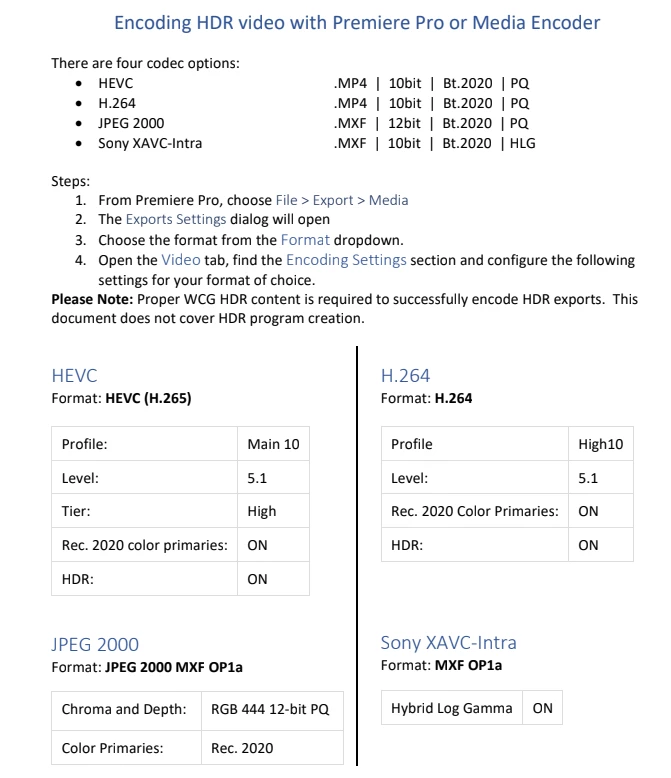
PPro currently is hard-wired to Rec709 – so everything needs to get converted into Rec709 at some point.  But we do this conversion in such a way that we retain the data that is outside the Rec709 gamut – we call this over-range 709.  Grading operations can recover this data, but upon export, detail outside the Rec709 gamut is definitely clipped.  The only way to retain wide gamut data is to choose an HDR output, but this only really suitable for HDR workflows.  I have attached a doc on encoding HDR.  I don’t know of a way to export P3 specifically.

返信数 20

Legend
March 25, 2019

Thank you Neil. I know you don't mean to or try to be insulting. The fact that you say things that may be construed as insulting has nothing to do with your heartfelt intent. It's just a fact of life.  I won't bother trying to explain this to you anymore because you just don't get it.

No problems.. I understand what you are saying technically and you are helping so many people understand the technology what you might lack in diplomacy is of no consequence.   hehe...

I just chased down a rabbit hole just now. I shot 8 seconds of a house across the frozen lake the other day with a 300mm lens for full chip on a bmpcc 3/4, with crop factor of 2.88.. makes it 864mm. Raw 1080p, 23..97, cinemaDNG.

Wanted to see what vimeo would do with an export of mov DNxHD at 720p. I don't have pro version of vimeo and it was limited to 720p for me. I expected the conversion by vimeo to be to 720p, and whatever they do with the codec. They sorta like mp4, h264 I think.

For some stupid unexplainable rabbit hole reason, they made it full HD and it didn't fail to convert ( I had doubts if it would work).

Is 8 seconds.

It's very grainy ( noise) which I kinda LIKE. It adds another very subtle plane on top of image.  Like grain on prints you used to make in your darkroom.

Legend
March 25, 2019

P.S. I was typing my message while Neil uploaded his, so I didn't see it until now.

What you will find on the black magic forums AND sony forums or ANY forums, basically bears out what Neil is saying in terms of most common work flows, but that isn't the main point. The point is that you are NOT getting your original stuff destroyed by PPro.

It doesn't matter what most people do, unless you want to study the best way to do what you HAVE to do to get out the product for various media ( different TV's, DCI, etc. )  There's tons of info about that and the link I sent about stuff recommended by Netflix, believe it or not, is very informative.

Neil, unfortunately, has a habit of simplifying conclusions to the detriment of individual feelings. That you are chasing down a rabbit hole that doesn't exist is fundamentally insulting. You are just trying to state something you believe ( and happen to be angry about ) and trying to learn how to do what you want done.  It's a learning process.  You don't tell the children you love they are idiots because they don't hold the paint brush correctly the first time they are helping you paint the garage ( I still growl when I think of when my father did that, as I was just having fun and trying to help ).  People have to have patience and respect one another.

Conversely, trying to get some reaction beyond what you've already stated ( you belief and your anger ) is not being productive either. Time to move on.

R Neil Haugen
Legend
March 25, 2019

I wasn't trying to or meaning insults in any way. Don't say something you have no basis for. ANYONE can get off chasing down a rabbit hole, I've certainly done that *more* than my share of times. It's just being human.

As is informing someone that what they're chasing isn't what they think, and has become a rabbit hole.

The OP,  it seems, is perhaps confusing or conflating the actions of LUTs and color spaces. They aren't anything equivalent.

A LUT *will* clip any data outside the set range of the LUT. When using most LUTs, either for technically correcting media (such as a log to Rec.709 LUT) or a LUT used to apply a look or feel, you need to be able to trim the media into the LUT with luma/chroma tools applied before the LUT. While viewing scopes with the LUT in place.

Color spaces DO NOT CLIP.

They don't have that knowledge, skill, limitations or whatever.

All they are is a map ... they take the data in an image file and place each bit for hue/luma as THAT color space interprets THAT specific set of luma/chroma data on THIS map.

Change the map, the color space, the data points change to fit their appropriate new location.

That's all they do. A smaller color space has no means for clipping data. It just moves it closer together.

Which is why the colorists I know just work the media as best suits their setup, and worry about the output space as they need to.

Where Pr falls terribly short isn't in working the media or really passing it along.

Pr currently has two big holes, first you can't really see HDR or wide-gamut media correctly. So ... yea, don't try to do color or tonal work on that media. Second, it's limited in the ability to directly export a reliable DCI-P3 as you can't see the blame thing correctly to begin with even if you have such an export setting.

So it needs to go from editing in Pr to finishing in Resolve or Avid or Baselight.

But Pr isn't clipping or damaging the data. IF you know what to export to. A friend is teaching DolbyVision for Dolby. Has an incredible facility. And takes projects that came from Pr into Resolve and outputs full DolbyVision high-nits work regularly.

It's all in knowing the craft.

Neil

Everyone's mileage always varies ...
Legend
March 25, 2019
[PP] needs to go from editing in Pr to finishing in Resolve

Or, just do it all in Resolve.  Media Prep, Editing, Effects, Color, Audio, Delivery.  Resolve is a one stop solution for independent producers.

Legend
March 25, 2019

Please don't be angry with me, but I do have some impressions from this thread.

Firstly, Jim suggested you just switch to Resolve right off the bat, early on in this thread. That way you can SEE on calibrated monitors with proper project settings, as close as you can get to DCP ( digital cinema projection) with current high end monitors. It won't be perfect, but close. Basically you can't grade color for cinema unless you do it within a cinema projection setting.

So that's one thing.  Jim suggested you just jump over to resolve for all of it. And you'll find out eventually what the limitations are for absolute control of cinema projection stuff as you refine your workflow to delivery.

Neil tried to explain that ppro does NOT clip or restrict the source material unless you export to a codec that is limited to rec 709. BUT you can't SEE your better colors in the source or program viewers, due to current workspace options in ppro. Plus he tried to explain that using the scopes with current scales is not very cool.

I tend to believe what Neil says cause he does an amazing amount of study and research and yappin with people about this stuff.

YOU claim that your tests PROVE that no matter what you do the color space is destroyed ( clipped, etc..) by ppro, as tested by you scientifically.  So, we have some fundamental difference of views.

I personally think you should be happy and satisfied with what you are doing and how stuff looks and how it ends up being exported, etc. I think the most important thing is that YOU are happy and satisfied.

This isn't Hyde Park Corner. Not a place to stand on soap box and rant nicely, but rant it is if there's no way to reconcile the conflicting viewpoints.

I know you'll do great stuff no matter what you do, so try to focus on the work ( the story and the magic of telling them to people who want you to express those stories to them ).

Ze_Povinho作成者
Known Participant
March 25, 2019

I posted this in "Adobe Premiere Pro Editors on Facebook" group, regarding how Premiere handles colour spaces. It was deleted twice be the Admin and then they blocked comments.

So much for open discussion and knowledge sharing.

After complaining and asking why were my posts deleted, here is a response from them:

" Diogo Pessoa Andrade, I skimmed your original post and I assume that what the admins saw (as did I) is that you walked into a barbecue restaurant and started screaming at people for not being vegetarian.

I disagree with your premise, as would most editors in this Adobe Premiere group."

I wonder why are they avoiding this topic to be discussed?

Here is what I posted there:

"Is Premiere a good solution for Professional Cinema? I am concluding that it is not a good tool if you aim to produce for Cinemas in a professional way, mostly due to the way Premiere handles colour spaces (Gamut).

It looks like that premiere can´t handle gamuts / colour spaces. As far as I realised Adobe Premiere works with BT.709 colour space. If you have footage that was recorded in a wider colour space such as S-Gamut, S-Gamut3, S-Gamut3.Cine or DCI P3, once you import footage in Adobe Premiere the colour space is affected and Premiere will clip the colour space to BT.709, a reduced color space used on the web non professional screening and displays.

It seams that the only way to avoid this is to do the editing and export a XML file. This won´t change the colour space because you will be working with native source footage when you open this XML file in another program such as DaVinci Resolve. Although, this may be tricky and you may experience problems when importing the XML file in DaVinci Resolve. So my conclusion is: If you shot your film in a video format using a wide colour space such as S-Gamut3.Cine or wider and if you plan to produce a film for professional theatre release, Adobe Premiere is not recommended to be part of your workflow. You will loose colour information at some point. You will start with a wide colour space, which will then be reduced / clipped when you do the editing in Premiere and then you will increase again the colour space to DCI-P3 when you produce the final version for digital movie projection. As far as I see it, Premiere is not a tool recommended for professional Cinema production. It might be cool for TV, Web production. But not for professional film production such as what is produced by Hollywood or any other professional Cinema Studios.

I have been using Adobe Premiere for many many years.... But this limitation of Premiere and the current project I am working now which involves footage shot in a wider colour space than BT.709, is not giving me many options. I think I will have to start learningis Davinci Resolve.

And in order to avoid any delays and possible issues when exporting a XML file from Premiere and importing it in Davinci Resolve I think the best way to go is to start with DaVinci from the very beggining of the workflow process.. This is my conclusion. It has nothing to do with having an HDR monitor. It has to do with how Adobe Premiere works.

I did import into Premiere video footage shot in S.Gamut3.Cine and also did tests with footage shot in S-Gamut and S-Gamut3 colour spaces and the result was the same. There is no way to keep these colour information once you edit and export footage in Premiere. No matter the export format and settings you choose.

In this Article from Sony they mention that:

"Often, gamuts used in professional video applications conform to ITU-R BT.709 (Rec. 709), established for HDTVs."

Premiere seams to do that but in a destructive way. There is no way to keep the colour space along the workflow if you edit, grade and export inside premiere. You will end up with a reduced colour space not suitable for professional cinema distribution.

Any comments are welcome.

http://support.d-imaging.sony.co.jp/support/ilc/movie/en/grading/02.html"

R Neil Haugen
Legend
March 25, 2019

There are quite a few productions with wide gamut media using Pr. Just daily.

As someone who spends most of his time dealing with colorists this sort of thing is discussed a ton. The VAST majority of b-cast and cine work is still processed in Resolve even in Rec.709 working space. Then exported into DCI-P3 or whatever for theatrical release.

Most colorists still have as their confidence monitor a Flanders or other spendy rig that is Rec.709. Their basic grade work will be done on that. Then say they have a big screen capable of wider gamut, they'll pass through again modding the image to that view as necessary. And use the capabilities of Resolve to change the data to DCI-P3.

The bits are still there. As long as you keep exports in a high enough bit-rate format. Export into H.264/8-bit, yea, you lost something. Export into a 4:4:4:4 12-bit, you haven't lost a thing. The assigned color space doesn't matter.

So you're chasing down a rabbit hole that doesn't exist in reality.

Neil

Everyone's mileage always varies ...
chrisw44157881
Inspiring
March 25, 2019

Now, I haven't fully tested every option in the new cc 2019, as there are some interesting export options. So take everything I say with a grain of salt and test yourself.

Here it goes...

Coming from an AE background, even the AE adobe manual says that if you don't have a working colorspace as big as the biggest footage in your 32bpc project, you will clip your gamut. and this is from adobe! If you think about it. It actually is pretty interesting that a floating point color can get color clipped. Some long time users actually disabled color management to avoid this. (Note the gracy article)

Now unless adobe overhauls the lumetri engine so it acts more like ACES/lossless, that would be a great thing. There is a reason the HDR is disabled when luts are enabled. When I used an arri_color wide gamut lut to rec709 and back again, I got artifacts in premiere,but only if I used an effect. (This must trigger the disable bypass feature or something.)

Not so, with AE and the plugin called opencolorio(made by ACES) EXR's actually got clipped to 16bpc and I lost superbrights, so there is something going on with lumetri in general.

The rec 2020 scopes don't work quite right for me yet, so still beta. It may have something to do with the the legacy rec 709 timeline, I'm not sure.

First off, many people make big movies with premiere. like Gone baby, Deadpool etc.. What's not known mainstream is that they were edited on premiere but XML'd  to deadpool graded in baselight and gone girl in quantel Pablo system.

Still though...

Many professionals use rec 709 and dump it into P3/rec 2020/XYZ DCI later on. This is perfectly normal as P3 encompasses all rec709 colors.

You don't have to grade in P3/rec 2020,  but the more expensive monitor you have, the more colors you can grade for the big screen. Or let's put it this way, if your film is black and white, you don't need a large color gamut and your contrast 2000:1 is all you need.

If you film has low color contrast, you can get away with missing very dark/bright but colorful colors. Since, film colors look good at 128-140 RGB with low luminance(except animated films which are very saturated), you are usually fine.

A small caveat to all this: HDR cinema is coming soon, so if you only grade in P3 if (and rec 2020 monitors are available at that time), you'll have to re-grade everything for rec. 2020 if you want those new colors on the big screen.

Legend
March 25, 2019

P.S. you said you're using SDI out to a monitor I think. If it's Aja it won't work with resolve. Must be black magic.

If you ever do HDMI to SDI capture, there's a cool newish HDMI to SDI converter that works good with black magic extreme 4k thing, and you can use that with your atomos thing...it will pass through the HDMI stuff ( this would be for studio or set type work or small location interiors I guess mostly). So you could see a larger screen than the atomos.. as well as the atomos I guess... but you know what I mean. Can go straight to reference monitor SDI from atomos or to capture thing, whatever.

Ze_Povinho作成者
Known Participant
March 25, 2019

Yep is the DeckLink Mini Monitor 4K. Thank you!

Legend
March 25, 2019

It might be wise to read that stuff the link above refers to, so that when you start using Resolve with your material you set it up right when you start a new project for it.

That would probably be AFTER you do the tutorials to learn the program via their book and downloaded files. You'll get a good idea from tutorials how to use the UI for media, edit, fairlight ( sound), fusion (VFX and compositing), and delivery.

The book assumes one monitor so some tool locations are different when using 2 monitors. But if I could do it you sure can.

good luck

Legend
March 25, 2019

Soooo, in conclusion....

you need a monitor that can show you what you want to see (4k wide gamut, etc. etc. with DCI P3 for cinema.)

You can't do that with PPro right now.

Legend
March 25, 2019

you made me start looking online for cinema dci p3 monitors and I started drooling and wishing I had more money and could buy new cameras and all sorts of crazy stuff.... I was happy before this thread got started. Now I feel sorry for myself...

just kidding...

hehe , good luck !

Legend
March 25, 2019

Things appear to be changing rapidly with all technology including TV's and Computers etc.

In old days TV's hated closed black and hot white. Hence, 16-235 scale. That was safe for old TV's. New TV's can show more than old ones.

The 0-255 number is what your computer monitor ( typical computer monitor ) can display.  It doesn't mind closed black or hot white like old TV's did.

Those numbers and the old IRE scale are changing to meet new stuff, including High Dynamic Range ( HDR) and Wide Gamut cameras and TV's and computer monitors.

PPro cannot SHOW ( in the program viewer or the source viewer ) anything other than REC 709.  It is not clipping the source material. But if you shot wider gamut than that you can't see it no matter WHAT kind of monitor you have.  If you go to resolve you can't SEE a wider gamut there either, unless your monitor is a wide gamut monitor. And that will be limited to specific color stuff and frame rates .. a lot of research necessary to pick the right monitor to edit final grading for cinema projection...

When you have THAT monitor than you can use Resolve and see what you have for real.

If you don't have that monitor you will be limited to the monitor you actually have.  Most monitors ( like mine ) is limited to full HD and Rec 709.  So that's OK, cause I'm never gonna edit a movie for projection.

I do use Resolve, so when I put raw (cinema DNG ) into it I start a new project and tell the program I am using that stuff ( which is raw 12 bit (in this case nothing to do with color bit depth , like 4.2.2. etc. and most raw cameras need to be debayered before it becomes an issue re: color bit depth ..

In my case I just get the flat stupid high dynamic range of the cinema DNG, like pro res looks flat too, right ?? -- and I set my timeline to black magic film setting and I can start doing color stuff.  To Rec 709, which is the only thing my monitor can display.

If you don't have a monitor you can calibrate to something for color work you'll be stuck with adobe RGB ( bad cause that's for printing photos) or sRGB.  You need to calibrate a monitor to be Rec 709.

So first off, you can't see stuff your monitor can't show you.

You can't see anything other than rec 709 using ppro.

People shoot a lot of episodic TV with Arri and Red cameras. TV is rec 709. That's why they can use ppro to do the work.

Ze_Povinho作成者
Known Participant
March 25, 2019

rodney, the main question here is not about displaying the wider gamut but maintaining it and not change it. The Atomos Shogun Inferno is an HDR monitor / recorder and I do see differences when I select different gamuts. The BT.709 has less saturation / vibrance. Colors look more flat on screen than for example s-gamut or s-gamut3.cine. And in my editing system I am using a SDI output. I can connect the Atomos Shogun Inferno to the SDI output from my computer. So I think I can monitor the videos in my computer in HDR mode.
I just want to avoid a situation where I start with footage with a gamut suitable for cinema projectors such as s-gamut3.cine and then end up with a file with a reduced colour space such as BT.709. And it seams Premiere is doing this to all footage even if I do not apply any effect to the footage.
I see it like in photoshop. You can work RAW files with a sRGB 8 bit monitor. But Photoshop won´t change the file while editing and you can have more colour information to play with. Then export to whatever you want. Your reference will be 8 bit sRGB but your source is 10bit and is in AdobeRGB 1998 colour space.

And you know you can keep that colour space when you export the file after editing.
The problem with Adobe Premiere is that it seams to convert and clip the colour space to BT.709 and if it does, you may be loosing colour information in the editing stage of your project and when you export it, for example for cinemas, you will be exporting from a reduced colour space to an wider colour space.
This does not make much sense to me. This is why I am wondering if Premiere is a good solution when you want to produce films recorded with hi-end cameras and thinking in cinema distribution.

Legend
March 25, 2019

I wish I had seen the atomos thing. I use the ninja for dslr stuff using DNxHD. It isn't flat like pro res. It's normal for pro res to be flat, and same with S log I had. Some friend sent me some from Delaware (saved as mp4 h264, 4.2.0 ). It was really flat in resolve. I kinda made a couple grades from 2 clips (one for night shots and one for late day ), and applied them to stuff to get in ballpark, which sped things up.

I wish I knew what your atomos is doing when you record and play back where it isn't flat … cause if you have like 14 stops or whatever, it's like impossible for it not to look flat until you start your basic luminance adjustments to lift gamma gain.  Then it gets nice.

Sorry I'm such an idiot, but unless you're really going to project in a cinema movie theatre real soon, just do your work in PPro and I think it will be fine... You won't lose anything, cause all this is non destructive ...your original stuff will always be what you shot.

R Neil Haugen
Legend
March 25, 2019

Premiere will convert all media on a sequence to 32 bit float for internal processing. With the exception of a few "Obsolete" color tools/effects that very few use.

The scopes scaling in Lumetri are confusing. The standard RGB Parade and Waveform scopes have a right side scale with numbers 0-255, which causes people to think it works in 8 bit "full" or "data" levels.

Wrong. It always processes in 32 but float. Period. The right side scale shows essentially "monitor" values. Set the Waveform scale type to YC, suddenly the right side scale for most formats/codecs is 16-235.

Well, that's still 8 bit, right?

Wrong. The bit depth is whatever the media started as. They just don't have the UI set to change numbers on the screen according to a clip's individual bit depth. You have to know that with 10-bit media the bottom number is actually 64.

On export, the range and bit depth are determined by the format/codec chosen for the export. Use say an image sequence format, you might be exporting 12 bit at whatever dynamic range the original clip possessed.

The export processing is original media/32 bit float/export format-codec. Rec.709 would be involved for any format/codec chosen that by standards is Rec.709.

The problem working with wide gamut media in Pr is the app is set to *display* Rec709 sRGB and gamma 2.4. Clicking the HDR options in the Lumetri header menu and the Scopes menu change the scales for scopes and give you controls for wider range in Lumetri including a fourth color wheel for HDR highs.

However, you have to work from the scopes reading as the program monitor can't properly display HDR imagery.

There are a lot of wider gamut and HDR material edited in Pr. But much as I can do with color in Pr, I would not work wide-gamut or HDR media in Lumetri. That's best done still in an app with controls for color spaces like Resolve or Avid or Baselight.

And yes, they need to add user control of color space/profile and the ability for internal monitors to be set accordingly with the user needs.

Neil

Everyone's mileage always varies ...
Ze_Povinho作成者
Known Participant
March 25, 2019

Thanks Neil!

But what about the colour space? Does Premiere clip it to BT.709? For example if the source material was recorded in a colour space such as s-gamut or s-gamut3.cine?
this is my concern. For me is much easier to keep with the workflow and edit all in Premiere and is not much of a problem (I just graded a 6min teaser for funding purposes). So is not a huge problem to do the grading in Resolve. I can send it to a post-production house. But the editing will be much easier for me if I do it in premiere. So I am wondering if I shall keep the editing in premiere (and I will be filming more) or if is a good idea to change now to Resolve and avoid any problems with Premiere and Colour Spaces.

Best regards,

Diogo

R Neil Haugen
Legend
March 25, 2019

Doesn't go into Rec.709 if you don't export to a Rec.709 format/codec.

Original/32-bit float/export format-codec.

There's a ton of RED and Alexa media edited inPr daily.

Neil

Everyone's mileage always varies ...
Legend
March 24, 2019
The only solution is to edit in Premiere...export the timeline in a XML [for] DaVinci Resolve.

The other (better) option is to do all the work in Resolve.  It's leaps and bounds ahead of PP on Color, but fairly equal for Editing.

Legend
March 24, 2019

I'll put in 2 cents so I can follow the thread. Is interesting.

I don't think it's that easy ( just using Resolve for everything ). For one thing you may have a monitor or two. Let's say you have a good primary monitor ( Eiso or something) and a secondary for more real estate ( I have junk one not used for viewing images, just panels) and a third one ( video ickygamma ) via SDI out of computer. How those monitors are calibrated is very important to your working color space. By default Resolve has input, timeline and export set to rec 709 2.4.  When importing stuff like S log ( or black magic raw ) you can 'assign' it a color space ( like Ari, Red, etc. )… so you'd have to research what you need to VIEW your color space for export to cinema standard and I have no clue what that is.

Generally I think the scopes ( nits in resolve) would give you what you need to stay legal in your range, and you can customize your calibrations to accommodate what you need to be seeing what you get in cinema. No clue what that would be.

No two movie theatres in the entire world will SHOW your movie the SAME COLOR .. just a fact of life, like no 2 TV's will show you exactly the same stuff.  But why get picky ?

hehe, I look forward to following this thread.

Thanks for the post.