Copy link to clipboard
Copied
Hi all,
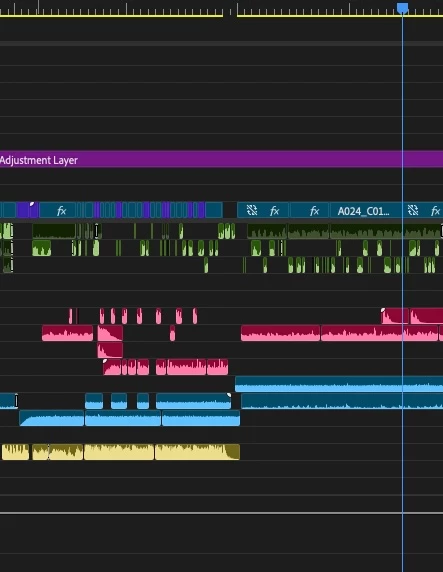
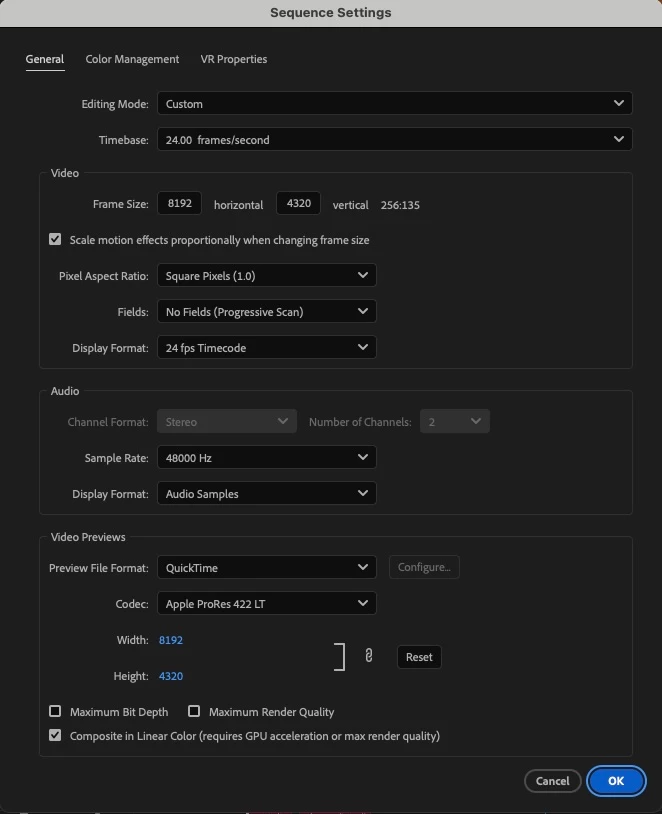
So the situation is as follows... I have edited and sound mixed a film in Premiere Pro. I've attached a screenshot of the sequence settings I've edited / mixed in. And also a screenshot of the timeline to show the tracks used. Tracks 1-4 are dialogue (green), 5-9 are SFX (pink), 10-12 has additional background atmos (blue), and 14-16 has music (yellow). All the audio is a big mix of stereo and mono source material.
The film is essentially finished and now we need to get the it ready for final delivery.
Regarding the audio, I've been told I need to deliver...
Final delivery of the audio should be as follows, and exported as discrete channels (not interleaved pairs):
CH1: English Printmaster Stereo L
Ch2: English Printmaster Stereo R
CH3: Fully-filled M&E Stereo L
CH4: Fully-filled M&E Stereo L
So, my question/s are fairly simple... how do I get from where I'm at now to delivering the correct file? Am I able (from the sequence I'm working in) to simply send the dialogue tracks to somewhere and the Music & Effects tracks to somewhere else, when exporting the file? Or do I need to create a new sequence (with new audio settings) to be able to export it correctly?
The video required is a ProRes 4444, but when I select that and go to the dropdown menu for audio, the 'Output Channels' options are Stereo, Mono or 2 channels. So I'm assuming I do need to be working from a sequence with different settings?
For someone who has only ever been required to export simple stereo audio alongside a video, this is all a bit confusing!
Thanks in advance for any help!
Regards,
Phil
To export a film with multichannel audio, you'll need to set up a new sequence configured for 4-channel output and correctly route your audio tracks. Here's how to do it:
Hi Phil,
Your screenshot looks correct. The key setting to focus on is the Number of Channels at the top of the Audio Tracks settings window—this defines how many output channels your sequence will produce during export. For your project, that should be set to 4.
The audio tracks listed below are where you place clips in the timeline. These do not need to match the number of output channels. It's common to have more timeline tracks than output channels, especially when working with separate elem
Copy link to clipboard
Copied
@Warren Heaton @Richard M Knight @PaulMurphy ... calling in the Big Guns on this.
This is always a fun, joyous part of the process. As the wicked witch of the East says, "These things must be handled delicately ... " .... 😉
Copy link to clipboard
Copied
To export a film with multichannel audio, you'll need to set up a new sequence configured for 4-channel output and correctly route your audio tracks. Here's how to do it:
Your sequence is now properly configured for a 4-channel export and ready for final delivery.
Copy link to clipboard
Copied
If the Printmaster is a mixdown of both dialogue and M & E, you'll want to assign both channels 1-2 and 3-4 for the Fully-filled M&E.
Copy link to clipboard
Copied
Hi Paul,
Thank you so much for the info and guidance, very helpful, I feel much closer to being able to produce what's needed.
Just to check, when I follow steps 1-7, the sequence (before I click OK) looks like this for me (attached). Is that correct?
It's a bit confusing because when I select the Track tab, then set audfio mix to multichannel, there are already 4 in the box below. So adding two more makes 6. But Im' guessing that's not right? It should be 4 in total?
Thanks again,
Phil
Copy link to clipboard
Copied
Hi Phil,
Your screenshot looks correct. The key setting to focus on is the Number of Channels at the top of the Audio Tracks settings window—this defines how many output channels your sequence will produce during export. For your project, that should be set to 4.
The audio tracks listed below are where you place clips in the timeline. These do not need to match the number of output channels. It's common to have more timeline tracks than output channels, especially when working with separate elements like dialogue, music, and effects.
As long as each audio track is properly routed to the correct output channels using the Audio Track Mixer, the setup should work as intended.
Copy link to clipboard
Copied
Thanks Paul,
This...
The audio tracks listed below are where you place clips in the timeline. These do not need to match the number of output channels.
...is sooooo helpful. Adobe may not realise it, but that part is quite confusing, until someone says what you did! I don't know why it doesn't just say something like "add as many individual audio tracks you need for your editing sequence here" or something.
Regards,
Phil
Copy link to clipboard
Copied
Paul has extensive experience in audio work, which actually in that 'silo' is typically done very, very differently from how most general editors work audio.
So for an experienced audio person, that type of thing is expected & normal and they don't think about it. For most general editors, it's a puzzeld mess until you learn how it's "expected" to be done.
And actually, most of Premiere's audio stuff mostly follows general audio practices, except ... where it doesn't ... exactly like most other editing apps. Sigh.
Copy link to clipboard
Copied
Exporting multichannel audio in Premiere Pro can feel a bit technical, but once you get the hang of it, it's straightforward. Just head to the export settings, pick a format like MXF OP1a or WAV, and make sure your audio channel layout (like 5.1 or 7.1) matches your mix. Double-check that each track is routed correctly in the Audio Track Mixer. You want the commentary, crowd noise, and on-field sounds all coming through clearly in their own space for that polished, immersive experience.
Find more inspiration, events, and resources on the new Adobe Community
Explore Now