nicklear
Inspiring
November 30, 2018
解決済み

Moving Premiere project to new PC inc. cache files (.cfa, .pek, etc.)

  • November 30, 2018
  • 返信数 6.
  • 5526 ビュー

Very big project - about 14TB of H.264 footage shot over 3 months (a7sii's & gopro's).

"Media Cache Files" is about 300GB, with the .cfa files being the large files - Premiere seems to make those for any media that doesn't have uncompressed 48kHz audio. Luckily the Sony rushes do have uncompressed, but not the gopro's. I had "save .pek and .cfa files next to original media" unticked. (With hindsight I would have kept this ticked perhaps. The reason I didn't is that I have been using a fast SSD for all these cache files which I assumed would help Premiere out.

I didn't anticipate that I now need to work abroad on a laptop. I already have the rushes and the proxy files on two big external drives, but it took Premiere about 4-5 days to make all those cache files, plus all the .pek peak files in the "Peak Files" folder.

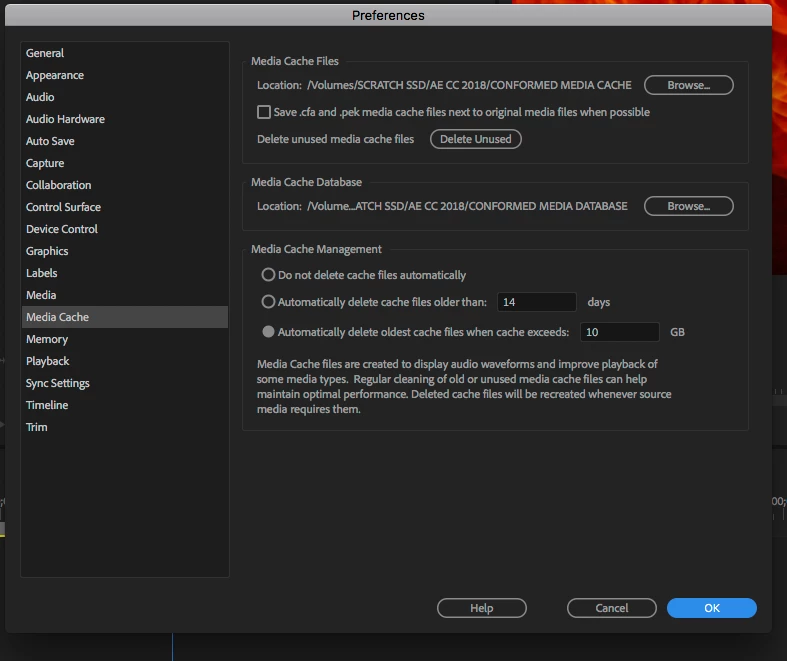
Can I copy the "Media Cache Files" folder onto one of the external drives and then is it as simple as pointing the folder settings to the new folders in Prefs>Media cache? Somehow I doubt it and I haven't found much on this. Most posts and videos are about moving it from here on out, or on deleting cache files.

Update: I have just found an additional 120GB (80,000 files) in "C:\Users\admin\AppData\Roaming\Adobe\Common\Media Cache Files" - can I copy these into the new "Media Cache Files" folder alongside the other files and it will all work out? (so unlikely I know)

Any help appreciated.
    このトピックへの返信は締め切られました。
    解決に役立った回答 Mo Moolla

    Hi Nick

    When you move the files over i.e you don't leave a copy in the original location PP will make it known to you in no uncertain terms that the cache files are missing. So do this:

    OPTION 1

    STEP 1 : (VERY IMPORTANT)

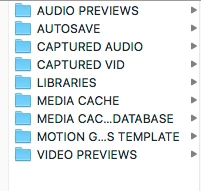
    Move over all your files onto a new scratch area and all in a new folder

    1. Under Preferences point the Media Cache and Media Cache Database to the new folders you created

    Restart PP and cache files will be pointed to in the new location

    OPTION 2

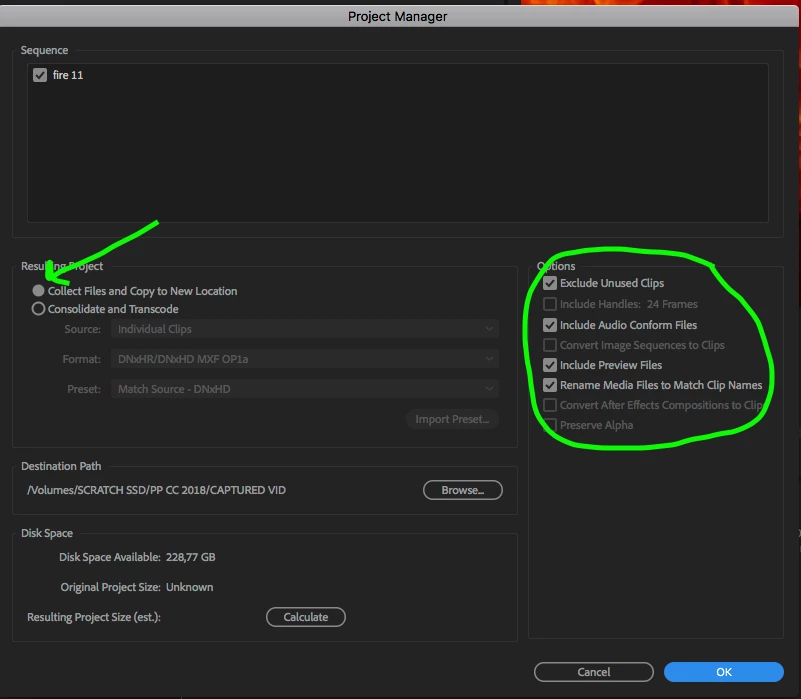
    2. Go to File->Project Manager

    You will see an option thats says Collect Files and copy to new location. Next to this you will see :

    a) Include Audio Conform Files

    b) Include Preview Files

    This will allow you to move everything to a new location, in this case your laptop drive.

    Once done close PP and reopen the project and everything should be nicely tucked away on your laptop

    Let me know how it goes.

    Mo

    返信数 6

    nicklear
    nicklear作成者
    Inspiring
    December 3, 2018

    No, not at all. Thank you for your timely help. I left it late to look into it, I only had a few hours before my flight so I was rushing.

    Mo Moolla
    Legend
    December 3, 2018

    Hope you had a safe flight Nick

    When you can look into this again using a test project let me know how it goes

    Mo

    nicklear
    nicklear作成者
    Inspiring
    December 3, 2018

    OK so this is my summary, of how it worked for me:

    Using option 1 above:

    - Can be re-linked with missing media dialog: clips, proxies, audio previews, video previews
    - Can't be re-linked: the files within "Adobe Media Cache" & "Adobe Database" folders e.g. .cfa, .msdkvideoindex, .prmdc2, .pek. mcdb and the .ims files in C:\Users\[user]\AppData\Roaming\Adobe\Common\Media Cache Files\
    (must be re-created)
    - possible that the option "save .cfa and .pek media cache files next to original media files when possible" ticked makes a difference?

    Using option 2 File > Project Manager

    As option 1, except:
    - Has the option to move "Audio Conform files", i.e. the .cfa files so presumably these files do not need re-creating

    But I realise now that I didn't follow Mo's instructions to the letter for option 1. Reading them again, I think Mo wanted me to move (not copy) the cache folders over to the external drive on the original computer and then re-point the cache folders in prefs on that original computer first, before moving to the new computer. I did not do this. I re-pointed on the new computer, but perhaps this is too late.

    If I have time I'll try to test this on a smaller project and see if I can get it to work.


    Mo Moolla
    Legend
    December 3, 2018

    "But I realise now that I didn't follow Mo's instructions to the letter for option 1. Reading them again, I think Mo wanted me to move (not copy) the cache folders over to the external drive on the original computer and then re-point the cache folders in prefs on that original computer first, before moving to the new computer. I did not do this. I re-pointed on the new computer, but perhaps this is too late."

    Yes correct Nick that is what you were supposed to do.

    I do apologise if my explanation was not as concise as you needed it to be.

    Mo

    Mo Moolla
    Legend
    December 1, 2018

    Hi Nick. Just checking in to see you are all sorted with the"big move"

    Let me know

    Mo

    nicklear
    nicklear作成者
    Inspiring
    December 2, 2018

    Thanks Mo,

    Just moved the project over now using option 1. It does seem to have worked pretty much fine. Everything is playing back fine that I have seen so far.

    It didn't complain when I opened the project about missing cache file though (and at that point the cache folders had defaulted to the C drive on the new computer). But I did then point them to my folders on my external drive and I restarted.

    The project is working fine. Premiere is chugging away "Conforming [filename]" and "Generating peak file for [filename]". I hope it won't do this for the next week! i.e. I hope it is only missing a few files worth.

    I did not try to integrate the 80,000 .ims files files from the C drive of the original computer as I have read that they do need to be re-created on any given host PC - not sure if that's true. It was only 120 MB of files, I had misread in error before.

    Ann - I also would prefer this route, except it had taken 5 x 24 hours to make all of those .cfa and .pek files due to the size of the project and I'm only traveling for 3 weeks. Or did you mean the smaller files like the .ims and .mcdb ones?

    Ann Bens
    Community Expert
    Community Expert
    December 2, 2018

    The project is working fine. Premiere is chugging away "Conforming [filename]" and "Generating peak file for [filename]". I hope it won't do this for the next week! i.e. I hope it is only missing a few files worth.

    Its making all those cfa and pek files now which you did not want it to do....

    Mo Moolla
    Legend
    November 30, 2018

    OPTION 2 is an excellent method of moving an entire project over to a new machine which most inexperienced users never get to see. I trust this as well as option 1 will prove helpful to you.

    Please keep me posted

    Mo

    Mo Moolla
    Legend
    November 30, 2018

    Check your media cache and cache database locations every time you open PP just be sure. I had a similar problem a while back where AE kept defaulting cache locations. Adobe did however patch this.

    nicklear
    nicklear作成者
    Inspiring
    November 30, 2018

    Yes, good idea. I did check and it hadn't changed. But I found this thread: .Crash and .ims Files

         ".ims files are system specific and will always generate to the system drive. They cannot be stored on a server or      external drive.

         FYI: ims files = Cache of file properties used to skip re-reading the file during project load."

    Ann Bens
    Community Expert
    Community Expert
    December 1, 2018

    I would just move the project with the video files and let the new machine remake all the temp files.

    Mo Moolla
    Mo Moolla解決!
    Legend
    November 30, 2018

    Hi Nick

    When you move the files over i.e you don't leave a copy in the original location PP will make it known to you in no uncertain terms that the cache files are missing. So do this:

    OPTION 1

    STEP 1 : (VERY IMPORTANT)

    Move over all your files onto a new scratch area and all in a new folder

    1. Under Preferences point the Media Cache and Media Cache Database to the new folders you created

    Restart PP and cache files will be pointed to in the new location

    OPTION 2

    2. Go to File->Project Manager

    You will see an option thats says Collect Files and copy to new location. Next to this you will see :

    a) Include Audio Conform Files

    b) Include Preview Files

    This will allow you to move everything to a new location, in this case your laptop drive.

    Once done close PP and reopen the project and everything should be nicely tucked away on your laptop

    Let me know how it goes.

    Mo

    nicklear
    nicklear作成者
    Inspiring
    November 30, 2018

    Thanks Mo that's v helfpul

    I think I will try option 1.

    I'm not sure how I would get option 2 to work given that I already have all rushes and all proxies on the two external drives and so they don't need to be moved and I wonder if Premiere is clever enough to do what is needed given that.

    Slight worry, Premiere is making .ims files in C:\Users\admin\AppData\Roaming\Adobe\Common\Media Cache Files even now within the last hour, even with my prefs locations don't point there.