


Inspiring
March 8, 2017
Answered

Multi-cam sequence not all cameras visible

  • March 8, 2017
  • 16 replies
  • 106694 views

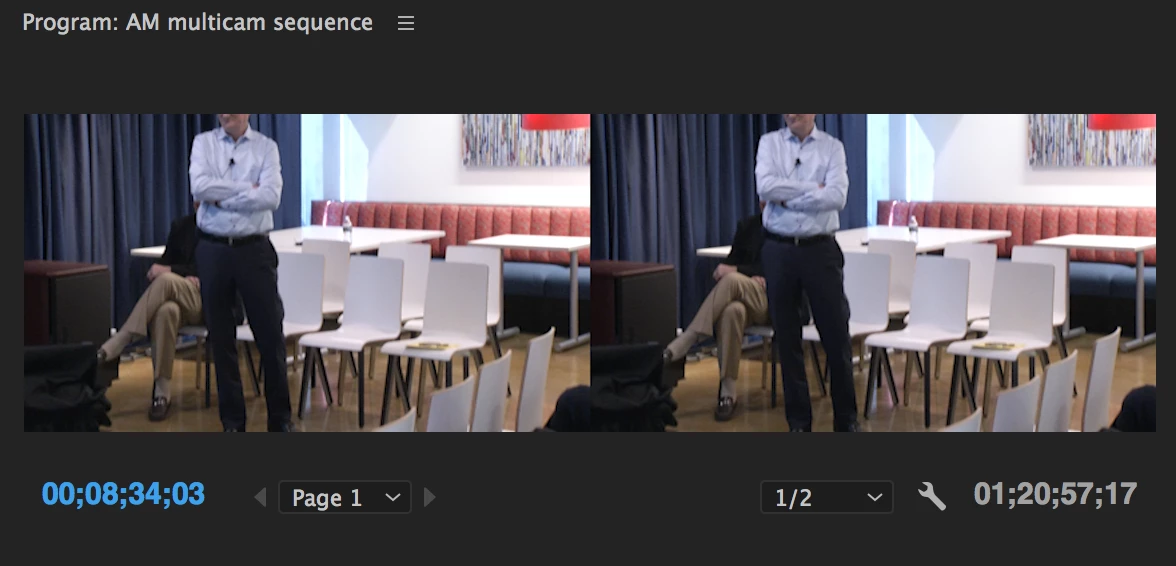
I have been editing a multi-camera sequence in Premiere CC 2017. Everything was going just fine but now I don't seem to have the two views to choose from in the program window. It is only showing me the one camera shot what happened? I really need that second camera back.

I followed the process for creating a multi-cam sequence. And like I said, it was working just fine until I obviously clicked something that got rid of the second camera. The program window is set to multi-camera. And it's enabled.
Correct answer austinb49640774

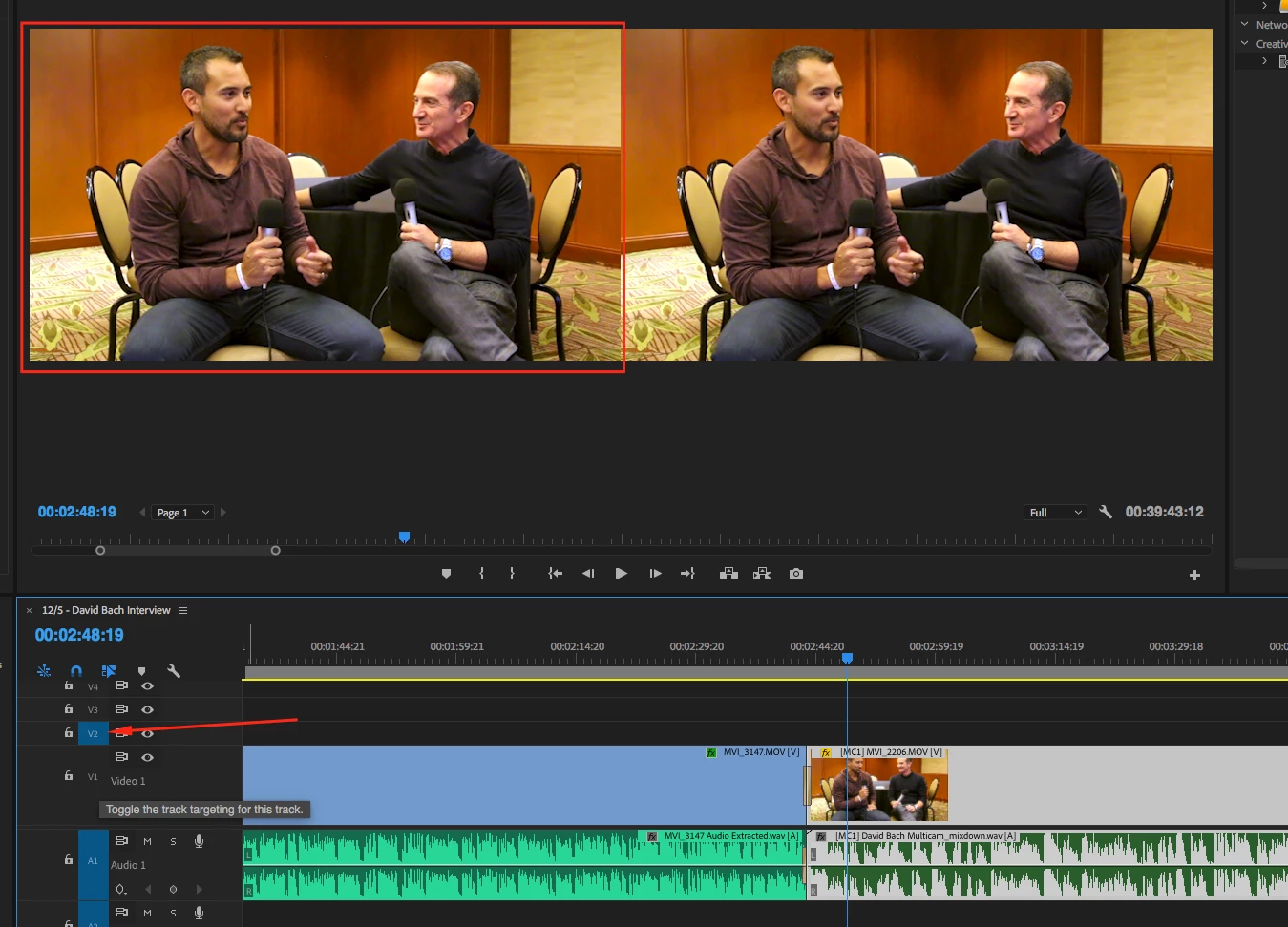
I just solved this. Yes, the tracks have to be selected in the Multicam nested sequence as David pointed out, but you also have to have the mulitcam track selected in the sequence that you are editing in:

16 replies

odinjurray
New Participant
November 23, 2021

Just had this problem too but found out it was because I had my multicam sequence on a layer that wasn't v1. As soon as I moved it down it came back. Strange but it helped.

New Participant
November 8, 2021

I have tried literally everything on this thread and nothing it working for me.  SO frustrating.  Anyone else go through this whole process? I'm working with a very simple 2 camera setup with 4 audio tracks.  I can see both cameras in multi-camera view in the source monitor but not the program monitor.

New Participant
September 6, 2021

2021 user here having a similar issue and going bananas over it.  My solution was to select the entire multicam track, right click, go to multicam, and select ENABLE.  I have no idea how I randomly toggled that off to begin with, but apparently I did and this fix worked for me 🙂

New Participant
May 26, 2025

Thank You!!!!!... i read all the answers, follow all of then and nothing..... "select track - Right Click - multicam - Enable", that was it!! tthankz!

New Participant
September 2, 2021

I tried every solution offered here to no avail, and then I figured it out. Surely there are many reasons why people are experiencing problems with multicam sequences, so there won't be a one-size-fits-all answer. For my issue, I was loading up 4 camera angles into the multicam sequence but I was only getting two camera angles repeated. Instead of having Cam 1A, Cam 2B, Cam 3C, Cam 4D, I was getting Cam 1A, Cam 2B, Cam 3A, and Cam 4B. Even though my individual "nested" camera sequences were 100% different from one another, Premiere was still getting confused by them. Then I figured it out.

I filmed multiple takes of a song for a music video on multiple cameras, and my cameras continued recording throughout the entire experience. To be clear, I used an A7III, FX3, GoPro, and an Osmo Pocket. Once the shoot wrapped, I collectively had 4 video files across the board, though I recorded 4 separate songs for each video file. If I would have stopped recording between takes, I would have had 16 video files, and that would have made this headache hurt WAY less in the long run.


Since I only have 4 video clips that I was cutting into smaller sequences, premiere still only looked at the video files as 4 video files. It didn't matter how much I cut them up or how many different sequences I created. Premiere was only going to offer me 4 cameras since I only had 4 camera clips. My solution was rendering each camera angle for each take separately, then re-introducing them into premiere as a new video clip altogether. So even though I didn't stop recording between each take of each song, I still had to go in during post-production and render each individual song and each camera angle separately. For my purpose of doing a multicam edit for this multicam shoot, I guess it's always better to hit STOP recording if your goal is to add a different camera angle at the end of the day.

my apologies if this was dense or difficult to read or a common sense solution to a common sense problem. I spent almost an entire workday trying to figure this out today. The only way to avoid the duplicate camera angle on the preview monitor is to render separate camera angles separately (if you're dealing with long, single-takes of footage). I hope this helps someone!

New Participant
August 23, 2021

I had the same issue. It's a bug, the ol' quit and restart worked for me.

New Participant
January 23, 2021

now its working in my Multicam Sequence in Adobe Premier 2020 thank you for your help 

New Participant
October 18, 2020

I'm having the exact same issue!


New Participant
October 18, 2020

And the (option up + option down) didn't fix it 😞  

New Participant
October 18, 2020

Unplugging my harddrive that has the project file and all the video and audio assets in it then plugging it back in fixed it!! Oh goodness the things we put ourselves through that people don't even know about!!! I closed the project but never unplugged everyting. Thanks everyone...go editing...

New Participant
January 31, 2020

This was driving me nuts. Thank you for finding the solution and highlighting it here!

New Participant
February 28, 2019

I just stumbled upon this thread having the same problem in 2019. I followed the advice in the "solution" above but to no avail. The selection of tracks in the nested and edit sequences were inconsequential in my case and toggling the track targeting made no difference. I am inclined to believe that even if it was not a bug before, it may be now in Feb 2019. I tested this by doing the following:

Without changing any track selection whatsoever, and having 3 of the 4 video tracks mysteriously invisible in the edit sequence, I selected all clips in the nested sequence (the clips themselves, not the track targeting) and shifted all video clips up one track level (option-up arrow) then brought all the clips back down to their original location (option-down arrow). This instantly resolved the issue and all clips became visible in the edit sequence. Since I made no changes to the track targeting and simply moved the clips out of position and back into position to fix it, I believe this to be a bonafide bug.

As an additional test, I then toggled off track targeting on multiple tracks in both the nested and edit sequence (as shown in the 'before' examples above) and it made no difference in what appeared in my edit sequence. In other words, I could not replicate the invisible tracks by deselecting track targeting.

With those two tests, I am inclined to believe that this is indeed a bug, and that the solution presented by previous posts is simply another way that Premiere can 'reset' itself, appearing as a solution when it may not be.

I am running PP 13.0.2 for those interested.

bdemers007
New Participant
August 9, 2019

Wow!

Had the same problem as you.  I did your track shift up and back, and it did fix the problem.  Gotta burp the baby every so often!

Thanks.

New Participant
December 2, 2018

I had this issue the other day and I tried all of the things listed here but none of them worked. These are all proper solutions too, and have worked for me before,

HOWEVER when I unselected all of the video tracks, so that NO TRACKS WERE SELECTED it immediately went into proper multicam view.

If no solutions work next time you encounter this issue give this a try!