


Participating Frequently
November 26, 2018
質問

Parts of the Video are grayscaled when exported (Premiere Pro 2019)

  • November 26, 2018
  • 返信数 2.
  • 1764 ビュー

I cant find a fix for this grayscale bug in premiere pro 2019?

I was editing my video using premiere pro 2019, there were no problems in the video in premiere pro itself but when ever I export the video, I keep getting a couple of clips in grayscale, when I go back to premiere pro the video is normal and shows no other problem in the color.

I never had this problem when I was using the old premiere pro.

Here's the screen shot of part of the video with the color problem.
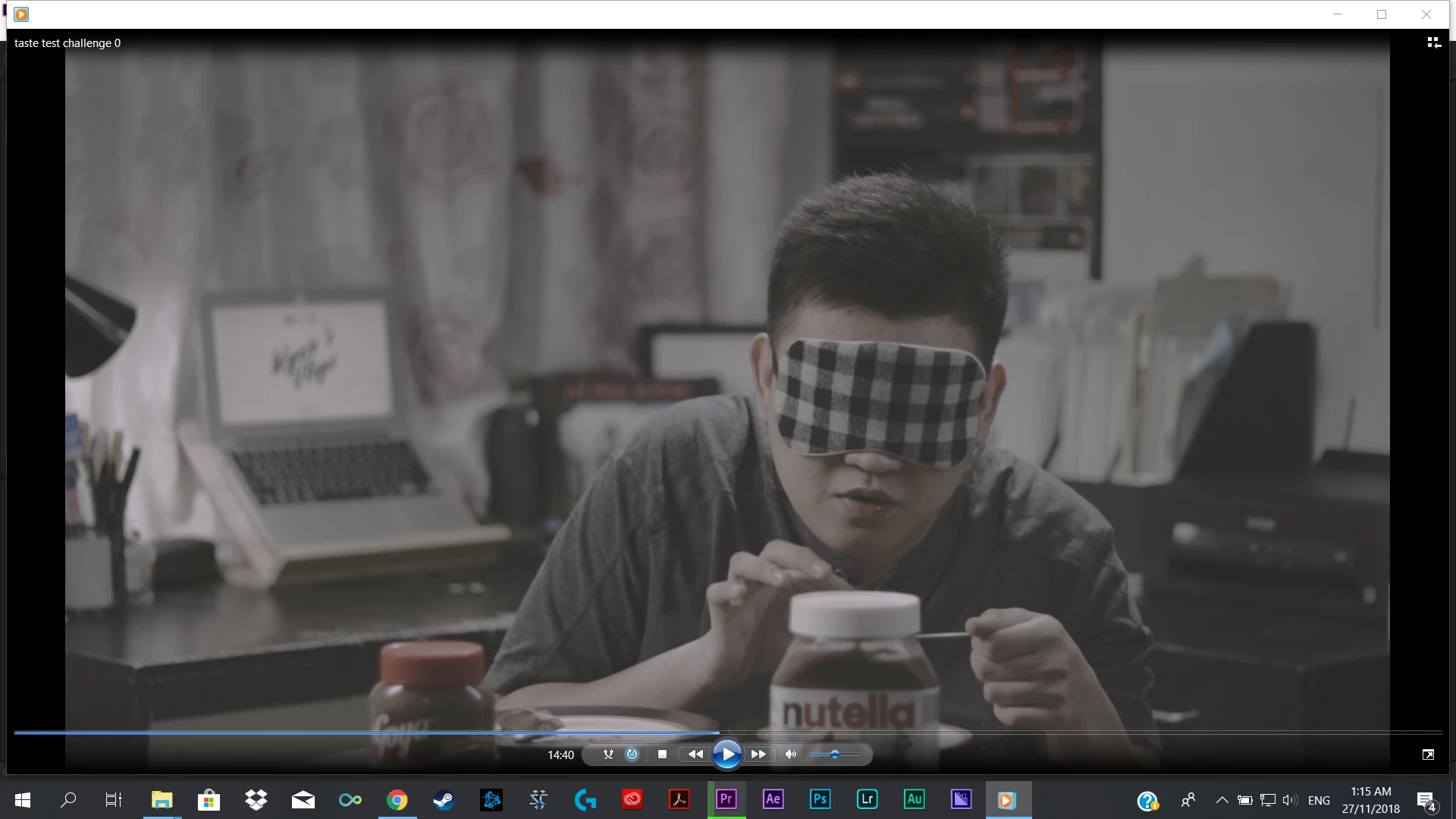
This is the part of video that has no problem in the color, and this is what its supposed to look like, the preview in premiere pro also looks like this and doesn't show the grayscaled bug.
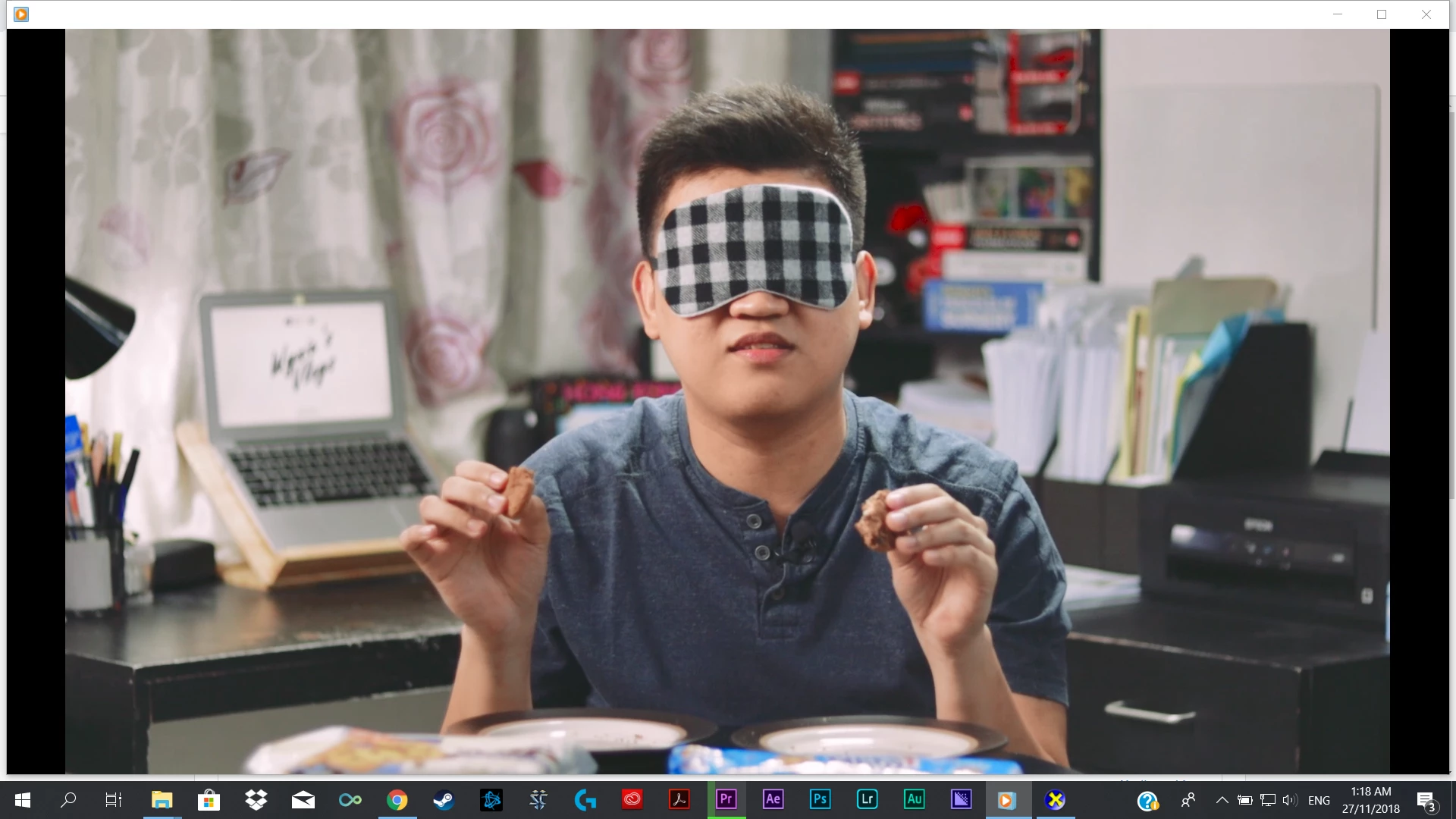
The only work around that i'm trying to use is to keep exporting the video until I get a clean export with no grayscaled bug. The color bug seems to occur randomly affecting only cut clips in premiere pro 2019.

I already tried to look around the forums but couldn't find a fix.

I already tried updating intel graphics card, I already updated my NVIDIA graphics card also, I tried exporting using Mercury playback GPU Acceleration (CUDA) and in software only mode but it still shows the bug, I cant use open CL because it shows me the green and pink video bug

For my project I was trying to export in H.264 using Youtube HD1080p presets.

App used Adobe Premiere pro CC 2019 and Adobe media encoder 2019

Currently using Mercury playback GPU Acceleration (CUDA)

My computer specs:

Windows 10 64 bit

HP laptop

BIOS: F.06

Intel core i7-7700HQ CPU @ 2.80GHz (8CPUs) ~2.8GHz

8gb RAM

Direct X 12

Display 1: Intel HD graphics 630 4mb version 25.20.100.6323 (recently updated to the recommended version that tried to fix the pink and green video bug)

Display 2: NVIDIA GeForce GTX 1050 version: 25.21.14.1701 (Recently updated)

hope someone can help, thanks.

このトピックへの返信は締め切られました。

返信数 2

Mo Moolla
Legend
November 26, 2018

Is the area thats being output with the "washed out " look (it isn't greyscale as I can still see some color in it) the same part of the footage always?

Is this portion a cut on the timeline? And if it is, have u done any color correction on that piece of footage.

Did u shoot the raw footage in takes or is it one long shot?

Can u post the timeline pic and point out where this is occurring ?

Thanks

Mo

Participating Frequently
November 26, 2018

The washed out look never occurs on the same place twice after exporting, but it always occur on a cut in the timeline. All my clips were color graded and applied with Clean Punch HDR lut

The raw footage was shot in one take and cuts were made to shorten in.

Export settings are H.264 and youtube 1080p HD presets

I was able to make a clean export with no color problems after 5 tries.

I tried if it would occur again on the 6th and 7th try and it seems that the problem is still there.

In total 6 out of 7 exports show a problem in the color at random places, it always occurs on a cut on a timeline.

here are the screen shots at the 14:40 mark

[Timeline] >>timeline screen shot: at 14:40 mark

[1st exported video] >>First Exported video at 14:40 showing the washed out look:

[2nd exported video] >>This is the 2nd exported video that doesn't show the washed out look at 14:40 mark:

[2nd exported video] >>however the second exported video had the washed out look appear randomly at 21:54

[2nd exported video] >> and another color problem at 20:44

[timeline] >>This is the timeline screeshot at 21:54

[timeline] >>this is the time line screenshot at 20:44 mark which doesn't show the color problem

R Neil Haugen
Legend
November 26, 2018

Is this always in the same place?

If so, there's an issue maybe in the cache files, so I'd suggest finding where they live in your Preferences dialog, closing PrPro and using Finder/Explorer to go to those folders and delete everything. Reboot, launch giving PrPro couple minutes to rebuild and test the section again.

Also trashing Preferences may help with odd things, there's a FAQ available on that. I think it's invoked by holding Ctrl/Shift down while launching PrPro, but check that FAQ.

Neil

Everyone's mileage always varies ...
Participating Frequently
November 26, 2018

trashing the preferences and clearing the cache didn't work.

The color problem doesn't occur at the same spot twice, the color problem is not seen in the timeline and only occurs when exported.

My previous reply shows the screenshots.

Mo Moolla
Legend
November 26, 2018

"All my clips were color graded and applied with Clean Punch HDR LUT"

Check if that LUT is not corrupt