


Why Does Ultra Key Keep Changing The Color Of My Video
Hi, I'm basically a novice when it comes to video editing but I've been tasked at my job to film and edit product videos each week. I'm filming our subjects against a green screen (a painted wall) and I'm using Adobe Premiere Pro CC 2018 on a Windows 7 (don't worry, we're updating our computers in a few months) PC to edit the videos. Please note that we're a small company and we cannot afford Mac computers or other software. I really need your help in trying to figure out why the Ultra Key effect keeps changing my video color to purple!
When I edited the first product video, I applied the Ultra Key effect by following these instructions (which are from a textbook for Premiere Pro CC 2018):
- Apply the Ultra Key effect to the clip in the sequence.
- In the Effects Controls panel, select the Key Color eyedropper. Use the Key Color eyedropper to click a green area in the Program Monitor.
- In the Effects Controls panel, change the Output setting for the Ultra Key effect to Alpha Channel.
- In the Effects Controls panel, change the Setting menu for the Ultra Key effect to Aggressive.
- Switch the Output setting back to Composite to see the result.
The results came out great! There were no changes to the video color! I was very pleased!
But when I did the second product video (I saved the first project file as a new name and replaced the old footage with the new BUT I did NOT change any settings), I followed the exact same steps as outlined above and when I filmed it, I used the exact same lighting, the exact same equipment, and imported the video exact same way as I did the first time - but when I completed step #5, all of a sudden the video color changed to purple, almost as if the color had been drained and a purple filter had been applied. When I disabled the Ultra Key effect to see what would happen, the video went back to the correct color but of course, the green screen was visible. So I re-enabled the Ultra Key effect and tried switching the Setting to Relaxed which mostly allowed the color to go back to normal (some small areas still looked purple) but as you scroll through the video, the color fluctuates and at times, you can see the green screen trying to come through.
So switched the Setting back to Aggressive and had to correct the color by hand using: the Ultra Key color correction, Lumetri Color, Tint Color Correction, Channel Mixer, Change Color, and Color Balance effects. The process was a painstaking mess that took a HUGE amount of time, was EXTREMELY finicky and in the end, the subject looked like they had a lobster red sunburn.
So for the third video, I started fresh (rather than re-saving the original file) using a blank slate like I had when I started the first product video. But the same thing happened again!!! I can't keep playing with the color every time! All I want is for the Ultra Key effect to work like it did the first time! Does anyone have any idea what's happening?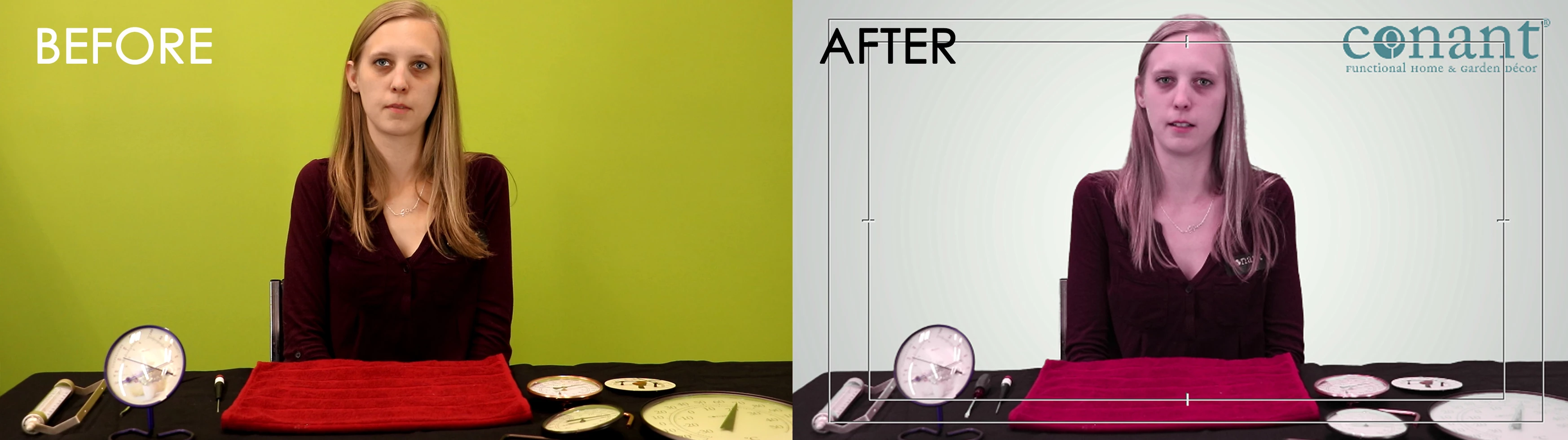
 AdChoices