


October 25, 2011
解決済み

Is there a solution for Searching in Asian Pacific (double-byte) languages?

  • October 25, 2011
  • 返信数 6.
  • 5722 ビュー

RoboHelp HTML (RH9)

I am using RoboHelp 9.0 to create online Help for our company's flagship software application. The project files are composed in English, and then the components, including topics, toc, glossary, etc. are translated into 21 languages. These languages compile without error, creating the appropirate Contents, Search and Favorites tabs.

The problem I'm having is that the Search function does not work tor the Asian Pacific languages; e.g., Chinese (both traditional and simplified), Korean, Japanese, and Thai. The "No topics found" error message displays, instead of the Search results list. See example below.
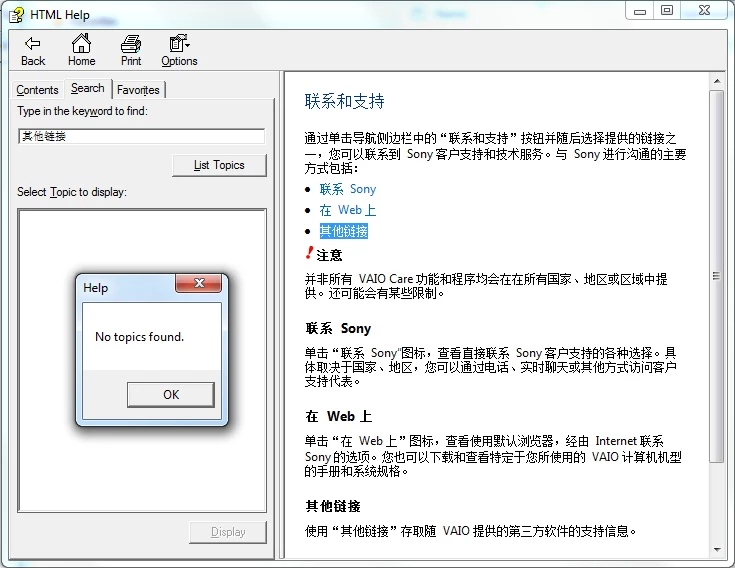
Can anyone help? I'm guessing there's a simple solution to this problem, but I'm not finding it in any of the forums or elsewhere online.

このトピックへの返信は締め切られました。
解決に役立った回答

The simple solution

Compiling HTML Help files for Asian Pacific (AP) languages, including Japanese, Chinese (simplified and traditional), and Thai requires that you change the Location and Locale settings on your computer to match the target language. The Control Panel’s Region and Language dialog has everything you need to change your computer’s native language. It can be deceiving, however, because you must change the settings on three of the tabs, but NOT the fourth. And figuring out WHICH of the three is not intuitive. Here are the steps:

  1. Click Start, and then click Control Panel.
  2. Double-click the Region and Language icon.
  3. On the tabs listed below, do the following:
    • Format - click on the Format down-arrow and select a language. In this example, let’s choose “Chinese (Traditional, Taiwan).”
    • Location - click on the Current location down-arrow and select “China.”
    • Keyboards and Languages - don’t change anything here, unless you actually have a Chinese keyboard and enjoy trying to decipher Chinese characters on screen. This tab changes the language of many of the items displayed on your screen and in Windows Explorer, and expects that you will be entering data on a Chinese keyboard, which I assume is slightly different from an English one.
    • Administrative - click the Current system locale down-arrow and select “Chinese (Traditional, Taiwan)” again.
  4. When prompted, restart your computer.

    You are now ready to compile your Chinese CHM files. When complete, open the CHM and test the Search function to ensure that everything works properly.

That’s all there is to it. I have tested this solution only on Windows 7 Enterprise and Windows 7 Home Edition, but it works just fine with both operating systems. The procedure shown above works equally well for Japanese, Thai , and Simplified Chinese.

IMPORTANT - For all other languages, none of this is necessary. Keep your language and locale set to your native language (English) and your should be able to compile in all non-AP languages.

返信数 6

解決!
January 17, 2012

The simple solution

Compiling HTML Help files for Asian Pacific (AP) languages, including Japanese, Chinese (simplified and traditional), and Thai requires that you change the Location and Locale settings on your computer to match the target language. The Control Panel’s Region and Language dialog has everything you need to change your computer’s native language. It can be deceiving, however, because you must change the settings on three of the tabs, but NOT the fourth. And figuring out WHICH of the three is not intuitive. Here are the steps:

  1. Click Start, and then click Control Panel.
  2. Double-click the Region and Language icon.
  3. On the tabs listed below, do the following:
    • Format - click on the Format down-arrow and select a language. In this example, let’s choose “Chinese (Traditional, Taiwan).”
    • Location - click on the Current location down-arrow and select “China.”
    • Keyboards and Languages - don’t change anything here, unless you actually have a Chinese keyboard and enjoy trying to decipher Chinese characters on screen. This tab changes the language of many of the items displayed on your screen and in Windows Explorer, and expects that you will be entering data on a Chinese keyboard, which I assume is slightly different from an English one.
    • Administrative - click the Current system locale down-arrow and select “Chinese (Traditional, Taiwan)” again.
  4. When prompted, restart your computer.

    You are now ready to compile your Chinese CHM files. When complete, open the CHM and test the Search function to ensure that everything works properly.

That’s all there is to it. I have tested this solution only on Windows 7 Enterprise and Windows 7 Home Edition, but it works just fine with both operating systems. The procedure shown above works equally well for Japanese, Thai , and Simplified Chinese.

IMPORTANT - For all other languages, none of this is necessary. Keep your language and locale set to your native language (English) and your should be able to compile in all non-AP languages.

Community Expert
December 14, 2011

Here's an article on the problem with the chm compiler:

http://helpware.net/FAR/far_faq.htm#JapComp

See if making the suggested changes help with your RH compile. Or follow Rick's suggestion of trying a compile with HHW on a Japanese computer.

Amber

Mo_Arora-xkWzcj
Adobe Employee
Adobe Employee
December 14, 2011

Well, since its a CHM issue, the web browser wouldn't really matter. Or are you saying that its not working for you even in web help? I had verified at my end and things seem to be fine in Web Help.

December 14, 2011

Mohit--

To clarify, your post of December 13, 2011 asked what browser and version was being used. I answered with IE9.0.X. We are creating CHM files (HTML Help), not Web Help.

Whether the problem is browser-related or not should not matter... I agree with your statement. I am creating CHMs with four tabs: Contents, Search, Favorites, and Glossary. The problem is that Search does not work AT ALL with HTML Help. I have tried IE, Firefox/Mozilla, and Chrome; none work. If you browse to any random page, copy Chinese (both traditional and simplified), Korean, Japanese, or Thai text into the Clipboard, paste that text into the Search window, and then click List Topics, NOTHING happens.

We are a global company based in Japan. This means that I have to compile for Japan using Microsoft Help Workshop. The other languages I am crippling by removing the Search tab.

While we're on the subject, the Glossary tab does not work either, unless you install a speciall DLL on every system during the application software install. This is a problem for us, too.

Thanks for your help Mohit!

--Bill

Jeff_Coatsworth
Community Expert
Community Expert
December 14, 2011

Maybe it's time to move off obsolete technology? CHMs came out in 1997 and the MS Help Workshop has been discontinued....just saying ;>)

Mo_Arora-xkWzcj
Adobe Employee
Adobe Employee
December 13, 2011

Could you confirm what web browser (and version) you are using when you encountered this error.

Thanks,

Mohit Arora

Peter Grainge
Community Expert
Community Expert
December 13, 2011

Mohit

Bill will be in bed right now so I am adding some information.

First I think Bill is using RoboHelp 8 and I have asked him to confirm that. More importantly though his post does not mention that he is creating CHMs.


See www.grainge.org for RoboHelp and Authoring tips

@petergrainge

Use the menu (bottom right) to mark the Best Answer or Highlight particularly useful replies. Found the answer elsewhere? Share it here.
December 13, 2011

RoboHelp 9, Peter.

October 31, 2011

If the character is non-Chinese/Korean/Thai, the system will search for and find all instances of that character. If the character is double-byte; for example, if I copy a character from the content and paste it into the search box, it will not find the character.

Community Expert
November 2, 2011

Sorry, I have no other ideas. I thought I'd seen something about double-byte only working for single characters  not multiple, but obviously that's not the case.

Edit: I did some more searching and found a couple of references to search not working correctly for double-byte languages. None for RH9 though. One post suggested contacting support about the problem, or perhaps lodge a bug with Adobe.

https://www.adobe.com/cfusion/mmform/index.cfm?name=wishform&product=38

Community Expert
October 30, 2011

Does it work if you just type one character? (no solution, just kind of wondering out loud)