









Design the future of fashion, win Firefly Pro 👗✨
Photoshop (Beta)
Recently active
When I try to open an image from Adobe Camera Raw by hitting the "OPEN" button it doesn't open in Photoshop Beta) anymore. Please advise.
downloaded PS Beta 27.12. imported jpeg file, unlocked layer I wanted to play with, color is RGB and set to 8 bit. still greyed out. made a selection of layer, still greyed out. Reloaded, rebooted, nothing works. running on windows 11
Hi Photoshop beta friends! We have just added a new feature for the Move tool called "Hover layer bounds" to the Photoshop beta, and it is available to you now! What does it do? This new feature adds the ability to mouse over an object on your canvas and show an outline of that layer. Additionally the corresponding layer will be highlighted in the layers panel. It also has additional function with layers with masks that display both the shown and hidden pixel data. Hover layer bounds also works in the reverse direction as you mouse over layers in the Layers panel. Hover layer bounds is very customizable; You can customize the color, thickness, and the Layers panel highlight color in Preferences > Guides, Grid & Slices and customize the behavior in the new Move tool gear menu in the Options bar. We would love for you to give hover layer bounds a try! Please let us know what you think and how we could make improvements to this f
Photoshop 27.12.0 (Beta版本)將檔案載入堆疊出現錯誤.Error 錯誤 44: 無法轉換. 直線: 41 -> $.evalFile(g_StackScriptFolderPath + "StackSupport.jsx");
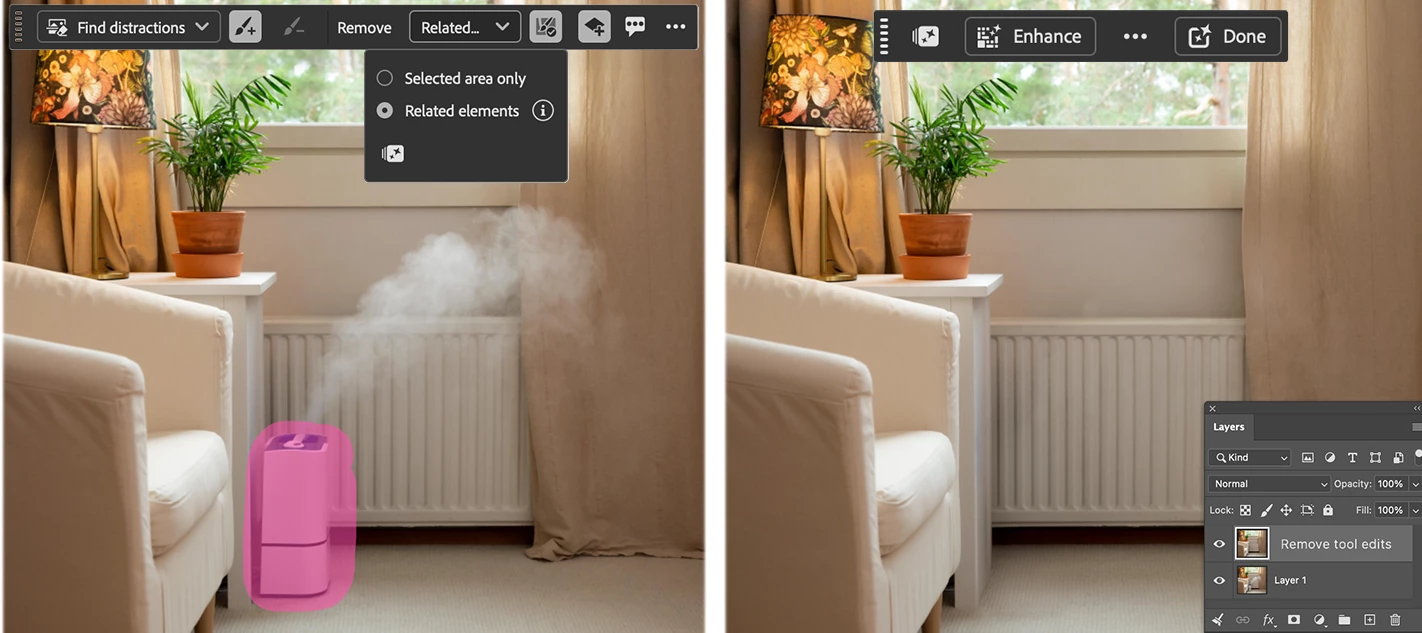
Remove Related Elements (AKA Project Trace Erase) extends the Remove Tool beyond the selected object to clean up the evidence it was ever there—removing shadows, reflections, footprints, splashes, fluid ripples/wakes, lens flare, smoke, steam, and more —for a cleaner, more natural result. This feature is in the public beta as of the October 1, 2026 beta release.Simply brush over the object you want to remove using the Remove Tool. When Remove Related Elements is enabled, Photoshop will automatically find and remove the traces of that object through-out the image. This helps create a more complete and realistic result without requiring separate steps or additional cleanup. Remove Related Elements option in the Remove ToolHow to:Select the Remove Tool from the Tool Bar In the Contextual Task Bar, click on the "Selected Area" drop-down then choose the "Related elements" button. Brush over the object or person you want to remove. (Do NOT brush over just the smoke, shadow, flare etc.) T
This month's update expands access for Freemium users, including a new Start a Free Trial option directly in the toolbar, and rolls Enhance Edge object selection out to more Beta participants with added support for Smart Objects. A broad set of stability and workflow fixes have also been resolved across Generative AI, printing, and performance.New Features & UpdatesMembership & AccessFreemium users can now access the AI Assisted and Pro Editor workspaces, with a new Start a Free Trial option available directly in the toolbar.Generative AIEnhance Edge object selection is now available to more Beta users, including support on Smart Objects.Added credit quota warnings at 90% and 70% usage so you know when you're approaching your limit.Tools & InterfaceAdded an overflow menu for the Object Selection and Firefly Workspace toolbars so controls stay accessible when the window is narrow.Added an up/down squeegee comparison option in Quick Compare.Filters & AdjustmentsAdded on-c
Faster PSD/PSB Save — Now in Photoshop Betaby the Photoshop TeamSince around July we've had multithreaded PSD/PSB opening, so hopefully you've already noticed files opening faster.Today's beta build (Oct 1, m.3694) adds the other half: multithreaded PSD/PSB saving, which is ON by default and speeds up saving for PSD and PSB files.With this enabled, PSD/PSB files that meet certain complexity criteria may be written in parallel (multi-threaded) when saving. In those cases, you should see faster save times, particularly for large files where there is enough work to benefit from parallel processing.⚠️ Avoid Data LossUse Save As when saving so you're working with a copy while you're testing this. If anything goes wrong, better it happens to a copy than your original file. What changedSignificant reduction in save time for many PSD and PSB files. Speed gains depend on file complexity (compression type, bit depth, layers/channels, document content) and hardware (lower end machines with 16GB
Olá, pessoal! Mais alguém percebeu uma queda na qualidade do Aprimoramento Generativo do Photoshop Beta nos últimos dias? Uso bastante essa ferramenta e, até cerca de uma semana atrás, os resultados estavam muito bons, naturais e realistas. Porém, recentemente percebi que as imagens estão ficando mais artificiais e excessivamente processadas, algumas vezes nem parece que foi aplicado o aprimoramento. Em alguns casos, o resultado lembra aplicativos como o Remini: a imagem fica com aspecto de pintura a óleo, principalmente o cabelo, mas é fácil perceber que houve um aprimoramento por IA. Principalmente na pele, rosto e pequenos detalhes, o resultado parece mais artificial do que antes. Gostaria de saber se mais alguém está percebendo essa mudança ou se pode ter ocorrido alguma atualização recente no Aprimoramento Generativo. Os resultados anteriores, na minha opinião, estavam muito mais naturais e fotográficos.
Title: Photoshop Beta displays oversaturated green colors with GPU enabled on wide-gamut EIZO CS270Photoshop version: 27.11 BetaOS: Windows 11Monitor: EIZO CS270, connected via DisplayPortMonitor calibration: freshly calibrated with current Calibrite/X-Rite software; current ICC monitor profile is installed and set as default in WindowsImage color space: Adobe RGB (1998), 16-bitSteps to reproduce: Open an Adobe RGB RAW photograph in Camera Raw. Use Adobe RGB (1998), 16-bit as the Camera Raw output settings. Open the image in Photoshop Beta 27.11. Compare the image displayed in Camera Raw with the same image displayed in Photoshop. GPU is enabled in Photoshop Preferences > Performance. Expected result:The image should have the same appearance in Camera Raw and Photoshop.Actual result:With GPU enabled, Photoshop Beta displays the image with noticeably more saturated greens than Camera Raw. The difference is particularly visible in green areas.Important diagnostic result:When "
A 7601 × 5070 (3:2) image displays horizontally compressed in AI Assisted Editor, while it displays correctly in Pro Editor.
27.6 20260404.m493Steps to reproduce:Select any OTF font. Type a dash followed by a word of your choice with no spaces. Example: “-Hello”. Apply any degree of stroke via styles. Add a space in-between the dash and the word. Photoshop should have froze if steps were followed correctly.
Hi Team, the new FF gen fill and expand is now producing awful results even when trying to add extra pixels/height in a (simplish) yellow/gold background with a slight gradient. see example attached - trying to continue the image to fill in the selected area...the 6 results are terrible and no where near what is desired. This was seamless before and never encountered until yesterday. Has it changed? is there a new version of this? if so then its not working correctly at all and needs to be reviewed. have had zero issues with this in the past year or so and its become a major part of my workflow. can someone please advise as to how and why this happening all of a sudden. any help appreciated - thanks very much,
Simply doens't happen anything, just won't work [Mod: Moved to the Photoshop Beta forum]
Click on clone tool.Hold down alt key and click on area of photo.Release alt key.Clone tool clones entire photo, a copy of wich moves around with the cursor. When clicking on photo again, a copy of the entire photo is placed on existing photo in whatever layer you were in.
Open an image, go to Edit> Replace Sky, and the sky is replaced, but no window opens up to choose a sky, and the app freezes, and you have to press Escape to get back into the app.
Use crop tool to expand the canvas, click on Generative Expand in the Contextual Task Bar…..I get an error message that says To Use This Feature, First Drag the Canvas to Expand, which, of course, I have already done.
For the last week or two, basically every time I am in a project and I try to bring a layer to the front using the bracket shortcuts, Photoshop will crash immediately. Photoshop also is not recognizing that it is crashing - it is terminating immediately and providing me with no recovery file - and I do have that toggled on. Very frustrating as this is something I do often out of muscle memory, so I can easily lose lots of progress.
Photoshop Beta 27.9 - When invoking the Sky Replacement module (Edit > Sky Replacement) the brightness slider is not functional, although it moves freely, there is no visible change in the preview, nor is any brightness to the sky visible when applied. All other slider functions within the Sky Replacement panel function normally. The same feature (sky replacement brightness slider) works normally in non-beta version of Photoshop v 27.8.
What's New in Photoshop BetaThis month's Photoshop Beta update adds Enhance Edge and a redesigned Stock panel, plus Relight improvements and fixes across stability, color, tools, and localization. New FeaturesEnhance EdgeClean up color fringe along mask edges. Select a mask, pick Enhance Edge from the Contextual Task Bar or by right-clicking a layer mask, and Photoshop uses AI to decontaminate the edge while holding onto fine detail like hair and fur. It uses 20 generative credits, and Content Credentials are recorded on the output layer. View Post.Redesigned Stock panelSearch, preview, and license Adobe Stock content without leaving Photoshop. Browse free and paid assets, drag them straight to your canvas, and keep an eye on your credit balance from the panel. View Post. ImprovementsRelightContent Credentials are now recorded on Relight output layers. The Original Lighting slider now defaults to 100% for a brighter starting point (was 50%). Added X and Y position sliders in Light Prop
I can only get Generate Image to work with the latest Firefly Fill model. Not with any of the partner models (Win 11 desktop and laptop - the former running only the most current Ps production rel. 27.6 and the latter running only the latest Ps beta - not both on the same machine). Also, after trying to use reference image with a partner model it’s impossible to delete or remove the downloaded reference image. The trash can icon in the ref image dialog box doesn’t delete or eliminate the downloaded ref image. I’ve tried with multiple different base and reference images. And, I’ve tried by writing a prompt 1st (then the Generate button grays out) or making the selection and trying to establish object only and place in the selected area then choose the partner model. Neither approach works. It only works with the latest Firefly model - no partner models and I prefer working with Gemini and having the flexibility to use prompts.
All of my paid plug-ins have disappeared. I installed Vivion and all the rest of my plug-ins disappeared. How do I get them back?
Photoshop crashing
In AI Assisted, all of the other platforms work except for Googles. I have not run out of generative credits. I have logged out and back in again, and updated Photoshop, but it’s still not working. It was working fine earlier today.
A "Something went wrong, please try again later" error is generated every time a generate image prompt is used (both writing in my own prompt, or selecting a pre-made photoshop prompt, as well as writing in the tutorial one, word for word'). It loads for a couple of seconds before giving a "Something went wrong, please try again later" message with no additional context. This is also the case with generative images in a selected field, and 'generative expand' in the cropping function. Photoshop beta v25.9. Running on MacOS Ventura V13.5. I've uninstalled and reinstalled the app, but this has not affected anything.
Rotate object not working. When click rotate object, that new layer is completely transparent, then when rotate changes accepted, always receive an error.Beta = 27.7 m.3511. Error = Could not update smart object files because of a program error (e2266e.571).
Remix with Firefly Community Gallery
Thousands of free creations to fall in love with and remix in Firefly.
Already have an account? Login
Enter your E-mail address. We'll send you an e-mail with instructions to reset your password.