




Join our Premiere Elements community for tips & help.
Recently active
I only make a file from a few pictures from a Camera. The Camera make jpg files. The Element 15 make with device TV and 4K. This give me a file xavc-s. It words well if I make it from the same filetype, but from pictures the reader stop. I have file witch work about 1:30 min but even one file witch only works in 6 second. All files work in my Computer but when i read them from Samsungs UBD-K8500. The player hangs and I have to take down the power.
As I drag the timeline marker to quickly scan through a video clip I'm editing, I get the random FF kind of audio. I've never worked with a video editor that played audio when scanning or dragging the timeline marker. Is there a simple preference setting to change that behavior?Thanks!
Hi,I just downloaded the trial of Premiere Elements 15 with the intention of buying it and tried making one project.I had the following problems in the hour I was using it, are they typical or bugs or am I doing something wrong?1. There was no easy way to change the duration of all still images in my clip once they had been added.2. After changing the duration of the images and deleting some clips I was left with a lot of blank spaces that I could not delete. Even though I had no additional audio tracks or anything at that time, just stills and some video clips.3. In quick mode you cannot click and drag items on the timeline as a group so that you can drag them to close the gaps, so I had to keep switching to expert mode just to select multiple clips to drag back over the gaps.4. When exporting my video there was 6 minutes of blank space at the end of the video, even though there was nothing visible on the timeline for those 6 mins! I was able to export only the WorkArea bar, but that
I can add Graphics to the motion tracking but I only want TEXT.....example I want to ID a building but do not want a cute graphic to a commercial video.
PE 14.1 on a WIN7 PC, working with an HD video in Expert View.I have added some rolling text (Default Roll) to the timeline (Video 2) & have my text in there.According to the contents of page #199 (Chapter 8 "Creating Titles") of the " Adobe Premier Help"(filename is premier-elements_reference-EN14.pdf) one can set roll and crawl options.It states to double-click the title clip & the adjust panel changes to display the text options.Then it states to select Text > Roll/Crawl options & this I do not see. Any ideas?This is a screen shot of my session:
I am trying to create a 3000x1500 format video for 360VR using Premiere Elements 14. Is there a way to set this size in the opening presets? The defaults are close to usable but I end up with a black hole at the top and bottom of the 360deg.
I am trying to add music to elements 14 premiere. I keep getting this message The importer reported a generic error. All my music is from itunes and i get the same message no matter what song I try to use. Is there somthing i am doing wrong?
This is a brand new installation of APE14. When I try and close a project - either by File > Exit or clicking the top right "x" - I get stuck with the "Save changes to ___________ before closing." I click "yes," and then nothing happens. So I try to close again. Repeat. And even after I've saved it ~10 times, if I press "no," the edits don't save. I have rebooted several times.
does adobe premiere 15 have chroma key editing?
I just got Adobe Premiere Elements 15, and I'm learning how to use it. For a certain video I'm using beach sound effects in the background, but for some reason no matter how low I turn its volume down it automatically turns itself back up towhere I can't hear anything else other than that. It's extremely frustrating. Help?If you're wondering, this is what I do to try and turn it down.-go to audio mixer-turn the music down a lot-play the video-music turns itself back up and is too loudLike, I can't control its volume at all. It's always so much louder than the other audio, the dialogue. Smart Mixer only made it worse, so I disabled that, as well. The yellow-dot-things in the audio portion of the timeline are put at the lowest possible place they can be put, but it doesn't affect anything. I've tried everything I can think of. What am I missing?
I got Premiere Elements 15 a week ago and all worked fine. This morning I worked on a project for awhile, left to do other things, came back – and suddenly it's not working! Specifically, every project runs only in slow motion (even though Time Stretch is set to 100%) and there's no audio.One of the other things I did was install some recommended updates on my Windows 10 Thinkpad, including a new audio driver. But in addition to the Premiere audio problem I didn't get sound anywhere else, so I unstalled the new driver and my audio came back everywhere except Premiere. And the sound thing doesn't explain the slow motion.I've restarted a few times and nothing's changed. Help?
Hi, I have recorded MOD files (Everio) which is 16:9 (720x576). After importing the screen shows 4:3 with black bars on the left and right side. Part of the original screen is just cut off. When playing the original file on VLC I have 16:9. I didn't have this problem before. And I don't think I changed any settings. To fix the issue I checked the "projectinstellingen" and it shows the project is indeed in 720x576. (DV PAL). Note that when I import an MP4 file from my phone it perfectly shows the correct format. So how can I get the original MOD file format in Premiere Elements?Thanks for your support. / Andre
Hello all,I made a short movie with the trial version Premiere Elements 15. All the movie includes the trial mention in the middle of the pictures, it's ok.But I bought the software, I put the serial number... and the trial mention is still here !What have I to do for remove it ?Have I to make again the movie ? Thanks for your ideas and suggestions !Daniel
Hi team!So I installed and tested the trial version of Adobe Premiere Elements 15.I liked it so I bought the full version of Adobe Premiere Elements 15.I entered the license key in the trial version and got rid of the trial versionbanner that appears in your movies. My question:When entering the license key I got a notification that I should make sureall features in the full version was installed on my PC. How do I check that?And how do I install any missing mssing feature?Or do I need to uninstall the trial version and install the full version?RegardsGeorg
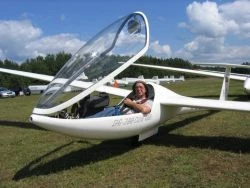
PE 14.1 on a WIN7 PC.Is there a way to restore a video clip on the timeline to its original length?Background: I have created a number of short videos on the subject of flying sailplanes.Such videos on YouTube are generally fairly short to avoid boring viewers.I then create a "Director's Cut" version of same video for club members who are prepared to watch for much longer.This what I need to do is to take a number of clips on the timeline that have been trimmed front & back andrestore to the full length in order to be able to re-trim or possibly show in full.How to?
Tried searching google, but kind of came up empty...What's the difference between an effect and an adjustment?I see that you can do many of the same things either using an effect, or using an adjustment.Which do you use when?Say I have 10 clips on my timeline, and I want to apply the EXACT SAME amount of contrast, color changes, and sharpness to clips # 2, #4, #5, #7 #8, and #10, (but not to clips 1, 3, 6 and 9). Would I use an effect or an adjustment? What would be the best way to do that?Thanks in advance.
Premiere Elements 15: When I choose a still image/photo, and i choose "edit" it opens it in the Windows 10 default image viewer. I want to open it in Photoshop (I'm still using CS6 - it works and it's paid for! ) I haven't been able to find where to set the program that is used when I hit Edit Original when I right click on a still image - help!Thanks
Hello peopleI hope someone can advise me. I am new to video editing and am just about to start putting together a project comprised of photos and video footage and want to know the best format for my video footage to be in prior to taking it into my Premiere Elements 11 system. The project will take many days to finish so I plan to do a lot of saving and do not want the video footage to lose its quality.The video was taken using a Fuji hs20 camera and is 1080p Full HD 30 frames per second using H.264 compression coded (saved directly as MOV files) progresive capture. Sound - WAVE. stereo.I have the Wondershare Ultimate Video converter which has many video formats to choose from including some in HD.I intend to get the project out to Youtube, Vimeo and perhaps make a blu ray disc.ANY, advise would be appreciated as I am new to editing and not technically minded.Sincerely Alan  
Hello all,I have a problem when I burn a dvd with adobe premiere elements 15 (recently owned).I have imported a mpeg video into adobe premiere. The video is fine, everything is ok.Then I create a dvd menu, and add "mark" in the timeline to have direct access to some scenes.FInally I "share" the project on a dvd ( in iso file in fact ).The problem is when I display the dvd, the video is shaking. And not only my video, but also the dvd menu ! It's li,e a parkinson guy handle the camera...As the dvd menu are also impacted, I think it's not part of my original video format, but more a problem on the dvd burn coding .... even if it's on ISO and not directly on a DVD.To confirm that, I tried to directly burn on a dvd, without using ISO. It's the same.Do you already have this type of problem ? How can I solve it ?Thank you for your help !
Should I transcode my Sony XAVC S files (which is a highly compressed codec) into a less-compressed file before importing into premiere elements?I would like to optimize playback and rendering speed. However, if I use the render timeline function, the resulting timeline preview is so bad that I can't tell whether the clips need to be sharpened or need noise reduction or some other effect. The rendered timeline just looks nasty...And are you using a program for transcoding that you can recommend?Thanks in advance.
My only goal with this "project" is to convert a friend's video from mp4 to mpeg, and the only way I can think to do it (for free) is by importing it into premiere and exporting it as an mpeg file. The problem is, when I import the file, it cuts the video from 6 minutes and 18 seconds long to 3 minutes long and 9 seconds long. This only seems to happen with this file, no other video is being cut like this. It's especially peculiar as this exact issue was happening with this same video clip on a different computer. The video is 1.6 Gigabytes large, perhaps the large file size is presenting an issue? I honestly have no idea why else the program refuses to import the file. Any ideas?
I am having a problem with my stills in my project. They pixelate to the point of being blurry. I've tried using the organizer to, and it helped. But then I added several additional photo's and the problem came back. I've tried rendering, no help.Any idea's for a solution? I'm using Premiere Elements 12.Thanks in advance for any help.
Can you give me tips on how to sharpen videos WITHOUT it becoming very noisy and / or jaggy looking? (I am running windows 10 64-bit)For instance: is there a way to mask the sharpening or limit the sharpening so that it only affects higher-contrast areas of a clip? (Similar to the way that lightroom allows you to mask the sarpening)?I am not very satisfied with the built in sharpening. Is ther another FX that needs to be used in conjunction with Sharpening to make it look good? do I have to buy a plugin that costs more than the cost of Premiere elements to make the video look sharp?I normally shoot a flatter profile with sharpening and contrast turned down.
Hi,I'm about to possibly buy Adobe Premiere Elements 15 if it can handle H.265 in a smart way.I've downloaded the test version and just saw H.264 for export? What about H.265?Are there extra plugins available?Thx
On the timeline, whenever I press "PLAY", either by clicking the Play/Pause toggle button, or by hitting the space bar, a pretty big black box pops up over the Render button that says, "Render: For smooth, high quality playback, render your timeline". The box will also pop up if I hover the mouse over the Render button. It will stay up for 3 or 4 seconds, and will not go away by clicking it.It's irritating. How do I switch it off? Thanks!
Remix with Firefly Community Gallery
Thousands of free creations to fall in love with and remix in Firefly.
Already have an account? Login
No account yet? Create an account
Enter your E-mail address. We'll send you an e-mail with instructions to reset your password.