

Welcome to 3D Model Import in After Effects!
Today is one of those really exciting days for us on the After Effects team. The ongoing work building out our 3D design space now gets the best addition yet – native support for 3D models. As of today’s build (23.1 Build 44) you can now import .OBJ, .GLB or .GLTF models directly into your project, and drop them into your composition.
We are anxious to get this into your hands so we can learn more about the features you want us to focus on. This is not meant to replace a dedicated 3D product. We are building a 3D toolbox to enhance your creative options directly within After Effects.
Choose CMD/CTRL + I (or File > Import > File) and import your model from the browser window. When you drag your model into the comp, a Model Settings dialog will appear. You can also reopen this dialog any time from the Layer menu. Change the settings to get the model to the sizing you want, or choose the ‘Make Comp Size’ button to have AE do it for you.
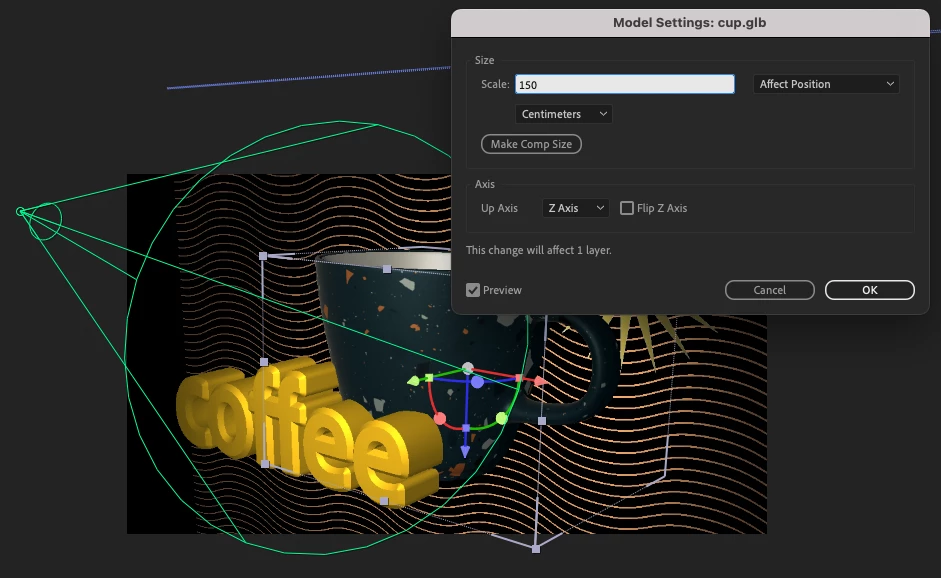
With this first build, the models will import with any materials already attached, into your composition – alongside other 2D or 3D layers. In the same way that there is now a default 3D camera until you choose to add your own, there is a default light which will be disabled when you add new lights to the scene.
Rendering-wise, we are starting from the ground up. When you add a model to your comp, your 3D renderer will change to the new ‘Mercury 3D’. Turn on Draft 3D to use the ground plane or extended viewer, as well as faster previews once your composite gets busy. Work on the render engine has been focused on basic functionality, and there are plenty of features not present yet, such as shadows or material modifications. We look forward to learning more about what you need here specifically.
We’ve created this FAQ with answers to the first set of questions we anticipate, as well as Known Issues in this build. We will add on to this as we go along.
We hope you are as excited as we are, and we can’t wait to see what you create. ENJOY!


 AdChoices