
Inspiring
June 26, 2022
Answered

Cross-issue with SVGs between Illustrator and InDesign

  • June 26, 2022
  • 8 replies
  • 10682 views

Dear all,

I am having a hair-tearing issue which is involving both InDesign and Illustrator. Posting to the Illustrator community got zero answers in about three weeks, so I hope someone will be able to help me here. I will try to describe the issue to my best. 

  1. Start from a PDF exported from a non-Adobe app (I used Sibelius, Dorico, and others, with the same result)
  2. Open the PDF in Illustrator 26.3.1 (the issue reproduces partially in the latest version from 2021, will mark precisely what and where). In the opening dialog, check All for Select Page and check the box to import links. Result: both versions of Illustrator will import the file perfectly, with 9x12in artboards corresponding beautifully to the PDF page size. 
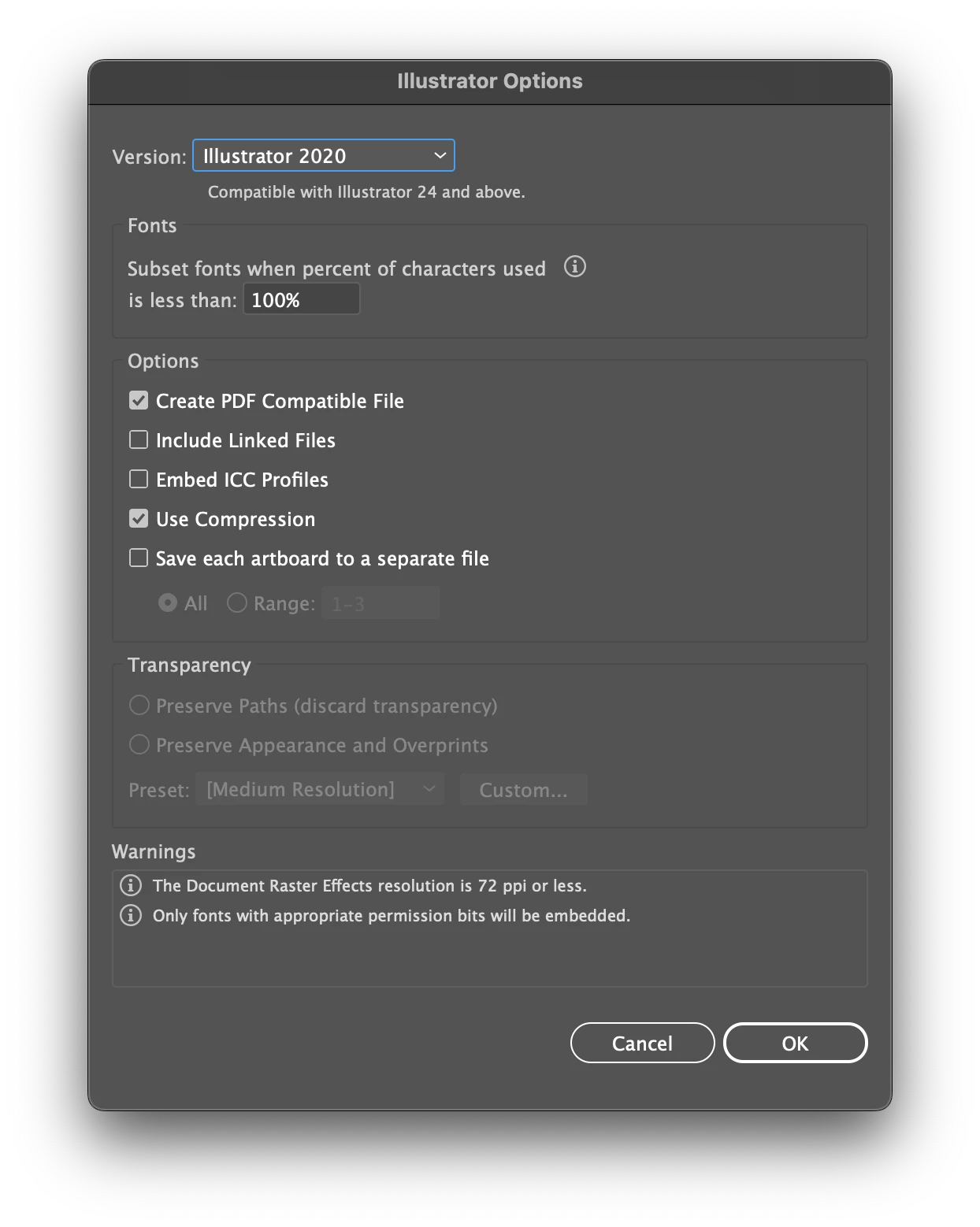
  3. Save both files as AI documents. The default options I see are as follows (this is from 26.3.1 where there is a warning about raster effects which is not clear to me. Such warning is not present in v2021)
  4. Now, close both files and reopen them, possibly from Finder, but it should work the same from Illustrator's home page. In 26.3.1 it will open completely deformed, as this:
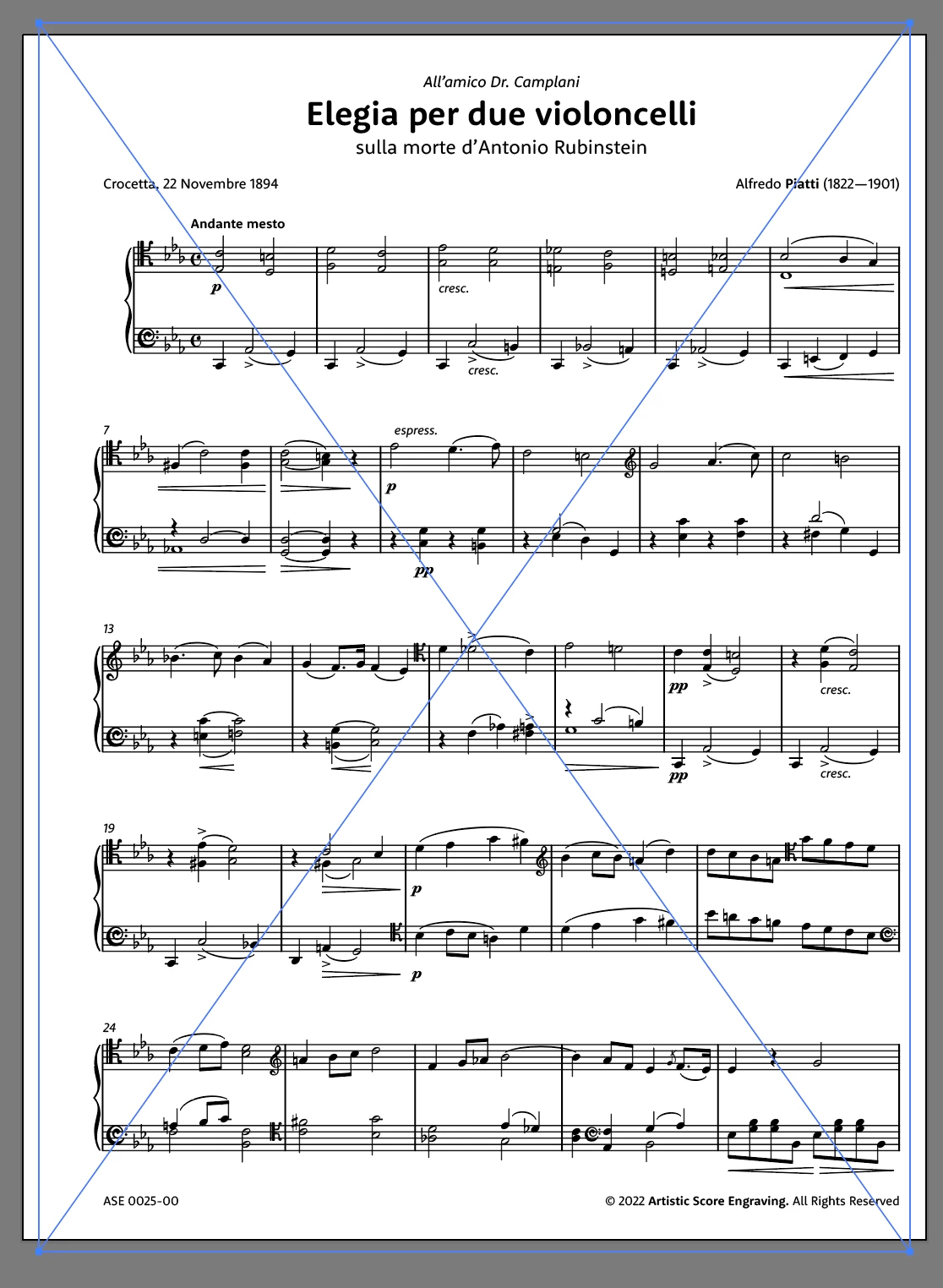
    In 2021 version it will open normally. Doing a clean reinstall of 26.3.1 doesn't show the deformation but the issues do not end here.
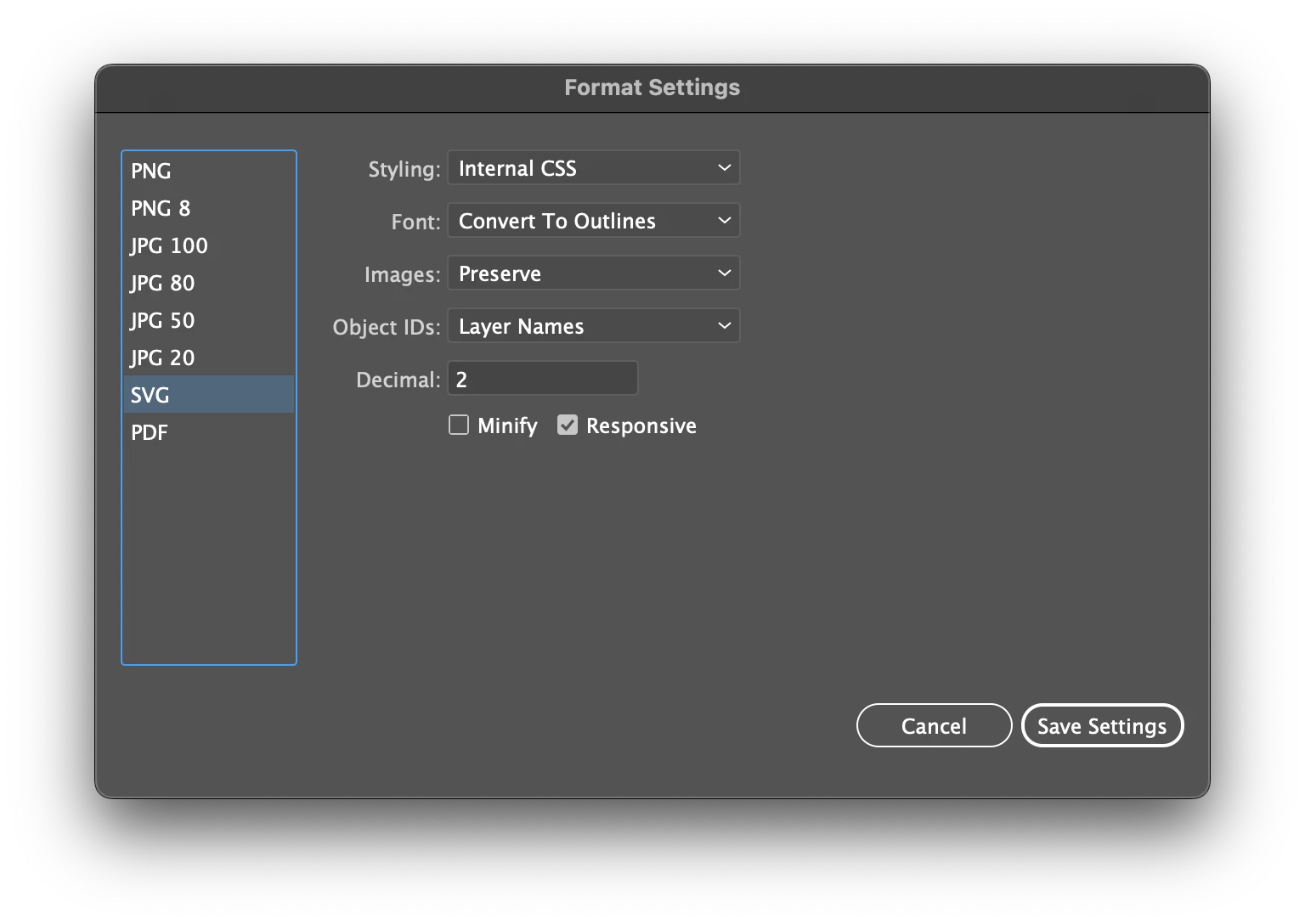
  5. Now go to File > Export > Export for Screens, then set it to export all artboards to SVG with these settings (which I think are good because without converting to outlines InDesign will complain about missing fonts)
  6. Now, place these SVGs into page-size graphic frames carefully set up in advance into the destination InDesign document (page size 9x12 in). This will be the result (screenshot taken from InDesign 17.3):
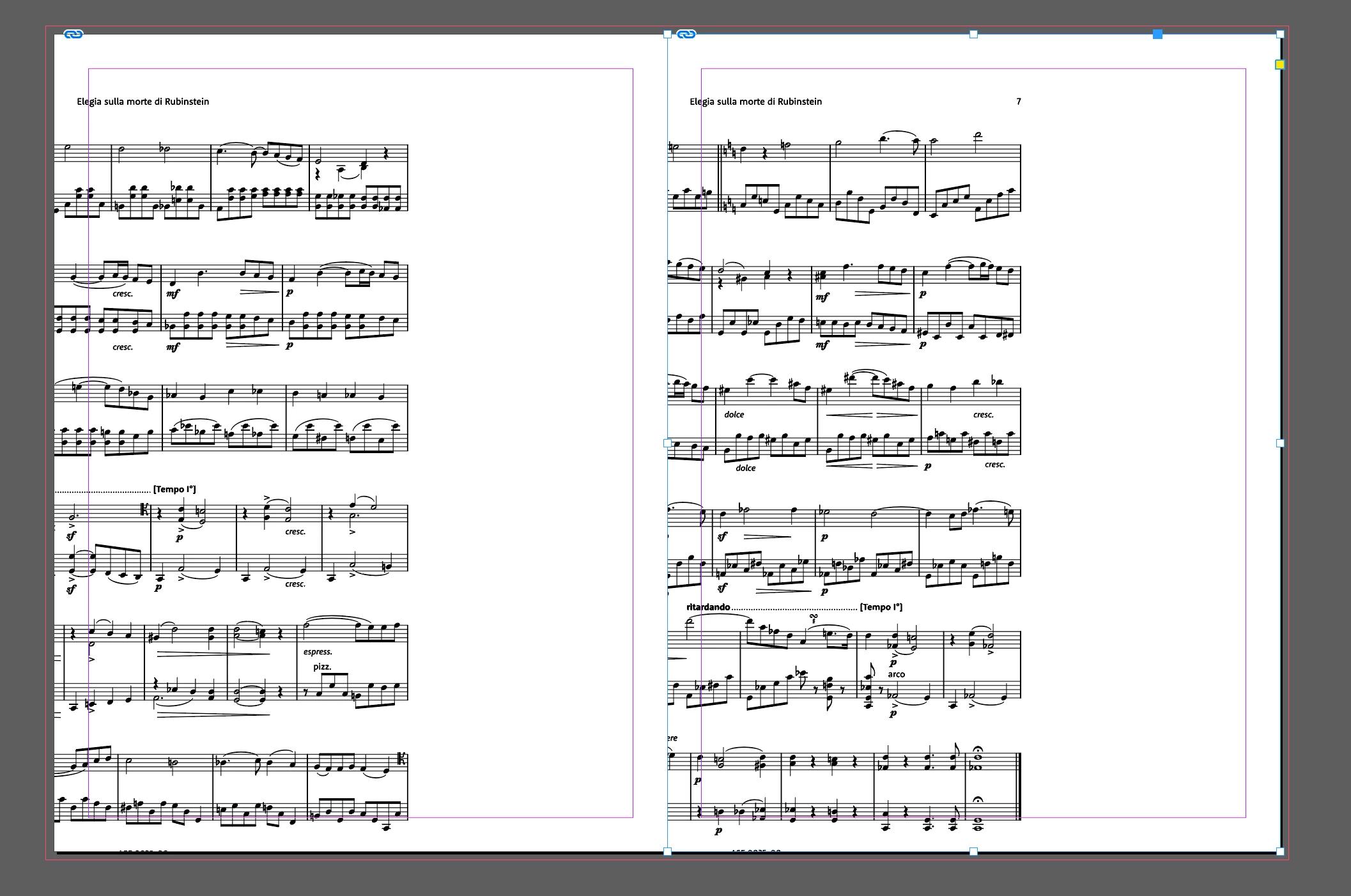
    Selecting the graphic handle shows a possible issue with the exported SVG: look at the horizontal size of it:
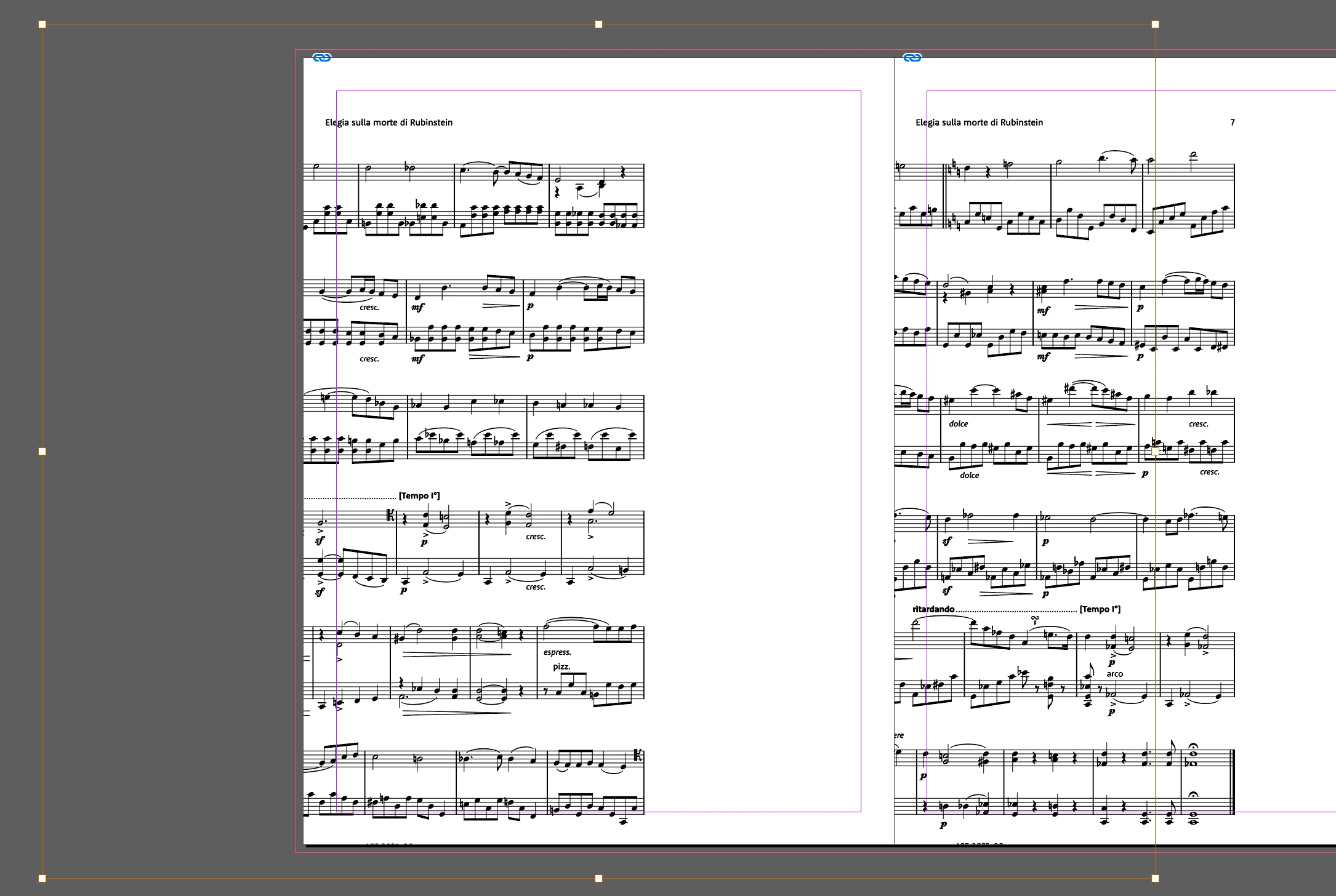
At this point I am completely stuck as this is possibly the 20th musical score I repeat this process in the last year or so, and never it has given me these results. Settings are the same as always and I cannot understand what is going on. 

I am attaching a PDF from the offending batch that you can use (only for testing) to reproduce all these steps with the same file that started it all. 

I truly, and deeply, appreciate any droplet of help you will be able to give to me.

Thank you in advance so much

P.S.: I even tried to "fix potential font issues" with Acrobat's Print Production Postflight automation, then opened the PDF in AI, saved as .ai, then exported to SVG with convert to outlines chosen. I will let the attached SVG speak for itself... 


This topic has been closed for replies.
Correct answer Laubender

Hi Inélsòre,

had a quick look into the SVG code of your Arboard1.svg:

<svg id="Layer_1" data-name="Layer 1" xmlns="http://www.w3.org/2000/svg" xmlns:xlink="http://www.w3.org/1999/xlink" viewBox="0 0 648 864">

The issue with the code above is that only viewBox is defined.

Properties width and height and their corresponding values are missing.

And that is crucial if you import SVG graphics to InDesign.


Solution ( not tested yet ) :

Uncheck option Responsive in the export to SVG dialog in Illustrator.


Then both missing properties would be added in the code above.

InDesign should have no issues with the bounding box if this is done.


FWIW:
We discussed this a lot here in the forum.


Regards,
Uwe Laubender
( Adobe Community Professional )


8 replies

Community Expert
July 21, 2022

@Inélsòre said in this post https://community.adobe.com/t5/indesign-discussions/cross-issue-with-svgs-between-illustrator-and-indesign/m-p/13071851#M484374:

"I'm here again because, once again, I had issues in placing SVGs in InDesing."

"What could have gone wrong?"


Sorry, I have no idea.

Please share the original PDFs before you placed them in Illustrator and before you changed something with Acrobat Pro.


Regards,
Uwe Laubender
( Adobe Community Professional )


Inspiring
July 21, 2022

Attached the file exported from Dorico.

When I import into Illustrator it shows a few strange things:

1. A path around the text objects that goes way beyond the artboard boundaries

2. The import dialog shows as if the image would be cropped to exclude any white space to the right and below the existing material. Not sure if I'm clear with this, as if the registration point of the image was in the top left, and the white space in the bottom right got cut out.

Thanks for checking.

Community Expert
July 25, 2022

Hi @Inélsòre ,

I have no issues at all with the your ASE 0025-01 - Piatti - Elegia Rubinstein - Violoncello 1.pdf.

Opened it in Acrobat Pro, converted all fonts to outline, placed the PDF pages 2-3 ( page 1 is empty ) in Illustrator. Note, I did not place and link the PDF pages. Exported to SVG, where I enabled the option to use the artboards, of course I disabled option Responsive and had no issues at all to place both SVGs in InDesign.


Download the files from my Dropbox account:

200721-1-ASE 0025-01-Uwe.zip

https://www.dropbox.com/s/lzzzg1q893skr6y/200721-1-ASE%200025-01-Uwe.zip?dl=1


Regards,
Uwe Laubender
( Adobe Community Professional )

rob day
Community Expert
Community Expert
June 27, 2022

Hi All, What’s the reason for using the SVG format vs. simply placing the PDF.


I assume it’s because the SVG is a vector format and is scalable? But if I place the PDF and export to ePub with the Resolution set to 300ppi, I get a PNG image in the ePub package that is 2700 x 3300 pixels, more than enough for a large tablet (e.g. iPad Pro).


Outlining the text removes the font hinting, so there is no longer an advantage with text vectors vs. the high res bitmap. The file sizes are similar 254KB for the PDF export vs. 276KB for the SVG export. If file size is a concern I can get the page down to 180K by opening the PDF in Photoshop and saving as a black & white Bitmap and placing that in InDesign.


I’m not seeing any meaningful quality difference when I view the 3 versions in iBook—see attached

Inspiring
June 27, 2022

Hi Rob,

thanks for joining the party!

You are absolutely right: in normal conditions there would be no advantages to using SVGs but, there is a big BUT!

At least in InDesign, when you export an indd to EPUB, all non-SVGs (possibly there are other resilient formats but I'm not aware of them) are converted using either of JPEG, PNG, GIF, at a ppi resolution ranging from 72 to 300. So, from vector to raster. If you unpack your EPUBs using an archive utility, you will find an "images" folder nested inside, containing your PDF pages changed to whatever was chosen above. 

Still, choosing 300ppi this should be good enough, right? Well, yes, unless you want to publish to Apple Books. Each page must not contain raster objects greater than 4 million pixels, which at 300ppi is sure. Then, InDesign adds some PNG blank images here and there that must be manually resized to allow for Apple Books EPUB validation. 

With the invaluable help of @James Gifford—NitroPress@Laubender, and others, we managed to find a workflow that allowed me to publish to Apple Books with a certain degree of success (in the upload phase, at least!). Once SVG are placed in InDesign, one needs to be sure to set the Object Export Options to "Use Existing Image for Graphic Objects", setting the file type to SVG and then the palette to "Tagged SVG" (this last part I know not the reason of, a part from that it works better than the other option). This odysseys is thoroughly described in this post: The wonderful odyssey of publishing to Apple Books (possible issue with hyperlinks creation).

Hope this clarifies the reasons behind this apparently unnecessary workarounds!


James Gifford—NitroPress
Legend
June 27, 2022

Glad to be of help. EPUB issues are difficult enough to straighten out without all the misleading, outdated information to wade through. 🙂


As for — "Hope this clarifies the reasons behind this apparently unnecessary workarounds!" — I read that reason as "Apple Books." I understand they have their preferences and perceived market, but there are so many hurdles to getting a successful publication there it makes KDP's whimsical rules look simple.


But then, I go back to the days when Mac libraries and APIs were written with deliberate complexity and obfuscation, to impose a gigantic 'first step' for programmers who wanted to work with the new system. If you weren't good enough, you see... and, unfortunately, that's an attitude that Big A has never quite let go. IMVHO.


Community Expert
June 27, 2022

And yet another thing. You might have wondered why I suggested this as a first step in the workflow:


[1] Open the PDF with Acrobat Pro DC.

> Convert all fonts to outline


I placed your provided SVG file in InDesign and obviously had some issues with missing fonts or missing glyphs in the placed SVG:


InDesign 2022 version 17.3.0 on Windows 10.


Regards,
Uwe Laubender
( Adobe Community Professional )

Inspiring
June 27, 2022

Actually, this issue arose when I did the following:

  1. open original PDF in Acrobat
  2. apply the fix potential font problems fixup (not the one you used about outlines)
  3. opened "fixed" PDF in Illustrator (looked perfectly fine)
  4. exported to SVG outlining fonts (with responsive checked at the time)
  5. inserted SVG into InDesign

Do you think it is better to (1) outline fonts in Acrobat (2) open PDF in Ai (3) Export to SVG without outlining fonts again but unchecking responsive or (1) open PDF in Ai (2) Export to SVG outlining fonts & unchekcing responsive? 

Community Expert
June 27, 2022

"Do you think it is better to (1) outline fonts in Acrobat (2) open PDF in Ai (3) Export to SVG without outlining fonts again but unchecking responsive".


Absolutely that!


I wouldn't trust Illustrator to use the right font styles if you open the PDF in Illustrator.


Regards,
Uwe Laubender
( Adobe Community Professional )

Community Expert
June 27, 2022
Inspiring
June 27, 2022

Here's the link to that discussion: Another issue with Export for Screen > SVG 

Community Expert
June 27, 2022

"Are you referring to the fact that checking "Responsive" would cause the width-height not to be defined?"

Exactly.


"How could I have known about this?"

There should be discussions here in the InDesign forum and in the Illustrator forum as well.

Ok, I was the one who made that publisc already in November 2019:


Now import SVG in InDesign !
Laubender, Nov 06, 2019

https://community.adobe.com/t5/indesign-discussions/now-import-svg-in-indesign/m-p/10717683#M159403


At that time I did not know that option Responsive in Illustrator's save or export dialogs was responsible for not writing width and height properties. The solution to uncheck option Responsive came later after I tested a lot with Illustrator's various export to SVG options. Here a post from 2021:


Help with placing svg exported from illustrator
Laubender, Jun 04, 2021
https://community.adobe.com/t5/indesign-discussions/help-with-placing-svg-exported-from-illustrator/m-p/12090681#M432098


Well, also be aware that there is a second important issue when working with placed SVG graphics.

But this could be only be important if you work with Publish Online. It has to do how you scale placed SVG graphics in InDesign. All details:


Images not exporting properly when publishing online
Laubender, Sep 01, 2021
https://community.adobe.com/t5/indesign-discussions/images-not-exporting-properly-when-publishing-online/m-p/12357366#M443485


"I am mildly familiar with code so, how can I inspect SVG code?"

Just use a text editor of your choice. SVG is just a special sort of XML. I worked with Notepad++ on Windows 10.


Regards,
Uwe Laubender
( Adobe Community Professional )

Community Expert
June 27, 2022

Hi Inélsòre,

now that I went through the workflow, I had no issues when I did it this way:


[1] Open the PDF with Acrobat Pro DC.

> Convert all fonts to outline


[2] Open the converted PDF pages in Adobe Illustrator (see screenshots below)

> Saved to SVG when option Resposive is not checked.


Use Artboards checked:


Note, that option Resposive is unchecked ( it is checked by default in Illustrator ) :


Regards,
Uwe Laubender
( Adobe Community Professional )

LaubenderCommunity ExpertCorrect answer
Community Expert
June 27, 2022

Hi Inélsòre,

had a quick look into the SVG code of your Arboard1.svg:

<svg id="Layer_1" data-name="Layer 1" xmlns="http://www.w3.org/2000/svg" xmlns:xlink="http://www.w3.org/1999/xlink" viewBox="0 0 648 864">

The issue with the code above is that only viewBox is defined.

Properties width and height and their corresponding values are missing.

And that is crucial if you import SVG graphics to InDesign.


Solution ( not tested yet ) :

Uncheck option Responsive in the export to SVG dialog in Illustrator.


Then both missing properties would be added in the code above.

InDesign should have no issues with the bounding box if this is done.


FWIW:
We discussed this a lot here in the forum.


Regards,
Uwe Laubender
( Adobe Community Professional )


Inspiring
June 27, 2022

Thank you, this solved the issue.

It sounds strange to me because other times when I had "Responsive" checked it worked fine. 


FWIW:
We discussed this a lot here in the forum.

Are you referring to the fact that checking "Responsive" would cause the width-height not to be defined? How could I have known about this? I am mildly familiar with code so, how can I inspect SVG code? Sorry if I asked something that was already solved elsewhere, but I had no idea this was connected. 

Thank you for your help!

Nigey-LTA
Known Participant
June 29, 2022

I tried using illustrator for SVGs and gave up, don't really want all the hassle of going into the SVG file and editing code - just too idle!  I now use Affinity Publisher to generate SVGs - use them extensively and they appear so far to be totally trouble free in use

rob day
Community Expert
Community Expert
June 26, 2022

Now, place these SVGs into page-size graphic frames carefully set up in advance into the destination InDesign document (page size 9x12 in). This will be the result (screenshot taken from InDesign 17.3):


Hi @Inélsòre , Why do you need the .SVG format? Are you exporting the ID pages to ePub/HTML?

Inspiring
June 26, 2022

Yes, EPUB ... I know ... if you look at my past posts you will see all the pain I have already endured...

Since things were difficult but in the end working, I have no idea why they are not working now. 

Willi Adelberger
Community Expert
Community Expert
June 27, 2022
  1. SVG are only useful for EPUB and only PDFs for screen use, never for print.
  2. Otherwise use PDF/X-4 in InDesign.
  3. Illustrator is NOT a common PDF editor. Only PDFs created in Illustrator (when all links and fonts are available) can be edited without destruction.
  4. If you place a linked PDF into Illustrater and reduce transparency with converting strokes and fonts you could save the appearance.
  5. Don't use multipage AI functionality for SVG. A single file for each page.